Microsoft 365 Free Reporting Tool — Groups With Disabled Users Report
In Microsoft 365, disabling a user account is a common administrative action. But what often goes unnoticed is what happens after the account is disabled.
In many tenants, disabled users continue to remain members of Microsoft 365 groups, silently retaining group memberships that may no longer be required. Identifying such groups is not straightforward using native tools.
The Groups With Disabled Users Report, available in the M365Corner M365 Free Reporting Tool (also known as the Microsoft 365 free community dashboard or Free M365 Community Dashboard), solves this problem by giving admins instant visibility into groups that still contain disabled accounts.
Who Are Microsoft 365 Disabled Users?
Microsoft 365 disabled users are accounts where sign-in access has been blocked (AccountEnabled = False).
These accounts typically represent:
- Former employees
- Suspended users
- Users disabled for security or compliance reasons
- Guest users whose access has been revoked
While these users cannot sign in, their directory objects still exist, and they may continue to be members of groups unless explicitly removed.
Why Do Microsoft 365 Groups Contain Disabled Users?
There are several common reasons why disabled users remain in groups:
- User accounts are disabled, but group cleanup is forgotten
- Offboarding processes do not include group membership removal
- Automation scripts disable users but skip group cleanup
- Temporary account suspensions later become permanent
Over time, this leads to groups containing inactive or irrelevant members, which creates governance and security blind spots.
How to Identify Disabled Users in Microsoft 365 Groups?
Finding groups that contain disabled users is not easy with native tools. Let’s look at the available options.
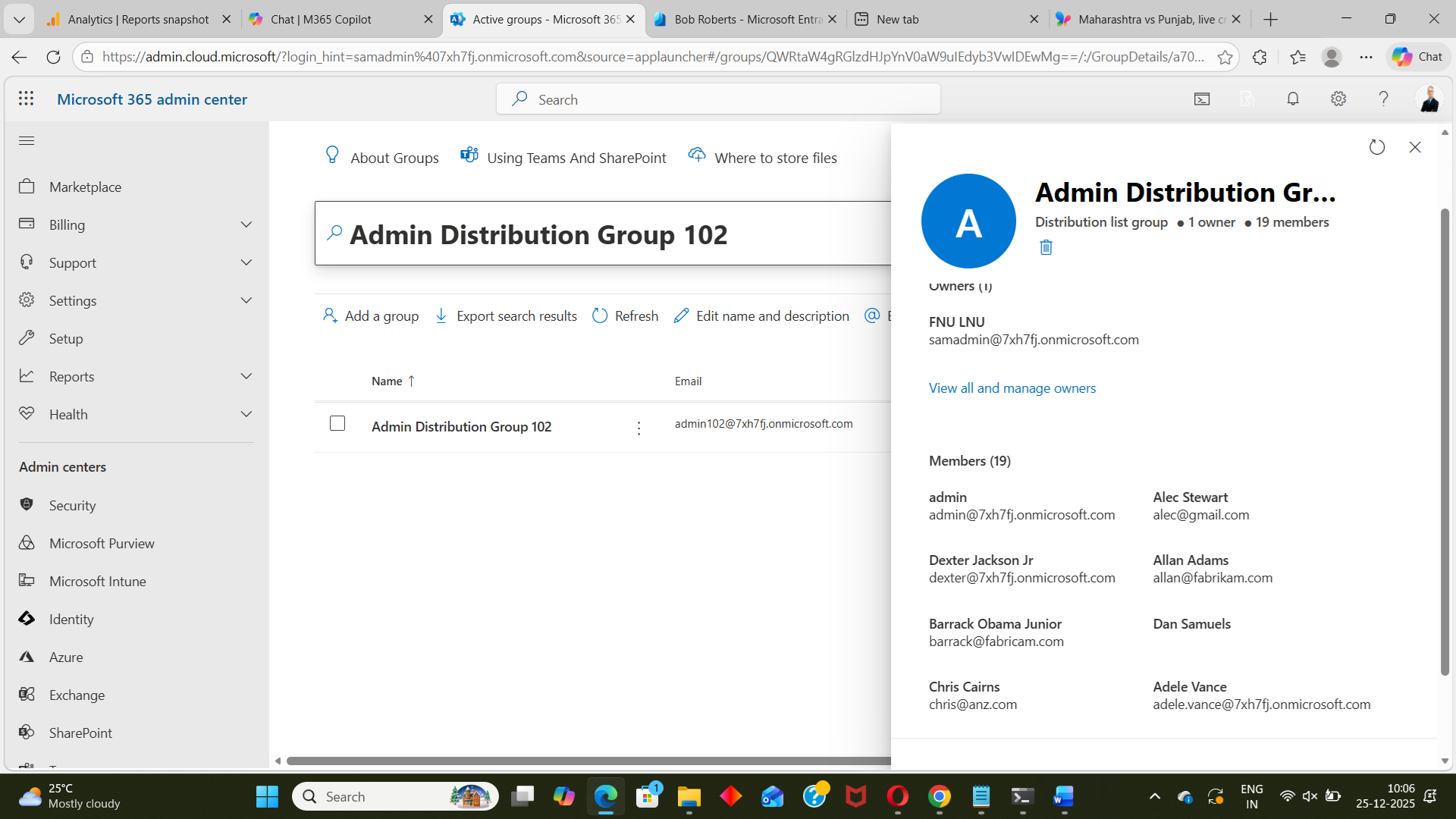
- Using Microsoft 365 Admin Center
- You can view group members
- But you cannot see the account status (enabled/disabled) directly
- Open each group
- Review its members
- Guess or cross-check user status elsewhere
- Cannot identify disabled users directly
- No account status visibility in group members list
- No reporting or export capability
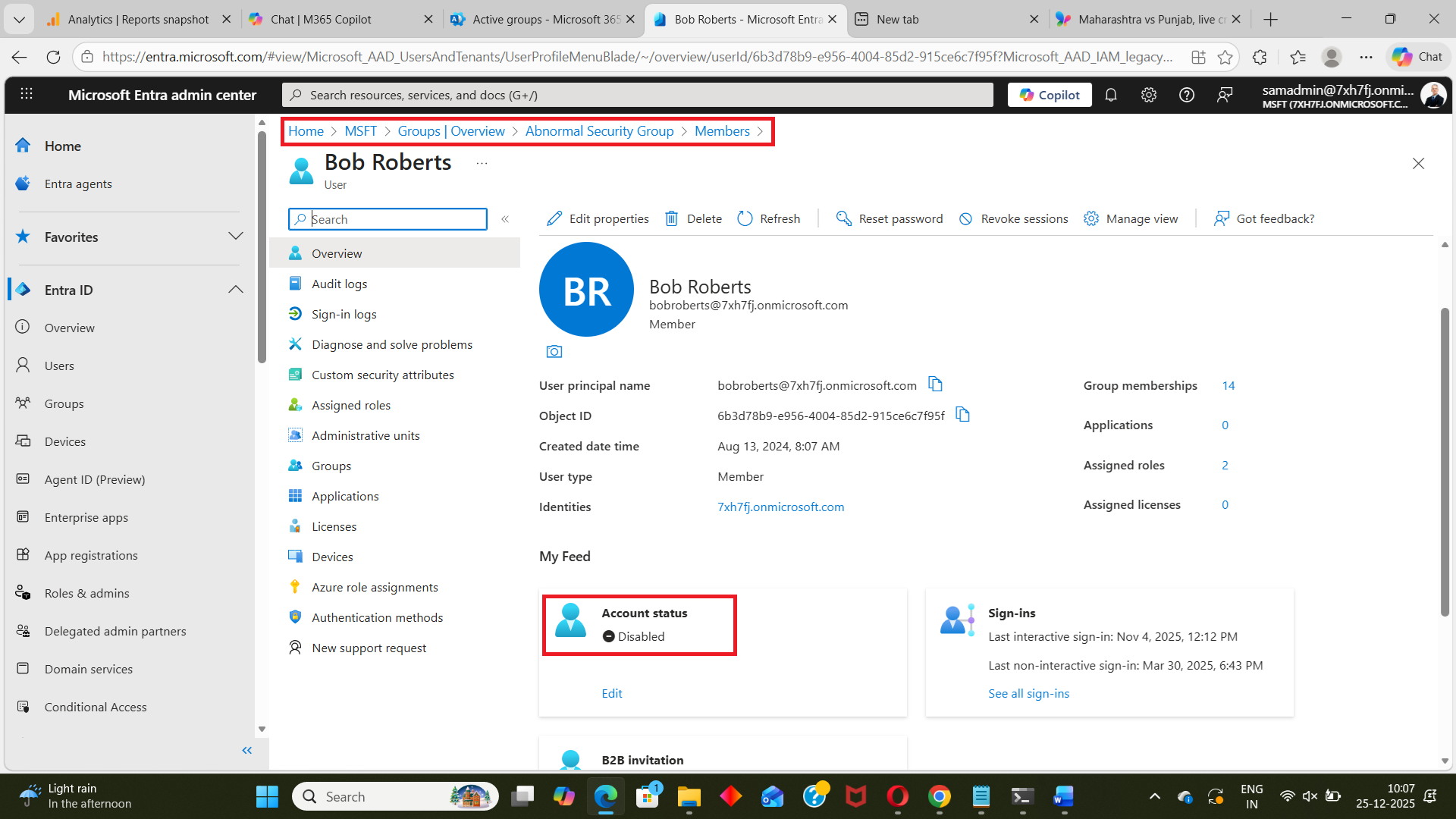
- Using Microsoft Entra ID Admin Center
- Open a group
- View its members
- Click each user individually
- Check Account Enabled in user properties
- Extremely time-consuming
- Requires multiple clicks per user
- No consolidated group-level visibility
- Not scalable for large tenants
- Using Graph PowerShell
- Fetch group members
- Query user account status
- Match disabled users back to groups
- Requires Graph and PowerShell knowledge
- Multiple API calls and loops
- Manual CSV creation and handling
- Error handling required
- Not suitable for quick checks
- Using M365Corner Microsoft 365 Free Reporting Tool
- No scripts required
- Clear mapping of Group → Disabled Users and Disabled Users → Groups
- Immediate visibility into governance gaps
- One-click CSV export
- Report Shareable via Mail
In the Microsoft 365 Admin Center:
Admins must:
❌ Limitations
The Entra ID Admin Center allows you to identify disabled users — but not efficiently within groups.
Admins must:
❌ Limitations
Graph PowerShell can be used to programmatically identify disabled users inside groups — but it requires scripting expertise and additional effort.
PowerShell Approach
You typically need to:
Reference Article:
https://m365corner.com/m365-powershell/email-disabled-users-in-group-with-graph-powershell.html
Downsides of PowerShell
For many admins, this is overkill for a routine governance task.
With the M365Corner Microsoft 365 Free Reporting Tool, identifying groups that contain disabled users becomes effortless.
👉 You can generate the Groups With Disabled Users Report at the click of a button.
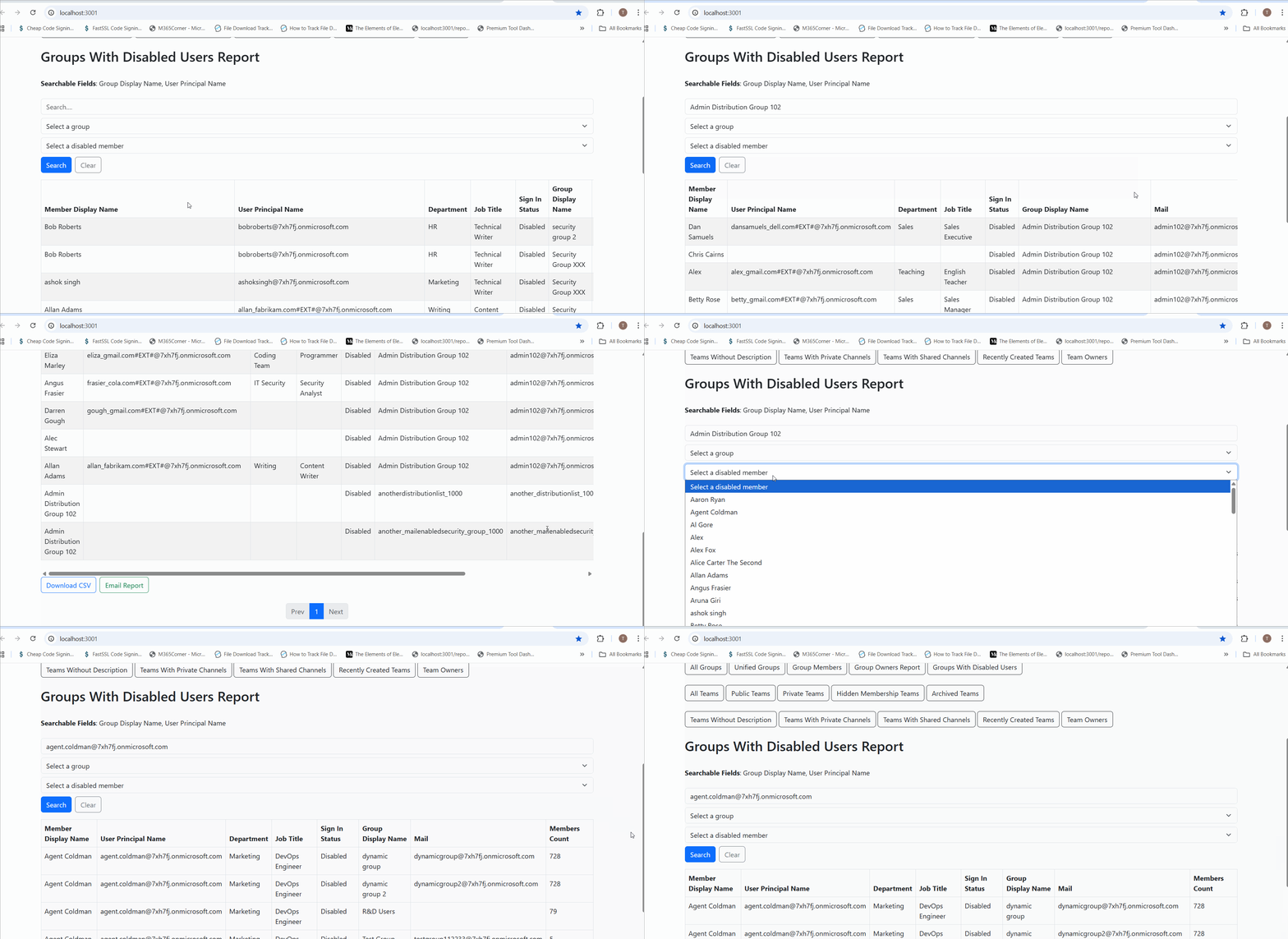
Why this helps admins
This dramatically quickens reporting, helping admins immediately spot groups that require cleanup and maintain a healthier Microsoft 365 environment.
Explore Groups With Disabled Users Report
- 🔗 Learn More About Groups With Disabled Users Report
- 🔗 Explore All Reports in the M365 Free Reporting Tool
- 🔗 Download the Community Edition
https://m365corner.com/m365-free-tools/microsoft-365-group-with-disabled-users-report.html
Understand what the report shows and how it supports security and governance.
https://m365corner.com/m365-free-tools/m365corner-reporting-tool.html
Discover all reports available in the Microsoft 365 free community dashboard.
https://github.com/m365corner/m365corner-reporting-tool-community-edition.git
Start using the Free M365 Community Dashboard today.
Did You Know? Managing Microsoft 365 applications is even easier with automation. Try our Graph PowerShell scripts to automate tasks like generating reports, cleaning up inactive Teams, or assigning licenses efficiently.
Ready to get the most out of Microsoft 365 tools? Explore our free Microsoft 365 administration tools to simplify your administrative tasks and boost productivity.