🔧 New: User Management Graph PowerShell Toolkit
Simplify user tasks like bulk creation, updates, password resets, deletions, license checks & more — all from one place.
🚀 Launch ToolkitEmail Disabled Users in a Group Using Graph PowerShell
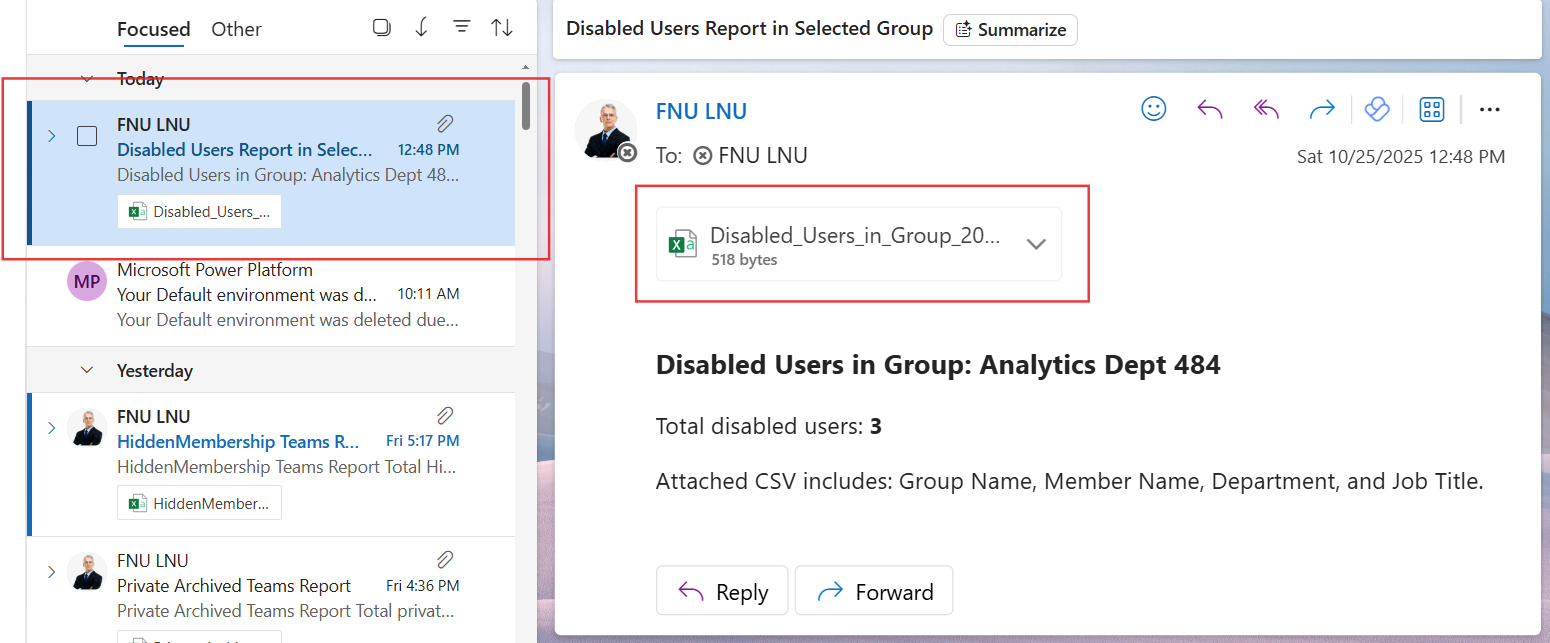
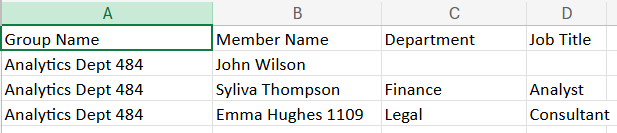
Keeping tabs on disabled accounts within Microsoft 365 groups is critical for security and governance. Over time, groups can retain inactive or disabled users, posing potential access risks or compliance issues. This Graph PowerShell script automates the process by fetching all disabled users in a specific group, generating a detailed CSV report, and emailing it directly to administrators.
i) The Script
Import-Module Microsoft.Graph -ErrorAction Stop
Connect-MgGraph -Scopes "Group.Read.All","User.Read.All","Mail.Send"

$FromUser   = "admin@contoso.com"
$ToList     = "it-ops@contoso.com; hr-admin@contoso.com"
$Subject    = "Disabled Users Report in Selected Group"
$CsvOutDir  = "$env:TEMP"

$GroupNameOrId = Read-Host "Enter Group Name or Object ID"

$Group = Get-MgGroup -Filter "displayName eq '$GroupNameOrId'" -Property Id, DisplayName
if ($Group -eq $null) {
    Write-Host "Error: No group found with name or ID '$GroupNameOrId'" -ForegroundColor Red
    exit
}

$Members = Get-MgGroupMember -GroupId $Group.Id -All
if ($Members.Count -eq 0) {
    Write-Host "No members found in the group '$($Group.DisplayName)'" -ForegroundColor Yellow
    exit
}

$DisabledUsers = @()
foreach ($Member in $Members) {
    $User = Get-MgUser -UserId $Member.Id -Property DisplayName, Department, JobTitle, AccountEnabled
    if ($User.AccountEnabled -eq $false) {
        $DisabledUsers += [PSCustomObject]@{
            "Group Name"  = $Group.DisplayName
            "Member Name" = $User.DisplayName
            "Department"  = $User.Department
            "Job Title"   = $User.JobTitle
        }
    }
}

if ($DisabledUsers.Count -eq 0) {
    Write-Host "No disabled users found in the group '$($Group.DisplayName)'" -ForegroundColor Yellow
    Disconnect-MgGraph
    exit
}

if (-not (Test-Path -Path $CsvOutDir)) { New-Item -ItemType Directory -Path $CsvOutDir | Out-Null }
$ts = Get-Date -Format "yyyyMMdd_HHmmss"
$CsvPath = Join-Path $CsvOutDir ("Disabled_Users_in_Group_{0}.csv" -f $ts)
$DisabledUsers | Export-Csv -Path $CsvPath -NoTypeInformation -Encoding UTF8

$total = $DisabledUsers.Count
$HtmlBody = @"

<html>
  <body style='font-family:Segoe UI,Arial,sans-serif'>
    <h3>Disabled Users in Group: $($Group.DisplayName)</h3>
    <p>Total disabled users:  <b>$total</b></p>
    <p>Attached CSV includes: Group Name, Member Name, Department, and Job Title.</p>
  </body>
</html>
"@

$fileBytes     = [System.IO.File]::ReadAllBytes($CsvPath)
$base64Content = [System.Convert]::ToBase64String($fileBytes)
$Attachment    = @{
  "@odata.type" = "#microsoft.graph.fileAttachment"
  name          = [System.IO.Path]::GetFileName($CsvPath)
  contentBytes  = $base64Content
  contentType   = "text/csv"
}

$Recipients = @()
$ToList.Split(@(';', ','), [System.StringSplitOptions]::RemoveEmptyEntries) | ForEach-Object {
    $addr = $_.Trim()
    if ($addr) { $Recipients += @{ emailAddress = @{ address = $addr } } }
}

$Mail = @{
  message = @{
    subject = "$Subject"
    body    = @{ contentType = "HTML"; content = $HtmlBody }
    toRecipients = $Recipients
    attachments  = @($Attachment)
  }
  saveToSentItems = $true
}
Send-MgUserMail -UserId $FromUser -BodyParameter $Mail
Write-Host "✅ Email sent and CSV saved at: $CsvPath" -ForegroundColor Green
Disconnect-MgGraph
ii) How the Script Works
- Establishes a Graph Connection:
- Identifies the Target Group:
- Fetches Group Members:
- Identifies Disabled Users:
- Exports and Emails the Report:
The script connects to Microsoft Graph with Group.Read.All, User.Read.All, and Mail.Send scopes for group, user, and email access.
It prompts the administrator for a group name or object ID and retrieves the group details accordingly.
The script retrieves all members from the specified group using Get-MgGroupMember.
For each group member, it fetches user details using Get-MgUser and filters accounts where AccountEnabled is set to $false.
The disabled users are exported into a timestamped CSV file, and a formatted HTML email containing the summary and attached report is sent to the administrator(s).
iii) Further Enhancements
- Include sign-in activity or last login date for better visibility of account status.
- Schedule the script using Azure Automation or Windows Task Scheduler to receive periodic reports.
- Integrate with Microsoft Teams webhook for instant alert notifications.
- Extend the logic to check for unlicensed or guest users within the same group.
- Log audit results in SharePoint for future reference and compliance.
iv) Possible Errors and Solutions
| Error | Cause | Solution |
|---|---|---|
| Access Denied | Missing required permissions | Reconnect using Connect-MgGraph -Scopes "Group.Read.All, User.Read.All, Mail.Send" |
| No group found | Invalid group name or ID | Verify the group display name or object ID in Entra ID. |
| Empty CSV | No disabled users found | Ensure the group has inactive or disabled users. |
| Send-MgUserMail fails | Sender lacks mailbox | Make sure $FromUser is a valid mailbox-enabled account. |
| Script terminates early | No members in the group | Verify the group membership in Microsoft 365. |
v) Conclusion
This Graph PowerShell script simplifies the process of auditing disabled user accounts within a specific group in Microsoft 365. By automatically generating and emailing the report, it helps administrators quickly identify inactive accounts and maintain tighter security controls. Automating such reports ensures continuous visibility and strengthens identity governance across your tenant.