Using Invoke-MgGraphRequest to Add Teams Channel Members
In Microsoft 365 management, adding team members to a specific channel can be easily handled using dedicated cmdlets. However, when you want more flexibility or encounter unsupported scenarios, the Invoke-MgGraphRequest cmdlet comes into play. This powerful cmdlet allows you to interact directly with the Microsoft Graph API, enabling you to add team channel members. This article focuses on how to add members to a team channel using Invoke-MgGraphRequest.
Syntax for Adding Team Channel Members
To add members to a specific Microsoft Teams channel, we use a POST request targeting the channel's unique ID and include user details in the request body.
Invoke-MgGraphRequest -Method POST `
  -Uri "https://graph.microsoft.com/v1.0/teams/{teamId}/channels/{channelId}/members" `
  -Body @{
    "@odata.type" = "#microsoft.graph.aadUserConversationMember"
    roles = @("owner")
    "user@odata.bind" = "https://graph.microsoft.com/v1.0/users('{userPrincipalName}')"
  }
Usage Examples
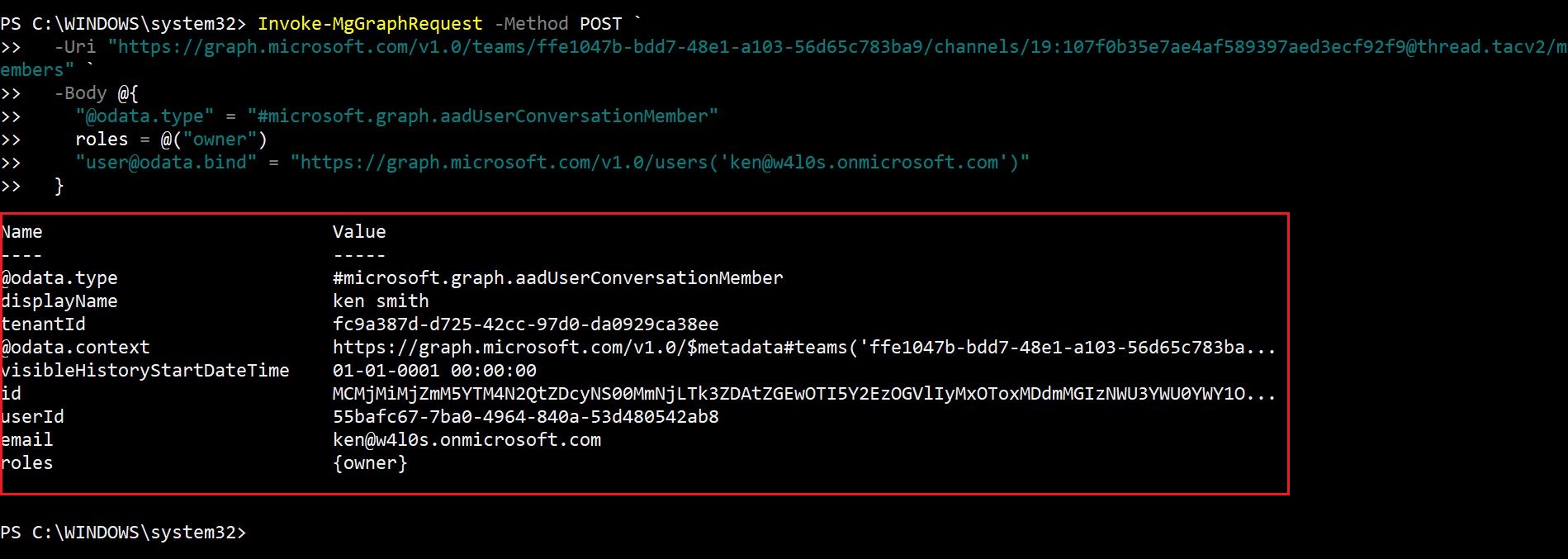
Example 1: Adding a Single Team Channel Member
Invoke-MgGraphRequest -Method POST `
  -Uri "https://graph.microsoft.com/v1.0/teams/ece6f0a1-7ca4-498b-be79-edf6c8fc4d82/channels/19%3A56eb04e133944cf69e603c5dac2d292e%40thread.skype/members" `
  -Body @{
    "@odata.type" = "#microsoft.graph.aadUserConversationMember"
    roles = @("owner")
    "user@odata.bind" = "https://graph.microsoft.com/v1.0/users('jacob@contoso.com')"
  }
Example 2: Adding Multiple Members
$members = @(
  @{
    "@odata.type" = "#microsoft.graph.aadUserConversationMember"
    roles = @("owner")
    "user@odata.bind" = "https://graph.microsoft.com/v1.0/users('jacob@contoso.com')"
  }
  @{
    "@odata.type" = "#microsoft.graph.aadUserConversationMember"
    roles = @()
    "user@odata.bind" = "https://graph.microsoft.com/v1.0/users('sarah@contoso.com')"
  }
)

foreach ($member in $members) {
  Invoke-MgGraphRequest -Method POST `
    -Uri "https://graph.microsoft.com/v1.0/teams/ece6f0a1-7ca4-498b-be79-edf6c8fc4d82/channels/19%3A56eb04e133944cf69e603c5dac2d292e%40thread.skype/members" `
    -Body $member
}
Example 3: Bulk Member Addition via CSV
$csv = Import-Csv "C:\path\to\teamMembers.csv"
foreach ($user in $csv) {
  $role = if ($user.Role -eq 'owner') { @("owner") } else { @() }

  Invoke-MgGraphRequest -Method POST `
    -Uri "https://graph.microsoft.com/v1.0/teams/ece6f0a1-7ca4-498b-be79-edf6c8fc4d82/channels/19%3A56eb04e133944cf69e603c5dac2d292e%40thread.skype/members" `
    -Body @{
      "@odata.type" = "#microsoft.graph.aadUserConversationMember"
      roles = $role
      "user@odata.bind" = "https://graph.microsoft.com/v1.0/users('$($user.UserPrincipalName)')"
    }
}
Cmdlet Tips
- Ensure Correct Permissions: The account running the script needs sufficient permissions (e.g., Teams Admin or Channel Owner) to add members to a channel.
- Roles: The roles field can either be
ownerormember. If the roles array is empty@(), the user is added as a member. - Use UPN: The
user@odata.bindrequires the full Microsoft Graph URL and the UPN (User Principal Name) or object ID of the user.
Possible Errors & Solutions
| Error | Cause | Solution |
| 403 Forbidden | The user running the script lacks permissions to add members to the channel. | Ensure that the user executing the script has the necessary permissions. You can assign the Teams Admin role or verify that the user is a team owner. |
| 404 Not Found | Incorrect Team or Channel ID. | Verify that the team and channel IDs are correct by using Graph Explorer or a PowerShell script to retrieve the team and channel details. |
| 400 Bad Request | Incorrect syntax in the BodyParameter. | Double-check the structure of your request, especially the formatting of user@odata.bind. Ensure you're passing valid user principal names or object IDs. |
Use Cases
- Automating Team Memberships: In large organizations, team and channel memberships change frequently. Using
Invoke-MgGraphRequest, IT admins can automate the process of adding new members to channels during onboarding. - Custom Integrations: Sometimes pre-built PowerShell cmdlets don't cover specific scenarios.
Invoke-MgGraphRequestallows custom requests to the Graph API, such as adding users with dynamic roles or integrating with third-party systems. - Bulk Member Management: For large teams, adding members individually can be time-consuming. Using a CSV and looping through members with
Invoke-MgGraphRequeststreamlines the process and ensures consistency.
Conclusion
Invoke-MgGraphRequest opens up a world of possibilities for administrators, offering more granular control over Graph API interactions. While there are native cmdlets for adding team channel members, Invoke-MgGraphRequest provides flexibility, especially for bulk operations, custom role assignments, or scenarios where pre-built cmdlets fall short. By leveraging this approach, administrators can automate and scale their Teams membership management with precision and efficiency.
Additional Resources:
Graph PowerShell Invoke-MgGraphRequest Cmdlet DocumentationMicrosoft Graph PowerShell Module Documentation
Microsoft Graph API Documentation
Related Articles:
Using Get-MgDirectoryRole in Graph PowerShellUsing Get-MgUserLicenseDetail in Graph PowerShell
Using Find-GraphMgCommand in Graph PowerShell
Connect to Microsoft 365 Using PowerShell
How to Create Bulk Users in Office 365 Using Graph PowerShell?
Create Microsoft 365 Group Using Microsoft Graph PowerShell
Block Microsoft 365 User Using Microsoft Graph PowerShell
Assign Microsoft 365 License Using Graph PowerShell
Microsoft 365 User Management Using Graph PowerShell
Checking Group Membership in Microsoft 365
Bulk Assign Microsoft 365 License
Find Inactive Users in Microsoft 365
Using Powershell Graph Search Query
Using Powershell Graph Filter Query
Using Where-Object In Graph PowerShell
Using Expand Property In Graph PowerShell
Using Select Object In Graph PowerShell
Using -Contains Operator In Graph PowerShell
Add User to Multiple Microsoft 365 Groups Using Graph PowerShell
Get Microsoft 365 User Location Using Graph PowerShell
Import Microsoft 365 Groups from CSV File Using Graph PowerShell
Microsoft 365 Group User Import Using Graph PowerShell