Get-MgSecurityIncidentAlert – Retrieve Security Incident Alerts Using Graph PowerShell
Microsoft 365 security incidents often contain one or more alerts that provide deeper visibility into what happened, which users/devices were involved, and what actions were triggered. Using Microsoft Graph PowerShell, you can quickly list and export security incident alert details using the Get-MgSecurityIncidentAlert cmdlet.
This M365Corner article covers the cmdlet syntax, usage examples, admin tips, and common errors.
🚀 Community Edition Released!
Try the M365Corner Microsoft 365 Reporting Tool — your DIY pack with 20+ out-of-the-box M365 reports for Users, Groups, and Teams.
i) Cmdlet Syntax
Get-MgSecurityIncidentAlertWhat it does:
Retrieves alert details associated with security incidents through Microsoft Graph Security.
ii) Usage Examples
Below are the exact reference examples you provided, along with a short explanation.
Example 1: List Security Incident Alert
Get-MgSecurityIncidentAlert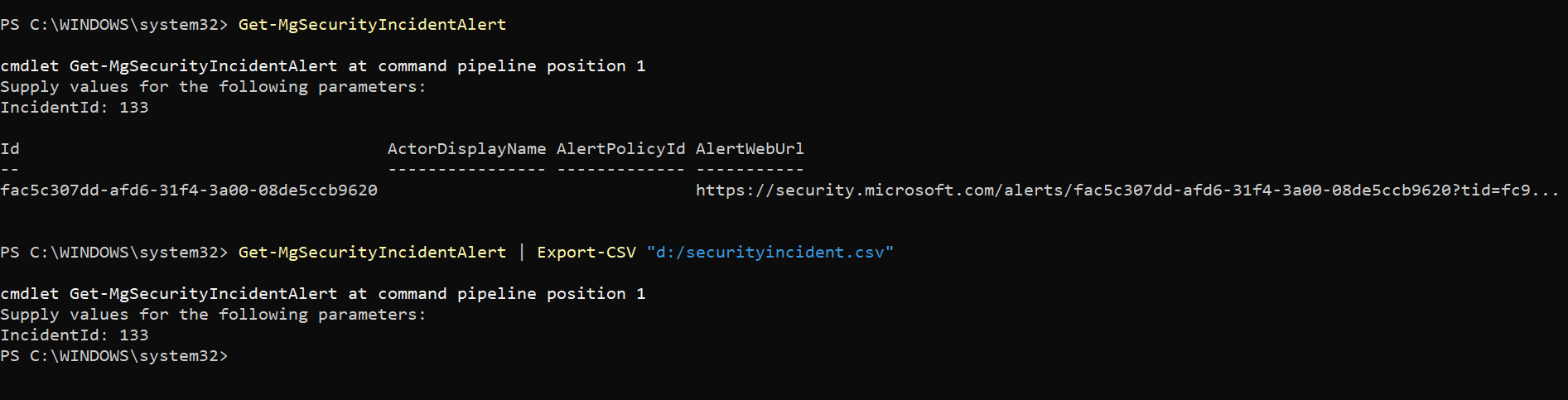
✅ This command lists security incident alert details available in your tenant.
It’s useful when you want to quickly review alert records and investigate security activity.
Example 2: Export Security Incident Alert Details
Get-MgSecurityIncidentAlert | Export-CSV "d:/securityincident.csv"✅ This exports the security incident alert output into a CSV file for reporting, analysis, and auditing.
⭐ Note (Important)
To fetch security incident alert details for a specific incident, you need the IncidentId.
You can get the IncidentId by running:
Get-MgSecurityIncidentThis cmdlet lists incidents and allows you to identify the correct IncidentId for your investigation.
iii) Cmdlet Tips
- Always connect to Microsoft Graph before running the cmdlet
- Export results for incident investigations
- a point-in-time snapshot
- a record for audits
- an easy shareable report for security teams
- Use Get-MgSecurityIncident for correlation
- incidents → alerts → affected entities
You must authenticate first using Connect-MgGraph. In most environments, security-related scopes are required.
Commonly used scope:
Connect-MgGraph -Scopes "SecurityIncident.Read.All"Depending on your tenant configuration, admin consent may be required.
When working with security incidents, exporting is recommended so you have:
Get-MgSecurityIncidentAlert | Export-CSV "d:/securityincident.csv"Security investigations work best when you correlate:
Start by listing incidents:
Get-MgSecurityIncidentThen move into alert-level investigation using Get-MgSecurityIncidentAlert.
iv) Possible Errors & Solutions
| Error / Message | Cause | Solution |
| Insufficient privileges to complete the operation | Your account does not have required Graph Security permissions. | Connect using the required scope: Connect-MgGraph -Scopes "SecurityIncident.Read.All" Also ensure your account has roles like Security Reader or Security Administrator. |
| Forbidden (403) / AccessDenied | Admin consent is missing or the signed-in account is restricted from reading security data. |
|
| The term 'Get-MgSecurityIncidentAlert' is not recognized | The Microsoft Graph PowerShell module (or Security module) is not installed/imported. | Install the Graph module: Install-Module Microsoft.Graph -Scope CurrentUser Then import the security module (if required): Import-Module Microsoft.Graph.Security |
| InvalidAuthenticationToken / Access token is empty | Your authentication token expired or the session failed. | Reconnect to Graph: Disconnect-MgGraph Connect-MgGraph -Scopes "SecurityIncident.Read.All" |
| Export-CSV path not found / access denied | The folder path doesn’t exist or PowerShell cannot write to that location | Get-MgSecurityIncidentAlert | Export-CSV "$env:USERPROFILE\Desktop\securityincident.csv" |
v) Conclusion
The Get-MgSecurityIncidentAlert cmdlet helps Microsoft 365 administrators and security teams retrieve and export security incident alert details using Microsoft Graph PowerShell.
With this cmdlet, you can:
✅ list security incident alerts quickly
✅ export alert details to CSV for reporting
✅ correlate incidents using Get-MgSecurityIncident to get the IncidentId