Get-MgSecurityIncident – Retrieve Microsoft 365 Security Incidents Using Graph PowerShell
Microsoft security incidents help administrators investigate threats, track ongoing attacks, and respond quickly using Microsoft Defender and Microsoft 365 security tools. With Microsoft Graph PowerShell, you can retrieve these incidents programmatically and even export them for reporting or audits.
This article covers the Get-MgSecurityIncident cmdlet with syntax, practical usage examples, admin tips, and common errors.
🚀 Community Edition Released!
Try the M365Corner Microsoft 365 Reporting Tool — your DIY pack with 20+ out-of-the-box M365 reports for Users, Groups, and Teams.
i) Cmdlet Syntax
Get-MgSecurityIncidentWhat it does:
Retrieves security incidents from the Microsoft Graph Security API (Incidents).
ii) Usage Examples
Below are the exact reference examples you provided, with brief explanation for each.
Example 1: List All Security Incidents
Get-MgSecurityIncident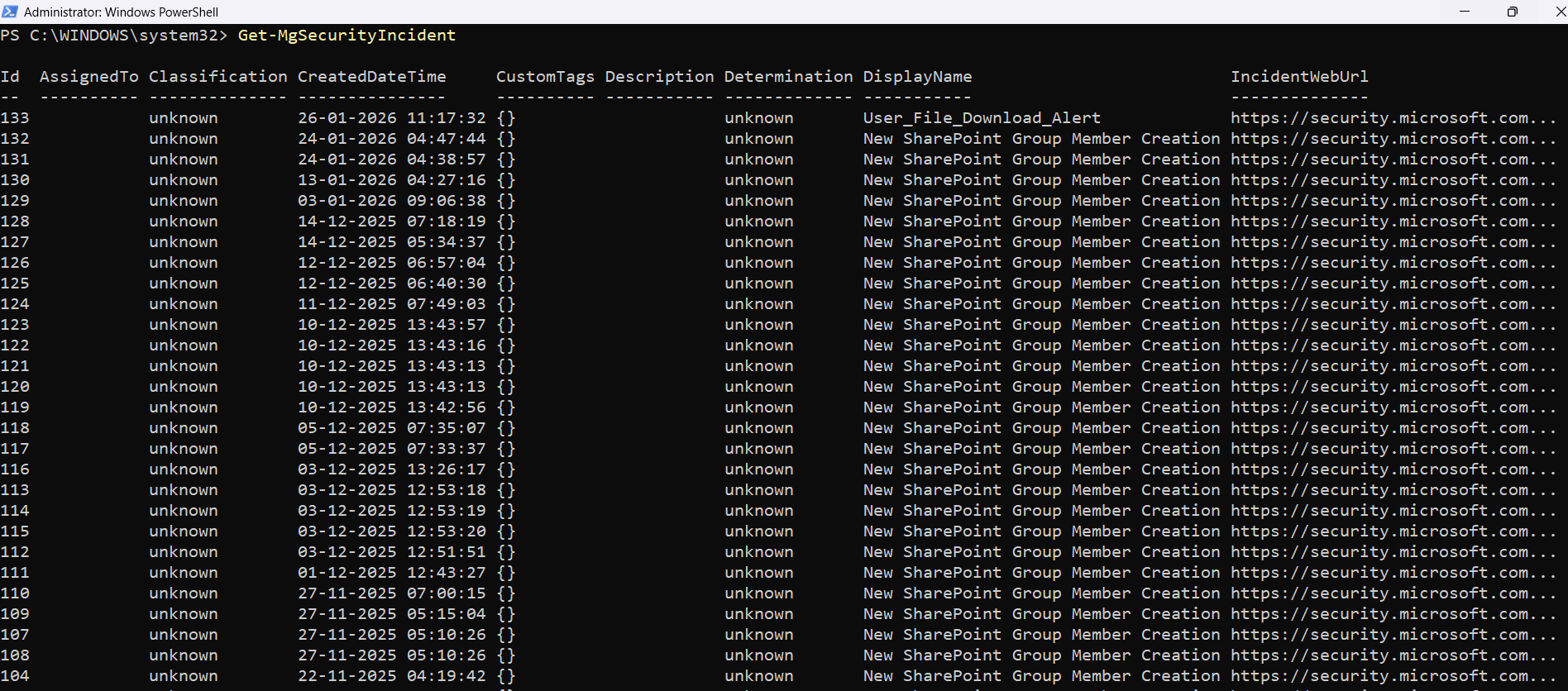
✅ Use this command to retrieve all available security incidents from your tenant.
This is useful when you want a quick overview of incidents generated by Defender and related security products.
Example 2: List all incidents with their alerts
Get-MgSecurityIncident -ExpandProperty "alerts"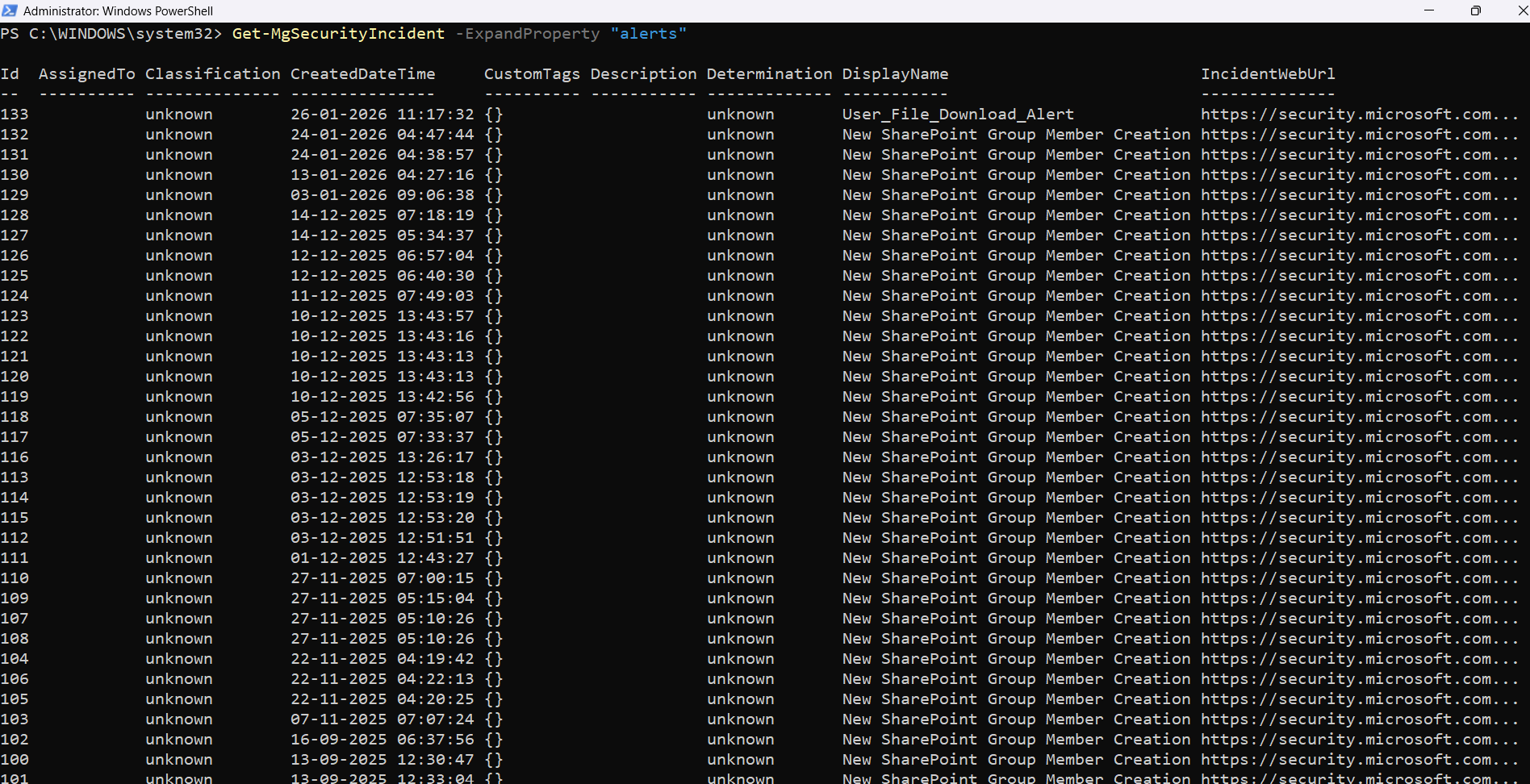
✅ This command retrieves incidents and expands the alerts relationship.
This is helpful when you want to see which alerts are tied to each incident, without running separate queries.
Example 3: Export All Security Incidents
Get-MgSecurityIncident | export-csv "d:/securityincidents.csv"✅ This exports all incidents into a CSV file for reporting, auditing, or sharing with your security team.
Tip: After export, open the CSV in Excel and filter by severity, status, or assigned analyst (depending on available properties in your tenant).
iii) Cmdlet Tips
- Use Microsoft Graph authentication before running the cmdlet
- Expand alerts only when needed
- Always export results when doing investigations
- an audit trail
- a shareable report
- a point-in-time snapshot
- Use a consistent naming convention for exported reports
- securityincidents-jan.csv
- securityincidents-weekly.csv
- securityincidents-2026-01-31.csv
This cmdlet requires you to connect to Graph first. In most environments, you’ll need a security-related permission scope.
Example connection (commonly required):
Connect-MgGraph -Scopes "SecurityIncident.Read.All"You may also need admin consent depending on your tenant policies.
Using:
-ExpandProperty "alerts"is powerful, but it can return a larger dataset and may slow down output if your incidents contain many alerts.
For real investigations, exporting results gives you:
Example:
Get-MgSecurityIncident | export-csv "d:/securityincidents.csv"Instead of overwriting the same CSV each time, consider naming like:
iv) Possible Errors & Solutions
| Error / Message | Cause | Solution |
| Insufficient privileges to complete the operation | The signed-in account does not have required Microsoft Graph Security permissions. | Connect using the correct scopes: Connect-MgGraph -Scopes "SecurityIncident.Read.All" Also ensure your account has required admin/security roles (such as Security Reader or Security Administrator). |
| Error: Forbidden (403) / AccessDenied | Your tenant has not granted admin consent for the required permissions, or the account is not allowed to access security incidents. |
|
| The term 'Get-MgSecurityIncident' is not recognized | The Microsoft Graph Security module is not installed or not imported. | Install the Graph module: Install-Module Microsoft.Graph -Scope CurrentUser Then import Security module (if required in your session): Import-Module Microsoft.Graph.Security |
| InvalidAuthenticationToken / Access token is empty | Graph authentication session expired or failed. | Reconnect: Disconnect-MgGraph Connect-MgGraph -Scopes "SecurityIncident.Read.All" |
| Export-Csv access denied / path not found | The folder path does not exist or PowerShell does not have permission to write there. |
Get-MgSecurityIncident | export-csv "$env:USERPROFILE\Desktop\securityincidents.csv" |
v) Conclusion
The Get-MgSecurityIncident cmdlet is a simple but powerful way to retrieve Microsoft 365 security incidents using Microsoft Graph PowerShell. It helps administrators:
✅ monitor incidents quickly
✅ expand incident alerts for deeper investigation
✅ export incidents for audits and reporting