Bulk Delete Entra ID Guest Users Using PowerShell
Guest users can pile up quickly in Microsoft Entra ID (Azure AD)—especially when you onboard external vendors, partners, consultants, or temporary contractors. If you invited guests in bulk earlier, you’ll eventually need a clean and safe way to bulk delete guest accounts when projects end or access must be revoked.
In this M365Corner guide, you’ll learn how to bulk delete Entra ID guest users using Microsoft Graph PowerShell, by reading guest email addresses from a CSV file, deleting matching users, and exporting a deletion report.
Note: Using our Bulk Invite Entra ID Guest Users script to invite guest users in bulk exports the results to GuestInviteResults.csv, which can be passed to this script for bulk deleting guest users, after modifying it to suit your requirements.
🚀 Community Edition Released!
Try the M365Corner Microsoft 365 Reporting Tool — your DIY pack with 20+ out-of-the-box M365 reports for Users, Groups, and Teams.
I) Script
# -----------------------------
# Bulk Delete Guest Users (Graph PowerShell)
# -----------------------------

Import-Module Microsoft.Graph.Users

# Connect to Graph
Connect-MgGraph -Scopes "User.ReadWrite.All"

# Path to CSV used for guest invites
$CsvPath = ".\GuestUsers.csv"

# Import guest list
$GuestUsers = Import-Csv $CsvPath

$Results = @()

foreach ($Guest in $GuestUsers) {

    $EmailAddress = $Guest.EmailAddress

    Write-Host "Searching guest user: $EmailAddress" -ForegroundColor Cyan

    try {
        # Find the user by mail (works if mail is populated)
        $User = Get-MgUser -Filter "mail eq '$EmailAddress'" -ErrorAction Stop

        if (-not $User) {
            # Fallback search by UPN (guests sometimes have weird UPN format)
            $User = Get-MgUser -Filter "userPrincipalName eq '$EmailAddress'" -ErrorAction SilentlyContinue
        }

        if ($User) {
            Write-Host "Deleting: $($User.DisplayName) [$($User.Id)]" -ForegroundColor Yellow
            Remove-MgUser -UserId $User.Id -Confirm:$false

            $Results += [PSCustomObject]@{
                EmailAddress = $EmailAddress
                Status       = "Deleted"
                UserId       = $User.Id
                DisplayName  = $User.DisplayName
            }
        }
        else {
            Write-Host "Not found: $EmailAddress" -ForegroundColor DarkGray

            $Results += [PSCustomObject]@{
                EmailAddress = $EmailAddress
                Status       = "Not Found"
                UserId       = ""
                DisplayName  = ""
            }
        }
    }
    catch {
        Write-Host "Failed: $EmailAddress -> $($_.Exception.Message)" -ForegroundColor Red

        $Results += [PSCustomObject]@{
            EmailAddress = $EmailAddress
            Status       = "Failed"
            UserId       = ""
            DisplayName  = ""
            Error        = $_.Exception.Message
        }
    }
}

# Export delete results
$Results | Export-Csv ".\GuestDeleteResults.csv" -NoTypeInformation

Write-Host "`nDone! Results saved to GuestDeleteResults.csv" -ForegroundColor Green
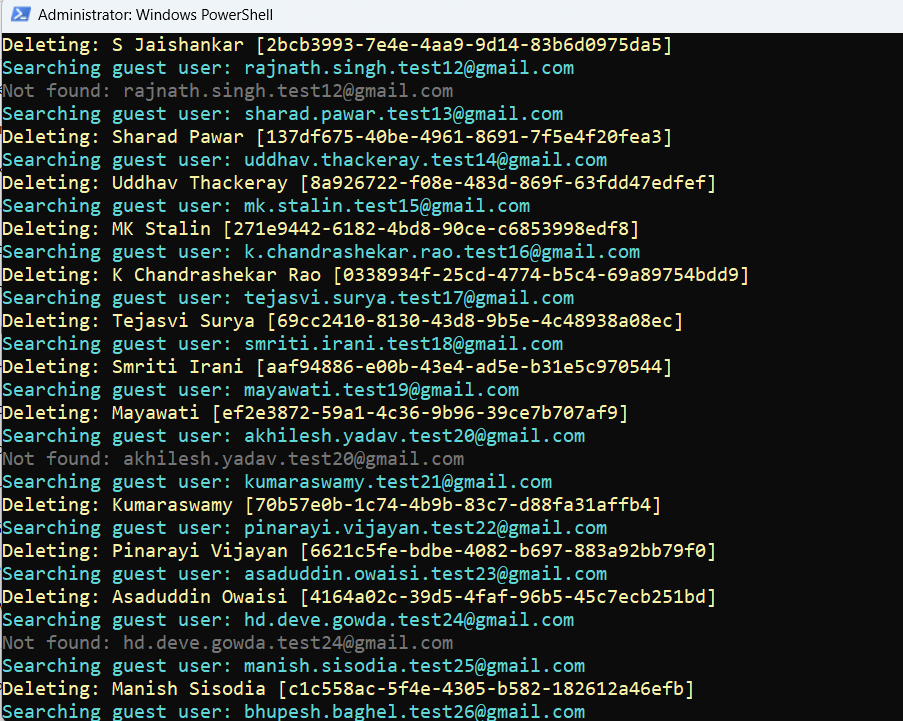
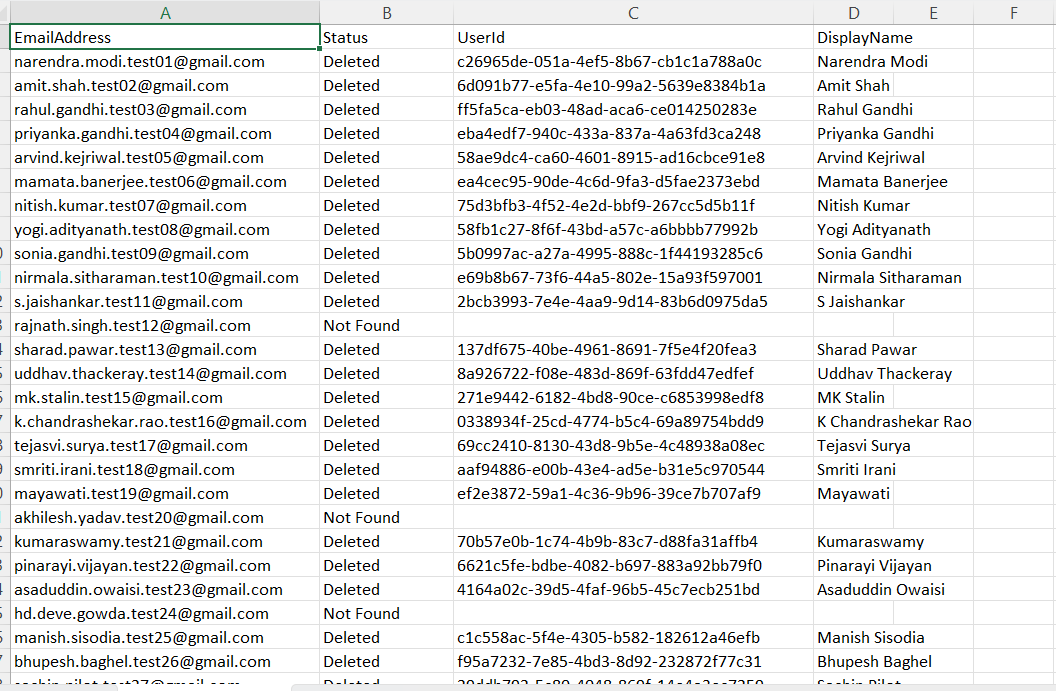
ii) How the Script Works
This script deletes Entra ID guest users in bulk using a CSV input file and Microsoft Graph PowerShell.
- Imports the required Graph Users module
- Get-MgUser
- Remove-MgUser
- Connects to Microsoft Graph with the required scope
- Read user objects (search guests)
- Delete user objects (remove guest accounts)
- Reads guest users from a CSV file
- Loops through each guest and searches the user
- Searches the guest by mail first
- Falls back to searching by UPN (if needed)
- altered UPN formats
- unexpected values depending on how they were invited/synced
- Deletes the user if found
- EmailAddress
- Status = Deleted
- UserId
- DisplayName
- Marks guests as Not Found if no match exists
- Status = Not Found
- Blank UserId and DisplayName
- Exports the results into a report
- which guests were deleted
- which were missing
- which failed due to errors
Import-Module Microsoft.Graph.Users
This loads the user-related cmdlets such as:
Connect-MgGraph -Scopes "User.ReadWrite.All"
This permission allows the script to:
⚠️ You must sign in using an account with sufficient admin rights to delete users.
$CsvPath = ".\GuestUsers.csv"
$GuestUsers = Import-Csv $CsvPath
Your CSV should include a column named EmailAddress, like this:
EmailAddress
john.vendor@externaldomain.com
sarah.partner@partnerdomain.com
adam.contractor@contosoext.com
For each row, the script pulls:
$EmailAddress = $Guest.EmailAddress
Then it tries to locate the user in Entra ID.
$User = Get-MgUser -Filter "mail eq '$EmailAddress'" -ErrorAction Stop
This works well when the guest account has the mail property populated.
$User = Get-MgUser -Filter "userPrincipalName eq '$EmailAddress'" -ErrorAction SilentlyContinue
This fallback exists because guest users often have:
If the guest is found, the script deletes them:
Remove-MgUser -UserId $User.Id -Confirm:$false
It also logs success into $Results with:
If the guest isn’t found, the script stores:
At the end, the script exports a report:
$Results | Export-Csv ".\GuestDeleteResults.csv" -NoTypeInformation
This file makes it easy to audit:
iii) Further Enhancements
If you want to improve the script later (without changing your current version), here are practical enhancements:
- Confirm the user type is Guest before deletion
To avoid accidental deletion of member users, you can verify: - UserType -eq "Guest"
- Add a “WhatIf / Dry Run” mode
A safe preview mode can list what will be deleted without deleting anything. - Improve search accuracy
Some tenants may have missing mail values for guests. You can enhance matching by checking: - otherMails
- identities
- Export timestamps in the report
- Add retry logic for throttling errors
Add deletion time to the output so you can track execution history.
If Graph throttles requests, you can add wait/retry behavior automatically.
Possible Errors & Solutions
| Error | Cause | Solution |
|---|---|---|
| Insufficient privileges to complete the operation | Your signed-in account does not have rights to delete users, or the required permission wasn’t granted. |
|
| InvalidAuthenticationToken / Access token is empty | Authentication failed or the session token expired. | Reconnect: Disconnect-MgGraph Connect-MgGraph -Scopes "User.ReadWrite.All" |
| Get-MgUser : Request_UnsupportedQuery | Filtering may fail in some environments or the filter syntax may not be accepted for the property being queried. |
|
| Resource does not exist or one of its queried reference-property objects are not present | The user may already be deleted, or the object ID is invalid. | This is expected in cleanup operations. The script already handles this by logging Not Found when appropriate. |
| TooManyRequests / throttling | Graph API throttling when too many requests are sent quickly. | Run the script in smaller batches (split CSV) or add delay/retry logic as an enhancement |
Conclusion
Bulk deleting guest users is a common Entra ID (Azure AD) hygiene task—especially when temporary access needs to be revoked quickly and consistently.
This Microsoft Graph PowerShell script helps you:
✅ Delete guest users in bulk using a CSV file
✅ Search users safely using email-based matching
✅ Export a complete results report for auditing
✅ Handle “not found” and failure cases cleanly