What is a Security Group in Entra ID?
- A Microsoft Entra ID security group is one of the fundamental building blocks in Microsoft’s identity and access management system. Unlike Unified Groups (which are designed for collaboration), security groups are focused purely on access control and permissions management.
- Purpose: It simplifies access management by allowing administrators to assign permissions to a group instead of to individual users.
Key Characteristics
- Access Control Only: Security groups do not provision collaboration tools (like mailboxes, SharePoint sites, or Teams).
- Membership Types:
- Assigned: Admins manually add/remove members.
- Dynamic: Membership is automatically managed based on rules (e.g., Department = Finance).
- Objects Supported: Can include users, devices, and service principals.
- Role Assignment: Security groups can be assigned to Azure roles, app roles, or resource permissions.
Common Use Cases
- Application Access: Granting a group of users access to a specific SaaS app.
- Resource Permissions: Controlling access to SharePoint sites, file shares, or databases.
- Conditional Access Policies: Applying security policies (like MFA requirements) to specific groups.
- Device Management: Grouping devices for Intune policies.
Security Group vs. Unified Group
| Feature | Security Group | Unified Group (Microsoft 365 Group) |
|---|---|---|
| Purpose | Access control | Collaboration + access |
| Collaboration Tools | ❌ None | ✅ Mailbox, SharePoint, Teams, Planner |
| Membership | Users, devices, service principals | Users only |
| Dynamic Membership | ✅ Supported | ✅ Supported |
| Best Use Case | Assigning permissions to resources | Team collaboration |
Considerations
- No mailbox/calendar: If you need collaboration features, use a Unified Group instead.
- Governance: Dynamic groups can reduce admin overhead but require careful rule design.
- Licensing: Dynamic groups require Microsoft Entra ID P1/P2 licenses.
✅ In short: A Microsoft Entra ID security group is a way to manage permissions and access at scale. It’s about who can do what, not about collaboration tools.
Creating Security Groups in Entra ID
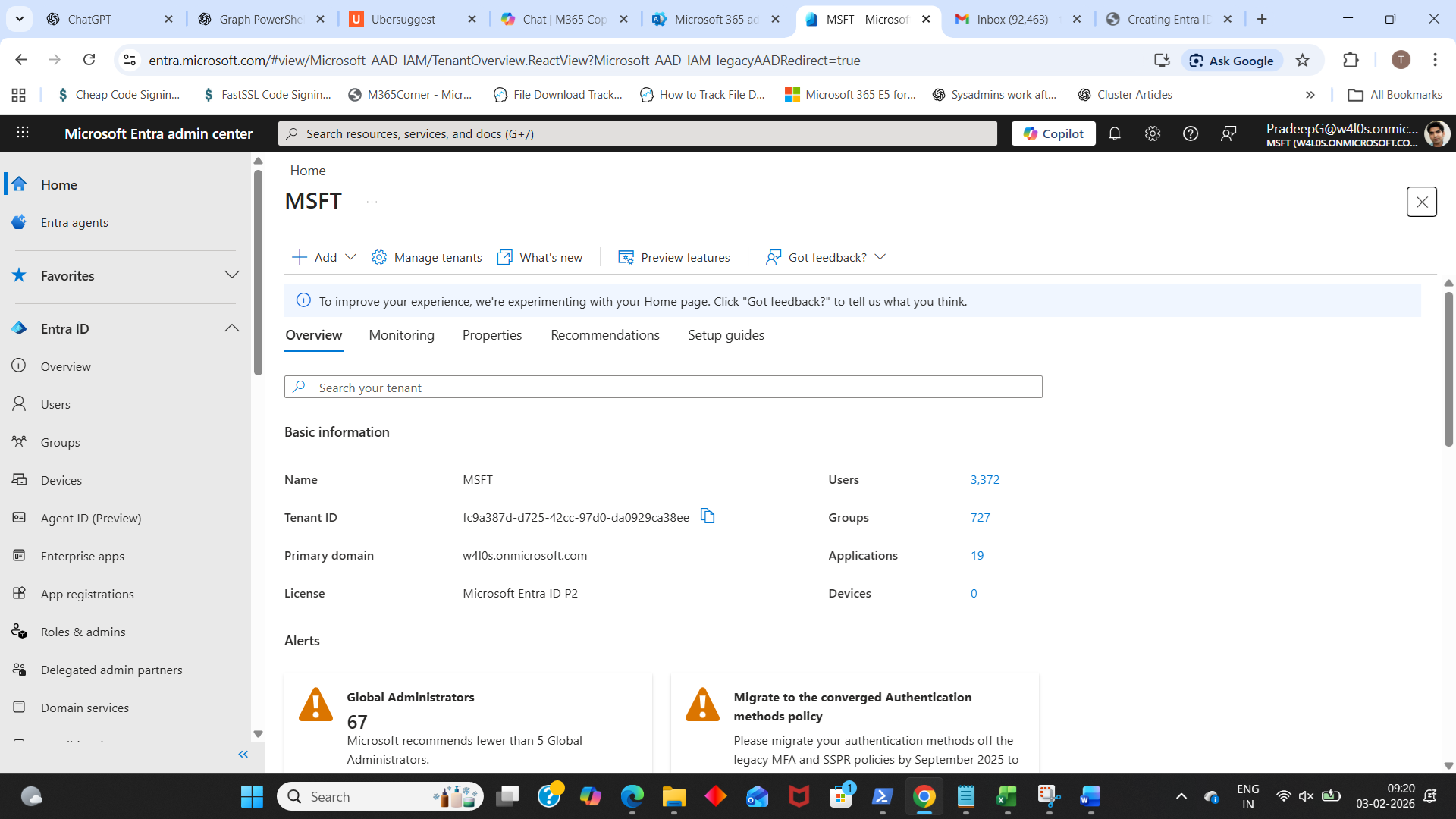
- Open the Entra admin center
- Go to the Microsoft Entra admin center.
- Sign in with an account that has permissions like Global Administrator, Groups Administrator, or equivalent.
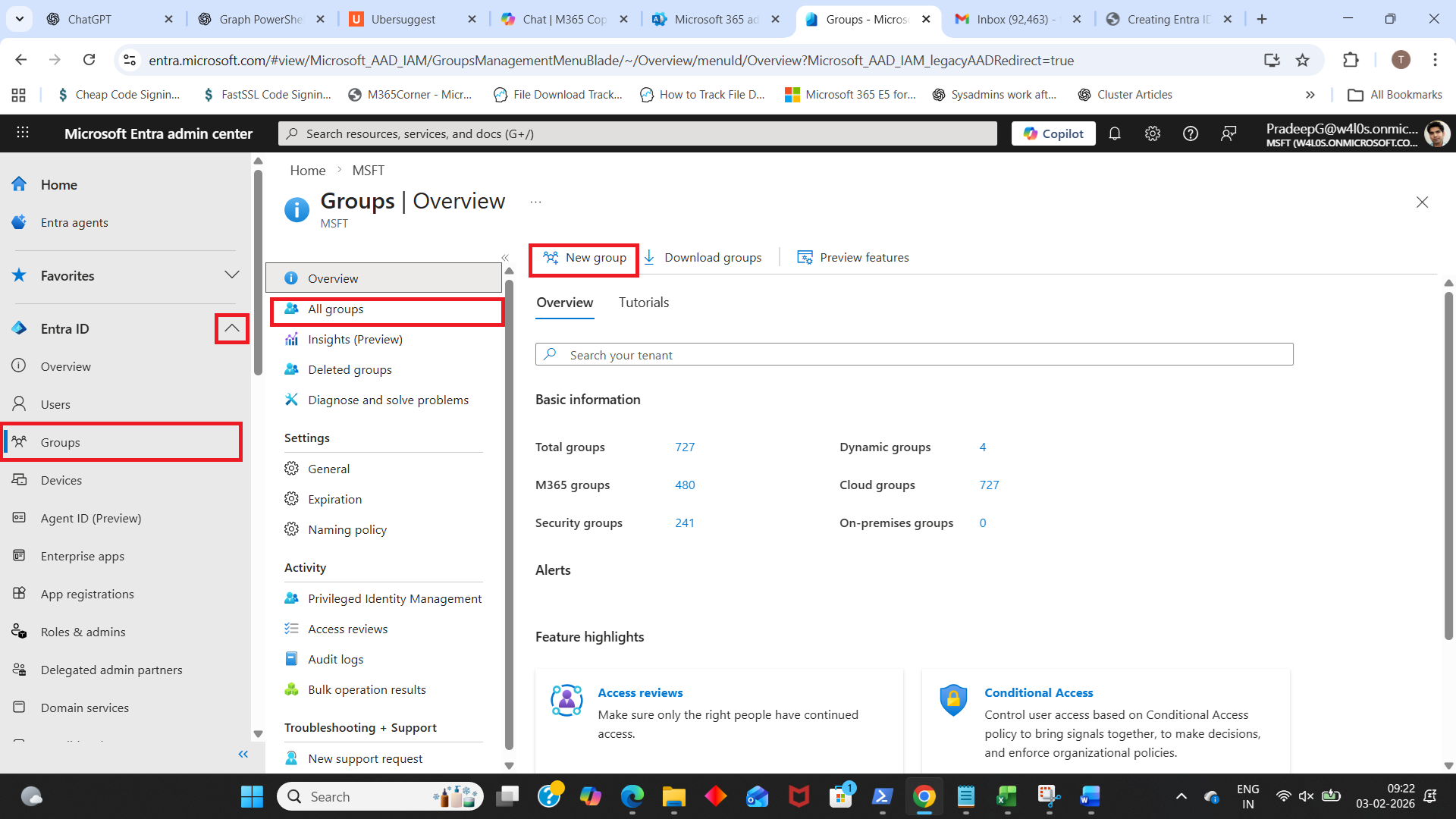
- Navigate to Groups
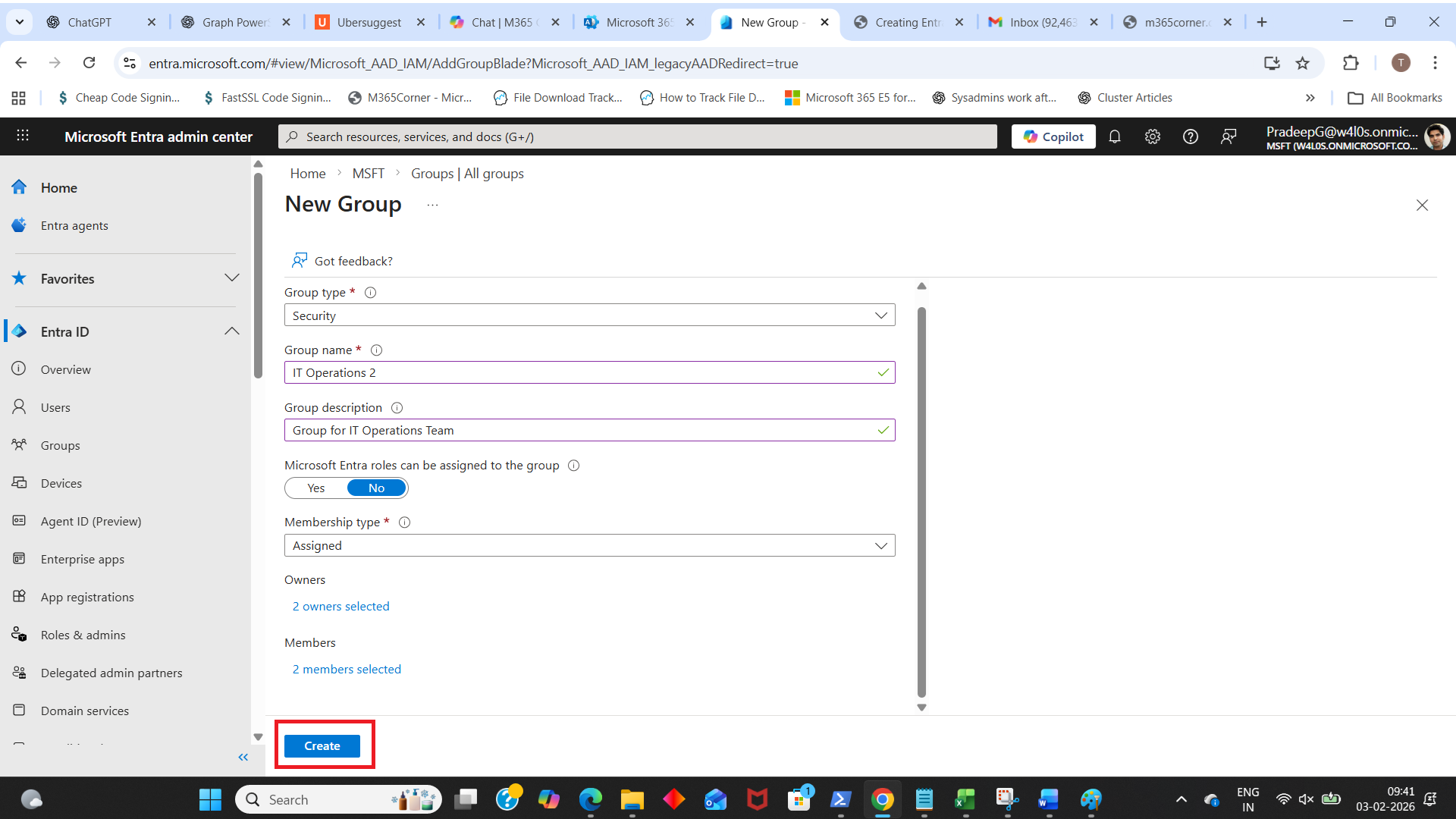
- In the left menu, select Entra ID Groups All groups New Group.
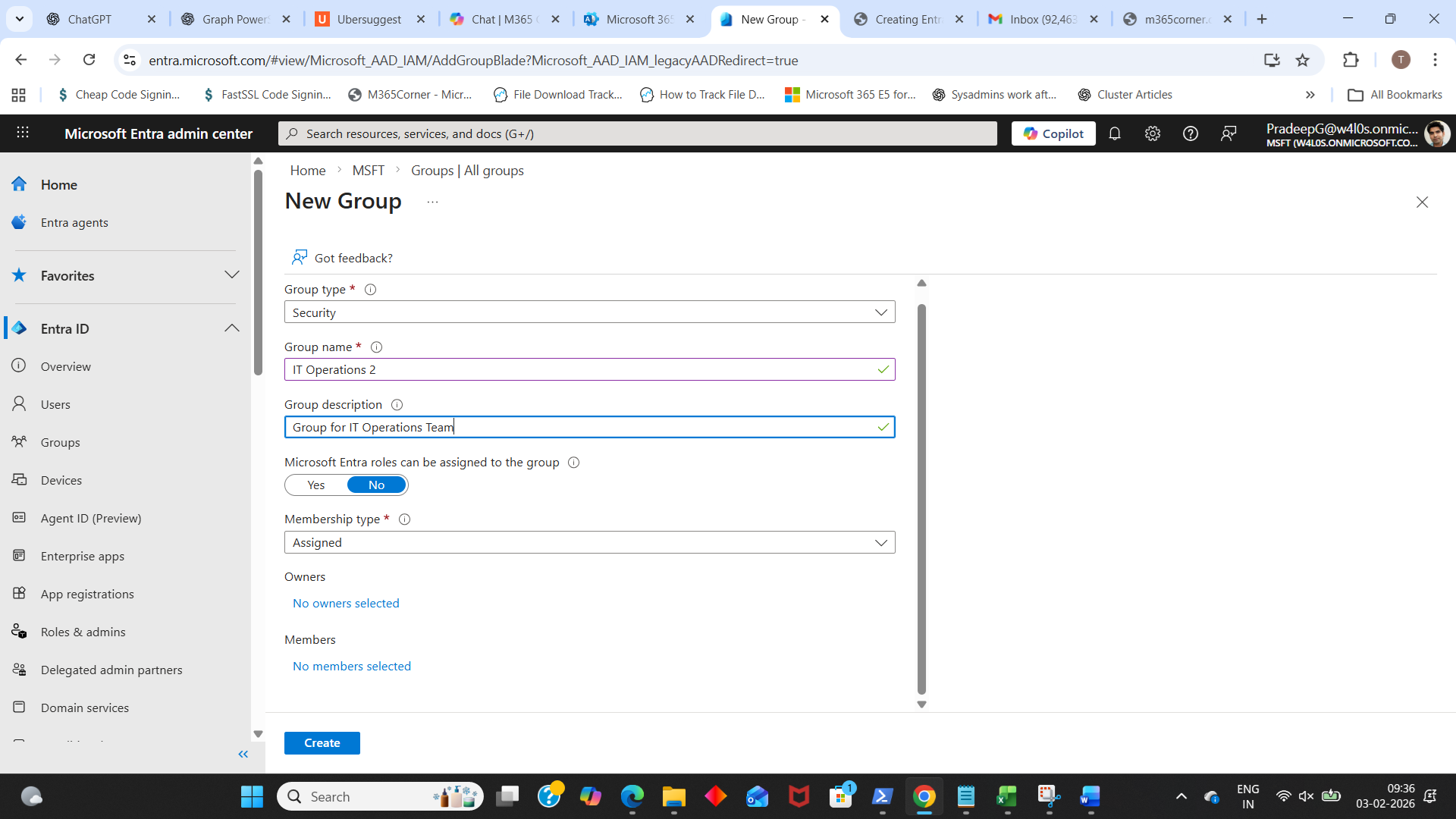
- Group type would be set to Security by default
- Enter the basic group details
- Group name
- Example: SG-App-CRM-Users or SG-VPN-Access
- Group description
- Keep it clear: what access it grants and who should be in it.
- Decide whether Microsoft Entra roles can be assigned to the group or not by selecting ‘Yes’ or ‘No’. [Read How to Create Role Assignable Entra ID Security Groups for more info].
- Select Membership type (important choice)
- Assigned: you manually add members
- Dynamic User: members are added automatically using rules (based on attributes like department, location, job title)
- Dynamic Device: devices are added automatically (useful for device-based access policies)
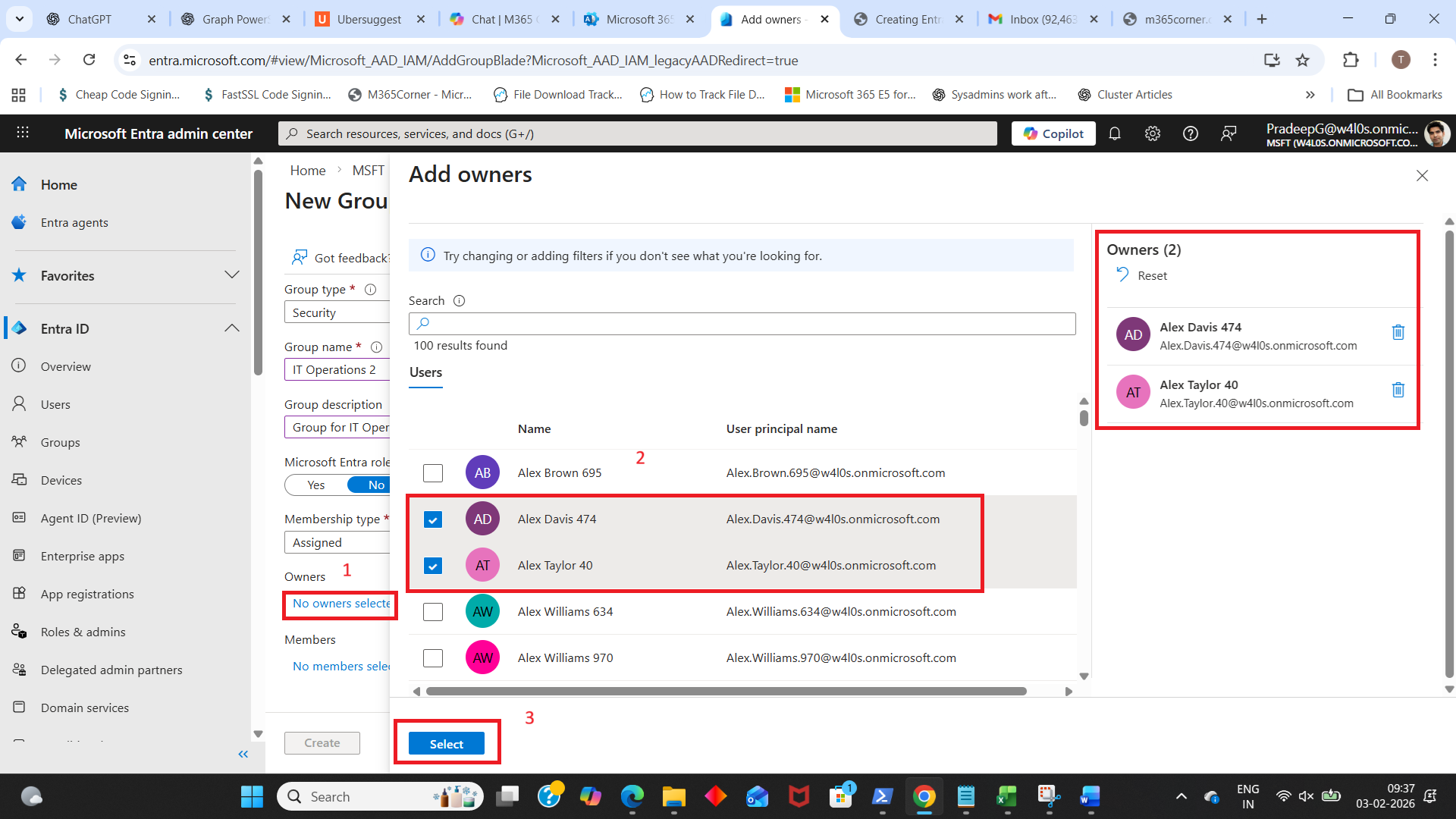
- Add owners (recommended)
- Under Owners, click No owners selected.
- Pick at least 1–2 owners (avoid a “no owner” group).
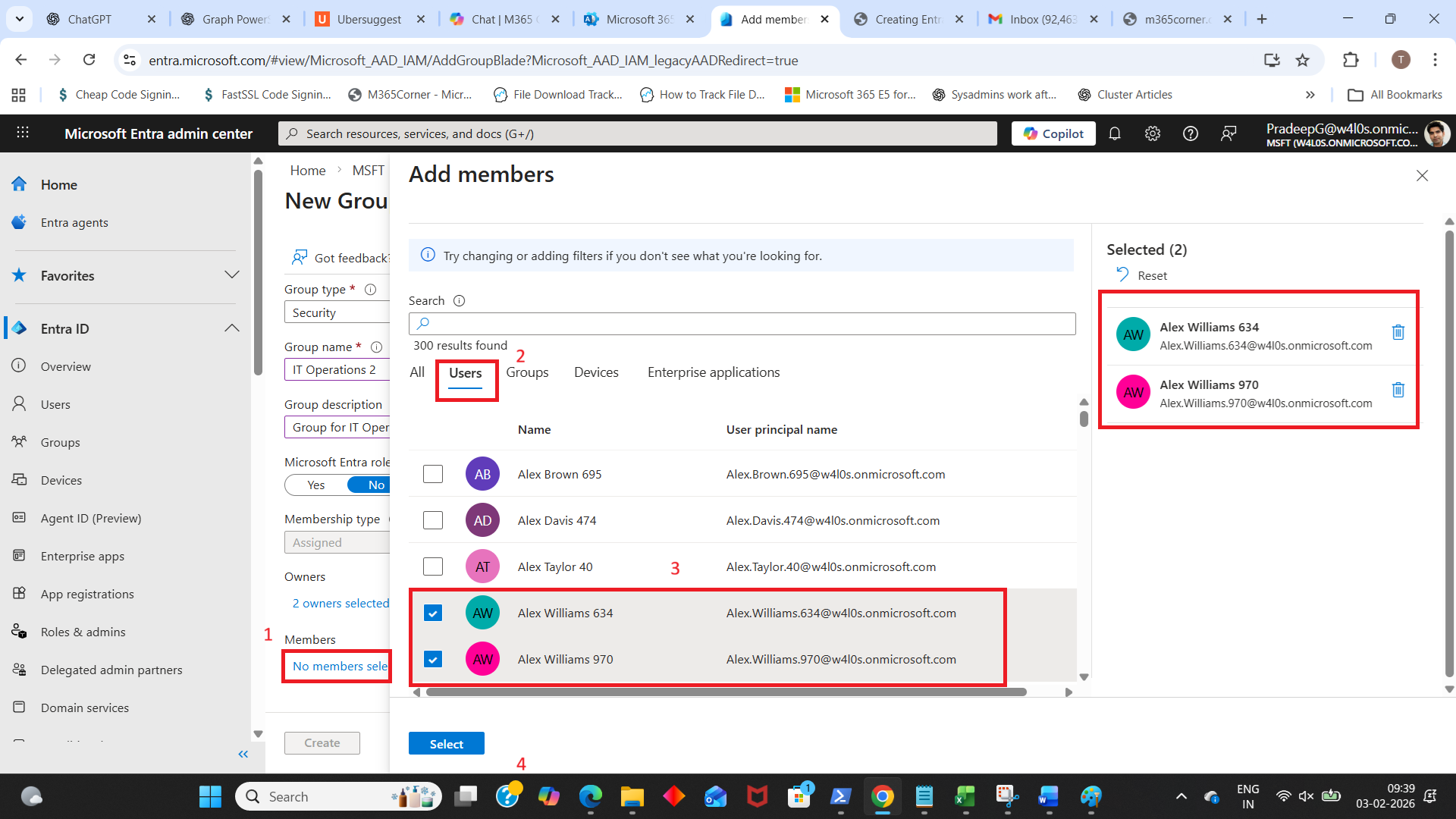
- Add members (for Assigned membership)
- Under Members, click No members selected.
- Search and add users (or other groups if your tenant allows it).
- Click Select.
- Create Create button to create the group.
Fill the core fields:
Why: owners can manage membership and help reduce admin dependency.
If you selected Assigned:
Creating Security Groups Using Graph PowerShell
If you prefer automation (or need repeatable deployments), you can create Security Groups in Entra ID (Azure AD) using Microsoft Graph PowerShell. Under the hood, Graph PowerShell calls the Microsoft Graph Groups API to create the group object.
Prerequisites
- Install the Microsoft Graph module (once)
- Connect to Microsoft Graph with required scopes (permissions)
- Using New-MgGroup to Create the Security Group
Install-Module Microsoft.Graph -Scope CurrentUserTo create groups, you typically need Group.ReadWrite.All (delegated) in most admin scenarios.
Connect-MgGraph -Scopes "Group.ReadWrite.All"Note: Your account must have a role that allows group creation (for example, Global Administrator / Groups Administrator), and the tenant settings must allow the action.
New-MgGroup -DisplayName "Security Group 1234" -MailNickname "SecGroup1234" -SecurityEnabled -MailEnabled:$falseCommand Explanation
- New-MgGroup
- -DisplayName "Security Group 1234"
- Sets the friendly name of the group as seen in Entra admin center and portals.
- This is what admins and users typically recognize.
- -MailNickname "SecGroup1234"
- Sets the mail nickname (also called the alias).
- Even when the group is not mail-enabled, Graph still requires a mailNickname value for group creation.
- -SecurityEnabled
- Marks the group as a Security Group.
- This enables the group to be used for access control (apps, resources, role assignments where applicable, etc.).
- -MailEnabled:$false
- Ensures the group is not mail-enabled (i.e., it won’t behave like a mail distribution group).
- With -SecurityEnabled + -MailEnabled:$false and no GroupTypes "Unified", the result is a standard Security Group (not a Microsoft 365 group).
This is the Graph PowerShell cmdlet used to create a new group in Entra ID (Azure AD). It maps to the Graph “create group” operation.
Example output in portal: Security Group 1234
Tip: Use letters/numbers without spaces to avoid format issues.
Did You Know? Managing Microsoft 365 applications is even easier with automation. Try our Graph PowerShell scripts to automate tasks like generating reports, cleaning up inactive Teams, or assigning licenses efficiently.
Ready to get the most out of Microsoft 365 tools? Explore our free Microsoft 365 administration tools to simplify your administrative tasks and boost productivity.