Creating Entra ID Role Assignable Groups
Managing administrative access securely is a top priority for Microsoft 365 administrators. Entra ID role assignable groups make this easier by allowing you to assign directory roles to groups instead of individual users—bringing consistency, scalability, and better governance to role management.
In this article, we’ll cover:
- What Entra ID role assignable groups are
- How to create them manually using the Entra admin center
- How to create them using Microsoft Graph PowerShell
- How to bulk create role assignable groups with automated role assignment
What are Entra ID Role Assignable Groups?
Entra ID role assignable groups are special security groups that can be assigned directory roles such as:
- Global Administrator
- Authentication Administrator
- User Administrator
- Reports Reader
Instead of assigning these roles directly to users, you assign the role to a group—and then manage access by controlling group membership.
Why role assignable groups matter
- ✅ Centralized role management
- ✅ Reduced risk of over-privileged users
- ✅ Easier onboarding and offboarding
- ✅ Better auditability and compliance
⚠️ Important
Role assignable groups must be security groups and cannot be converted later. The role assignable option must be enabled at the time of creation.
How to Create Entra ID Role Assignable Groups?
You can create a role assignable group directly from the Microsoft Entra admin center. This approach is ideal when creating a small number of groups.
Step-by-step process
- Sign in to the Microsoft Entra admin center
- Navigate to Groups and select New group
- Choose Security as the group type
- Provide a Group name and Description
- Set Entra roles can be assigned to this group to Yes
- Configure owners and members if required
- Select role to be assigned to the group (example: Exchange Administrator).
- Click Create
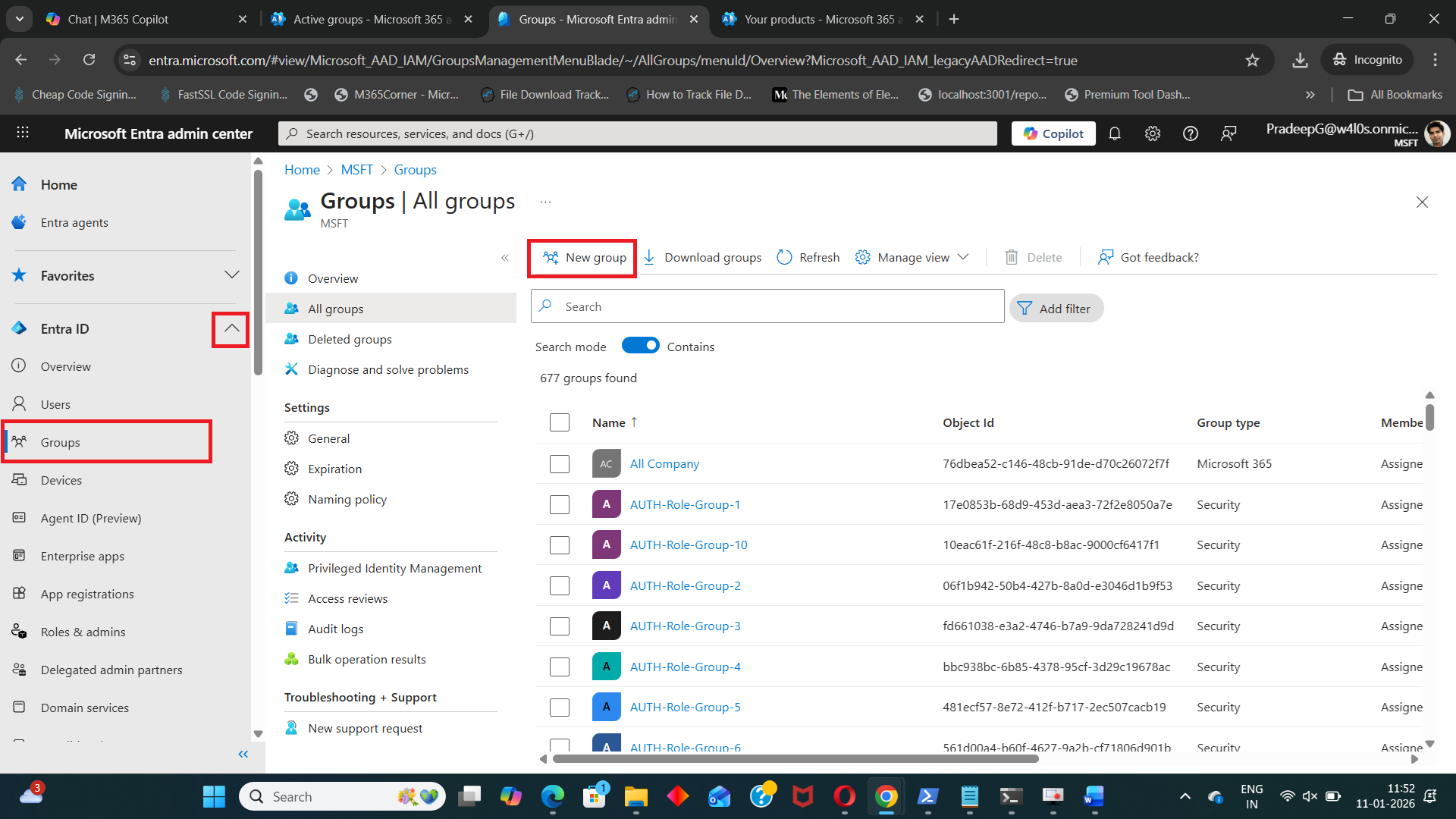
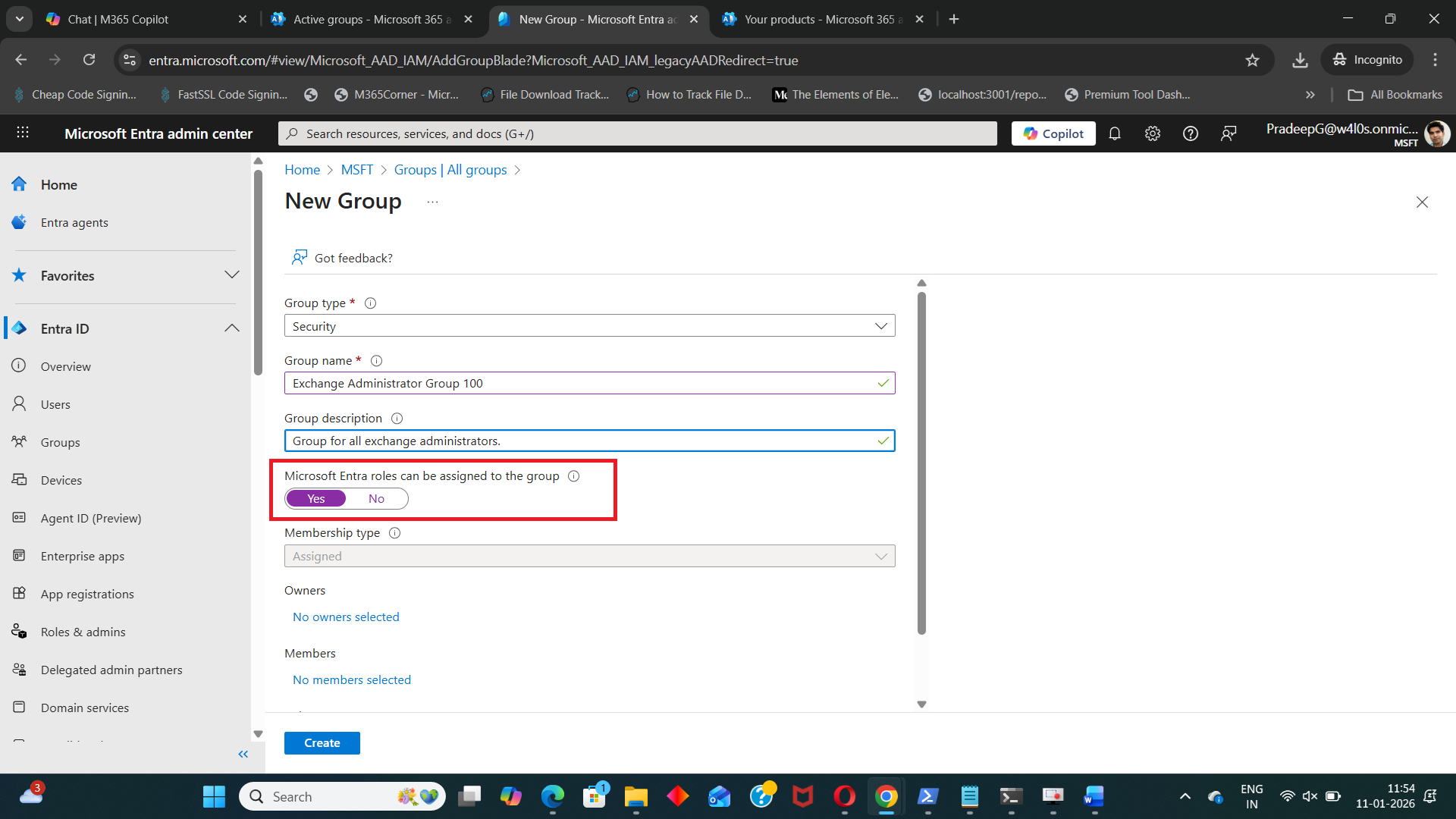
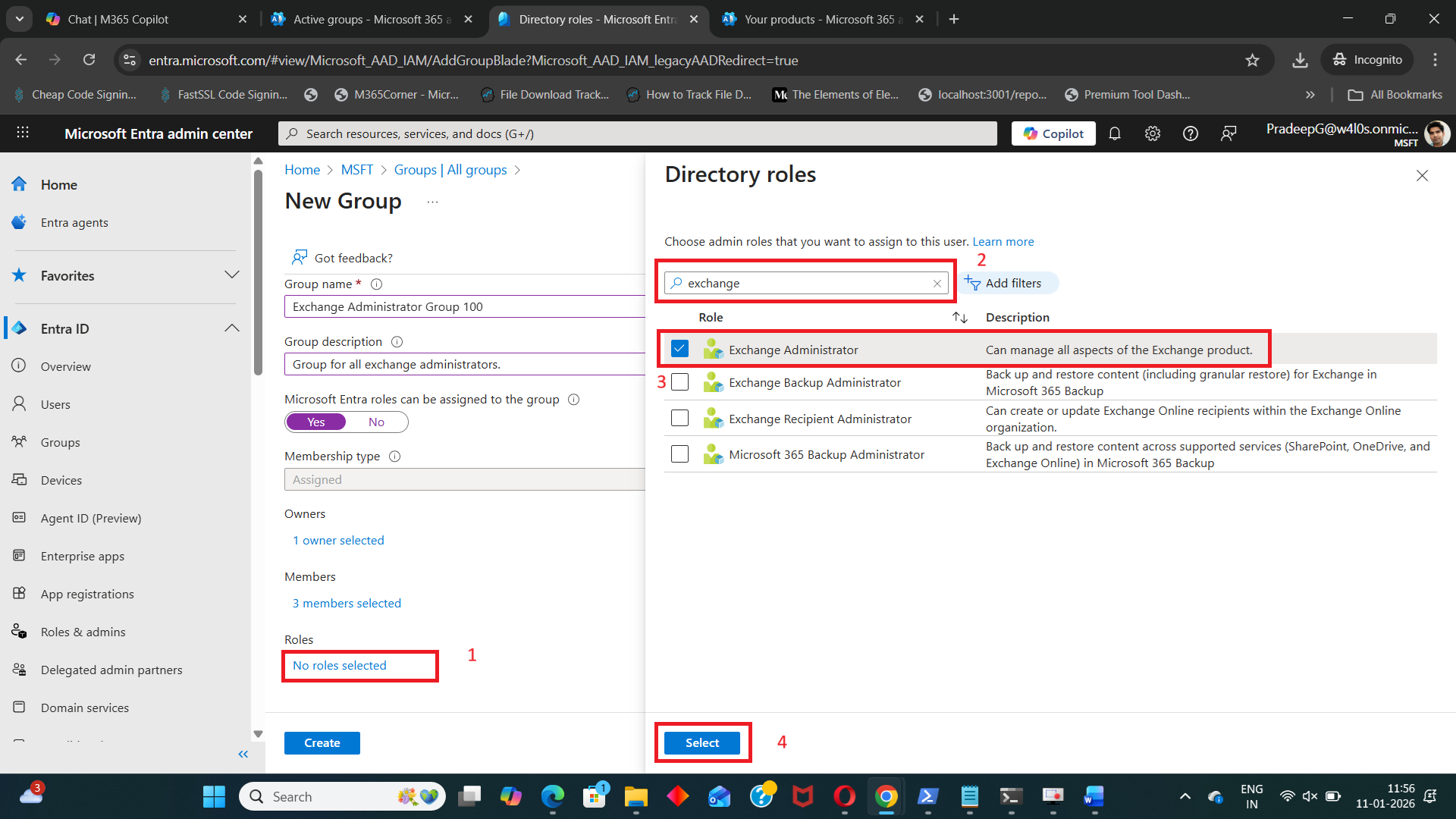
Once created, the group becomes eligible for directory role assignments.
💡 Tip
If you miss enabling the role assignable option during creation, the group cannot be fixed later—you’ll need to recreate it.
Using Graph PowerShell to Create Entra ID Role Assignable Groups
For administrators who prefer automation, Microsoft Graph PowerShell provides a clean and reliable way to create role assignable groups.
# Define group details
$GroupName = "Role-Assignable-Security-Group-01"

# Create role-assignable security group
New-MgGroup -BodyParameter @{
    displayName        = $GroupName
    description        = "Role-assignable security group created using Graph PowerShell"
    mailEnabled        = $false
    mailNickname       = ($GroupName -replace '\s','').ToLower()
    securityEnabled    = $true
    isAssignableToRole = $true
}
Script explanation
- $GroupName - Defines the display name of the security group.
- mailEnabled = $false - Ensures this is a security group, not a mail-enabled group.
- mailNickname - Required by Entra ID, even when mail is disabled.
- securityEnabled = $true - Confirms the group can be used for access control.
- isAssignableToRole = $true - This is the most important property—it makes the group role assignable.
💡 Admin note
This flag cannot be added later, which is why automation helps avoid mistakes.
Bulk Create Entra ID Role Assignable Groups Using Graph PowerShell
When managing large environments, creating role assignable groups one by one is inefficient. The following script allows you to bulk create multiple role assignable groups and automatically assign a directory role to each group.
# Number of groups to create
$GroupCount = 10

# Prefix for group names
$GroupNamePrefix = "AUTH-Role-Group"

# Get Global Administrator role
$GlobalAdminRole = Get-MgDirectoryRole | Where-Object {
    $_.DisplayName -eq "Authentication Administrator"
}

# If role is not activated, activate it
if (-not $GlobalAdminRole) {
    $RoleTemplate = Get-MgDirectoryRoleTemplate | Where-Object {
        $_.DisplayName -eq "Authentication Administrator"
    }

    Enable-MgDirectoryRole -DirectoryRoleTemplateId $RoleTemplate.Id
    Start-Sleep -Seconds 5

    $GlobalAdminRole = Get-MgDirectoryRole | Where-Object {
        $_.DisplayName -eq "Authentication Administrator"
    }
}

Write-Host "Authentication Administrator ID:" $GlobalAdminRole.Id

for ($i = 1; $i -le $GroupCount; $i++) {

    $GroupName = "$GroupNamePrefix-$i"

    Write-Host "Creating group: $GroupName"

    # Create role-assignable group
    $Group = New-MgGroup -BodyParameter @{
        displayName = $GroupName
        description = "Role-assignable group with Authentication Administrator permissions"
        mailEnabled = $false
        mailNickname = ($GroupName -replace '\s','').ToLower()
        securityEnabled = $true
        isAssignableToRole = $true
    }

    # Assign Authentication Administrator role to the group
    New-MgDirectoryRoleMemberByRef `
        -DirectoryRoleId $GlobalAdminRole.Id `
        -BodyParameter @{
            "@odata.id" = "https://graph.microsoft.com/v1.0/directoryObjects/$($Group.Id)"
        }

    Write-Host "Assigned Authentication Administrator role to $GroupName"
}
Write-Host "Completed creation and role assignment for $GroupCount groups."
Script explanation
- $GroupCount
Controls how many role assignable groups will be created. - $GroupNamePrefix
Used to generate consistent group names (e.g., AUTH-Role-Group-1). - Get-MgDirectoryRole / Enable-MgDirectoryRole
Ensures the Authentication Administrator role is activated before assignment. - New-MgGroup
Creates each group with isAssignableToRole = $true. - New-MgDirectoryRoleMemberByRef
Assigns the directory role to the group, not to individual users.
This approach is extremely effective when:
- Standardizing role-based access
- Onboarding IT teams
- Enforcing least-privilege access models
Final thoughts
Entra ID role assignable groups are a best practice for managing administrative access in Microsoft 365. They reduce risk, improve consistency, and simplify access management at scale.
- Use the Entra admin center for one-off creations
- Use Graph PowerShell for accuracy and automation
- Use bulk scripts for large or repeatable deployments
If you’re managing roles in Entra ID today, moving to role assignable groups is a natural and recommended next step.
Did You Know? Managing Microsoft 365 applications is even easier with automation. Try our Graph PowerShell scripts to automate tasks like generating reports, cleaning up inactive Teams, or assigning licenses efficiently.
Ready to get the most out of Microsoft 365 tools? Explore our free Microsoft 365 administration tools to simplify your administrative tasks and boost productivity.