Using Invoke-MgGraphRequest to Remove Teams Channel Members
In Microsoft 365, managing Teams is essential for maintaining security and efficiency. While standard cmdlets like Remove-MgTeamMember exist, there are cases where you may need to interact directly with Microsoft Graph API endpoints, such as removing members from a Teams channel. This article explains how to use the Invoke-MgGraphRequest cmdlet to remove channel members, complete with syntax, real-world usage examples, cmdlet tips, possible errors, and use cases.
Syntax for Removing Teams Channel Members
To remove a team channel member, use the HTTP DELETE method to make an API call. Below is the general API endpoint format:
DELETE https://graph.microsoft.com/v1.0/teams/{teamId}/channels/{channelId}/members/{memberId}- teamId: The ID of the team containing the channel.
- channelId: The ID of the specific channel.
- memberId: The unique identifier of the channel member.
How to Get TeamId, ChannelId, and MemberId
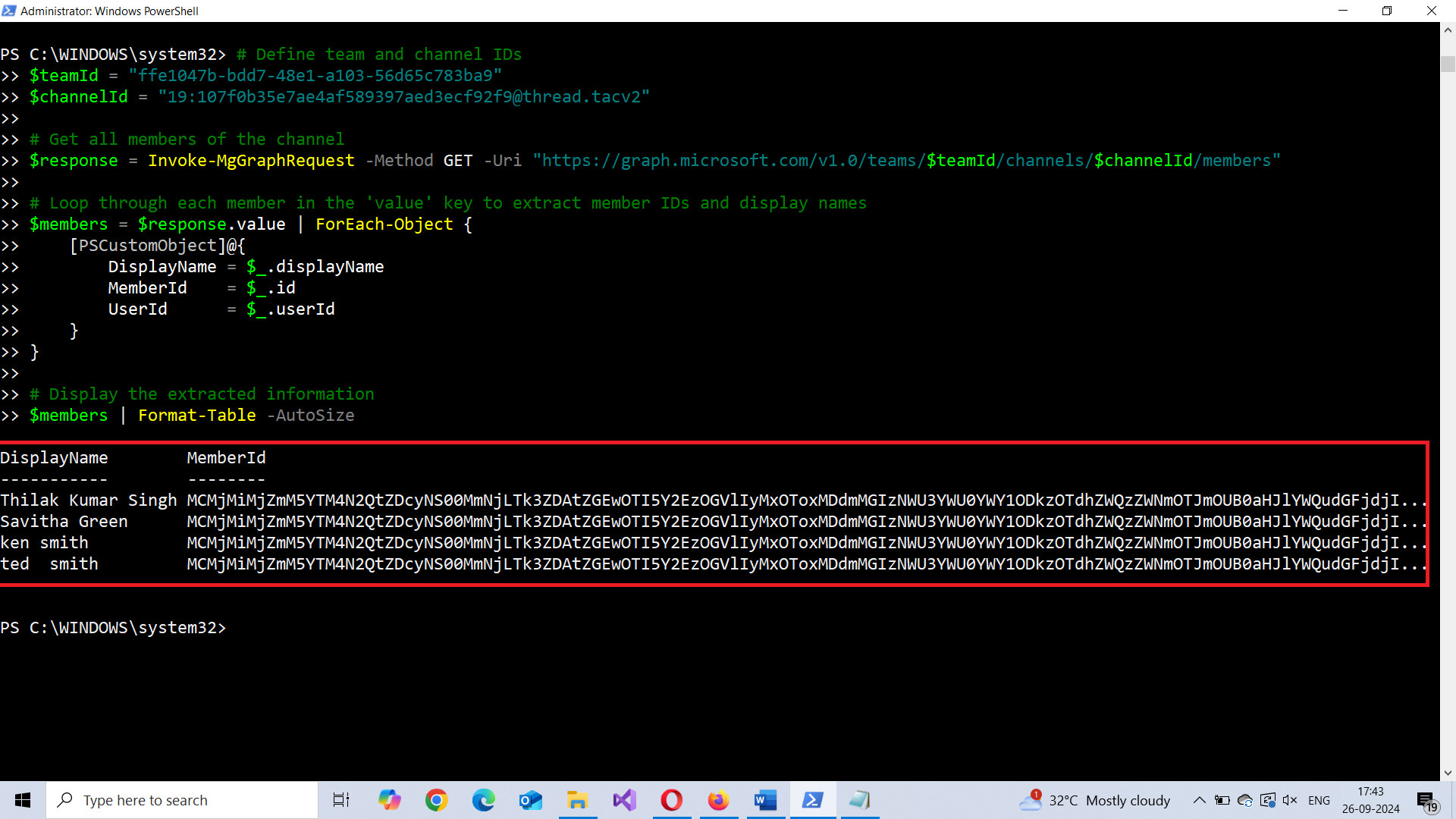
Run Get-MgTeam cmdlet to get the team id. Use Invoke-MgGraphRequest to fetch teams channel by calling this -Uri https://graph.microsoft.com/v1.0/teams/
# Define team and channel IDs
$teamId = "ffe1047b-bdd7-48e1-a103-56d65c783ba9"
$channelId = "19:107f0b35e7ae4af589397aed3ecf92f9@thread.tacv2"

# Get all members of the channel
$response = Invoke-MgGraphRequest -Method GET -Uri "https://graph.microsoft.com/v1.0/teams/$teamId/channels/$channelId/members"

# Loop through each member to extract member IDs and display names
$members = $response.value | ForEach-Object {
    [PSCustomObject]@{
        DisplayName = $_.displayName
        MemberId    = $_.id
        UserId      = $_.userId
    }
}

# Display the information
$members | Format-Table -AutoSize
Note: The channel member ids are available within the ‘value’ key as hashtable. This hashtable has to be looped through to pull out the channel member ids [along with the user details such as Display Name and User Id]
Example 1: Remove a Single Channel Member
This example removes a single member from a specific channel using the Invoke-MgGraphRequest cmdlet.
# Define team, channel, and member IDs
$teamId = "ece6f0a1-7ca4-498b-be79-edf6c8fc4d82"
$channelId = "19:56eb04e133944cf69e603c5dac2d292e@thread.skype"
$memberId = "ZWUwZjVhZTItOGJjNi00YWU1LTg0NjYtN2RhZWViYmZhMDYyIyM3Mzc2MWYwNi0yYWM5LTQ2OWMtOWYxMC0yNzlhOGNjMjY3Zjk="

# Remove the member
Invoke-MgGraphRequest -Method DELETE -Uri "https://graph.microsoft.com/v1.0/teams/$teamId/channels/$channelId/members/$memberId"
Example 2: Remove Multiple Channel Members
To remove multiple members, you can loop through a list of member IDs and remove each one using Invoke-MgGraphRequest.
# Define team and channel IDs
$teamId = "ece6f0a1-7ca4-498b-be79-edf6c8fc4d82"
$channelId = "19:56eb04e133944cf69e603c5dac2d292e@thread.skype"

# List of member IDs to remove
$memberIds = @(
    "ZWUwZjVhZTItOGJjNi00YWU1LTg0NjYtN2RhZWViYmZhMDYyIyM3Mzc2MWYwNi0yYWM5LTQ2OWMtOWYxMC0yNzlhOGNjMjY3Zjk="
    "e3b23fa2-7f8f-493c-bc2b-ff0de3c4204e"
)

# Remove each member
foreach ($memberId in $memberIds) {
    Invoke-MgGraphRequest -Method DELETE -Uri "https://graph.microsoft.com/v1.0/teams/$teamId/channels/$channelId/members/$memberId"
}
Example 3: Bulk Member Removal Using CSV
For bulk member removal, load member details from a CSV file and process them:
# Import the CSV file
$csvData = Import-Csv -Path "C:\Path\To\Members.csv"

# Loop through each record and remove the members
foreach ($record in $csvData) {
    $teamId = $record.TeamId
    $channelId = $record.ChannelId
    $memberId = $record.MemberId

    # Remove the member
    Invoke-MgGraphRequest -Method DELETE -Uri "https://graph.microsoft.com/v1.0/teams/$teamId/channels/$channelId/members/$memberId"
}
Cmdlet Tips
- Check Permissions: Ensure the user has
ChannelMember.ReadWrite.Allpermissions to remove members from the Teams channel. - Rate Limits: Be mindful of Microsoft Graph API rate limits when performing bulk operations. Use batching or add delays between requests if necessary.
- Response Handling: Capture HTTP responses to log success or failure when removing members.
Possible Errors & Solutions
| Error | Cause | Solution |
| 404 Not Found | Incorrect team, channel, or member ID. | Double-check the IDs and ensure the member exists in the specified channel. |
| 403 Forbidden | Lack of permissions to remove members from the channel. | Ensure the user has ChannelMember.ReadWrite.All permissions. |
| 429 Too Many Requests | API rate limit exceeded. | Implement delays between API calls to avoid rate limiting. |
Use Cases
- Removing Inactive Users: Easily remove users who no longer participate in a specific channel, keeping membership up to date.
- Automating Channel Clean-up: Automate the removal of multiple users, saving time and effort for administrators, especially in large organizations.
- Compliance and Security: Ensure unauthorized or inactive users are removed from sensitive channels to comply with security policies.
Conclusion
The Invoke-MgGraphRequest cmdlet offers a flexible way to manage Microsoft Teams channel membership. Whether removing single members, multiple members, or bulk members using a CSV file, this method ensures precise and efficient management of Teams memberships. By leveraging Microsoft Graph API, administrators gain more control, improving security and organization within Teams.