Track Failed Sign-Ins Using Graph PowerShell
Monitoring failed user logins is essential for identifying unauthorized access attempts and ensuring the security of your Microsoft 365 environment. This article introduces a simple Graph PowerShell script that retrieves failed sign-in attempts using the Microsoft Graph SDK v1.0 and displays relevant login details such as time, user, error code, IP address, and the application used.
Script – Fetch Failed User Logins
# Connect to Microsoft Graph with necessary permissions
Connect-MgGraph -Scopes "AuditLog.Read.All"

# Retrieve all failed sign-in attempts (errorCode not equal to 0)
$FailedLogins = Get-MgAuditLogSignIn -Filter "status/errorCode ne 0" -All

# Display the required headers in the console
$FailedLogins | Select-Object `
@{Name = "Login Time"; Expression = { $_.CreatedDateTime }},
@{Name = "Logged In User (UPN)"; Expression = { $_.UserPrincipalName }},
@{Name = "Logon Error"; Expression = { $_.Status.ErrorCode }},
@{Name = "Logged In IP Address"; Expression = { $_.IpAddress }},
@{Name = "Login Application"; Expression = { $_.AppDisplayName }} |
Format-Table -AutoSize
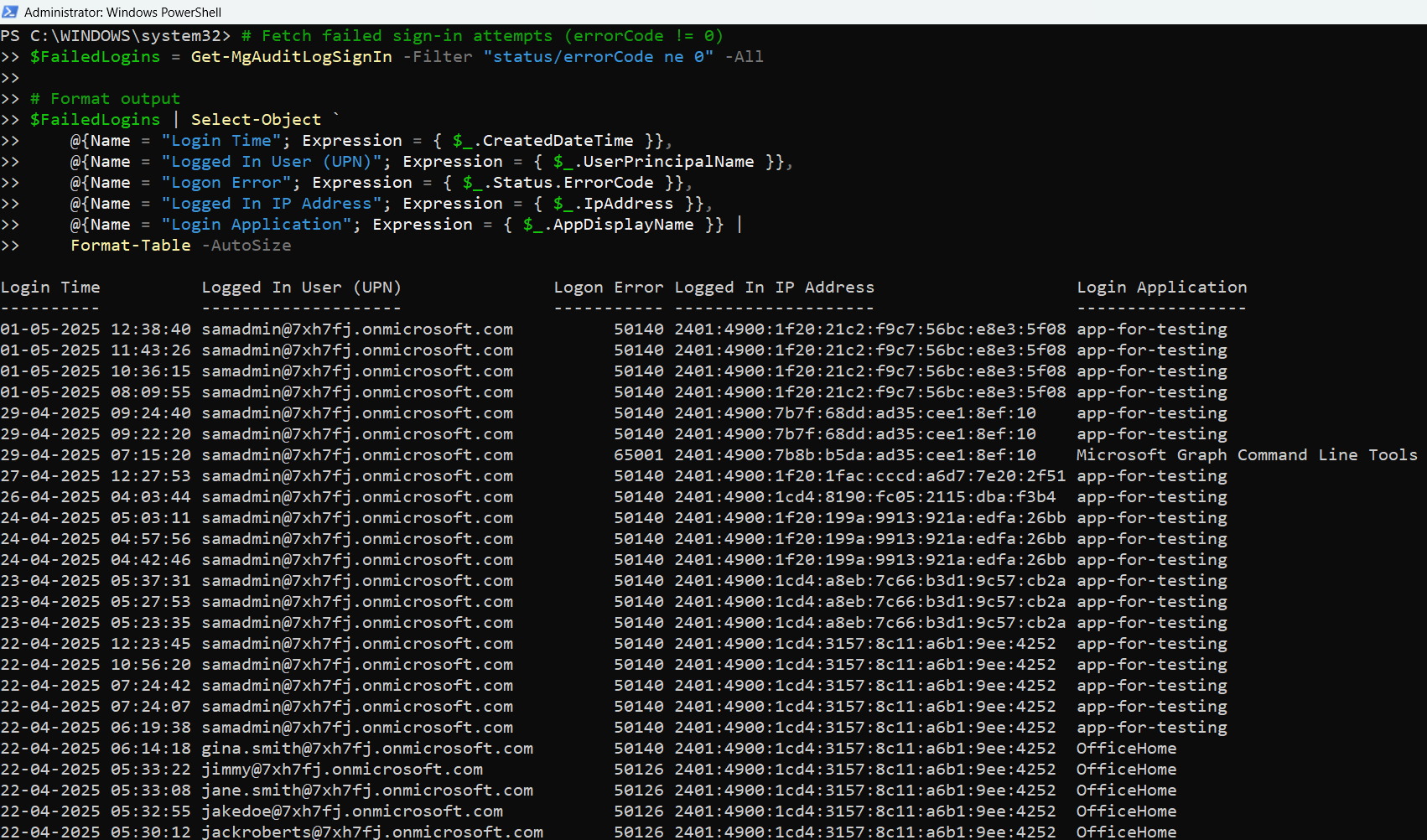
How the Script Works
- Authentication: The script begins by connecting to Microsoft Graph with the AuditLog.Read.All permission, which is required to access sign-in audit logs.
- Filtering Failed Logins: Using the -Filter parameter, the script filters the sign-in logs to retrieve only entries where the status/errorCode is not equal to 0, indicating a failed login attempt.
- Selecting Relevant Data: The Select-Object block extracts five key properties for each failed login:
- Login Time: When the sign-in attempt occurred
- UserPrincipalName: The UPN (email) of the user attempting login
- Error Code: The sign-in error code
- IP Address: The IP address from which the attempt was made
- AppDisplayName: The application where the sign-in was attempted
- Output Formatting: The results are neatly displayed in a table using Format-Table.
Further Enhancements
Here are a few ways to enhance this basic script:
Add Date Filtering
Filter logins from the last 7 days:
$Since = (Get-Date).AddDays(-7)
$FailedLogins | Where-Object { $_.CreatedDateTime -ge $Since }
Export to CSV
Save the output to a file for offline analysis or incident reports:
... | Export-Csv -Path ".\FailedSignIns.csv" -NoTypeInformationFilter by Specific User or App
Retrieve failed logins for a single user:
$FailedLogins | Where-Object { $_.UserPrincipalName -eq "user@domain.com" }Possible Errors & Solutions
| Error | Cause | Solution |
| Connect-MgGraph is not recognized | Graph module not installed | Run Install-Module Microsoft.Graph -Scope CurrentUser |
| Insufficient privileges to call this API | Missing delegated/admin permissions | Ensure you're using an account with AuditLog.Read.All permission and grant admin consent |
| status/errorCode is not valid in filter | Typo or using unsupported property in filter | Double-check spelling and property names; use status/errorCode exactly as shown |
Use Cases
- Security Audits: Identify brute force or suspicious login activity.
- Compliance Reporting: Generate audit-ready login failure reports.
- Threat Detection: Monitor logins from unfamiliar IPs or geographies.
- Helpdesk Assistance: Troubleshoot failed login scenarios for end-users.
Conclusion
This simple yet powerful script gives Microsoft 365 administrators direct visibility into failed login activity using Graph PowerShell. By customizing the output, applying filters, and exporting results, you can turn this into a proactive monitoring solution for your organization. Best of all, it's lightweight and easy to integrate into your security and compliance toolkit.