Report Licensed Users Who Are Inactive (No Sign-In for 90+ Days) Using Graph PowerShell
Licenses are one of the biggest recurring costs in Microsoft 365. In most tenants, a portion of users remain licensed even though they are no longer active — for example:
- employees who left but accounts weren’t disabled yet
- users on long leave
- temporary staff
- test/service accounts with licenses
- users who never actually signed in
These inactive licensed users quietly waste licenses and often show up in cost-optimization reviews.
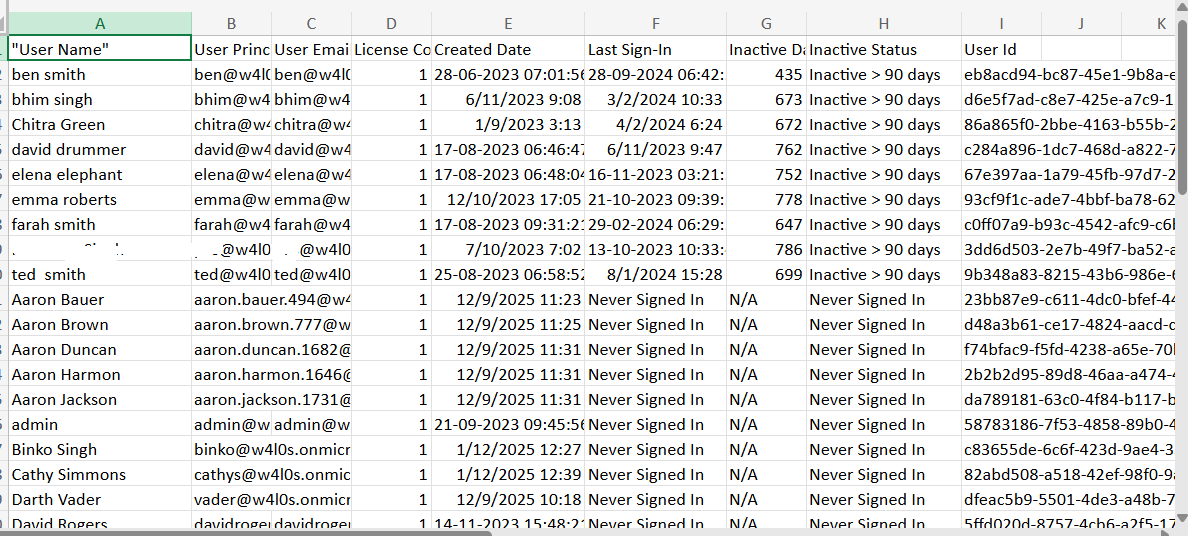
This script identifies licensed member users who haven’t signed in for the last 90 days (or never signed in), exports an Excel-safe CSV report, and emails it automatically to administrators or licensing stakeholders.
🚀 Community Edition Released!
Try the M365Corner Microsoft 365 Reporting Tool — your DIY pack with 20+ out-of-the-box M365 reports for Users, Groups, and Teams.
i) The Script
$SenderUPN = "admin@yourtenant.onmicrosoft.com"

$Recipients = @(
    "admin@yourtenant.onmicrosoft.com",
    "licensingteam@yourtenant.onmicrosoft.com"
)

$InactiveDays = 90
$CutoffDate = (Get-Date).ToUniversalTime().AddDays(-$InactiveDays)

Connect-MgGraph -Scopes "User.Read.All","Directory.Read.All","AuditLog.Read.All","Mail.Send"
$LicensedUsers = Get-MgUser -All `
    -Filter "assignedLicenses/`$count ne 0 and userType eq 'Member' and accountEnabled eq true" `
    -ConsistencyLevel eventual `
    -CountVariable Records `
    -Property Id,DisplayName,UserPrincipalName,Mail,AssignedLicenses,CreatedDateTime,SignInActivity,AccountEnabled

$Report = @()

foreach ($u in $LicensedUsers) {

    $LastSignIn = $null
    if ($u.SignInActivity -and $u.SignInActivity.LastSignInDateTime) {
        $LastSignIn = ([datetime]$u.SignInActivity.LastSignInDateTime).ToUniversalTime()
    }

    $NeverSignedIn = -not $LastSignIn
    $Inactive = $LastSignIn -and ($LastSignIn -lt $CutoffDate)

    if ($NeverSignedIn -or $Inactive) {

        $InactiveDaysCalc = if ($LastSignIn) {
            [int]((Get-Date).ToUniversalTime() - $LastSignIn).TotalDays
        } else { "N/A" }

        $Report += [PSCustomObject]@{
            "User Name"            = $u.DisplayName
            "User Principal Name"  = $u.UserPrincipalName
            "User Email"           = $u.Mail
            "License Count"        = $u.AssignedLicenses.Count
            "Created Date"         = $u.CreatedDateTime
            "Last Sign-In"         = if ($LastSignIn) { $u.SignInActivity.LastSignInDateTime } else { "Never Signed In" }
            "Inactive Days"        = $InactiveDaysCalc
            "Inactive Status"      = if ($NeverSignedIn) { "Never Signed In" } else { "Inactive > $InactiveDays days" }
            "User Id"              = $u.Id
        }
    }
}

$ReportPath = "$env:TEMP\Inactive_Licensed_Users_Report.csv"

if ($Report.Count -gt 0) {
    $Report | Sort-Object "Inactive Status","User Name" |
        Export-Csv -Path $ReportPath -NoTypeInformation -Encoding utf8
} else {
    "No inactive licensed users (>$InactiveDays days) or never-signed-in users were found." |
        Set-Content -Path $ReportPath -Encoding utf8
}

$Bytes = [System.IO.File]::ReadAllBytes($ReportPath)
$Utf8Bom = New-Object System.Text.UTF8Encoding($true)
[System.IO.File]::WriteAllText($ReportPath, [System.Text.Encoding]::UTF8.GetString($Bytes), $Utf8Bom)

$Count = $Report.Count
$Subject = "Inactive Licensed Users Report — $(Get-Date -Format 'yyyy-MM-dd')"

$Body = @"
Hello Team,<br><br>
Attached is the <b>Inactive Licensed Users Report</b>.<br>
Users included are licensed accounts that have<br>
1) never signed in, or<br>
2) not signed in for more than <b>$InactiveDays days</b>.<br><br>
Total inactive licensed users found: <b>$Count</b><br><br>
Regards,<br>
Graph PowerShell Automation
"@

$AttachmentContent = [System.Convert]::ToBase64String([System.IO.File]::ReadAllBytes($ReportPath))
$Attachments = @(
    @{
        "@odata.type" = "#microsoft.graph.fileAttachment"
        Name          = "Inactive_Licensed_Users_Report.csv"
        ContentBytes  = $AttachmentContent
    }
)

$ToRecipients = $Recipients | ForEach-Object {
    @{ EmailAddress = @{ Address = $_ } }
}

$Message = @{
    Message = @{
        Subject = $Subject
        Body    = @{
            ContentType = "HTML"
            Content     = $Body
        }
        ToRecipients = $ToRecipients
        Attachments  = $Attachments
    }
    SaveToSentItems = "true"
}

Send-MgUserMail -UserId $SenderUPN -BodyParameter $Message

Write-Host "Inactive licensed users report emailed successfully." -ForegroundColor Green
ii) How the Script Works
- Connects to Microsoft Graph
It uses delegated scopes to read users, sign-in activity, and send email. - Finds only licensed, enabled member users
The filter checks: - assignedLicenses/$count ne 0 → licensed users
- pe eq 'Member' → excludes guests
- accountEnabled eq true → only active accounts
- Reads last sign-in activity
For each licensed user, it checks:
SignInActivity.LastSignInDateTime - Detects inactivity
A user is included if: - they never signed in, or
- their last sign-in is older than 90 days
- Exports an Excel-safe CSV
The report is exported as UTF-8 and rewritten with BOM so Excel always displays columns properly. - Emails the report automatically
The CSV is Base64-encoded and sent as an attachment via Send-MgUserMail.
iii) Further Enhancements
- Include license SKU names
Resolve AssignedLicenses.SkuId into readable SKU names. - Split into two tabs/sections
- Never signed-in licensed users
- Inactive licensed users
- Exclude service accounts
Filter based on naming patterns or department/jobtitle. - Auto-generate remediation list
Produce a second CSV with recommended action: - remove license
- disable account
- alert owner
- Schedule weekly cost-hygiene emails
Run via Task Scheduler or Azure Automation.
iv) Possible Errors & Solutions
| Error | Cause | Solution |
|---|---|---|
| Filter error on assignedLicenses | $count not escaped | Use assignedLicenses/$count ne 0` with ConsistencyLevel eventual. |
| Access denied (403) | Missing consent for permissions. | Admin-consent required for:
|
| Empty report | No inactive licensed users exist. | Valid output; reduce $InactiveDays to validate behavior. |
v) Conclusion
Inactive licensed users are one of the easiest places to recover Microsoft 365 cost and reduce directory clutter. This Graph PowerShell script gives admins a reliable way to identify those accounts, generate an audit-ready Excel-safe report, and email it to stakeholders automatically. Running it regularly helps ensure licenses stay aligned with real user activity.