New-MgRoleManagementDirectoryRoleEligibilityScheduleRequest Cmdlet
Managing privileged roles in Microsoft Entra ID is no longer about giving permanent access. Modern tenants rely heavily on Privileged Identity Management (PIM), where administrators receive roles only when needed, either through activation or eligibility.
The New-MgRoleManagementDirectoryRoleEligibilityScheduleRequest cmdlet helps administrators create role eligibility schedule requests, allowing a user to become eligible for a directory role for a specific duration.
This is commonly used when:
- Assigning temporary admin eligibility
- Automating role eligibility requests
- Enforcing least privilege access
- Supporting audit-friendly role management
🚀 Community Edition Released!
Try the M365Corner Microsoft 365 Reporting Tool — your DIY pack with 20+ out-of-the-box M365 reports for Users, Groups, and Teams.
Cmdlet Syntax
New-MgRoleManagementDirectoryRoleEligibilityScheduleRequest -BodyParameter <Hashtable>
Required Properties in -BodyParameter
| Property | Description |
| PrincipalId | User (or service principal) receiving eligibility |
| RoleDefinitionId | Directory role being assigned |
| Directory role being assigned | Scope of assignment (usually /) |
| Action | Type of request (AdminAssign) |
| Justification | Reason for assignment |
| ScheduleInfo | Start and expiration settings |
Usage Examples
Below are three practical examples based on the Microsoft documentation format.
Example 1: Create an Eligible Role Assignment for 10 Hours
This assigns a user as eligible for a role for 10 hours.
$params = @{
  PrincipalId      = "d29e358a-a443-4d83-98b3-499a5405bb5b"
  RoleDefinitionId = "88d8e3e3-8f55-4a1e-953a-9b9898b8876b"
  Justification    = "Add eligible assignment"
  DirectoryScopeId = "/"
  Action           = "AdminAssign"
  ScheduleInfo     = @{
    StartDateTime = Get-Date
    Expiration    = @{
      Type     = "AfterDuration"
      Duration = "PT10H"
    }
  }
}

New-MgRoleManagementDirectoryRoleEligibilityScheduleRequest -BodyParameter $params |
  Format-List Id, Status, Action, DirectoryScopeId, RoleDefinitionId, Justification, PrincipalId

Example 2: Create an Eligible Role Assignment for 1 Day (24 Hours)
This assigns eligibility for 1 full day.
$params = @{
  PrincipalId      = "d29e358a-a443-4d83-98b3-499a5405bb5b"
  RoleDefinitionId = "88d8e3e3-8f55-4a1e-953a-9b9898b8876b"
  Justification    = "Grant eligibility for 1 day for support work"
  DirectoryScopeId = "/"
  Action           = "AdminAssign"
  ScheduleInfo     = @{
    StartDateTime = Get-Date
    Expiration    = @{
      Type     = "AfterDuration"
      Duration = "P1D"
    }
  }
}

New-MgRoleManagementDirectoryRoleEligibilityScheduleRequest -BodyParameter $params |
  Format-List Id, Status, Action, DirectoryScopeId, RoleDefinitionId, Justification, PrincipalId
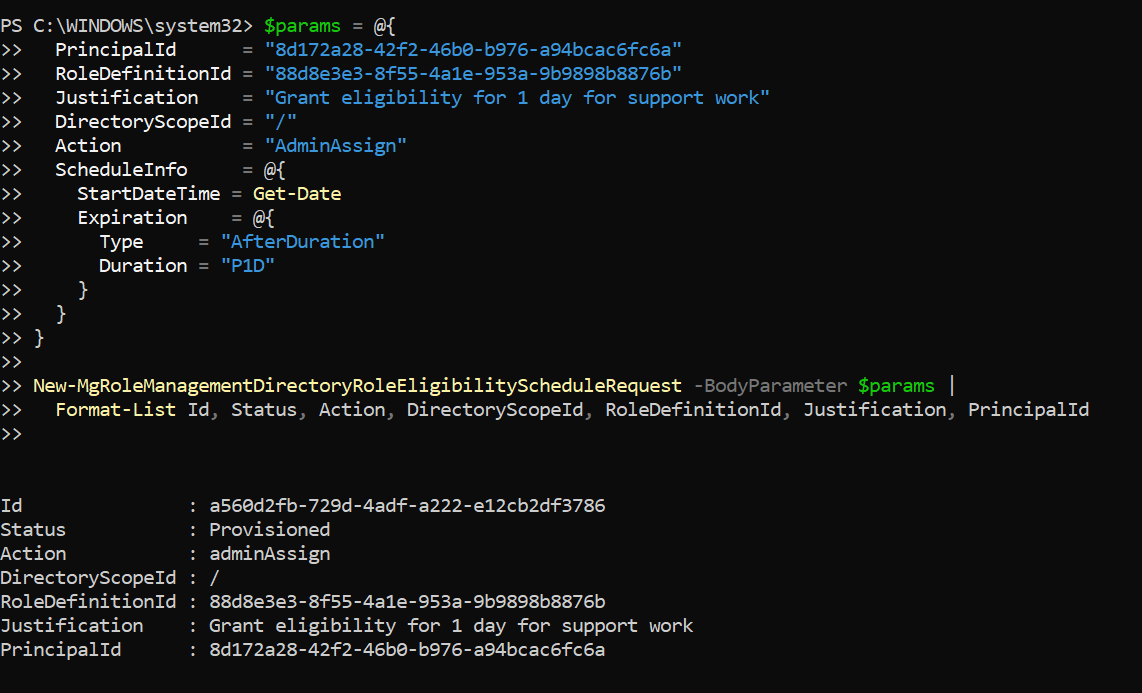
📌 Useful when administrators need eligibility for a full-day maintenance window.
Example 3: Create an Eligible Role Assignment for 30 Days
This assigns eligibility for 30 days, which is common for temporary projects or onboarding.
$params = @{
  PrincipalId      = "d29e358a-a443-4d83-98b3-499a5405bb5b"
  RoleDefinitionId = "88d8e3e3-8f55-4a1e-953a-9b9898b8876b"
  Justification    = "Grant 30-day eligibility for project administration"
  DirectoryScopeId = "/"
  Action           = "AdminAssign"
  ScheduleInfo     = @{
    StartDateTime = Get-Date
    Expiration    = @{
      Type     = "AfterDuration"
      Duration = "P30D"
    }
  }
}

New-MgRoleManagementDirectoryRoleEligibilityScheduleRequest -BodyParameter $params |
  Format-List Id, Status, Action, DirectoryScopeId, RoleDefinitionId, Justification, PrincipalId

✅ Ideal for long-running but temporary admin responsibilities.
Cmdlet Tips
Use Correct Duration Formats (ISO 8601)
| Duration | Format |
|---|---|
| 1 day | P1D |
| 30 days | P30D |
DirectoryScopeId is Usually /
- / means tenant-wide scope
- Administrative Units may have different scope IDs
Always Provide Justification
PIM requires justification for auditing and compliance.
Bad example:
Justification = "Test"
Better example:
Justification = "Temporary eligibility for security audit tasks"
Check RoleDefinitionId Before Assignment
You can retrieve directory role definitions using:
Get-MgRoleManagementDirectoryRoleDefinition
Possible Errors and Solutions
| Error | Cause | Solution |
| Insufficient privileges to complete the operation | Your account does not have the required admin role. | Ensure you are assigned one of these roles:
Global Administrator |
| Role assignment request is not valid | Incorrect RoleDefinitionId or missing required fields. |
Double-check:
|
| Duration format is invalid | Expiration duration is not in ISO 8601 format. | Use valid formats like: PT5H P1D P30D |
| Requests must be enabled in PIM | Privileged Identity Management is not enabled/configured. | Enable PIM in the Entra admin center:
|
Conclusion
The New-MgRoleManagementDirectoryRoleEligibilityScheduleRequest cmdlet is a powerful Microsoft Graph tool for assigning temporary role eligibility through Privileged Identity Management.
It helps organizations:
- Reduce permanent admin access
- Enforce least privilege
- Automate role governance
- Improve audit readiness
Whether you need eligibility for 10 hours, 1 day, or 30 days, this cmdlet ensures your tenant remains secure and compliant.