Multi-Department License Assignment Using Graph PowerShell
In growing Microsoft 365 environments, licensing should not be manual. It should be policy-driven and automated. Instead of assigning licenses one by one, you can build a script that:
- Reads user department
- Assigns the correct license automatically
- Skips already licensed users
- Checks license availability
- Exports execution report
This guide demonstrates a multi-department licensing assignment using Graph PowerShell.
🚀 Community Edition Released!
Try the M365Corner Microsoft 365 Reporting Tool — your DIY pack with 20+ out-of-the-box M365 reports for Users, Groups, and Teams.
⚠ Important Demo Notice
This example uses the following licenses available in the demo tenant:
| Department | License Assigned | SkuPartNumber |
|---|---|---|
| HR_Fabricam | FLOW_FREE | FLOW_FREE |
| Sales_Fabricam | DEVELOPERPACK_E5 | DEVELOPERPACK_E5 |
| IT_Fabricam | POWERAPPS_DEV | POWERAPPS_DEV |
Replace these SKU values with your production licenses before running in a live tenant.
You can retrieve your available SKUs using:
Get-MgSubscribedSku | Select SkuId, SkuPartNumberI) The Script
# Connect to Microsoft Graph
Connect-MgGraph -Scopes User.ReadWrite.All, Organization.Read.All

# Define Department-License Mapping (Demo)
$DepartmentLicenseMap = @{
    "HR_Fabricam"    = "f30db892-07e9-47e9-837c-80727f46fd3d"      # FLOW_FREE
    "Sales_Fabricam" = "c42b9cae-ea4f-4ab7-9717-81576235ccac"      # DEVELOPERPACK_E5
    "IT_Fabricam"    = "5b631642-bd26-49fe-bd20-1daaa972ef80"      # POWERAPPS_DEV
}

# Get all users in the 3 departments
$Users = Get-MgUser -Filter "department eq 'HR_Fabricam' or department eq 'Sales_Fabricam' or department eq 'IT_Fabricam'" -All -Property Id,UserPrincipalName,Department,AssignedLicenses

if (-not $Users) {
    Write-Host "No users found in target departments." -ForegroundColor Yellow
    break
}

$Results = @()

foreach ($User in $Users) {

    try {

        $TargetSkuId = $DepartmentLicenseMap[$User.Department]

        if (-not $TargetSkuId) {
            continue
        }

        # Validate SKU exists
        $Sku = Get-MgSubscribedSku | Where-Object {$_.SkuId -eq $TargetSkuId}
        if (-not $Sku) {
            Write-Host "SKU not found for department $($User.Department)" -ForegroundColor Red
            continue
        }

        # Check availability
        $AvailableLicenses = $Sku.PrepaidUnits.Enabled - $Sku.ConsumedUnits
        if ($AvailableLicenses -le 0) {
            Write-Host "No available licenses for $($User.Department)" -ForegroundColor Red
            continue
        }

        # Skip if already licensed
        if ($User.AssignedLicenses.SkuId -contains $TargetSkuId) {

            Write-Host "$($User.UserPrincipalName) already licensed. Skipping." -ForegroundColor Yellow

            $Results += [PSCustomObject]@{
                UserPrincipalName = $User.UserPrincipalName
                Department        = $User.Department
                Status            = "Skipped - Already Licensed"
                Timestamp         = (Get-Date)
            }

            continue
        }

        # Assign license
        Set-MgUserLicense -UserId $User.Id `
            -AddLicenses @(
                @{
                    SkuId = $TargetSkuId
                }
            ) `
            -RemoveLicenses @()

        Write-Host "License assigned to $($User.UserPrincipalName)" -ForegroundColor Green

        $Results += [PSCustomObject]@{
            UserPrincipalName = $User.UserPrincipalName
            Department        = $User.Department
            Status            = "Success"
            Timestamp         = (Get-Date)
        }

    }
    catch {

        Write-Host "Failed for $($User.UserPrincipalName)" -ForegroundColor Red
        Write-Host $_.Exception.Message

        $Results += [PSCustomObject]@{
            UserPrincipalName = $User.UserPrincipalName
            Department        = $User.Department
            Status            = "Failed"
            ErrorMessage      = $_.Exception.Message
            Timestamp         = (Get-Date)
        }
    }
}

# Export Report
$ReportPath = "C:\Path\MultiDept-LicenseReport.csv"
$Results | Export-Csv $ReportPath -NoTypeInformation

Write-Host "Report exported to $ReportPath" -ForegroundColor Cyan
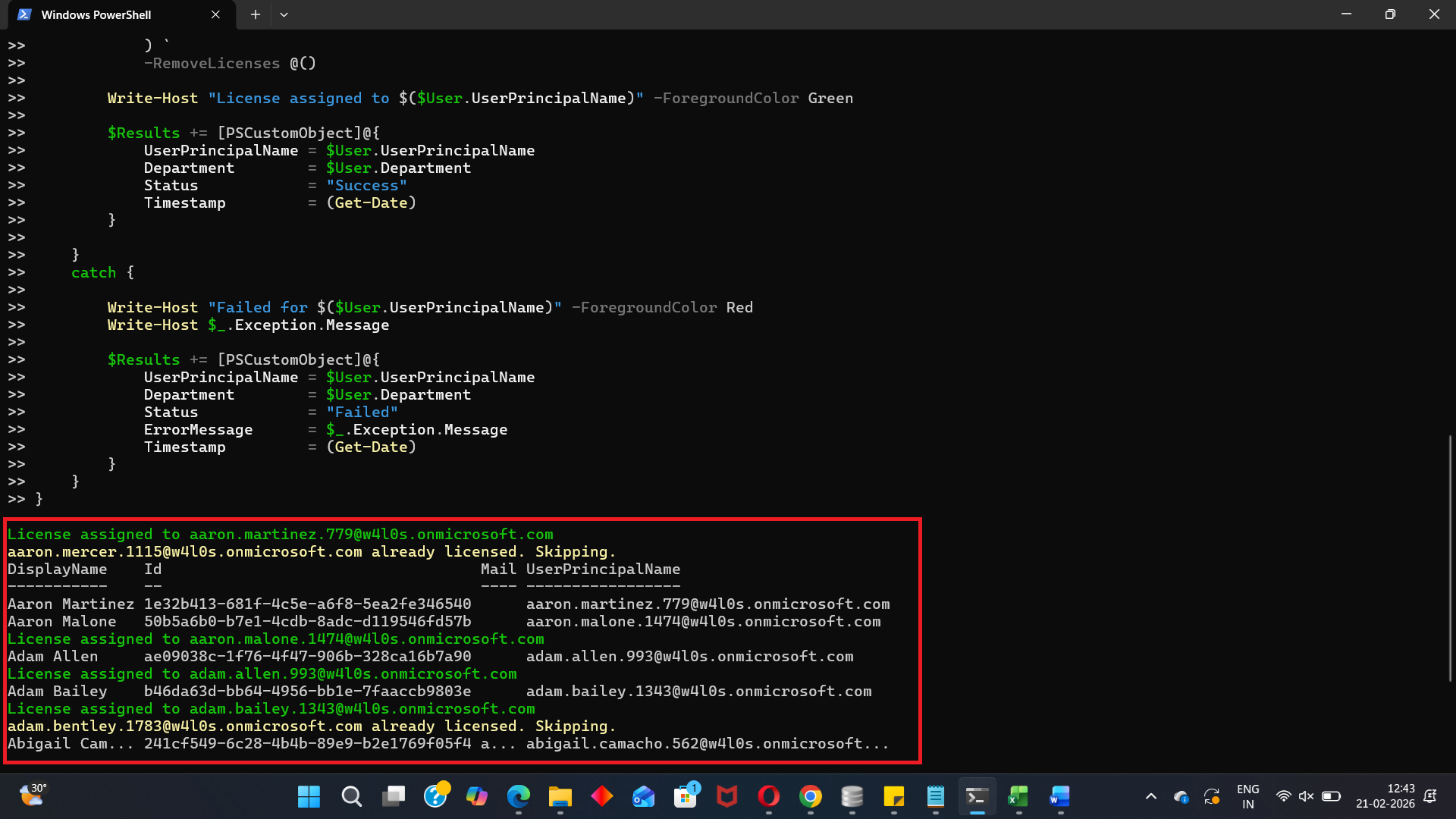
II) How the Script Works
- Department-License Mapping
- Fetch Target Users
- Validate SKU Before Assignment
- SKU exists in tenant
- License availability is sufficient
- Skip Already Licensed Users
- Assign License Properly
$DepartmentLicenseMap = @{
 "HR_Fabricam"    = ""
}
This acts as a policy engine.
Instead of hardcoding one license, we dynamically assign based on department.
Get-MgUser -Filter "department eq 'HR_Fabricam' ..."This removes the need for CSV imports.
We confirm:
Prevents runtime failures.
if ($User.AssignedLicenses.SkuId -contains $TargetSkuId)Prevents duplicate assignment.
Set-MgUserLicense `
  -AddLicenses @{SkuId = $TargetSkuId} `
  -RemoveLicenses @()
Important: -RemoveLicenses @() Is Mandatory
Even when not removing anything.
If omitted, you may see:
Cannot convert the literal 'System.Collections.Hashtable' to the expected type 'Edm.Guid'Always include it.
Required Graph API Permissions
Scopes: User.ReadWrite.All and Organization.Read.All
Role: Global Admin or License Admin
III) Further Enhancements
You can extend this to:
- Remove old license before assigning new one (E3 → E5 upgrade model)
- Use CSV for department mapping
- Convert mapping into JSON config file
- Schedule as Azure Automation runbook
- Convert into internal licensing engine tool
IV) Possible Errors & Solutions
| Error | Cause | Solution |
|---|---|---|
| LicenseLimitExceeded | No available licenses | Purchase or free unused licenses |
| Insufficient Privileges | Missing scopes or role | Reconnect with correct permissions |
| Department Not Found | Typo in department attribute | Validate with: Get-MgUser -All | Select UserPrincipalName,Department |
V) Conclusion
This multi-department smart licensing assignement transforms licensing into: Policy → Automation → Governance → Cost Control
Even though this example uses demo SKUs:
- FLOW_FREE
- DEVELOPERPACK_E5
- POWERAPPS_DEV
The structure is production-ready. Simply replace the SKU IDs with your tenant’s licenses.