List Inactive Guest Users In the Last 30 Days
Guest users are essential for external collaboration in Microsoft 365. However, over time, tenants accumulate many guest accounts that are no longer being used.
These stale accounts can introduce:
- Unnecessary directory clutter
- Potential security exposure
- Compliance and access review challenges
In this article, we will build a Microsoft Graph PowerShell report that helps administrators identify:
- Guest users who have never signed in
- Guest users whose last sign-in is older than 30 days
- How long the account has existed using DaysSinceCreation
This report provides a safe foundation before taking actions such as disabling or removing inactive guest users.
🚀 Community Edition Released!
Try the M365Corner Microsoft 365 Reporting Tool — your DIY pack with 20+ out-of-the-box M365 reports for Users, Groups, and Teams.
The Script
The script below generates a CSV report of inactive guest users based on sign-in activity.
Import-Module Microsoft.Graph.Users
Import-Module Microsoft.Graph.Identity.SignIns

# Connect with required scopes
Connect-MgGraph -Scopes "User.Read.All","AuditLog.Read.All"

# Set inactivity threshold (days)
$ThresholdDays = 30
$Today = Get-Date

Write-Host "Fetching guest users..." -ForegroundColor Cyan

# Get all enabled guest users with sign-in activity
$Guests = Get-MgUser -All `
    -Filter "userType eq 'Guest' and accountEnabled eq true" `
    -Property Id,DisplayName,UserPrincipalName,CreatedDateTime,SignInActivity

$InactiveGuests = @()

foreach ($Guest in $Guests) {

    $LastSignIn = $Guest.SignInActivity.LastSignInDateTime

    # Calculate days since account creation
    $DaysSinceCreation = ($Today - [datetime]$Guest.CreatedDateTime).Days

    # Calculate inactivity
    if ($LastSignIn) {
        $DaysInactive = ($Today - [datetime]$LastSignIn).Days
    }
    else {
        $DaysInactive = "Never Signed In"
    }

    # Identify inactive guests:
    # - Never signed in
    # - Last sign-in older than threshold
    if (
        (-not $LastSignIn) -or
        ($LastSignIn -and (($Today - [datetime]$LastSignIn).Days -gt $ThresholdDays))
       )
    {
        $InactiveGuests += [PSCustomObject]@{
            DisplayName         = $Guest.DisplayName
            UserPrincipalName   = $Guest.UserPrincipalName
            CreatedDateTime     = $Guest.CreatedDateTime
            DaysSinceCreation   = $DaysSinceCreation
            LastSignInDateTime  = $LastSignIn
            DaysInactive        = $DaysInactive
            AccountEnabled      = $true
        }
    }
}

$ExportPath = ".\InactiveGuestUsers_Report.csv"
$InactiveGuests | Export-Csv $ExportPath -NoTypeInformation

Write-Host "`nReport Complete!" -ForegroundColor Green
Write-Host "Inactive Guest Users Found: $($InactiveGuests.Count)"
Write-Host "Results exported to $ExportPath"
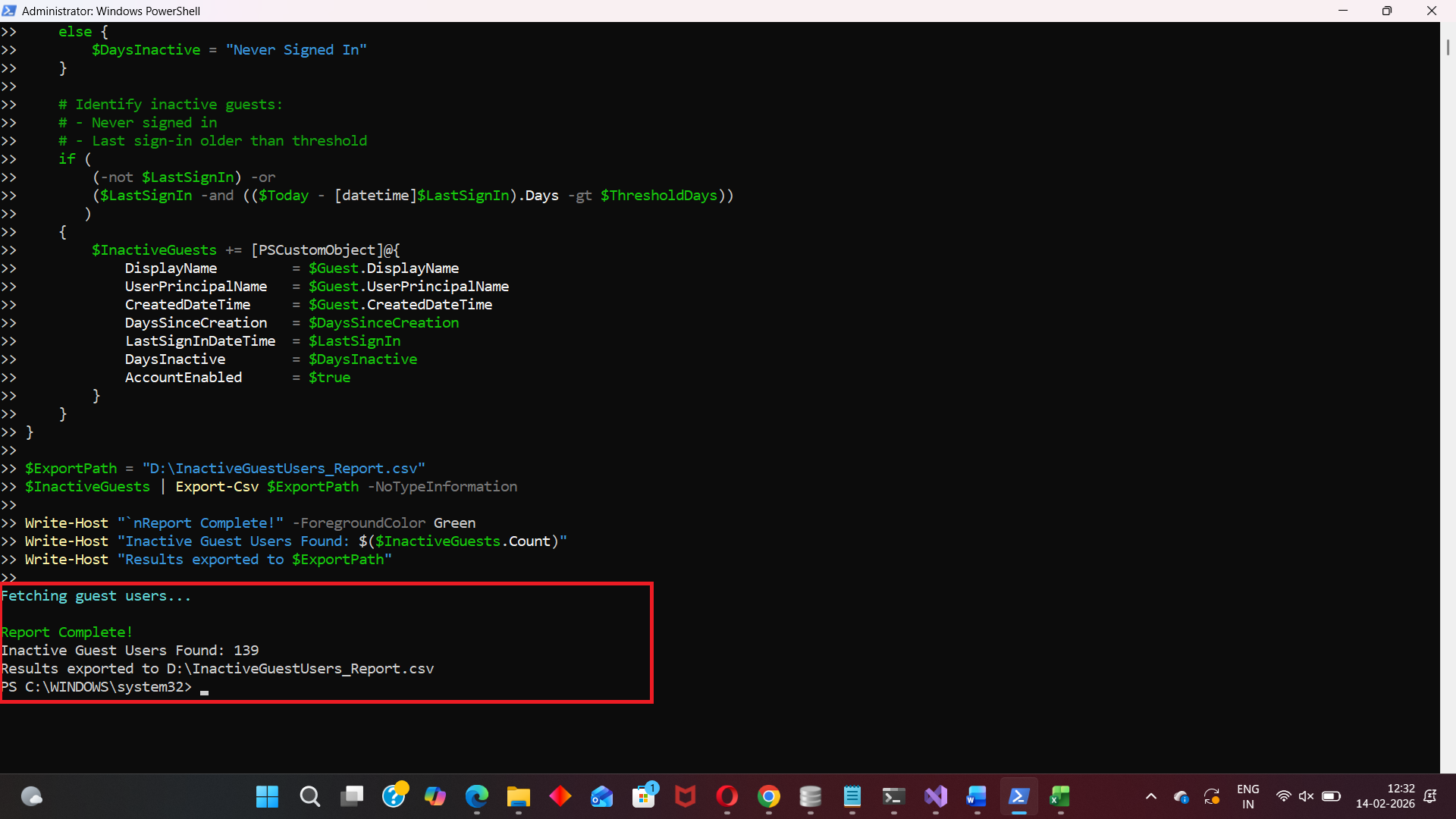

How the Script Works
This script performs a tenant-wide guest inactivity audit in a structured way.
- Module Import
The script loads required Microsoft Graph modules: - Microsoft.Graph.Users for user retrieval
- Microsoft.Graph.Identity.SignIns for sign-in activity fields
- Connecting to Microsoft Graph
Connect-MgGraph -Scopes "User.Read.All","AuditLog.Read.All" - Read user objects
- Access sign-in metadata
- Setting the Inactivity Threshold
- No sign-in within the last 30 days
- OR never signed in at all
- Retrieving Enabled Guest Users
- Calculating Days Since Creation
- Detecting Inactive Guests
Guests are marked inactive if: -
LastSignInDateTime is empty
OR - The last sign-in occurred more than 30 days ago
- Exporting Results to CSV
The final report is saved as: - Access reviews
- Cleanup campaigns
- Disable/remove workflows
The required permissions allow the script to:
$ThresholdDays = 30
This defines inactivity as:
Get-MgUser -Filter "userType eq 'Guest' and accountEnabled eq true"
Only guest accounts that are still enabled are included.
$DaysSinceCreation = ($Today - [datetime]$Guest.CreatedDateTime).Days
This helps identify guests who were invited long ago but never used.
InactiveGuestUsers_Report.csv
This report can be used for:
Further Enhancements
- Separate Never-Signed-In Guests
- Guests who never redeemed invitations
- Add Guest Sponsor or Inviter Details
- Auto-Disable Guests After Review
- Disable inactive accounts automatically
- Add confirmation prompts for safety
- Increase Threshold for Vendors
- Export to HTML Dashboard
Admins often want a separate list of:
Include invitation metadata to identify who brought the guest into the tenant.
Once validated, the script can be extended to:
Some guests sign in quarterly or annually. Adjust threshold:
$ThresholdDays = 90
Instead of CSV, export results into a formatted admin-friendly report.
Possible Errors and Solutions
Below are common issues administrators may face.
| Error | Cause | Solution |
|---|---|---|
| Insufficient privileges to complete the operation | Required Graph scopes are missing. |
Ensure the session includes:
|
| SignInActivity property is empty for all users | Sign-in activity requires Entra ID Premium licensing. |
Confirm tenant has:
|
| Request throttled (Too many requests) | Tenant has thousands of guest accounts. |
|
| Export file is locked or cannot be written | CSV file is open in Excel. | Close the file and rerun the script. |
Conclusion
Inactive guest accounts are one of the most overlooked security risks in Microsoft 365 environments.
This Graph PowerShell report helps administrators quickly identify:
- Guests who never signed in
- Guests inactive for more than 30 days
- Accounts that have existed for long periods without usage
By exporting results into a structured CSV, you gain a safe starting point for:
- Access reviews
- Guest cleanup
- Bulk disable workflows