List Entra ID Apps Created in Last 30 Days
Tracking newly created Entra ID applications is essential for administrators to monitor app registrations, detect unauthorized creations, and maintain governance over the tenant.
In this article, we’ll walk through a Graph PowerShell script that lists all Entra ID applications created in the last 30 days and exports the results to a CSV file.
🚀 Community Edition Released!
Try the M365Corner Microsoft 365 Reporting Tool — your DIY pack with 20+ out-of-the-box M365 reports for Users, Groups, and Teams.
i) The Script
# Connect to Microsoft Graph
Connect-MgGraph -Scopes Application.Read.All

Write-Host "Fetching recently created Entra ID applications (Last 30 Days)..." -ForegroundColor Cyan

# Define date threshold (last 30 days)
$ThresholdDate = (Get-Date).AddDays(-30)

# Get all applications with required properties
$Applications = Get-MgApplication -All -Property Id,DisplayName,CreatedDateTime,Description,AppId

$Results = @()

foreach ($App in $Applications) {

    if ($App.CreatedDateTime -ge $ThresholdDate) {

        # Console output (minimal)
        Write-Host "$($App.DisplayName) | $($App.AppId) | $($App.CreatedDateTime)" -ForegroundColor Yellow

        # Detailed export object
        $Results += [PSCustomObject]@{
            ApplicationName = $App.DisplayName
            ApplicationId   = $App.Id
            AppClientId     = $App.AppId
            CreatedDate     = $App.CreatedDateTime
            Description     = $App.Description
        }
    }
}

# Export results
$ExportPath = "C:\Path\Recently_Created_Applications_Report.csv"

$Results | Export-Csv $ExportPath -NoTypeInformation

Write-Host "Report exported to $ExportPath" -ForegroundColor Cyan
Download this script from our M365Corner GitHub Repo: https://github.com/m365corner/M365Corner-Scripts/tree/main/Entra-Apps-Related-Scripts/List-Entra-Apps-Created-Last-30-Days
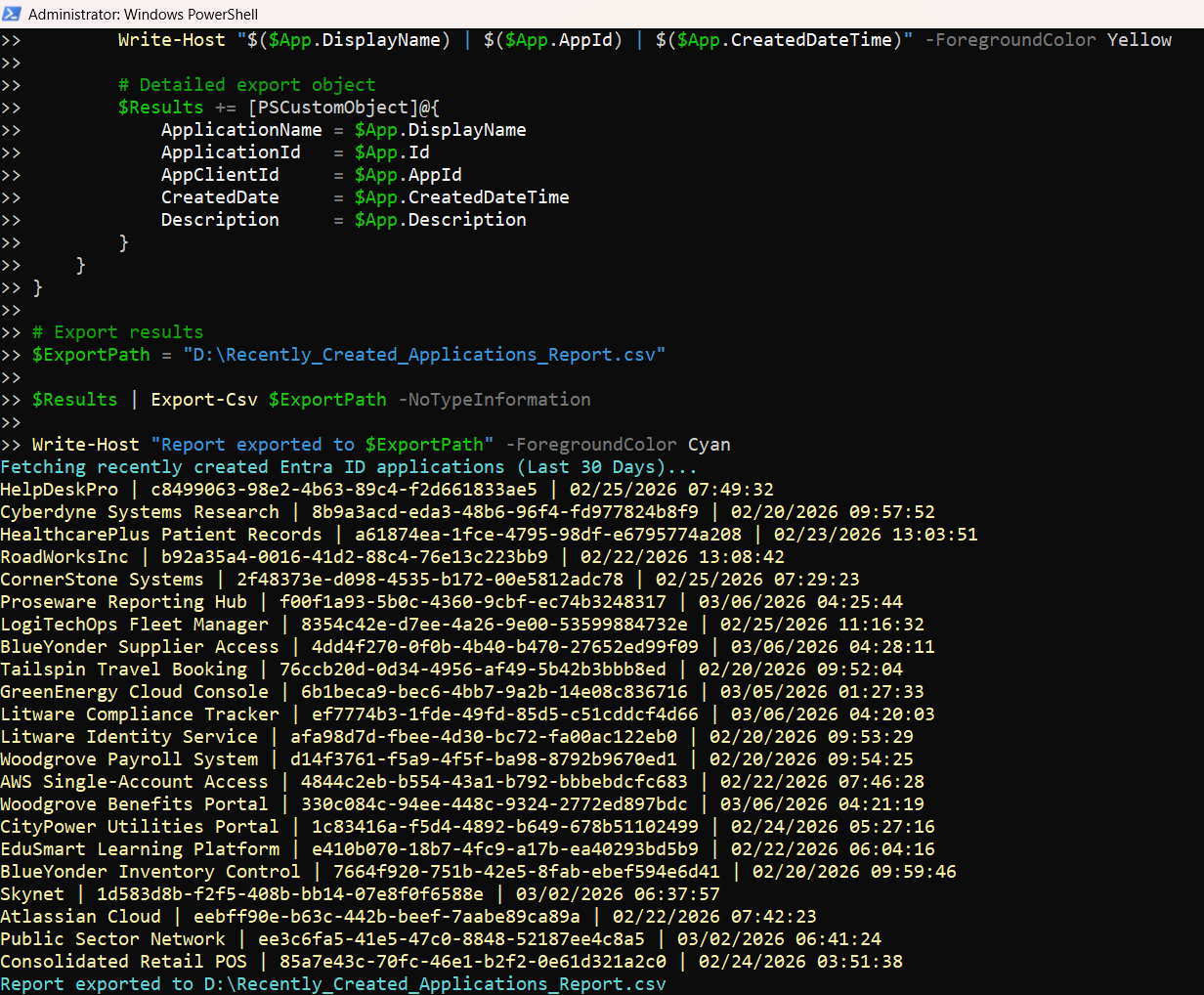
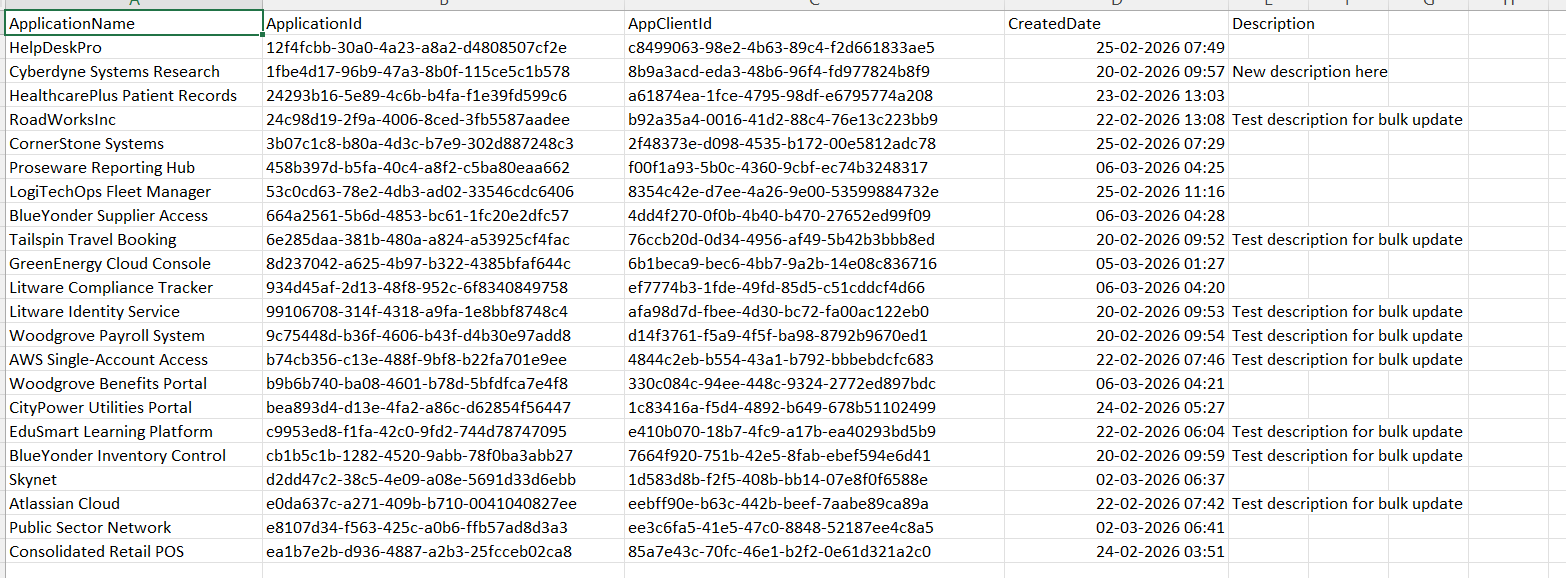
ii) How the Script Works
This script performs a straightforward yet powerful audit of newly created Entra ID applications:
- Connects to Microsoft Graph
- Establishes a connection to Microsoft Graph.
- Requires Application.Read.All permission to read app registrations.
- Defines the 30-Day Threshold
- Calculates the date exactly 30 days prior to today.
- Used as the filter boundary for newly created apps.
- Retrieves All Applications
- Fetches all Entra ID applications.
- Retrieves only required properties for efficiency:
- DisplayName
- CreatedDateTime
- Description
- AppId (Client ID)
- Filters Applications Created in Last 30 Days
- Compares each app’s creation date against the threshold.
- Only recent applications are processed further.
- Displays Minimal Console Output
- Gives a quick on-screen view of:
- App Name
- Client ID
- Creation Date
- Builds Export Object
- Creates a structured object for each app.
- Stores:
- Application Name
- Application ID (Object ID)
- Client ID
- Created Date
- Description
- Exports Results to CSV
- Saves the report to a CSV file.
- Makes it easy to:
- Audit
- Share
- Analyze in Excel
Connect-MgGraph -Scopes Application.Read.All$ThresholdDate = (Get-Date).AddDays(-30)$Applications = Get-MgApplication -All -Property Id,DisplayName,CreatedDateTime,Description,AppIdif ($App.CreatedDateTime -ge $ThresholdDate)Write-Host "$($App.DisplayName) | $($App.AppId) | $($App.CreatedDateTime)"[PSCustomObject]@{ ... }
$Results | Export-Csv $ExportPath -NoTypeInformationiii) Further Enhancements
Here are some practical improvements you can implement:
Add Owner Details
Fetch application owners using:
Get-MgApplicationOwnerUseful for identifying responsible users.
Filter by Specific Naming Convention
Example:
if ($App.DisplayName -like "*Prod*")Helps isolate production or test apps.
Include App Permissions
Retrieve API permissions assigned to apps for deeper security audits.
Automate with Scheduled Task
- Run the script daily or weekly.
- Maintain continuous monitoring of new app registrations.
Send Email Notification
Trigger alerts when new apps are detected:
- Combine with Send-MailMessage or Graph Mail API.
iv) Possible Errors & Solutions
Below are some common issues administrators may encounter.
| Error | Cause | Solution |
|---|---|---|
| Insufficient privileges to complete the operation | Missing required Graph permission. | Ensure you connect with: Connect-MgGraph -Scopes Application.Read.All Also, admin consent is required |
| Get-MgApplication returns limited results | Pagination not handled. | Use: -All (as already included in the script) |
| Access Denied | User does not have sufficient Entra ID role. |
Assign one of the following roles:
|
| Export-Csv path not found | Invalid or non-existing directory. | Update the path: $ExportPath = "C:\Valid\Path\Report.csv" Or create the folder beforehand. |
| CreatedDateTime is null | Some legacy or special apps may not have this property populated. | Add a null check before comparison if needed. |
v) Conclusion
This script provides a simple yet effective way to track newly created Entra ID applications over the last 30 days. It helps administrators:
- Monitor app registrations
- Detect unauthorized or suspicious apps
- Maintain governance and compliance
With small enhancements like owner tracking and automation, this can become a powerful auditing tool in your M365 environment.