List Entra ID Application Owners Using Graph PowerShell
Managing Microsoft Entra ID applications is a crucial responsibility for administrators. One of the most important governance tasks is identifying who owns each application. Application owners are responsible for maintaining the app, reviewing permissions, and ensuring its continued relevance in the tenant.
In environments with hundreds or thousands of applications, manually reviewing application owners from the Entra admin portal becomes impractical. Using Microsoft Graph PowerShell, administrators can automate the process and generate a clear report listing applications along with their owners.
This article provides a ready-to-use script that retrieves all Entra ID applications and displays their owners, exporting the results into a CSV report for auditing and governance purposes.
🚀 Community Edition Released!
Try the M365Corner Microsoft 365 Reporting Tool — your DIY pack with 20+ out-of-the-box M365 reports for Users, Groups, and Teams.
The Script
# Connect to Microsoft Graph
Connect-MgGraph -Scopes Application.Read.All, Directory.Read.All

Write-Host "Fetching Entra ID Applications..." -ForegroundColor Cyan

# Get all applications
$Applications = Get-MgApplication -All

$Results = @()

foreach ($App in $Applications) {

    # Get application owners
    $Owners = Get-MgApplicationOwner -ApplicationId $App.Id

    # Skip applications without owners
    if (-not $Owners) {
        continue
    }

    Write-Host "Processing Application: $($App.DisplayName)" -ForegroundColor Yellow

    foreach ($Owner in $Owners) {

        $OwnerDetails = Get-MgUser -UserId $Owner.Id -ErrorAction SilentlyContinue

        $OwnerName = $OwnerDetails.DisplayName
        $OwnerUPN  = $OwnerDetails.UserPrincipalName

        $Results += [PSCustomObject]@{
            ApplicationName = $App.DisplayName
            ApplicationId   = $App.Id
            OwnerName       = $OwnerName
            OwnerUPN        = $OwnerUPN
        }

        Write-Host "$($App.DisplayName) → $OwnerName ($OwnerUPN)" -ForegroundColor Green
    }
}

# Export results
$ExportPath = "D:\EntraID_Applications_With_Owners.csv"

$Results | Export-Csv $ExportPath -NoTypeInformation

Write-Host "Report exported to $ExportPath" -ForegroundColor Cyan
Download this script from our M365Corner GitHub Repo: https://github.com/m365corner/M365Corner-Scripts/tree/main/Entra-Apps-Related-Scripts/List-Entra-App-Owners
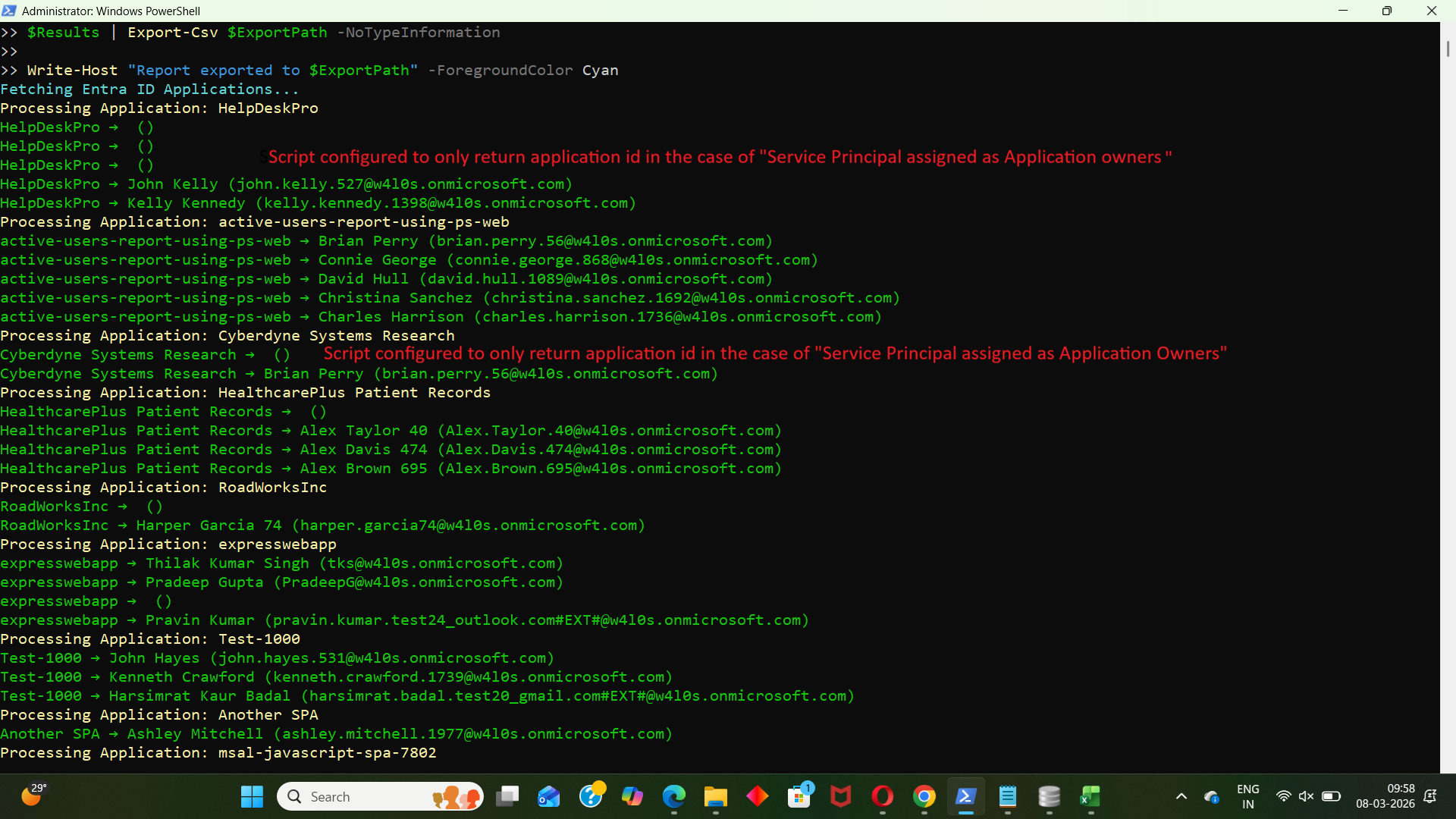
How the Script Works
- Connect to Microsoft Graph
- Read application registrations
- Retrieve application owner information
- Access directory objects
- Retrieve All Entra ID Applications
- Enterprise applications
- Application registrations
- Service principals tied to apps
- Loop Through Each Application
- Fetch Application Owners
- Retrieve Owner Details
- Display Name
- User Principal Name (UPN)
- Build a Structured Report
- Export the Report
The script begins by establishing a connection to Microsoft Graph with the required permissions:
Connect-MgGraph -Scopes Application.Read.All, Directory.Read.AllThese permissions allow the script to:
If the required permissions are not granted, the script will not be able to retrieve application data.
Next, the script retrieves all applications in the tenant.
$Applications = Get-MgApplication -AllThe -All parameter ensures that the script retrieves every application in the directory rather than only the first page of results.
This includes:
The script then processes each application individually.
foreach ($App in $Applications)For every application, the script attempts to retrieve its owners.
Owners are retrieved using:
$Owners = Get-MgApplicationOwner -ApplicationId $App.Id
If an application has no owners assigned, the script skips it:
if (-not $Owners) {
    continue
}
This keeps the report clean by including only applications that actually have owners.
The owner objects returned by Graph may not always contain full user details. To obtain the owner's name and UPN, the script queries the user object:
$OwnerDetails = Get-MgUser -UserId $Owner.IdFrom this object, the script extracts:
The script creates a PowerShell custom object for each application-owner combination.
[PSCustomObject]@{
    ApplicationName = $App.DisplayName
    ApplicationId   = $App.Id
    OwnerName       = $OwnerName
    OwnerUPN        = $OwnerUPN
}
Each object is stored in the $Results array.
Finally, the collected data is exported to a CSV file:
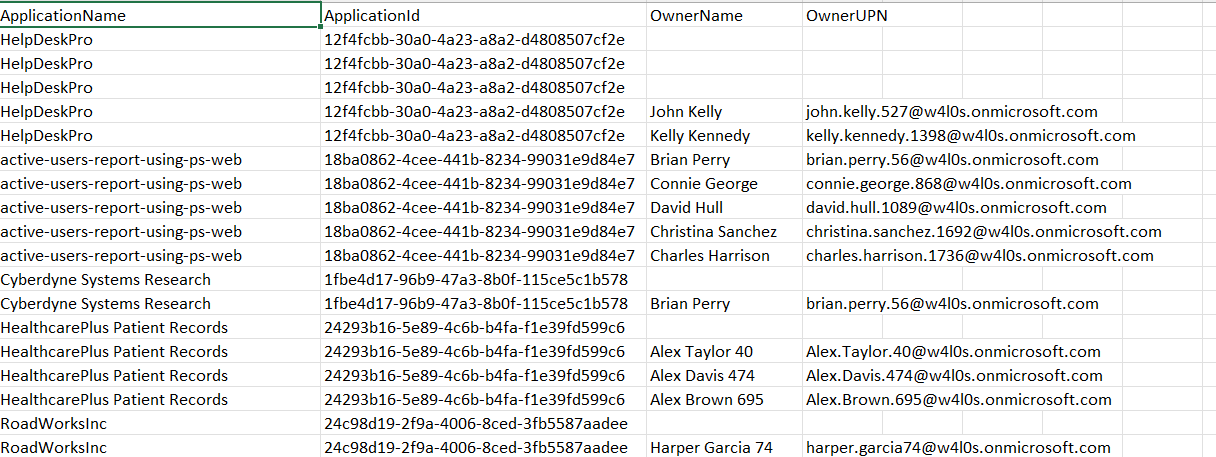
$Results | Export-Csv $ExportPath -NoTypeInformationThe generated report contains the following columns:
| Column | Description |
|---|---|
| ApplicationName | Name of the Entra ID application |
| ApplicationId | Unique application identifier |
| OwnerName | Display name of the owner |
| OwnerUPN | Owner’s user principal name |
This CSV file can be used for auditing, governance reviews, or compliance documentation.
Further Enhancements
Administrators may consider enhancing this script depending on their reporting requirements.
- Include Applications Without Owners
- Export Additional Application Properties
- Created Date
- AppId
- SignInAudience
- Publisher Domain
- Identify Guest Owners
- Internal user
- Guest account
- Service principal
- Filter Applications by Name
- Schedule the Script
- Windows Task Scheduler
- Azure Automation
- PowerShell runbooks
You can modify the script to include applications without owners to identify orphaned applications.
This helps administrators detect applications that require ownership assignment.
The script can be extended to include fields such as:
Example:
CreatedDateTime
AppId
PublisherDomain
This provides richer reporting for security audits.
Sometimes application owners may be guest users or external identities.
You could add logic to identify whether an owner is:
Administrators may want to target specific applications.
Example:
Get-MgApplication -Filter "startsWith(displayName,'HR')"This reduces processing time in large tenants.
You can automate this report by scheduling the script using:
This enables periodic auditing of application ownership.
Possible Errors & Solutions
| Error | Cause | Solution |
|---|---|---|
| Insufficient privileges to complete the operation | The account running the script does not have permission to read application objects. | Connect to Microsoft Graph with the required permissions: Application.Read.All Directory.Read.All Also ensure the account has a suitable role such as:
|
| The term 'Get-MgApplication' is not recognized | The Microsoft Graph PowerShell module is not installed. | Install the module before running the script: Install-Module Microsoft.Graph -Scope CurrentUser Then import the module: Import-Module Microsoft.Graph |
| Resource not found for the segment 'users' | Some application owners may be service principals instead of users, causing Get-MgUser to fail. | Handle service principals separately or suppress errors using: -ErrorAction SilentlyContinue The script already uses this option to avoid interruptions. |
| Access token expired | The Microsoft Graph session has expired during execution. | Reconnect to Microsoft Graph: Connect-MgGraph |
Conclusion
Application ownership visibility is critical for maintaining a secure and well-governed Microsoft Entra ID environment. This Microsoft Graph PowerShell script provides administrators with an efficient way to enumerate all Entra ID applications and identify their owners, exporting the data into a clean CSV report.
With minimal modification, the script can be adapted to support security audits, compliance checks, and governance reviews across large tenants. Automating such reports ensures that administrators always have visibility into who is responsible for managing each application within the organization.