Get-MgRiskyUser: Retrieve Risky Users in Microsoft Entra ID
Monitoring risky users is an essential part of Microsoft 365 security management. Microsoft Entra ID (formerly Azure AD) uses Identity Protection to detect suspicious sign-in behavior and risky users that may indicate compromised accounts.
The Get-MgRiskyUser cmdlet in Microsoft Graph PowerShell allows administrators to retrieve information about users flagged as risky. These insights help security teams quickly investigate potential threats and take corrective actions such as password resets, MFA enforcement, or account blocking.
This article explains how to use the Get-MgRiskyUser cmdlet with examples.
🚀 Community Edition Released!
Try the M365Corner Microsoft 365 Reporting Tool — your DIY pack with 20+ out-of-the-box M365 reports for Users, Groups, and Teams.
Cmdlet Syntax
Get-MgRiskyUser
Get-MgRiskyUser <String>
Related Cmdlet
Get-MgRiskyUserCountUsage Examples
- Fetching All Risky Users
- UserId
- RiskLevel
- RiskState
- RiskLastUpdatedDateTime
- IsDeleted
- Fetching Details of a Specific Risky User
- Investigating a compromised user account
- Reviewing risk details during incident response
- Validating remediation steps
- Finding the Total Count of Risky Users
- Security posture reporting
- Compliance audits
- Monitoring the overall risk status of your organization
- Exporting Risky Users to CSV
- Security investigations
- Compliance documentation
- Sharing reports with security teams
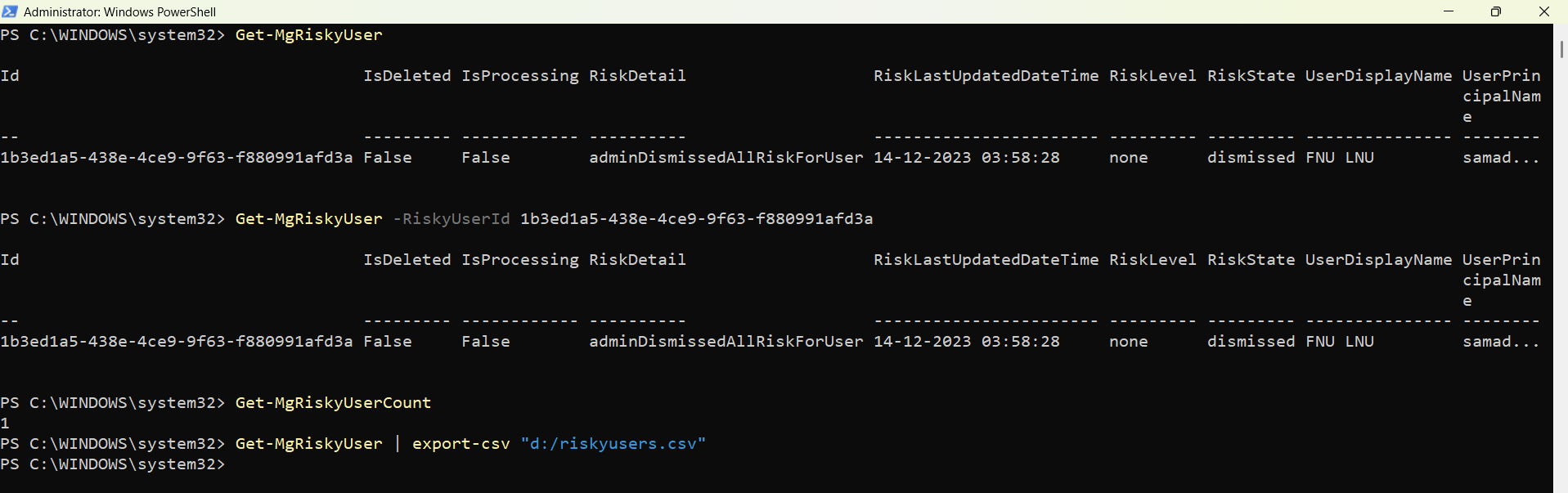
This command retrieves all users currently marked as risky by Microsoft Entra Identity Protection.
Get-MgRiskyUserThis output typically includes information such as:
Administrators can use this information to identify accounts that may have been compromised.
If you already know the RiskyUserId, you can retrieve detailed information about that specific user.
Get-MgRiskyUser -RiskyUserId 1b3ed1a5-438e-4ce9-9f63-f880991afd3aThis helps security administrators investigate individual accounts flagged as risky.
Common scenarios include:
You can quickly determine how many users are currently marked as risky in your tenant.
Get-MgRiskyUserCountThis is useful for:
Administrators often export risky user data for reporting or further analysis.
Get-MgRiskyUser | Export-Csv "d:/riskyusers.csv"The exported file can be used for:
Cmdlet Tips
- Ensure Required Permissions
- IdentityRiskyUser.Read.All
- IdentityRiskyUser.ReadWrite.All
- Use the Cmdlet for Security Monitoring
- Zero Trust security models
- Continuous identity monitoring
- Automated security reporting
- Combine With Other Security Cmdlets
- Risky sign-ins
- Sign-in logs
- Audit logs
- This provides a broader view of suspicious activity.
- Daily risky user report
- Automated SOC monitoring
- Security incident response workflow
To run this cmdlet successfully, the account must have appropriate permissions such as:
These permissions can be granted when connecting to Graph PowerShell.
Example:
Connect-MgGraph -Scopes "IdentityRiskyUser.Read.All"The Get-MgRiskyUser cmdlet is extremely useful for organizations implementing:
You can combine risky user information with other security cmdlets such as:
This provides a broader view of suspicious activity.
Many administrators schedule scripts that export risky users regularly and email the report to security teams.
Example scenario:
Possible Errors & Solutions
| Error | Cause | Solution |
|---|---|---|
| Insufficient privileges to complete the operation | The signed-in account does not have permission to read risky user data. | Reconnect with the required Graph permission. Connect-MgGraph -Scopes "IdentityRiskyUser.Read.All" |
| Resource not found | The RiskyUserId provided does not exist or the user is not currently marked as risky. | Run the following command first to retrieve available risky users: Get-MgRiskyUser Then use a valid RiskyUserId. |
| Authorization_RequestDenied | The tenant administrator has not granted consent for the required Graph permissions. | A Global Administrator must grant consent for the required permission. Example: Connect-MgGraph -Scopes "IdentityRiskyUser.Read.All" Then approve the permission request |
Conclusion
The Get-MgRiskyUser cmdlet is a valuable tool for monitoring security risks within Microsoft Entra ID. It allows administrators to quickly identify accounts flagged by Identity Protection and take appropriate action.
By combining this cmdlet with reporting and automation, organizations can proactively detect compromised accounts, strengthen identity security, and improve their overall Microsoft 365 security posture.
Security teams can also export risky user data for investigations, compliance reporting, and proactive threat monitoring.