🔧 New: User Management Graph PowerShell Toolkit
Simplify user tasks like bulk creation, updates, password resets, deletions, license checks & more — all from one place.
🚀 Launch ToolkitGenerate Microsoft 365 User Login Report Using PowerShell
Tracking user sign-in activity is crucial for auditing, security monitoring, and compliance in Microsoft 365. Administrators can gain valuable insights by analyzing successful and failed logins across the tenant.
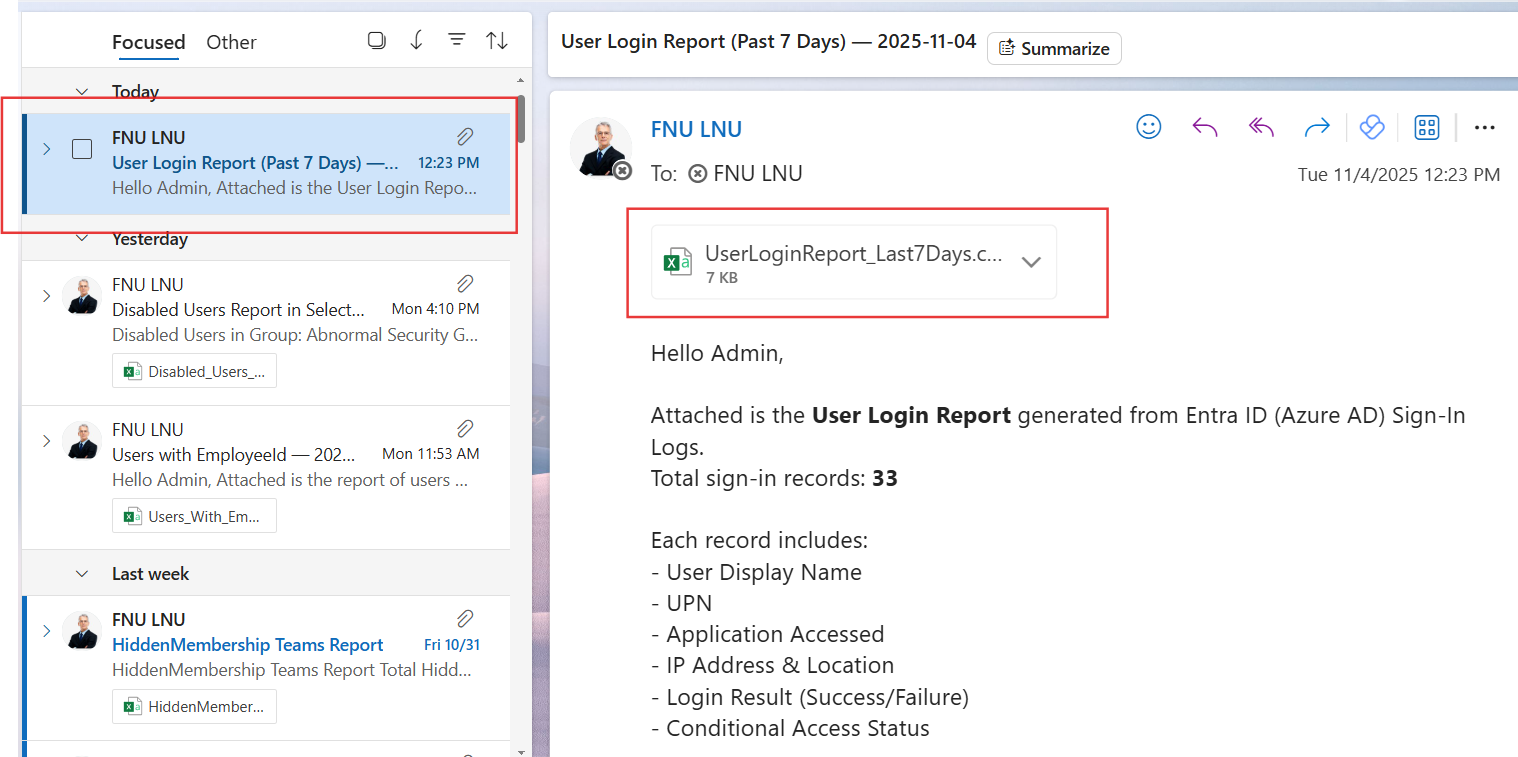
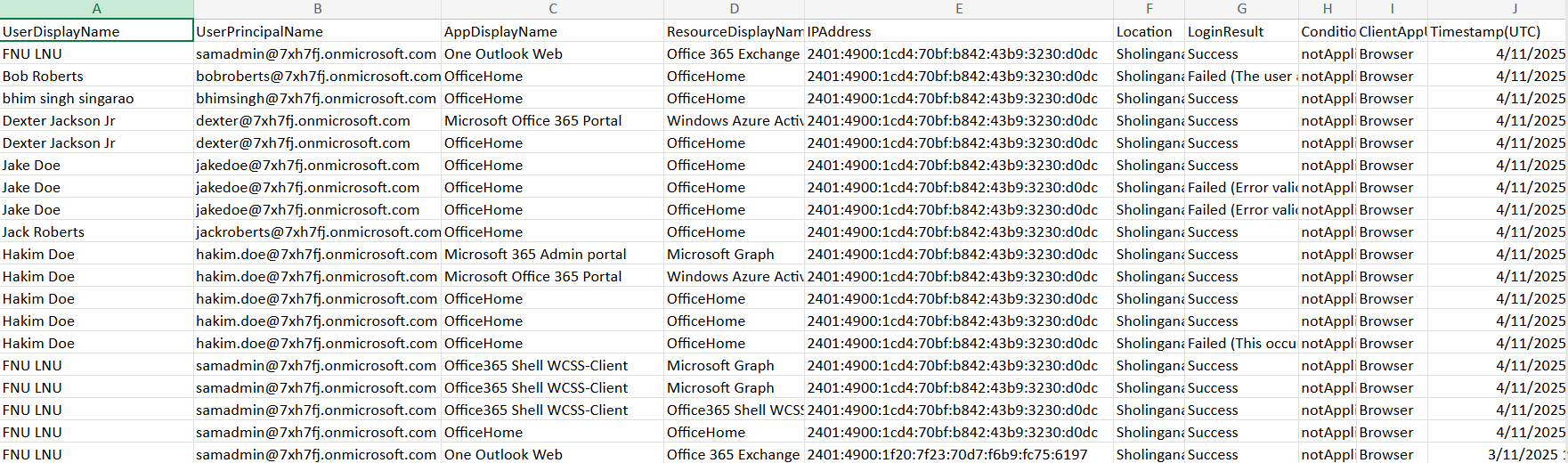
With Microsoft Graph PowerShell, this process becomes simple and automated. The script below fetches sign-in logs from Entra ID (Azure AD) for the past seven days, generates a report containing success and failure details, and emails it to the administrator.
i) The Script
$AdminUPN = "admin@yourtenant.onmicrosoft.com"
$LookbackDays = 7
Connect-MgGraph -Scopes "AuditLog.Read.All","Mail.Send"
$StartDate = (Get-Date).AddDays(-$LookbackDays).ToString("yyyy-MM-ddTHH:mm:ssZ")
$SignInLogs = Get-MgAuditLogSignIn -All -Filter "createdDateTime ge $StartDate" `
  -Property Id,UserDisplayName,UserPrincipalName,AppDisplayName,IpAddress,Location,Status,CreatedDateTime,ConditionalAccessStatus,ClientAppUsed,ResourceDisplayName

$ReportRows = $SignInLogs | Select-Object `
  @{n='UserDisplayName';       e={$_.UserDisplayName}},
  @{n='UserPrincipalName';     e={$_.UserPrincipalName}},
  @{n='AppDisplayName';        e={$_.AppDisplayName}},
  @{n='ResourceDisplayName';   e={$_.ResourceDisplayName}},
  @{n='IPAddress';             e={$_.IpAddress}},
  @{n='Location';              e={
        if ($_.Location.city) {
            "$($_.Location.city), $($_.Location.countryOrRegion)"
        } else {
            "Unknown"
        }
    }},
  @{n='LoginResult';           e={
        if ($_.Status.errorCode -eq 0) {
            "Success"
        } else {
            "Failed ($($_.Status.failureReason))"
        }
    }},
  @{n='ConditionalAccess';     e={$_.ConditionalAccessStatus}},
  @{n='ClientAppUsed';         e={$_.ClientAppUsed}},
  @{n='Timestamp(UTC)';        e={[datetime]$_.CreatedDateTime}}

$ReportPath = "$env:TEMP\UserLoginReport_Last${LookbackDays}Days.csv"
$ReportRows |
  Sort-Object 'Timestamp(UTC)' -Descending |
  Export-Csv -Path $ReportPath -NoTypeInformation -Encoding UTF8

$loginCount = @($ReportRows).Count
$Subject = "User Login Report (Past $LookbackDays Days) — $(Get-Date -Format 'yyyy-MM-dd')"
$Body = @"

Hello Admin,<br><br>
Attached is the <b>User Login Report</b> generated from Entra ID (Azure AD) Sign-In Logs.<br>
Total sign-in records: <b>$loginCount</b><br><br>
Each record includes:<br>
- User Display Name<br>
- UPN<br>
- Application Accessed<br>
- IP Address & Location<br>
- Login Result (Success/Failure)<br>
- Conditional Access Status<br><br>
Regards,<br>

Graph PowerShell Script
"@

$AttachmentContent = [System.Convert]::ToBase64String([System.IO.File]::ReadAllBytes($ReportPath))
$Attachments = @(
    @{
        "@odata.type" = "#microsoft.graph.fileAttachment"
        Name          = [System.IO.Path]::GetFileName($ReportPath)
        ContentBytes  = $AttachmentContent
    }
)

$Message = @{
    Message = @{
        Subject = $Subject
        Body    = @{
            ContentType = "HTML"
            Content     = $Body
        }
        ToRecipients = @(
            @{ EmailAddress = @{ Address = $AdminUPN } }
        )
        Attachments = $Attachments
    }
    SaveToSentItems = "true"
}
Send-MgUserMail -UserId $AdminUPN -BodyParameter $Message
Write-Host "User login report (last $LookbackDays days) emailed successfully to $AdminUPN"
ii) How the Script Works
- Connects to Microsoft Graph – The script connects with the required permissions: AuditLog.Read.All to read sign-in logs and Mail.Send to email the report.
- Defines the Date Range – It calculates the start date (default: last 7 days) in a valid UTC format required by Microsoft Graph.
- Retrieves Sign-In Logs – The Get-MgAuditLogSignIn cmdlet fetches sign-in records with fields like user name, IP address, login result, and conditional access details.
- Formats and Exports Data – The report includes login outcomes (Success or Failed), along with city, country, and client app used. The results are exported to a CSV file.
- Emails the Report – The CSV is automatically attached and sent to the administrator’s mailbox with a summary in the email body.
iii) Further Enhancements
- Custom Date Range – Add user input for the number of days or specify an exact date range.
- Filter by Login Status – Generate separate reports for successful and failed logins.
- Include MFA Results – Extend the query to show whether MFA was satisfied or skipped.
- Automate the Task – Schedule the script weekly using Task Scheduler or Azure Automation.
- Add Alerts – Send an alert email when login failures exceed a certain threshold.
iv) Possible Errors and Solutions
| Error | Cause | Solution |
|---|---|---|
| Insufficient privileges to complete the operation | Missing required Graph permissions | Connect using AuditLog.Read.All and Mail.Send scopes. |
| Invalid filter clause: The DateTimeOffset text... | The filter date format is invalid. | Use the proper UTC format: ToString("yyyy-MM-ddTHH:mm:ssZ"). |
| Send-MgUserMail : Resource not found | Invalid or non-mail-enabled account in $AdminUPN. | Use a valid mailbox-enabled administrator account. |
| Empty CSV File | No sign-ins occurred during the defined period. | Increase $LookbackDays or confirm that sign-in logging is enabled in Entra ID. |
v) Conclusion
This Graph PowerShell script offers an efficient way to monitor user sign-ins in your Microsoft 365 tenant. It captures essential details such as login results, IP address, and conditional access status, providing valuable visibility into authentication patterns.
By automating this process, administrators can easily track suspicious login activity, identify failed attempts, and maintain compliance through periodic login reports. With small tweaks — such as adding MFA insights or failure alerts — this script can become a core part of your security and compliance monitoring toolkit