🔧 New: User Management Graph PowerShell Toolkit
Simplify user tasks like bulk creation, updates, password resets, deletions, license checks & more — all from one place.
🚀 Launch ToolkitGenerate Microsoft 365 User Employee ID Report Using PowerShell
Employee IDs play a crucial role in user identity management, HR integration, and compliance reporting in Microsoft 365. Administrators often need to track or verify users who have a valid Employee ID assigned. Doing this manually can be time-consuming, especially in large organizations.
This Graph PowerShell script automatically fetches all users with a non-empty EmployeeId value, exports their details to a CSV file, and emails the report to the administrator for quick reference or auditing.
i) Script
$AdminUPN = "admin@yourtenant.onmicrosoft.com"
Connect-MgGraph -Scopes "User.Read.All","Mail.Send"
$UsersWithEmpId = Get-MgUser -All `
  -Filter "employeeId ne null" `
  -ConsistencyLevel eventual `
  -CountVariable Records `
  -Property Id, DisplayName, UserPrincipalName, Mail, JobTitle, Department, AccountEnabled, EmployeeId

$UsersWithEmpId = $UsersWithEmpId | Where-Object { $_.EmployeeId -and $_.EmployeeId.Trim().Length -gt 0 }

$ReportRows = $UsersWithEmpId | Select-Object `
  @{n='DisplayName';       e={$_.DisplayName}},
  @{n='UserPrincipalName'; e={$_.UserPrincipalName}},
  @{n='Mail';              e={$_.Mail}},
  @{n='JobTitle';          e={$_.JobTitle}},
  @{n='Department';        e={$_.Department}},
  @{n='AccountEnabled';    e={$_.AccountEnabled}},
  @{n='EmployeeId';        e={$_.EmployeeId}}

$ReportPath = "$env:TEMP\Users_With_EmployeeId.csv"
$ReportRows |
  Sort-Object DisplayName |
  Export-Csv -Path $ReportPath -NoTypeInformation -Encoding UTF8

$userCount = @($ReportRows).Count
$Subject = "Users with EmployeeId — $(Get-Date -Format 'yyyy-MM-dd')"
$Body = @"

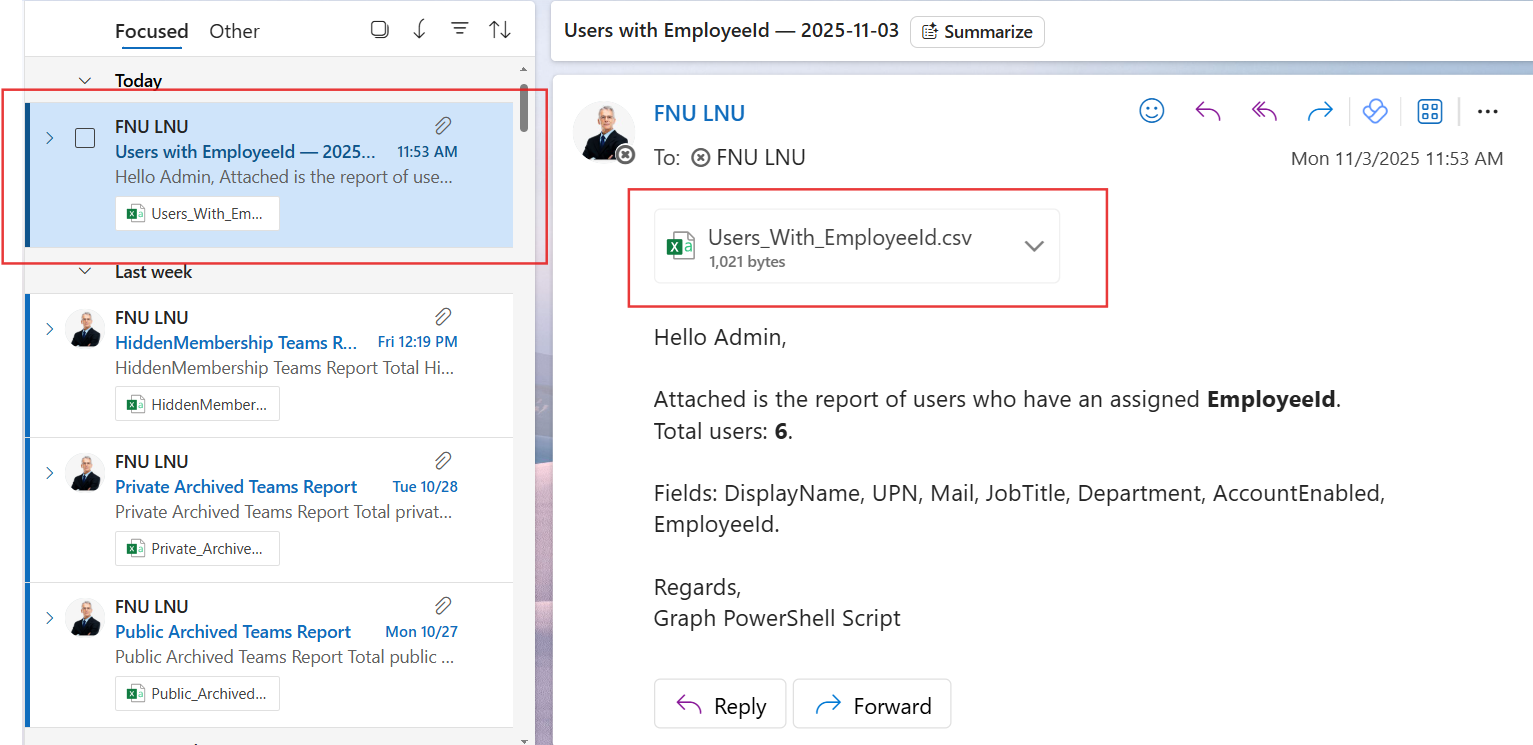
Hello Admin,<br><br>
Attached is the report of users who have an assigned <b>EmployeeId</b>.<br>
Total users: <b>$userCount</b>.<br><br>
Fields: DisplayName, UPN, Mail, JobTitle, Department, AccountEnabled, EmployeeId.<br><br>
Regards,<br>
Graph PowerShell Script
"@

$AttachmentContent = [System.Convert]::ToBase64String([System.IO.File]::ReadAllBytes($ReportPath))
$Attachments = @(
    @{
        "@odata.type" = "#microsoft.graph.fileAttachment"
        Name          = [System.IO.Path]::GetFileName($ReportPath)
        ContentBytes  = $AttachmentContent
    }
)

$Message = @{
    Message = @{
        Subject = $Subject
        Body    = @{
            ContentType = "HTML"
            Content     = $Body
        }
        ToRecipients = @(
            @{ EmailAddress = @{ Address = $AdminUPN } }
        )
        Attachments = $Attachments
    }
    SaveToSentItems = "true"
}

Send-MgUserMail -UserId $AdminUPN -BodyParameter $Message
Write-Host "Users with EmployeeId report emailed successfully to $AdminUPN"

ii) How the Script Works
- Connects to Microsoft Graph – The script authenticates to Microsoft Graph using User.Read.All and Mail.Send permissions.
- Retrieves Users with EmployeeId – It filters users with the condition employeeId ne null, ensuring only those with a valid EmployeeId are included.
- Cleans and Formats Data – Empty or blank EmployeeId entries are removed client-side for accuracy.
- Exports to CSV – The final dataset is sorted by display name and exported to a CSV file located in the system’s temporary folder.
- Emails the Report – The script attaches the CSV file and sends it to the administrator, providing a summary count in the email body.
This automation eliminates manual export steps and ensures that admins have an up-to-date snapshot of EmployeeId usage across the tenant.
iii) Further Enhancements
- Include Manager Details – Extend the report to include each user’s manager using the Get-MgUserManager cmdlet.
- Add User Creation Date – Incorporate the createdDateTime property to identify when EmployeeId was assigned.
- Department-based Filtering – Narrow results to a specific department or business unit.
- Automation & Scheduling – Schedule the script weekly via Task Scheduler or Azure Automation for continuous tracking.
- Conditional Alerts – Add logic to send alerts if certain employees or departments are missing Employee IDs.
iv) Possible Errors & Solutions
| Error | Cause | Solution |
|---|---|---|
| Insufficient privileges to complete the operation | Missing required Graph API scopes. | Ensure you connect with both User.Read.All and Mail.Send permissions. |
| Send-MgUserMail : Resource not found | Invalid mailbox or unlicensed user specified in $AdminUPN. | Use a valid, mail-enabled Microsoft 365 administrator account. |
| Empty CSV File | No users in the tenant have EmployeeId assigned. | This is expected in some cases; verify if EmployeeId is populated for any users. |
| BadRequest from Get-MgUser | Incorrect filter syntax or capitalization. | Always use the exact property name employeeId and the proper filter "employeeId ne null". |
v) Conclusion
This Graph PowerShell script provides a quick and reliable way to identify all users with an assigned Employee ID in Microsoft 365. The report is automatically generated, exported, and emailed, saving administrators significant manual effort.
By enhancing this script with scheduling and additional user attributes, it can evolve into a valuable tool for HR data audits, identity lifecycle management, and compliance reporting within your Microsoft 365 environment.