🔧 New: User Management Graph PowerShell Toolkit
Simplify user tasks like bulk creation, updates, password resets, deletions, license checks & more — all from one place.
🚀 Launch ToolkitGenerate Microsoft 365 Failed Login User Report – PowerShell
Monitoring failed sign-ins is a key part of Microsoft 365 security and compliance. Failed login attempts can indicate misconfigurations, account lockouts, or even potential intrusion attempts.
With Microsoft Graph PowerShell, administrators can easily generate a failed user login report directly from Entra ID (Azure AD) sign-in logs and automatically receive it via email. This script simplifies tracking login failures by fetching detailed sign-in data, including failure reasons, IP addresses, and conditional access outcomes.
i) The Script
$AdminUPN$AdminUPN     = "admin@yourtenant.onmicrosoft.com"
$LookbackDays = 7

Connect-MgGraph -Scopes "AuditLog.Read.All","Mail.Send"

$StartDate = (Get-Date).AddDays(-$LookbackDays).ToString("yyyy-MM-ddTHH:mm:ssZ")

$SignInLogs = Get-MgAuditLogSignIn -All `
  -Filter "createdDateTime ge $StartDate" `
  -Property Id,UserDisplayName,UserPrincipalName,AppDisplayName,ResourceDisplayName,IpAddress,Location,Status,CreatedDateTime,ConditionalAccessStatus,ClientAppUsed,CorrelationId

$FailedSignIns = $SignInLogs | Where-Object { $_.Status.errorCode -ne 0 }

$ReportRows = $FailedSignIns | Select-Object `
  @{n='UserDisplayName';       e={$_.UserDisplayName}},
  @{n='UserPrincipalName';     e={$_.UserPrincipalName}},
  @{n='AppDisplayName';        e={$_.AppDisplayName}},
  @{n='ResourceDisplayName';   e={$_.ResourceDisplayName}},
  @{n='IPAddress';             e={$_.IpAddress}},
  @{n='Location';              e={ if ($_.Location.city) { "$($_.Location.city), $($_.Location.countryOrRegion)" } else { "Unknown" } }},
  @{n='ErrorCode';             e={$_.Status.errorCode}},
  @{n='FailureReason';         e={$_.Status.failureReason}},
  @{n='FailureDetails';        e={$_.Status.additionalDetails}},
  @{n='ConditionalAccess';     e={$_.ConditionalAccessStatus}},
  @{n='ClientAppUsed';         e={$_.ClientAppUsed}},
  @{n='CorrelationId';         e={$_.CorrelationId}},
  @{n='Timestamp(UTC)';        e={[datetime]$_.CreatedDateTime}}

$ReportPath = "$env:TEMP\FailedUserLoginReport_Last${LookbackDays}Days.csv"
$ReportRows |
  Sort-Object 'Timestamp(UTC)' -Descending |
  Export-Csv -Path $ReportPath -NoTypeInformation -Encoding UTF8

$failedCount = @($ReportRows).Count
$Subject = "Failed User Login Report (Past $LookbackDays Days) — $(Get-Date -Format 'yyyy-MM-dd')"
$Body = @"

Hello Admin,<br><br>
Attached is the <b>Failed User Login Report</b> generated from Entra ID (Azure AD) sign-in logs for the past <b>$LookbackDays</b> days.<br>
Total failed sign-ins: <b>$failedCount</b><br><br>
Each record includes:<br>
- User, UPN, Application, Resource<br>
- IP & Location<br>
- ErrorCode, FailureReason, FailureDetails<br>
- Conditional Access result, ClientAppUsed<br>
- CorrelationId, Timestamp (UTC)<br><br>
Regards,<br>

Graph PowerShell Script
"@

$AttachmentContent = [System.Convert]::ToBase64String([System.IO.File]::ReadAllBytes($ReportPath))
$Attachments = @(
  @{
    "@odata.type" = "#microsoft.graph.fileAttachment"
    Name          = [System.IO.Path]::GetFileName($ReportPath)
    ContentBytes  = $AttachmentContent
  }
)

$Message = @{
  Message = @{
    Subject = $Subject
    Body    = @{
      ContentType = "HTML"
      Content     = $Body
    }
    ToRecipients = @(
      @{ EmailAddress = @{ Address = $AdminUPN } }
    )
    Attachments = $Attachments
  }
  SaveToSentItems = "true"
}

Send-MgUserMail -UserId $AdminUPN -BodyParameter $Message

Write-Host "Failed user login report (last $LookbackDays days) emailed successfully to $AdminUPN"
ii) How the Script Works
- Graph Connection – The script connects to Microsoft Graph using delegated scopes AuditLog.Read.All (to read Entra ID sign-in logs) and Mail.Send (to email the report).
- Data Retrieval – It defines a time window (default: 7 days) and uses Get-MgAuditLogSignIn to pull sign-in data.
- Filter for Failed Logins – Only entries with a nonzero errorCode are retained, representing failed sign-in attempts.
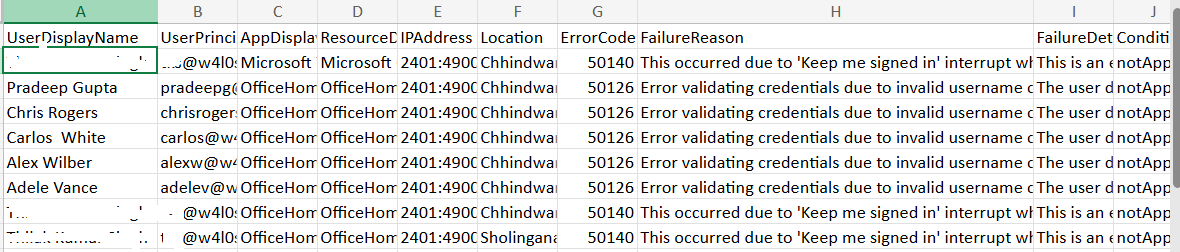
- Data Formatting – The output includes key details like user name, UPN, IP address, location, failure reason, and conditional access status.
- Report Generation – The report is exported to a CSV file and then attached to an HTML email.
- Automated Delivery – The email is sent to the administrator with a summary of failed login attempts and an attached detailed report.
iii) Further Enhancements
- Date Range Input – Allow administrators to input a custom date range or number of days.
- Failure Type Filtering – Categorize failures by reason (e.g., expired password, MFA failure, conditional access block).
- Geo-Alerts – Trigger alerts when failures come from unfamiliar regions or IP ranges.
- Automation – Schedule the script using Windows Task Scheduler or Azure Automation for periodic reporting.
- Graph Export API – For very large tenants, leverage the Graph signInLogs export API for faster bulk retrieval.
iv) Possible Errors and Solutions
| Error | Cause | Solution |
|---|---|---|
| Invalid filter clause | Incorrect date format in the $StartDate variable. | Use UTC format — ToString("yyyy-MM-ddTHH:mm:ssZ"). |
| Insufficient privileges | Missing permissions during connection. | Ensure AuditLog.Read.All and Mail.Send are included in Connect-MgGraph |
| Empty report or missing data | No failed logins during the selected period. | Extend $LookbackDays or verify that sign-in logging is enabled in Entra ID. |
| Send-MgUserMail : Resource not found | Invalid admin email address or non-mail-enabled account. | Verify $AdminUPN belongs to a valid mailbox. |
v) Conclusion
This Graph PowerShell script enables Microsoft 365 administrators to proactively monitor failed sign-ins across the tenant. The detailed failure insights help identify user lockouts, configuration issues, or potential security risks early on. By automating the generation and delivery of failed login reports, administrators can maintain real-time visibility into authentication health and strengthen their overall identity security posture.
With small tweaks such as region-based filters or scheduled delivery, this script can become a key component of your Microsoft 365 sign-in monitoring and audit framework.