Generate and Email Licensed Admins Report Using Graph PowerShell
Managing admin access in Microsoft 365 requires clear visibility into which administrators are licensed and what roles they hold. Licensing determines access to services, and role assignments define administrative scope. Ensuring both align is critical for audit readiness, governance, and access hygiene.
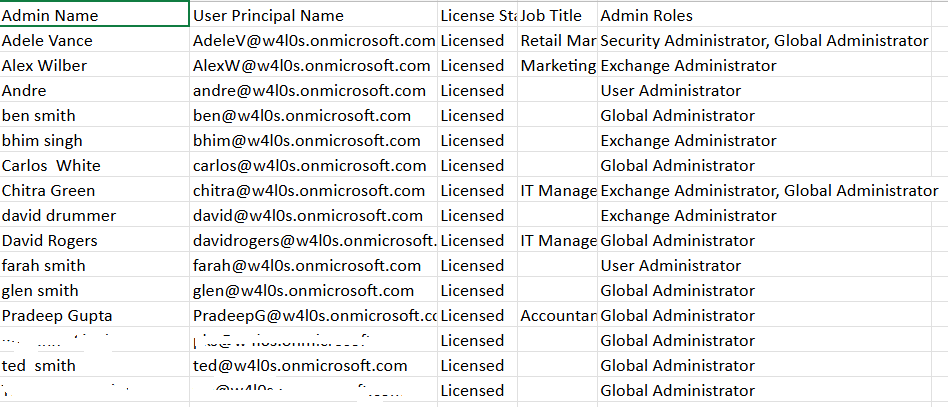
This Graph PowerShell script retrieves all licensed administrators, along with their assigned directory roles, and automatically emails the full report to the Microsoft 365 administrator. It provides a clean, consolidated overview of licensed admin accounts to support compliance checks and access reviews.
🚀 Community Edition Released!
Try the M365Corner Microsoft 365 Reporting Tool — your DIY pack with 20+ out-of-the-box M365 reports for Users, Groups, and Teams.
i) The Script
Connect-MgGraph -Scopes "Directory.Read.All", "User.Read.All", "Mail.Send"
$AdminUPN = "admin@yourtenant.onmicrosoft.com"
$roles = (Invoke-MgGraphRequest -Method GET -Uri "v1.0/directoryRoles").value
$licensedAdminsMap = @{}
foreach ($role in $roles) {
    $roleId = $role.id
    $roleName = $role.displayName
    try {
        $membersResponse = Invoke-MgGraphRequest -Method GET -Uri "v1.0/directoryRoles/$roleId/members"
        $members = $membersResponse.value
    } catch {
        continue
    }
    foreach ($member in $members) {
        if (-not $member.userPrincipalName) { continue }

        try {
            $licenseInfo = Invoke-MgGraphRequest -Method GET -Uri "v1.0/users/$($member.id)/licenseDetails"
        } catch {
            continue
        }
        if ($licenseInfo.value.Count -eq 0) { continue }
        $upn = $member.userPrincipalName
        if (-not $licensedAdminsMap.ContainsKey($upn)) {
            $licensedAdminsMap[$upn] = @{
                DisplayName       = $member.displayName
                UserPrincipalName = $upn
                LicenseStatus     = "Licensed"
                Roles             = @($roleName)
                JobTitle          = $member.jobTitle
            }
        } else {
            $licensedAdminsMap[$upn].Roles += $roleName
        }
    }
}
$licensedAdmins = $licensedAdminsMap.Values | ForEach-Object {
    [PSCustomObject]@{
        "Admin Name"          = $_.DisplayName
        "User Principal Name" = $_.UserPrincipalName
        "License Status"      = $_.LicenseStatus
        "Job Title"           = $_.JobTitle
        "Admin Roles"         = ($_.Roles -join ", ")
    }
}
$licensedAdmins | Format-Table -AutoSize
$ReportPath = "$env:TEMP\Licensed_Admins_Report.csv"
$licensedAdmins |
    Sort-Object "Admin Name" |
    Export-Csv -Path $ReportPath -NoTypeInformation -Encoding UTF8
$adminCount = @($licensedAdmins).Count
$Subject = "Licensed Admins Report — $(Get-Date -Format 'yyyy-MM-dd')"
$Body = @"
Hello Admin,<br><br>
Attached is the <b>Licensed Admins Report</b> containing all admin users who currently have an active Microsoft 365 license assigned.<br>
Total licensed admins: <b>$adminCount</b><br><br>
Each record includes:<br>
- Admin Name<br>
- User Principal Name<br>
- License Status<br>
- Job Title<br>
- Admin Roles Assigned<br><br>
Regards,<br>
Graph PowerShell Script
"@

$AttachmentContent = [Convert]::ToBase64String([IO.File]::ReadAllBytes($ReportPath))

$Attachments = @(
    @{
        "@odata.type" = "#microsoft.graph.fileAttachment"
        Name          = "Licensed_Admins_Report.csv"
        ContentBytes  = $AttachmentContent
    }
)

$Message = @{
    Message = @{
        Subject = $Subject
        Body    = @{
            Content     = $Body
            ContentType = "HTML"
        }
        ToRecipients = @(
            @{ EmailAddress = @{ Address = $AdminUPN } }
        )
        Attachments = $Attachments
    }
    SaveToSentItems = "true"
}
Send-MgUserMail -UserId $AdminUPN -BodyParameter $Message
Write-Host "Licensed admins report emailed successfully to $AdminUPN" -ForegroundColor Green
ii) How the Script Works
- Connects to Microsoft Graph using directory, user, and mail permissions.
- Retrieves all activated directory roles in the tenant.
- Gets members of each role using the /directoryRoles/{id}/members endpoint.
- Checks licensing status for each admin via /users/{id}/licenseDetails.
- Builds a unique map of licensed admins with their assigned roles.
- Converts the results into a clean PowerShell object list.
- Exports the data to a CSV file.
- Emails the report to the administrator using Microsoft Graph’s Send-MgUserMail cmdlet.
This ensures the final report contains only licensed administrators, along with their role assignments and job titles.
iii) Further Enhancements
- Include license SKU names to identify what product the admin is licensed with.
- Add role assignment timestamps for historical context.
- Add a filter to highlight admins with excessive roles (privilege creep).
- Automatically upload reports to SharePoint or Teams channels.
- Schedule the script via Azure Automation or Task Scheduler for weekly governance checks.
iv) Possible Errors & Solutions
| Error | Cause | Solution |
| Insufficient privileges | Missing Graph scopes. | Ensure the connection uses Directory.Read.All, User.Read.All, and Mail.Send. |
| Resource not found when sending email | The AdminUPN mailbox is invalid. | Use a valid mail-enabled account. |
| Empty report | No licensed admins detected, or directory roles not activated. | Confirm directory roles exist and admins have licenses assigned. |
| License lookup failures | Some admin objects may be service principals or groups. | Script already filters out non-user objects automatically. |
v) Conclusion
This script provides a streamlined and automated way to audit licensed administrators within your Microsoft 365 tenant. By combining license status with admin role assignments, it delivers an essential governance report for access reviews, compliance audits, and privilege monitoring.
The automated email delivery ensures visibility without requiring manual intervention, establishing a strong foundation for ongoing identity and access management practices.