How to Find Microsoft Teams with Private Channels Using Graph PowerShell
Microsoft Teams environments can quickly grow complex, especially when private channels are heavily used. Since private channels create separate SharePoint sites and have isolated membership, administrators often need visibility into which Teams contain them.
In this article, we’ll walk through a Graph PowerShell script that:
- Retrieves all Teams in the tenant
- Identifies Teams that contain private channels
- Counts the number of private channels per Team
- Exports the results to CSV
🚀 Community Edition Released!
Try the M365Corner Microsoft 365 Reporting Tool — your DIY pack with 20+ out-of-the-box M365 reports for Users, Groups, and Teams.
I) The Script
# Get all Teams-enabled groups
$teams = Get-MgGroup -All `
    -Filter "resourceProvisioningOptions/Any(x:x eq 'Team')" `
    -Property Id, DisplayName

$report = foreach ($team in $teams) {
    $channels = Get-MgTeamChannel -TeamId $team.Id -All -ErrorAction SilentlyContinue
    $privateChannels = $channels | Where-Object { $_.MembershipType -eq "private" }

    if ($privateChannels.Count -gt 0) {
        [PSCustomObject]@{
            TeamName = $team.DisplayName
            TeamId   = $team.Id
            PrivateChannelCount = $privateChannels.Count
        }
    }
}

$report | Export-Csv "D:\TeamsWithPrivateChannels.csv" -NoTypeInformation
Required Permissions
Before running the script, connect to Microsoft Graph with appropriate permissions:
Connect-MgGraph -Scopes "Group.Read.All","Team.ReadBasic.All","Channel.ReadBasic.All"You may require admin consent depending on your environment.
II) How the Script Works
Let’s break this down step by step.
- Fetch All Teams
- Id
- DisplayName
- Loop Through Each Team
- Retrieve All Channels in the Team
- The Team is in an inconsistent state
- The channel retrieval fails
- The Team was recently deleted
- Filter Only Private Channels
- standard
- private
- shared
- Output Only Teams That Have Private Channels
- Export the Report
- Audit Teams usage
- Review governance risks
- Share findings with stakeholders
Get-MgGroup -Filter "resourceProvisioningOptions/Any(x:x eq 'Team')"Microsoft Teams are backed by Microsoft 365 Groups.
The filter:
resourceProvisioningOptions/Any(x:x eq 'Team')ensures that only Teams-enabled groups are retrieved.
We also explicitly request:
This improves performance and avoids retrieving unnecessary properties.
foreach ($team in $teams)The script processes each Team individually.
Get-MgTeamChannel -TeamId $team.Id -AllThis retrieves all channels (standard, private, shared).
We use:
-ErrorAction SilentlyContinueThis prevents the script from stopping if:
$privateChannels = $channels | Where-Object { $_.MembershipType -eq "private" }The MembershipType property identifies channel type:
We only keep channels where:
MembershipType -eq "private"if ($privateChannels.Count -gt 0)This ensures the report includes only Teams that contain private channels.
For each matching Team, we create a custom object:
[PSCustomObject]@{
   TeamName
   TeamId
   PrivateChannelCount
}
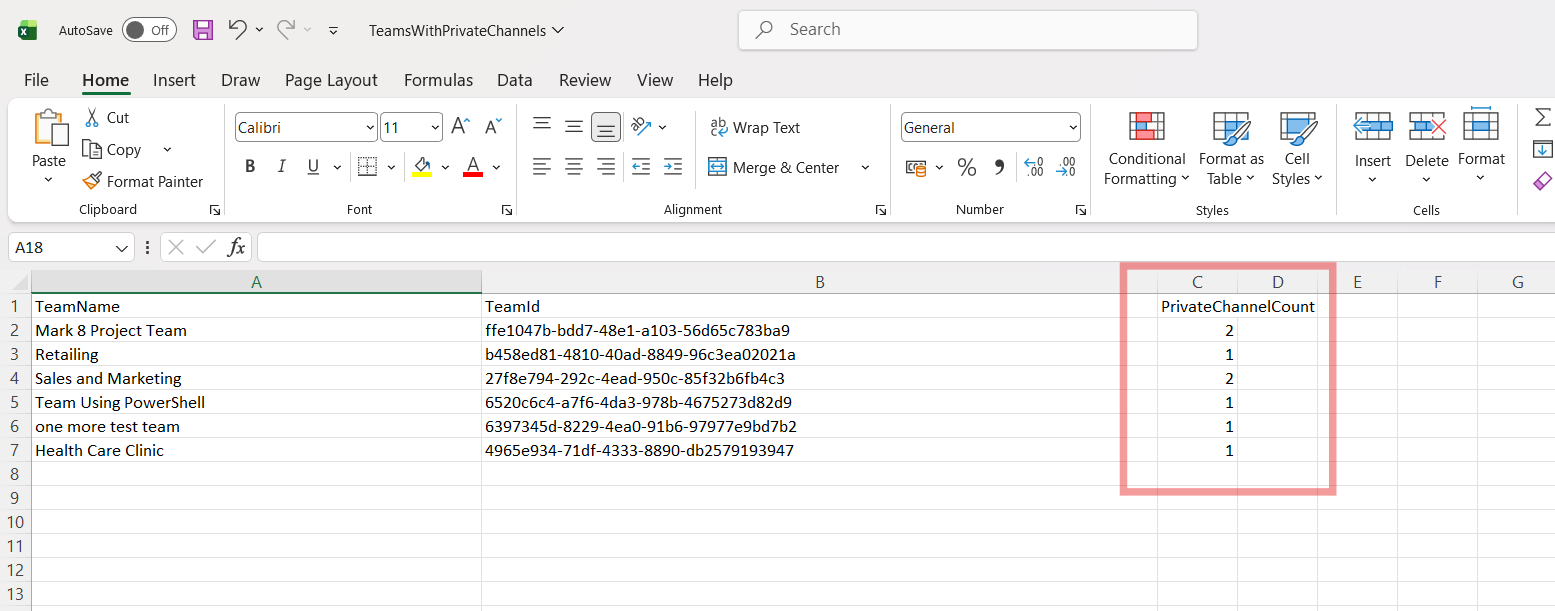
Export-Csv "D:\TeamsWithPrivateChannels.csv"The output CSV will contain:
| TeamName | TeamId | PrivateChannelCount |
|---|
This makes it easy to:
III) Further Enhancements
Here are several ways to improve this script for production environments:
🔹 1. Add Shared Channel Reporting
If you also want to include shared channels:
$sharedChannels = $channels | Where-Object { $_.MembershipType -eq "shared" }
You could add another property:
SharedChannelCount = $sharedChannels.Count
🔹 2. Include Total Channel Count
TotalChannels = $channels.CountThis gives better visibility into overall Team structure.
🔹 3. Add Owner Information
You can retrieve Team owners:
$owners = Get-MgGroupOwner -GroupId $team.IdThen include:
OwnerCount = $owners.CountOr even export owner UPNs.
🔹 4. Improve Performance in Large Tenants
For large tenants:
- Consider batching
- Add progress indicator:
Write-Progress -Activity "Processing Teams" -Status $team.DisplayName
🔹 5. Add Error Logging
Instead of silencing errors completely, log them:
-ErrorAction Stop
and wrap in:
try { } catch { }
This is recommended for enterprise-grade scripts.
IV) Possible Errors & Solutions
| Error | Cause | Solution |
|---|---|---|
| Insufficient privileges to complete the operation | Required Graph scopes are missing. | Reconnect with required permissions: Connect-MgGraph -Scopes "Group.Read.All","Team.ReadBasic.All","Channel.ReadBasic.All" Admin consent may be required. |
| Resource not found for the segment 'team' | The group exists but is not fully provisioned as a Team. | The script already handles this using: -ErrorAction SilentlyContinue You may optionally add try/catch for stricter handling. |
| Access Denied | The account does not have permission to read Teams or Channels. | Ensure:
|
| Throttling (Too Many Requests) | Large tenants with many Teams. |
|
| Export-Csv Access Denied | The file path does not exist or user lacks write permissions. | Change to a valid path: Export-Csv "$env:USERPROFILE\Desktop\TeamsWithPrivateChannels.csv" |
V) Conclusion
Private channels introduce additional governance complexity because:
- They have separate membership
- They create separate SharePoint sites
- They are often used for sensitive discussions
This script gives administrators:
- Clear visibility into which Teams contain private channels
- The number of private channels per Team
- A clean CSV export for audit purposes
It is lightweight, easy to modify, and scalable for most tenants.
For Microsoft 365 administrators focused on governance, compliance, and visibility — this script is a valuable addition to your toolkit.