Find M365 Groups with No Members Using PowerShell
In Microsoft 365 environments, groups are created for collaboration, access management, email distribution, and security purposes. Over time, some groups may end up with no members at all.
Groups without members can indicate:
- Unused or abandoned groups
- Incomplete provisioning
- Governance gaps
- Cleanup opportunities
Identifying such groups helps administrators maintain a cleaner and more efficient directory while reducing confusion and unnecessary clutter.
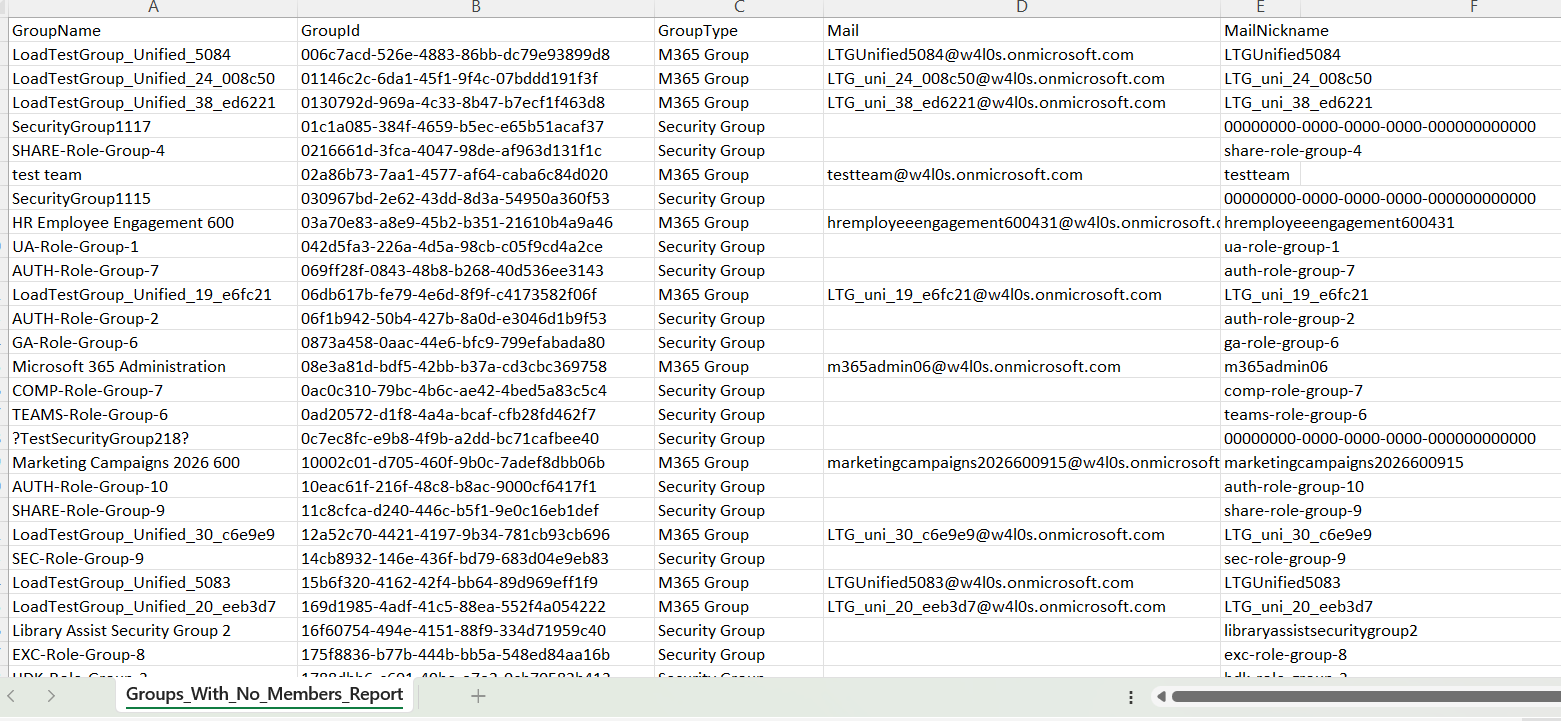
This script helps administrators find groups with no members and export the results into a CSV report for review and cleanup.
🚀 Community Edition Released!
Try the M365Corner Microsoft 365 Reporting Tool — your DIY pack with 20+ out-of-the-box M365 reports for Users, Groups, and Teams.
The Script
# Output file
$OutputFile = "D:/Groups_With_No_Members_Report.csv"

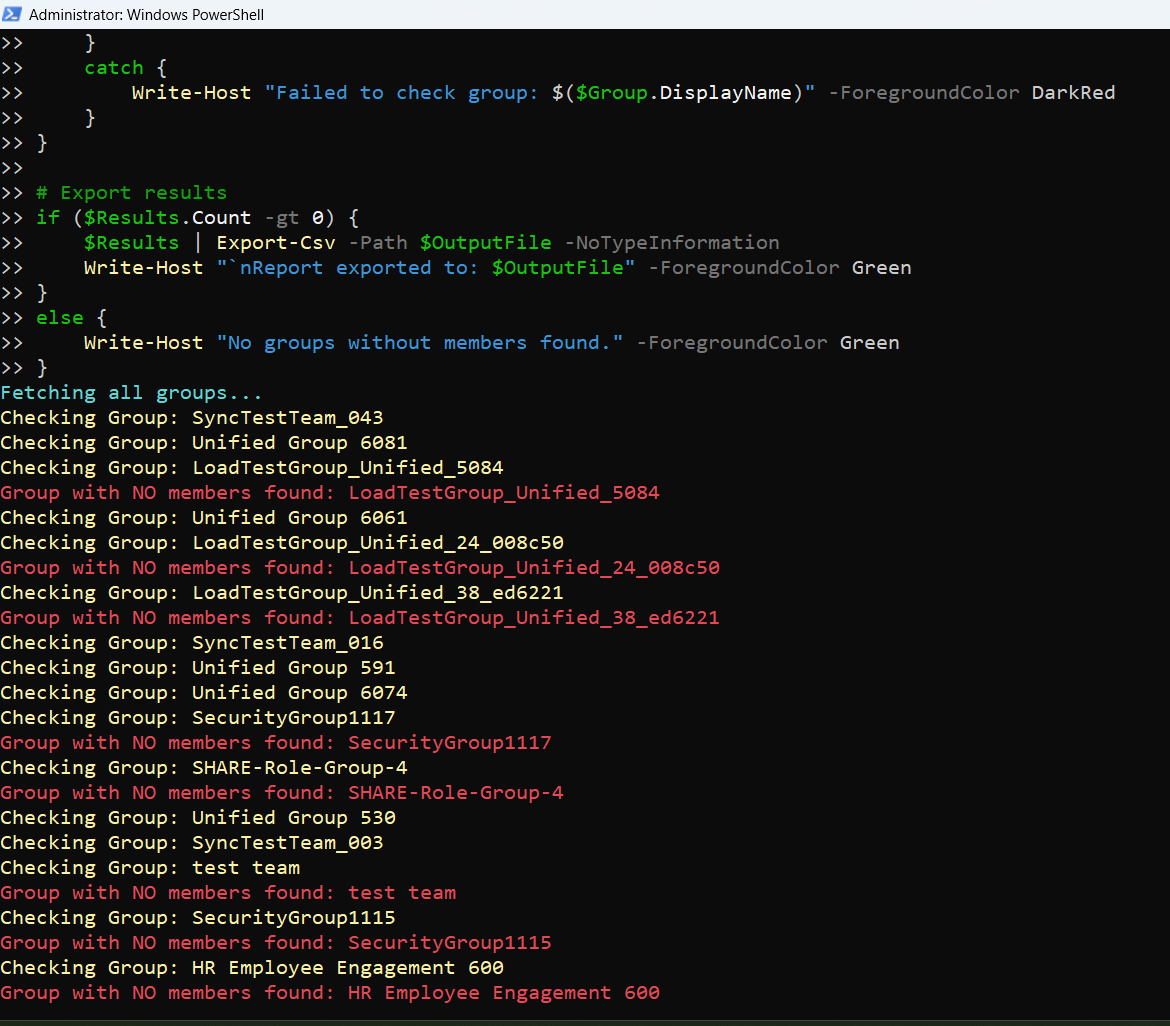
Write-Host "Fetching all groups..." -ForegroundColor Cyan

# Get all groups
$Groups = Get-MgGroup -All

$Results = @()

foreach ($Group in $Groups) {

    Write-Host "Checking Group: $($Group.DisplayName)" -ForegroundColor Yellow

    try {
        # Get members
        $Members = Get-MgGroupMember -GroupId $Group.Id -All -ErrorAction Stop

        $MemberCount = ($Members | Measure-Object).Count

        # If no members → capture
        if ($MemberCount -eq 0) {

            Write-Host "Group with NO members found: $($Group.DisplayName)" -ForegroundColor Red

            # Determine group type
            $GroupType = if ($Group.GroupTypes -contains "Unified") {
                "M365 Group"
            }
            elseif ($Group.MailEnabled -and -not $Group.SecurityEnabled) {
                "Distribution List"
            }
            elseif (-not $Group.MailEnabled -and $Group.SecurityEnabled) {
                "Security Group"
            }
            else {
                "Other"
            }

            # Store result
            $Results += [PSCustomObject]@{
                GroupName    = $Group.DisplayName
                GroupId      = $Group.Id
                GroupType    = $GroupType
                Mail         = $Group.Mail
                MailNickname = $Group.MailNickname
            }
        }
    }
    catch {
        Write-Host "Failed to check group: $($Group.DisplayName)" -ForegroundColor DarkRed
    }
}

# Export results
if ($Results.Count -gt 0) {
    $Results | Export-Csv -Path $OutputFile -NoTypeInformation
    Write-Host "`nReport exported to: $OutputFile" -ForegroundColor Green
}
else {
    Write-Host "No groups without members found." -ForegroundColor Green
}
How the Script Works
| Step | Description |
|---|---|
| Define Output File | Sets the CSV path where the final report will be stored |
| Fetch All Groups | Uses Get-MgGroup -All to retrieve every group in the tenant |
| Loop Through Each Group | Processes groups one by one |
| Get Members | Uses Get-MgGroupMember -GroupId <GroupId> -All to retrieve group members |
| Count Members | Uses Measure-Object to calculate the member count |
| Check for Zero Members | Identifies groups where member count equals 0 |
| Determine Group Type | Classifies the group as M365 Group, Distribution List, Security Group, or Other |
| Build Report | Stores group details in a custom object |
| Export Results | Exports the collected empty-group details to CSV |
Further Enhancements
| Enhancement | Description |
|---|---|
| Include Owner Details | Add group owners to identify who is responsible for empty groups |
| Add Created Date | Include CreatedDateTime to see how old the empty groups are |
| Filter by Group Type | Focus only on security groups, M365 groups, or distribution lists |
| Add Member Count Column | Explicitly include 0 as a column in the output for clarity |
| Automate Cleanup Workflow | Combine this report with a review/cleanup process for unused groups |
Frequently Asked Questions
| Question | Answer |
|---|---|
| Why would a group have no members? | It may be newly created, abandoned, misconfigured, or no longer in use |
| Are groups with no members a problem? | Not always, but they often indicate cleanup or governance opportunities |
| Does this script check all group types? | Yes, it checks all groups returned by Get-MgGroup |
| Can empty groups still have owners? | Yes, a group may have owners even when it has no members |
| Should I delete all groups with no members? | No, review them first to confirm whether they are still needed |
Admin Usecases
| Use Case | Description |
|---|---|
| Directory Cleanup | Identify unused groups that can be reviewed or removed |
| Governance Audit | Detect groups that may have been abandoned or misconfigured |
| Compliance Review | Ensure only active and valid groups remain in the directory |
| Provisioning Validation | Confirm whether newly created groups were populated correctly |
| Operational Efficiency | Reduce clutter and improve directory hygiene |
Possible Errors & Solutions
| Error | Cause | Solution |
|---|---|---|
| Insufficient privileges | Missing Graph permissions | Connect with Group.Read.All or Directory.Read.All |
| Cmdlet not recognized | Microsoft Graph module not installed | Install it using Install-Module Microsoft.Graph |
| Access token expired | Session timed out | Reconnect using Connect-MgGraph |
| Failed to check group | API/read issue on a specific group | Keep the try/catch block and review problematic groups separately |
| Empty results | No groups without members exist | Confirm tenant data and rerun the script |
Conclusion
Groups with no members are often overlooked, but they can reveal important governance and cleanup opportunities in Microsoft 365 environments. Whether they represent abandoned groups, incomplete provisioning, or simply unused objects, identifying them helps administrators maintain a cleaner and more manageable directory.
This Microsoft Graph PowerShell script provides a practical way to detect groups with no members and export the findings into a structured CSV report. By reviewing these groups regularly, administrators can improve directory hygiene, governance, and operational efficiency across the tenant.