Fetch Recently Created Guest Users Using Graph PowerShell
Guest accounts are widely used in Microsoft 365 for external collaboration. Over time, tenants accumulate many guest users, and administrators often need a quick way to identify:
- Newly invited external users
- Recently created guest accounts
- Guests added for short-term projects
- Accounts that may require review or cleanup
In this article, we’ll walk through a Graph PowerShell script that retrieves all guest users created within the last 30 days, prints them in the console, and exports the results to a CSV file.
🚀 Community Edition Released!
Try the M365Corner Microsoft 365 Reporting Tool — your DIY pack with 20+ out-of-the-box M365 reports for Users, Groups, and Teams.
Script: Get Recently Created Guest Users (Last 30 Days)
The following script connects to Microsoft Graph, fetches guest users created in the last 30 days, and exports them for reporting.
# ==========================================
# Script: Get Recently Created Guest Users
# Scope: Last 30 Days
# ==========================================

Connect-MgGraph -Scopes "User.Read.All"

# Define date range (Last 30 Days)
$StartDate = (Get-Date).AddDays(-30).ToUniversalTime().ToString("yyyy-MM-ddTHH:mm:ssZ")

# Explicitly request required properties
$SelectProps = @(
    "id",
    "displayName",
    "userPrincipalName",
    "mail",
    "createdDateTime",
    "accountEnabled"
)

# Fetch Guest Users created in the last 30 days
$GuestUsers = Get-MgUser `
    -Filter "userType eq 'Guest' and createdDateTime ge $StartDate" `
    -ConsistencyLevel eventual `
    -CountVariable Count `
    -All `
    -Property ($SelectProps -join ",") `
    -Select ($SelectProps -join ",")

# Check if results exist
if ($GuestUsers.Count -gt 0) {

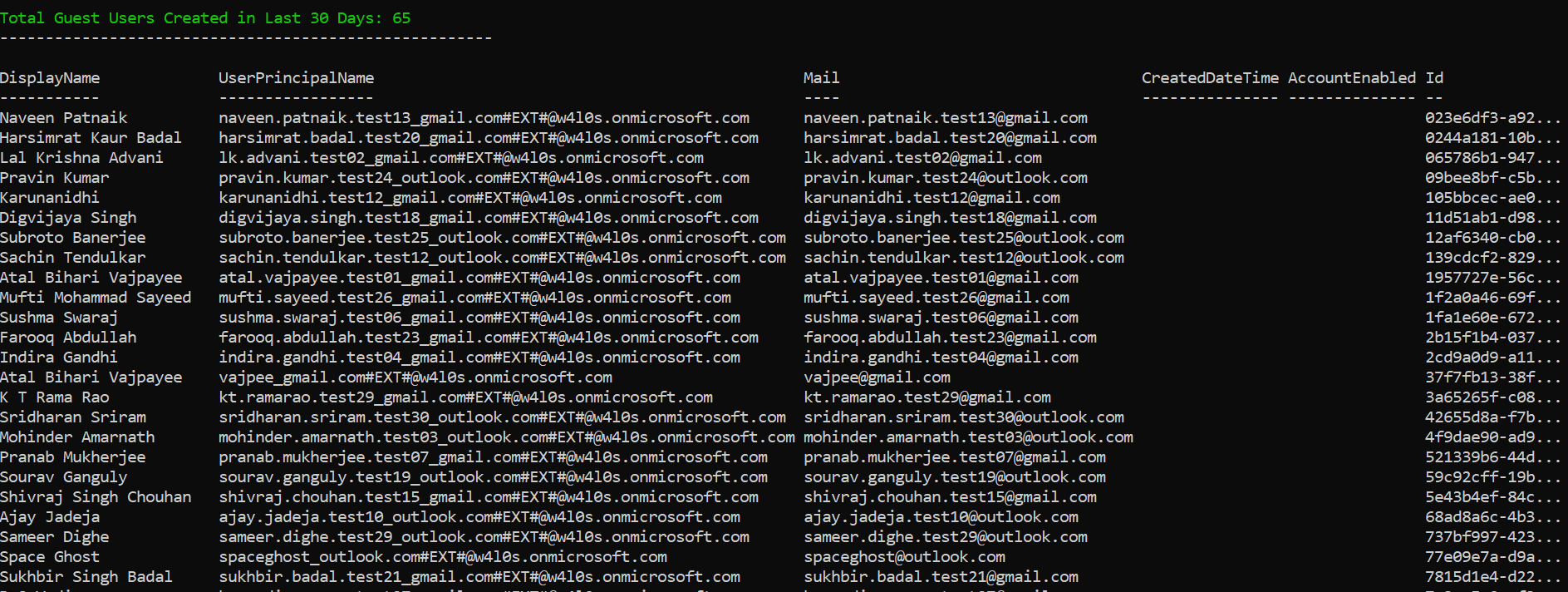
    Write-Host "Total Guest Users Created in Last 30 Days: $Count" -ForegroundColor Green
    Write-Host "------------------------------------------------------"

    # Select output fields
    $Result = $GuestUsers | Select-Object `
        DisplayName,
        UserPrincipalName,
        Mail,
        CreatedDateTime,
        AccountEnabled,
        Id

    # Print to console
    $Result | Format-Table -AutoSize

    # Export to CSV
    $ExportPath = ".\RecentlyCreatedGuestUsers_Last30Days.csv"
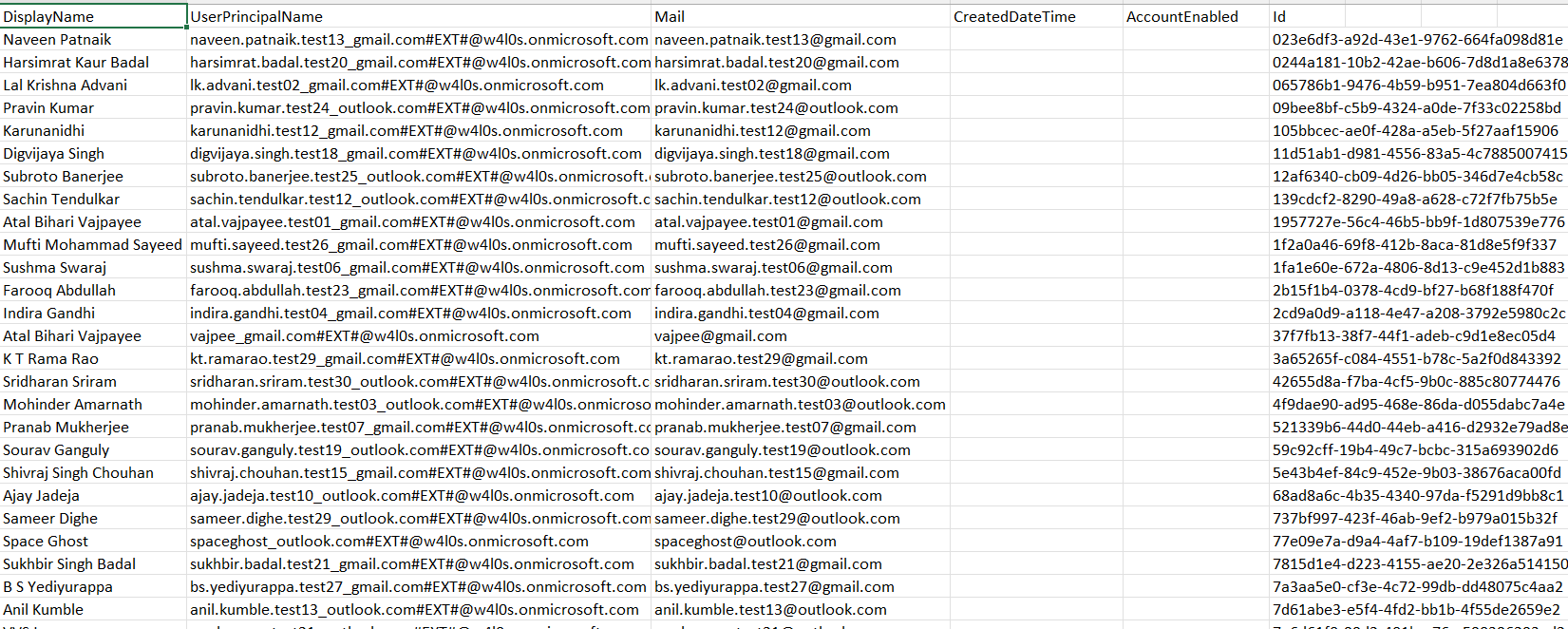
    $Result | Export-Csv -Path $ExportPath -NoTypeInformation -Encoding UTF8

    Write-Host ""
    Write-Host "Results exported to: $ExportPath" -ForegroundColor Cyan
}
else {
    Write-Host "No guest users were created in the last 30 days." -ForegroundColor Yellow
}
How the Script Works
Let’s break down the important parts of this script.
- Connecting to Microsoft Graph
- User.Read.All
- Defining the Last 30 Days Window
- Selecting the Correct Properties
- Filtering Guest Users by Creation Date
- Users where userType = Guest
- Accounts created within the last 30 days
- Displaying and Exporting Results
Connect-MgGraph -Scopes "User.Read.All"This establishes a session with Microsoft Graph using the required permission:
Without this scope, the script cannot retrieve user objects across the tenant.
$StartDate = (Get-Date).AddDays(-30).ToUniversalTime().ToString("yyyy-MM-ddTHH:mm:ssZ")This generates a timestamp exactly 30 days ago in Graph-compatible ISO 8601 UTC format.
Graph requires timestamps in this format when filtering by createdDateTime.
A common issue with Graph PowerShell is that not all properties are returned automatically.
$SelectProps = @(
    "createdDateTime",
    "accountEnabled"
)
If you don’t explicitly request these fields, they may appear blank in output.
That is why the script includes:
-Property (...) -Select (...)
This ensures Graph returns all required fields.
-Filter "userType eq 'Guest' and createdDateTime ge $StartDate"
This filter retrieves only:
The script outputs data in two ways:
Console View
$Result | Format-Table -AutoSizeCSV Export
Export-Csv -Path ".\RecentlyCreatedGuestUsers_Last30Days.csv"This makes it easy to generate audit-ready reports for compliance teams.
Further Enhancements
This script can be extended in several useful ways depending on your tenant requirements.
- Allow Custom Day Range Input
- Export Only Disabled Guest Accounts
- Track Guests Who Have Never Signed In
- signInActivity
- Automate Weekly Guest Review Reports
Instead of fixed 30 days:
$Days = Read-Host "Enter number of days"
$StartDate = (Get-Date).AddDays(-$Days)
Add an additional filter:
userType eq 'Guest' and accountEnabled eq falseYou can extend the report with:
(Requires additional Graph permissions.)
Run the script as a scheduled task and email the CSV output to security administrators.
Possible Errors and Solutions
Below are common issues administrators may encounter.
| Error | Cause | Solution |
|---|---|---|
| Insufficient privileges to complete the operation | The account does not have required Graph permissions. | Ensure the session includes: Connect-MgGraph -Scopes "User.Read.All" Admin consent is required. |
| CreatedDateTime or AccountEnabled is empty | Graph does not return all properties unless explicitly selected. | Always include: -Property "createdDateTime,accountEnabled" -Select "createdDateTime,accountEnabled" |
| Request_UnsupportedQuery | Advanced filters require consistency headers. | Add -ConsistencyLevel eventual |
| Export file is locked or cannot be written | CSV file is open in Excel. | Close the file and rerun the script. |
| Invalid filter clause | Timestamp is not in correct UTC ISO format. | Use: .ToUniversalTime().ToString("yyyy-MM-ddTHH:mm:ssZ") |
Conclusion
Tracking newly created guest users is a critical task for Microsoft 365 administrators, especially in environments with heavy external collaboration.
This Graph PowerShell script provides an efficient way to:
- Identify guests added in the last 30 days
- Review external access onboarding
- Export guest creation reports for audits
- Strengthen tenant security and compliance
M365Corner administrators can easily expand this script into scheduled reporting, guest lifecycle automation, or security review workflows.