Fetch Licensed Guest Users Using Microsoft Graph PowerShell
Guest accounts are widely used in Microsoft 365 tenants for collaborating with external vendors, consultants, partners, and clients.
In most organizations, guest users are intended to have limited access and typically do not require Microsoft 365 licenses. However, in some cases, guest accounts may end up being assigned licenses either intentionally (for app access) or unintentionally (due to misconfiguration).
Licensed guest accounts are important to track because they can:
- Consume paid Microsoft 365 licenses
- Increase licensing costs unnecessarily
- Indicate governance or policy gaps
- Require review for compliance and security
In this article, we will explore a Graph PowerShell script that retrieves only licensed guest users in a tenant and exports the results to a CSV report.
🚀 Community Edition Released!
Try the M365Corner Microsoft 365 Reporting Tool — your DIY pack with 20+ out-of-the-box M365 reports for Users, Groups, and Teams.
The Script
The following script fetches guest accounts that have one or more licenses assigned.
<#
.SYNOPSIS
    Fetches all licensed guest user accounts in the tenant
    and exports the report to CSV.

.DESCRIPTION
    This script retrieves guest users from Microsoft Entra ID
    and filters only those who have assigned licenses.

.REQUIREMENTS
    Microsoft.Graph module
    Directory.Read.All permission
#>

# -------------------------------
# Step 1: Connect to Microsoft Graph
# -------------------------------
Connect-MgGraph -Scopes "User.Read.All","Directory.Read.All"

Write-Host "`nFetching licensed guest users..." -ForegroundColor Cyan

# -------------------------------
# Step 2: Fetch All Guest Users
# -------------------------------
$GuestUsers = Get-MgUser -All `
    -Filter "userType eq 'Guest'" `
    -Property Id,DisplayName,UserPrincipalName,AssignedLicenses

# -------------------------------
# Step 3: Filter Only Licensed Guests
# -------------------------------
$LicensedGuests = $GuestUsers |
    Where-Object { $_.AssignedLicenses.Count -gt 0 }

# -------------------------------
# Step 4: Prepare Report Output
# -------------------------------
$Report = $LicensedGuests | Select-Object `
    DisplayName,
    UserPrincipalName,
    @{Name="LicenseCount"; Expression={$_.AssignedLicenses.Count}}

# -------------------------------
# Step 5: Display Results in Console
# -------------------------------
Write-Host "`nLicensed Guest Accounts Found: $($Report.Count)" -ForegroundColor Yellow

$Report | Format-Table -AutoSize

# -------------------------------
# Step 6: Export Report to CSV
# -------------------------------
$ExportPath = "$PSScriptRoot\LicensedGuestUsersReport.csv"

$Report | Export-Csv -Path $ExportPath -NoTypeInformation -Encoding UTF8

Write-Host "`nReport exported successfully to:" -ForegroundColor Green
Write-Host $ExportPath -ForegroundColor White
How the Script Works
Let’s break down what this script does step-by-step.
Step 1: Connect to Microsoft Graph
Connect-MgGraph -Scopes "User.Read.All","Directory.Read.All"The script begins by connecting to Microsoft Graph with the required permissions:
- User.Read.All– Allows reading user profiles
- Directory.Read.All – Allows reading directory objects tenant-wide
These permissions are required because guest users are stored as user objects inside Microsoft Entra ID.
Step 2: Retrieve All Guest Users
$GuestUsers = Get-MgUser -All `
-Filter "userType eq 'Guest'"
This command retrieves all users where:
- userType = Guest
This ensures that only external guest accounts are returned, excluding internal member accounts.
The script also requests the AssignedLicenses property, which is needed to identify licensed users.
Step 3: Filter Only Licensed Guests
Where-Object { $_.AssignedLicenses.Count -gt 0 }Each user object contains an AssignedLicenses collection.
- If the count is greater than 0, the guest user has at least one license assigned.
This step filters out all unlicensed guests and keeps only licensed guest accounts.
Step 4: Build a Clean Report Output
Select-Object DisplayName, UserPrincipalName, LicenseCount Instead of exporting all properties, the script prepares a clean report with:
- Display Name
- User Principal Name
- Number of licenses assigned
This makes the report easy to review and audit.
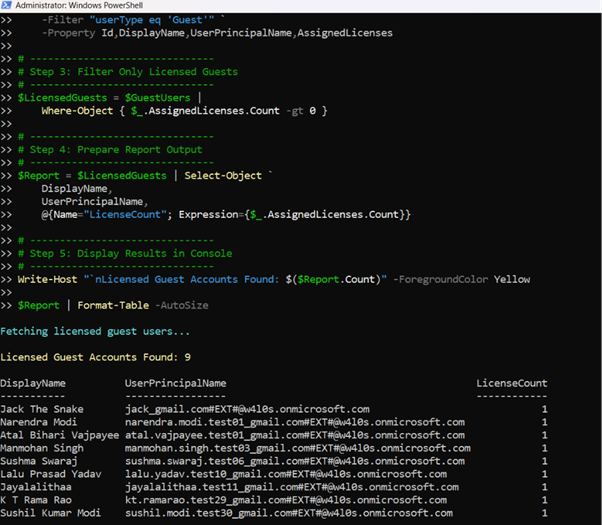
Step 5: Display Results in Console
$Report | Format-Table -AutoSizeThe script prints the licensed guest accounts directly in the PowerShell console.
It also displays the total number of licensed guest users found:
Licensed Guest Accounts Found: X
This provides an instant overview for administrators.
Step 6: Export the Report to CSV
Export-Csv -Path LicensedGuestUsersReport.csvFinally, the report is exported to:
LicensedGuestUsersReport.csv
This CSV file is useful for:
- License cost audits
- Guest governance reviews
- Compliance reporting
- Cleanup activities
Further Enhancing the Script
This script provides an excellent foundation, but you can enhance it further depending on your organization’s needs.
Display Exact License Names (SKU Details)
Currently, the script shows only the license count. You can enhance it to display license SKU names such as:
- Microsoft 365 E3
- Business Premium
- Power BI Pro
Identify Guests Licensed Recently
You may want to track guests who were assigned licenses in the last 30 days for proactive monitoring.
Export Full Guest License Details
For deeper reporting, you can include:
- AssignedPlans
- Service enablement
- License assignment date
Automate License Removal for Guests
In many tenants, licensed guest accounts are accidental. A governance script could automatically remove licenses from guests after confirmation.
Possible Errors and Solutions
Below are common issues administrators may encounter.
| Error | Cause | Solution |
|---|---|---|
| Insufficient privileges to complete the operation | The signed-in account does not have directory read permissions. | Connect with the required scopes: Connect-MgGraph -Scopes "Directory.Read.All" Ensure admin consent is granted. |
| Get-MgUser : Authorization_RequestDenied | The account lacks the necessary Entra role permissions. |
Run the script using an account with roles such as:
|
| Licensed Guest Users Report Shows 0 Results | Most tenants do not assign licenses to guest users. |
This is normal and actually a healthy sign. If results appear, they should be reviewed carefully. |
| Exported CSV File Not Found | The report is saved in the script’s execution directory. |
|
Conclusion
Licensed guest users are uncommon but highly important to monitor in Microsoft 365 environments. They can consume paid licenses, introduce governance risks, and increase tenant costs if left unchecked.
With Microsoft Graph PowerShell, administrators can quickly generate a report that:
- Retrieves all guest accounts
- Filters only licensed guest users
- Displays results instantly
- Exports the report into CSV format
This is a valuable script for tenant hygiene, licensing audits, and external access governance.