Fetch Disabled Guest User Accounts Using Microsoft Graph PowerShell
Guest accounts are extremely common in Microsoft 365 tenants today. Organizations regularly collaborate with external vendors, consultants, partners, and clients using Microsoft Teams, SharePoint, and other services.
Over time, many of these guest accounts become inactive or are manually disabled for security reasons. However, disabled guest accounts often remain in the directory unnoticed, making it important for administrators to periodically review them.
In this article, we will walk through a simple Microsoft Graph PowerShell script that helps you:
- Fetch only disabled guest user accounts
- Display them directly in the console
- Export the report into a CSV file for auditing and cleanup purposes
🚀 Community Edition Released!
Try the M365Corner Microsoft 365 Reporting Tool — your DIY pack with 20+ out-of-the-box M365 reports for Users, Groups, and Teams.
The Script
The following Graph PowerShell script retrieves all disabled guest accounts from Microsoft Entra ID and exports the results into a CSV report.
<#
.SYNOPSIS
    Fetches all disabled guest user accounts in Microsoft Entra ID
    and exports the report to CSV.

.DESCRIPTION
    This script retrieves only guest accounts where AccountEnabled = False.
    It displays results in the console and exports them to a CSV file.

.REQUIREMENTS
    Microsoft.Graph module
    Directory.Read.All permission
#>

# -------------------------------
# Step 1: Connect to Microsoft Graph
# -------------------------------
Connect-MgGraph -Scopes "User.Read.All","Directory.Read.All"

Write-Host "`nFetching disabled guest users..." -ForegroundColor Cyan

# -------------------------------
# Step 2: Fetch Disabled Guest Accounts
# -------------------------------
$DisabledGuests = Get-MgUser -All `
    -Filter "userType eq 'Guest' and accountEnabled eq false" `
    -Property Id,DisplayName,UserPrincipalName,Mail,CreatedDateTime,AccountEnabled

# -------------------------------
# Step 3: Format Report Output
# -------------------------------
$Report = $DisabledGuests | Select-Object `
    DisplayName,
    UserPrincipalName,
    Mail,
    CreatedDateTime,
    AccountEnabled

# -------------------------------
# Step 4: Display in Console
# -------------------------------
Write-Host "`nDisabled Guest Accounts Found: $($Report.Count)" -ForegroundColor Yellow

$Report | Format-Table -AutoSize

# -------------------------------
# Step 5: Export to CSV
# -------------------------------
$ExportPath = "$PSScriptRoot\DisabledGuestUsersReport.csv"

$Report | Export-Csv -Path $ExportPath -NoTypeInformation -Encoding UTF8

Write-Host "`nReport exported successfully to:" -ForegroundColor Green
Write-Host $ExportPath -ForegroundColor White
How the Script Works
Let’s break down what this script does step-by-step.
Step 1: Connect to Microsoft Graph
Connect-MgGraph -Scopes "User.Read.All","Directory.Read.All"The script begins by connecting to Microsoft Graph using the required permissions:
- User.Read.All – Allows reading user profiles
- Directory.Read.All – Allows reading directory-wide user objects
These permissions are required because guest accounts are stored in Entra ID like any other user object.
Step 2: Fetch Only Disabled Guest Accounts
$DisabledGuests = Get-MgUser -All `
  -Filter "userType eq 'Guest' and accountEnabled eq false"
This is the most important part of the script.
The -Filter parameter ensures that only accounts matching both conditions are retrieved:
- userType eq 'Guest'
- accountEnabled eq false
So the output includes only guest users who are currently disabled.
This is extremely useful when reviewing stale external accounts.
Step 3: Build a Clean Report Object
$Report = $DisabledGuests | Select-Object `
    DisplayName,
    UserPrincipalName,
    Mail,
    CreatedDateTime,
    AccountEnabled
Instead of exporting the full Graph user object (which contains many unnecessary properties), the script selects only the most useful fields, such as:
- Display Name
- UPN
- Email Address
- Account Creation Date
- Enabled/Disabled Status
Step 4: Display the Results in the Console
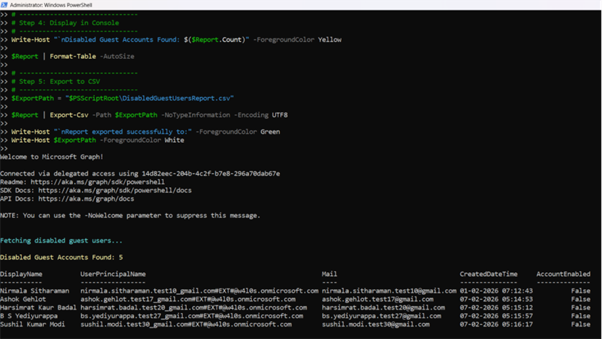
$Report | Format-Table -AutoSize The script prints a readable table directly in the PowerShell console.
This is helpful when you want a quick on-screen audit before exporting.
It also displays the total number of disabled guest accounts found:
Disabled Guest Accounts Found: X
Step 5: Export the Report to CSV
$Report | Export-Csv -Path $ExportPath -NoTypeInformation -Encoding UTF8 Finally, the report is exported into a CSV file: DisabledGuestUsersReport.csv
The file is saved in the same directory where the script is executed, making it easy to locate.
CSV exports are useful for:
- Compliance audits
- Security reviews
- Guest cleanup projects
- Sharing reports with management teams
Further Enhancing the Script
This script is already a great starting point, but you can enhance it further depending on your needs.
Here are a few practical improvements administrators often add:
Include Last Sign-In Activity
Many organizations want to know whether the guest ever signed in before being disabled.
You can enhance the report by pulling sign-in activity fields such as:
- LastSignInDateTime
- LastNonInteractiveSignInDateTime
Identify Guests Disabled Recently
Instead of listing all disabled guests, you may want to retrieve:
- Guests disabled in the last 30 days
- Guests disabled in the last 90 days
This is extremely useful for ongoing cleanup.
Export Additional Guest Metadata
You can expand the report to include:
- External domain
- Invitation status
- Who invited the guest
- Group or Teams access
Automate Cleanup Workflows
Once disabled guests are identified, organizations often automate:
- Removing stale guest accounts
- Reviewing guests quarterly
- Reporting disabled guests to security teams
Possible Errors and Solutions
While running this script, you may encounter a few common Graph PowerShell issues.
| Error | Cause | Solution |
|---|---|---|
| Insufficient privileges to complete the operation | Your account does not have the required Graph API permissions. | Ensure you connect using: Connect-MgGraph -Scopes "Directory.Read.All" Also confirm that the permission is consented in Entra ID. |
| Unsupported or invalid filter clause | Some tenants may not support certain advanced filters without consistency headers. | Try retrieving guest users first, then filtering locally if needed. |
| Get-MgUser : Authorization_RequestDenied | The signed-in account lacks directory-level read permissions. | Run the script as a Global Reader, Security Reader, or Global Administrator. |
| CSV File Not Found After Export | The file is saved relative to the script location. | Check the path printed at the end: Write-Host $ExportPath Or modify the export path to a fixed folder such as: C:\Reports\ |
Conclusion
Disabled guest accounts are one of the most overlooked areas of Microsoft 365 tenant security.
With Microsoft Graph PowerShell, administrators can quickly identify these accounts and generate clean audit-ready reports.
This script helps you:
- Retrieve only disabled guest users
- Display results instantly in PowerShell
- Export the report into a CSV file for review and cleanup
Regularly auditing guest accounts is a simple but powerful step toward improving tenant hygiene and external access governance.