Create Mail-Enabled Microsoft 365 Security Groups Using PowerShell
Mail-Enabled Security Groups are one of those hybrid objects in Microsoft 365 that combine permission management and email distribution in a single group.
While most of us prefer Microsoft Graph PowerShell for modern automation, there is one important limitation you must know:
❗ Graph PowerShell cannot create Mail-Enabled Security Groups (yet).
To create them, you must use Exchange Online PowerShell because mail-enabled security groups are fundamentally Exchange objects.
In this article, we’ll walk through:
- Prerequisites
- Creating groups individually
- Bulk creation using CSV
- Enhancements
- Common errors and solutions
Let’s get started.
🚀 Community Edition Released!
Try the M365Corner Microsoft 365 Reporting Tool — your DIY pack with 20+ out-of-the-box M365 reports for Users, Groups, and Teams.
i) Prerequisites
- Install Exchange Online PowerShell Module
- Press Y
- Or choose A for Yes to All
- Connect to Exchange Online
- A sign-in window will appear
- Authenticate using an admin account
- Required Permissions
- Exchange Administrator or Global Administrator
Mail-enabled security groups are created using the ExchangeOnlineManagement module.
Install the module
Install-Module ExchangeOnlineManagement -Scope CurrentUserIf prompted:
Import-Module ExchangeOnlineManagement
Connect-ExchangeOnline
After running this command:
To create mail-enabled security groups, you need:
Without proper roles, you will receive permission-related errors.
ii) Creating Mail-Enabled Security Groups Individually
Let’s look at the script:
$Owners = @('owner1@domain.com', 'owner2@domain.com')
$Members = @('member1@domain.com', 'member2@domain.com')
New-DistributionGroup -Name "HR Department" -Alias "hrdepartment" -Type "Security"
-ManagedBy $Owners -Members $Members
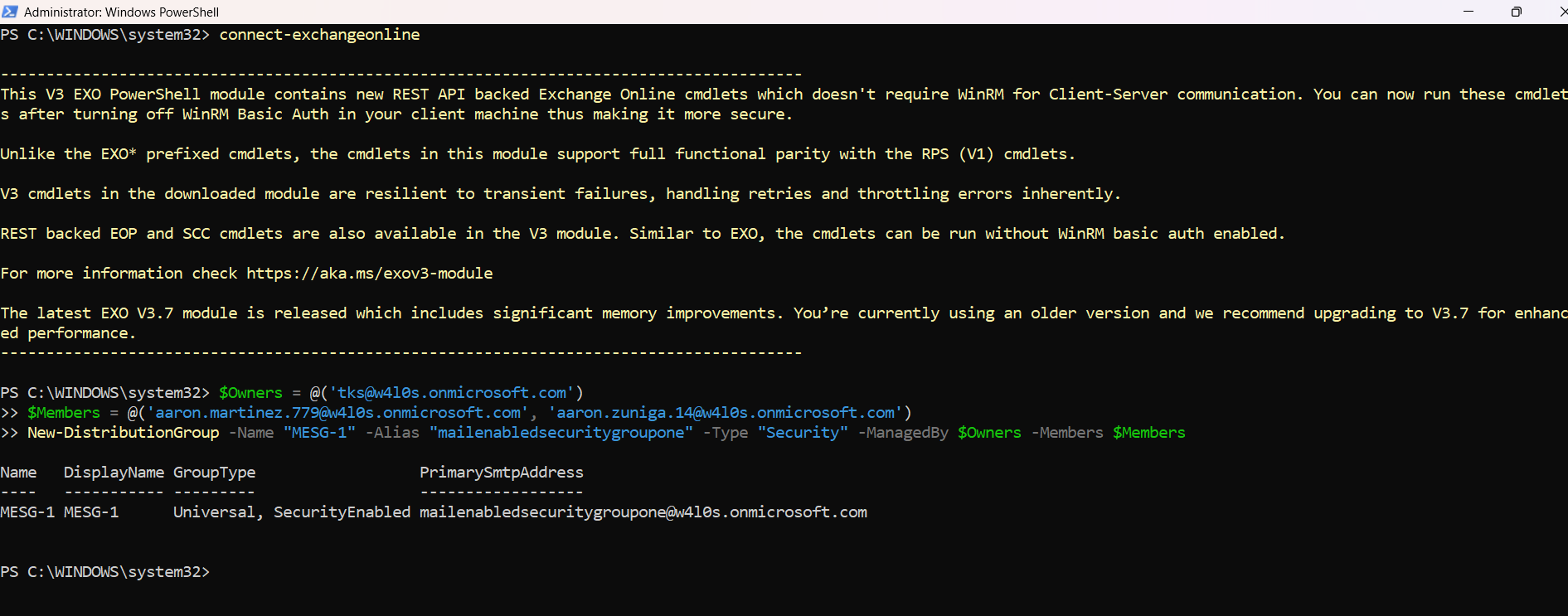
Now let’s break this down clearly.
Step 1: Define Owners
$Owners = @('owner1@domain.com', 'owner2@domain.com')- Creates an array of owners
- These users will manage the group
- Owners can modify membership and settings
Step 2: Define Members
$Members = @('member1@domain.com', 'member2@domain.com')- Creates an array of group members
- These users will:
- Receive emails sent to the group
- Inherit permissions assigned to the group
Step 3: Create the Mail-Enabled Security Group
New-DistributionGroup -Name "HR Department" -Alias "hrdepartment" -Type "Security" -ManagedBy $Owners -Members $MembersWhat each parameter does:
| Parameter | Purpose |
|---|---|
| -Name | Display name of the group |
| -Alias | Mail alias (used in SMTP address) |
| -Type Security | Converts it into a Mail-Enabled Security Group |
| -ManagedBy | Assigns group owners |
| -Members | Adds initial members |
Once executed:
- The group is created
- An email address is automatically assigned
- It becomes usable for both permissions and mail routing
This is the simplest and cleanest way to create one group.
iii) Bulk Create Mail-Enabled Security Groups
When managing multiple departments or projects, bulk creation is far more efficient.
Here is the script:
# Import the CSV file
$groups = Import-Csv -Path "MailEnabledSecurityGroups.csv"

# Create each mail-enabled security group
foreach ($group in $groups) {
    try {
        New-DistributionGroup -Name $group.Name `
        -Alias $group.Alias `
        -PrimarySmtpAddress "$($group.Alias)@7xh7fj.onmicrosoft.com" `
        -Type Security

        Write-Host "✅ Created: $($group.Name)" -ForegroundColor Green
    } catch {
        Write-Host "❌ Failed: $($group.Name)" -ForegroundColor Red
        Write-Host $_.Exception.Message
    }
}
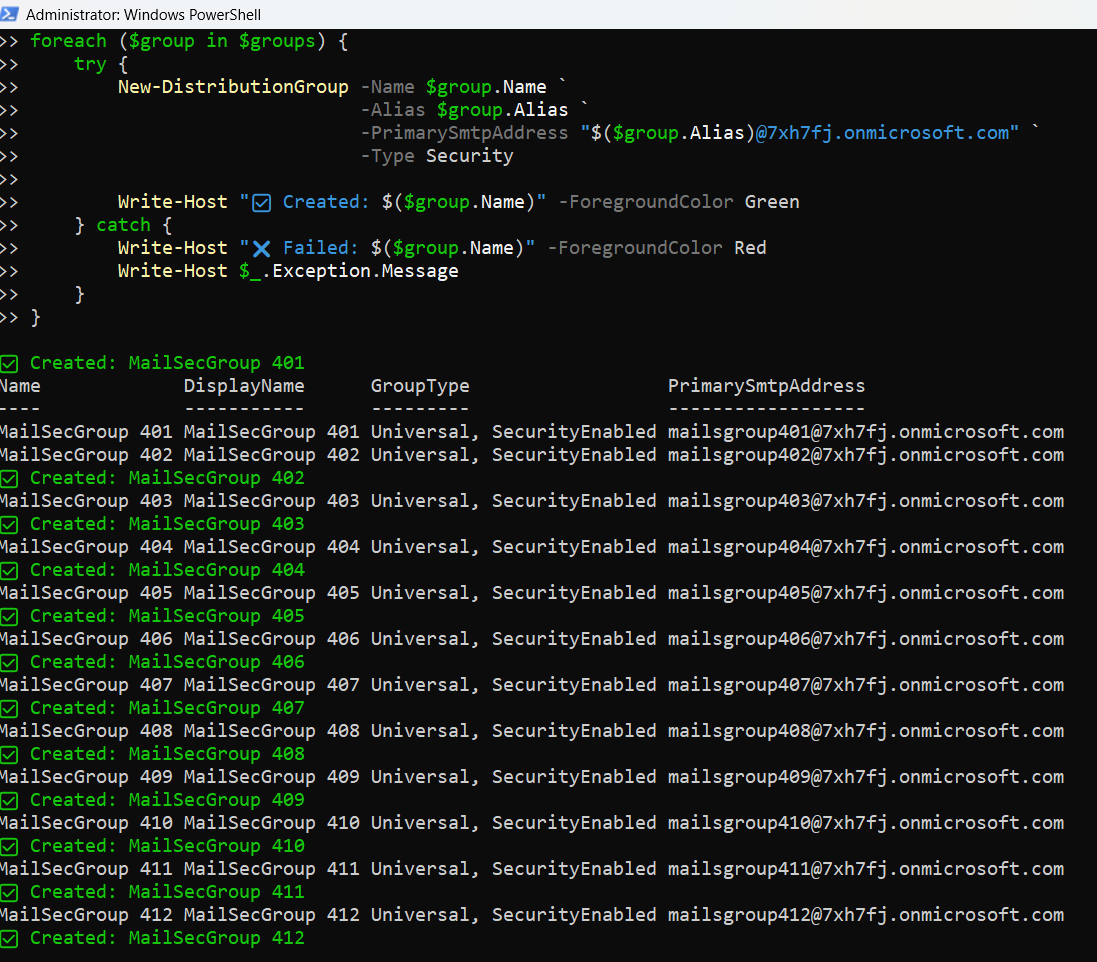
Step-by-Step Explanation
Step 1: Import CSV
$groups = Import-Csv -Path "MailEnabledSecurityGroups.csv"This reads group details from a CSV file.
Step 2: Loop Through Each Group
foreach ($group in $groups)This processes each row in the CSV one by one.
Step 3: Create the Group
New-DistributionGroup -Name $group.Name `
-Alias $group.Alias `
-PrimarySmtpAddress "$($group.Alias)@7xh7fj.onmicrosoft.com" `
-Type Security
- Creates a new mail-enabled security group
- Assigns SMTP address
- Ensures it is security-enabled
Step 4: Error Handling
If successful:
✅ Created: HR Department
If failed:
❌ Failed: HR Department
The script also displays the actual exception message.
This makes troubleshooting much easier in large deployments.
CSV File Format
Your CSV file should look like this:
Name,Alias
HR Department,hrdepartment
Finance Team,financeteam
IT Support,itsupport
Save it as: MailEnabledSecurityGroups.csv
Place it in the same directory where you run PowerShell, or provide full path.
iv) Further Enhancements
You can enhance this script by:
- ✔ Adding Owners in Bulk
- ✔ Adding Members in Bulk
- ✔ Adding Custom SMTP Domains
- ✔ Logging Results to File
- ✔ Validation Before Creation
Modify CSV to include Owners column and assign using -ManagedBy.
After creation, use Add-DistributionGroupMember.
Instead of using onmicrosoft.com, use your verified domain.
Replace Write-Host with Out-File for logging.
Use: Get-DistributionGroup -Identity $group.Name to check if the group already exists before creating.
IV) Possible Errors & Solutions
| Error | Cause | Solution |
|---|---|---|
| Insufficient Permissions | You are not assigned Exchange Administrator or Global Administrator role. | Assign required role in Entra Admin Center → Roles & Administrators. |
| The term 'New-DistributionGroup' is not recognized | Exchange Online module is not imported or connected. | Import-Module ExchangeOnlineManagement Connect-ExchangeOnline |
| ProxyAddress already exists | SMTP address is already assigned to another object. | Change alias or verify existing objects using: Get-Recipient -Filter "EmailAddresses -eq 'smtp:hrdepartment@domain.com'" |
| Object not found for ManagedBy or Members | Specified user does not exist or incorrect UPN. | Verify user existence: Get-User owner1@domain.com |
vi) Conclusion
Mail-Enabled Security Groups are essential when you need: i) Centralized permission management, ii) Email distribution capability and iii) Hybrid identity and communication control.
Although Microsoft Graph PowerShell is powerful, it currently does not support creating Mail-Enabled Security Groups. For now, Exchange Online PowerShell remains the official and reliable method.