Bulk Update Guest User Attributes Using Microsoft Graph PowerShell
Managing guest users in Microsoft 365 often involves keeping their attributes—such as job title, department, and company name—up to date. When you’re dealing with dozens or hundreds of guest accounts, manual updates quickly become impractical.
This article walks through a Microsoft Graph PowerShell script that allows administrators to bulk update guest user attributes using a CSV file, while also capturing success and failure results for auditing purposes.
🚀 Community Edition Released!
Try the M365Corner Microsoft 365 Reporting Tool — your DIY pack with 20+ out-of-the-box M365 reports for Users, Groups, and Teams.
The Script
Import-Module Microsoft.Graph.Users
Connect-MgGraph -Scopes "User.ReadWrite.All"
$CsvPath = "D:/GuestUserUpdates.csv"
$Users   = Import-Csv $CsvPath

$Results = @()

foreach ($User in $Users) {

    Write-Host "Updating guest user: $($User.Id)" -ForegroundColor Cyan

    try {
        $BodyParams = @{
            jobTitle    = $User.JobTitle
            department  = $User.Department
            companyName = $User.CompanyName
        }

        Update-MgUser -UserId $User.Id -BodyParameter $BodyParams

        $Results += [PSCustomObject]@{
            UserId     = $User.Id
            Status     = "Updated"
            JobTitle   = $User.JobTitle
            Department = $User.Department
        }
    }
    catch {
        Write-Host "Failed: $($User.Id) -> $($_.Exception.Message)" -ForegroundColor Red

        $Results += [PSCustomObject]@{
            UserId = $User.Id
            Status = "Failed"
            Error  = $_.Exception.Message
        }
    }
}

$Results | Export-Csv ".\GuestUserUpdateResults.csv" -NoTypeInformation
Write-Host "`nDone! Results saved to GuestUserUpdateResults.csv" -ForegroundColor Green
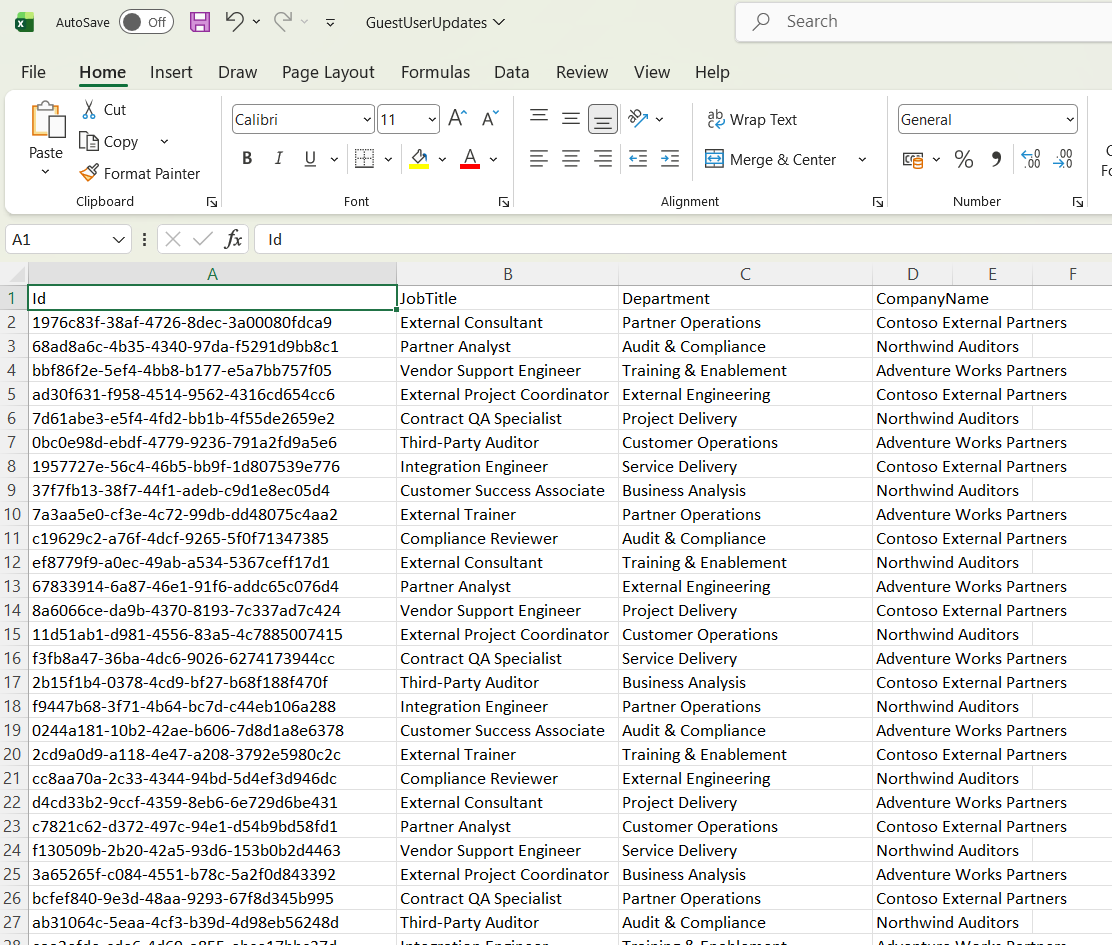
Your CSV file should contain the following headers and the respective values: id, JobTitle, department and CompanyName as shown here:
The script will export the results to a CSV file containing the status of record update as shown here.

How the Script Works
- Microsoft Graph Module Import
- The script loads the Microsoft.Graph.Users module, which provides access to user-related Graph cmdlets.
- Graph Authentication
- It connects to Microsoft Graph using the User.ReadWrite.All permission, which is required to update user properties.
- CSV Import
-
Guest user details are read from a CSV file containing:
- Id (Guest User Object ID)
- JobTitle
- Department
- CompanyName
- Iterative Update Process
- Each guest user is processed in a foreach loop.
- The script constructs a hashtable (-BodyParameter) containing the attributes to be updated.
- Update-MgUser applies the changes to the guest user account.
- Error Handling & Logging
- A try/catch block ensures the script continues even if an update fails.
- Each operation’s result (success or failure) is captured.
- Result Export
- All outcomes are exported to GuestUserUpdateResults.csv, providing a clean audit trail of updates.
Further Enhancing the Script
You can extend this script in several useful ways:
- Guest Validation
- Verify userType -eq "Guest" before applying updates to avoid modifying internal users.
- Selective Attribute Updates
- Add logic to update only non-empty CSV fields.
- Bulk Pre-Validation
- Check if user IDs exist before attempting updates.
- Additional Attributes
- Extend support for attributes such as officeLocation, mobilePhone, or displayName.
- What-If Mode
- Add a dry-run option to preview updates without applying them.
Possible Errors and Solutions
| Error | Cause | Solution |
|---|---|---|
| Insufficient privileges to complete the operation | Missing or incorrect Graph permissions. | Ensure User.ReadWrite.All is granted and admin consent is provided |
| Error: Resource not found | Invalid or incorrect guest user Object ID in the CSV. | Validate user IDs before running the script. |
| Invalid request | Unsupported or incorrectly formatted attribute values. | Confirm that all attribute names and values align with Microsoft Graph user schema. |
| Access denied | The signed-in account lacks directory-level permissions. | Confirm that all attribute names and values align with Microsoft Graph user schema. |
Conclusion
Bulk updating guest user attributes is a common administrative requirement in Microsoft 365 environments—especially in B2B collaboration scenarios. This Microsoft Graph PowerShell script provides a simple, scalable, and auditable way to keep guest user information accurate and up to date.
By combining CSV-based input, structured error handling, and result logging, the script fits perfectly into real-world admin workflows and can be easily adapted as organizational requirements evolve.
If you’re managing guest users at scale, this approach can save hours of manual effort while maintaining consistency across your tenant.