Bulk Remove Microsoft 365 Licenses Using Graph PowerShell
Removing Microsoft 365 licenses individually from the admin center can be time-consuming — especially during offboarding, project clean-up, or license reallocation exercises.In this guide, we’ll use Microsoft Graph PowerShell to bulk remove the DEVELOPERPACK_E5 license using: SkuId: c42b9cae-ea4f-4ab7-9717-81576235ccac and SkuPartNumber: DEVELOPERPACK_E5
This script includes:
- ✔ CSV-based bulk processing
- ✔ License validation check
- ✔ Proper Graph parameter handling
- ✔ Export report (Success / Failure / Skipped)
- ✔ Error handling
🚀 Community Edition Released!
Try the M365Corner Microsoft 365 Reporting Tool — your DIY pack with 20+ out-of-the-box M365 reports for Users, Groups, and Teams.
I) The Script
Step 1: Prepare the CSV File
Create a file named: UsersToRemoveLicense.csv with the following format:
UserPrincipalName
john.doe@yourtenant.onmicrosoft.com
jane.smith@yourtenant.onmicrosoft.com
alex.wilson@yourtenant.onmicrosoft.com
CSV Requirements
- Header must be UserPrincipalName
- Use full UPN (not display name)
- No extra spaces
Step 2: Bulk License Removal Script (With Export Report)
# Connect to Microsoft Graph
Connect-MgGraph -Scopes User.ReadWrite.All, Organization.Read.All

# Define License SKU ID (DEVELOPERPACK_E5)
$SkuId = "c42b9cae-ea4f-4ab7-9717-81576235ccac"

# Import CSV
$Users = Import-Csv "C:\Path\UsersToRemoveLicense.csv"

# Prepare result tracking array
$Results = @()

foreach ($User in $Users) {

    try {
        Write-Host "Processing $($User.UserPrincipalName)..." -ForegroundColor Cyan

        # Get user license details
        $UserDetails = Get-MgUser -UserId $User.UserPrincipalName -Property AssignedLicenses

        if ($UserDetails.AssignedLicenses.SkuId -notcontains $SkuId) {

            Write-Host "License not assigned. Skipping." -ForegroundColor Yellow

            $Results += [PSCustomObject]@{
                UserPrincipalName = $User.UserPrincipalName
                Status            = "Skipped - License Not Assigned"
                Timestamp         = (Get-Date)
            }

            continue
        }

        # Remove license
        Set-MgUserLicense -UserId $User.UserPrincipalName `
            -AddLicenses @() `
            -RemoveLicenses @($SkuId)

        Write-Host "License removed successfully." -ForegroundColor Green

        $Results += [PSCustomObject]@{
            UserPrincipalName = $User.UserPrincipalName
            Status            = "Success"
            Timestamp         = (Get-Date)
        }

    }
    catch {

        Write-Host "Failed to remove license." -ForegroundColor Red
        Write-Host $_.Exception.Message

        $Results += [PSCustomObject]@{
            UserPrincipalName = $User.UserPrincipalName
            Status            = "Failed"
            ErrorMessage      = $_.Exception.Message
            Timestamp         = (Get-Date)
        }
    }
}

# Export Report
$ReportPath = "C:\Path\BulkLicenseRemovalReport.csv"
$Results | Export-Csv $ReportPath -NoTypeInformation

Write-Host "Report exported to $ReportPath" -ForegroundColor Cyan
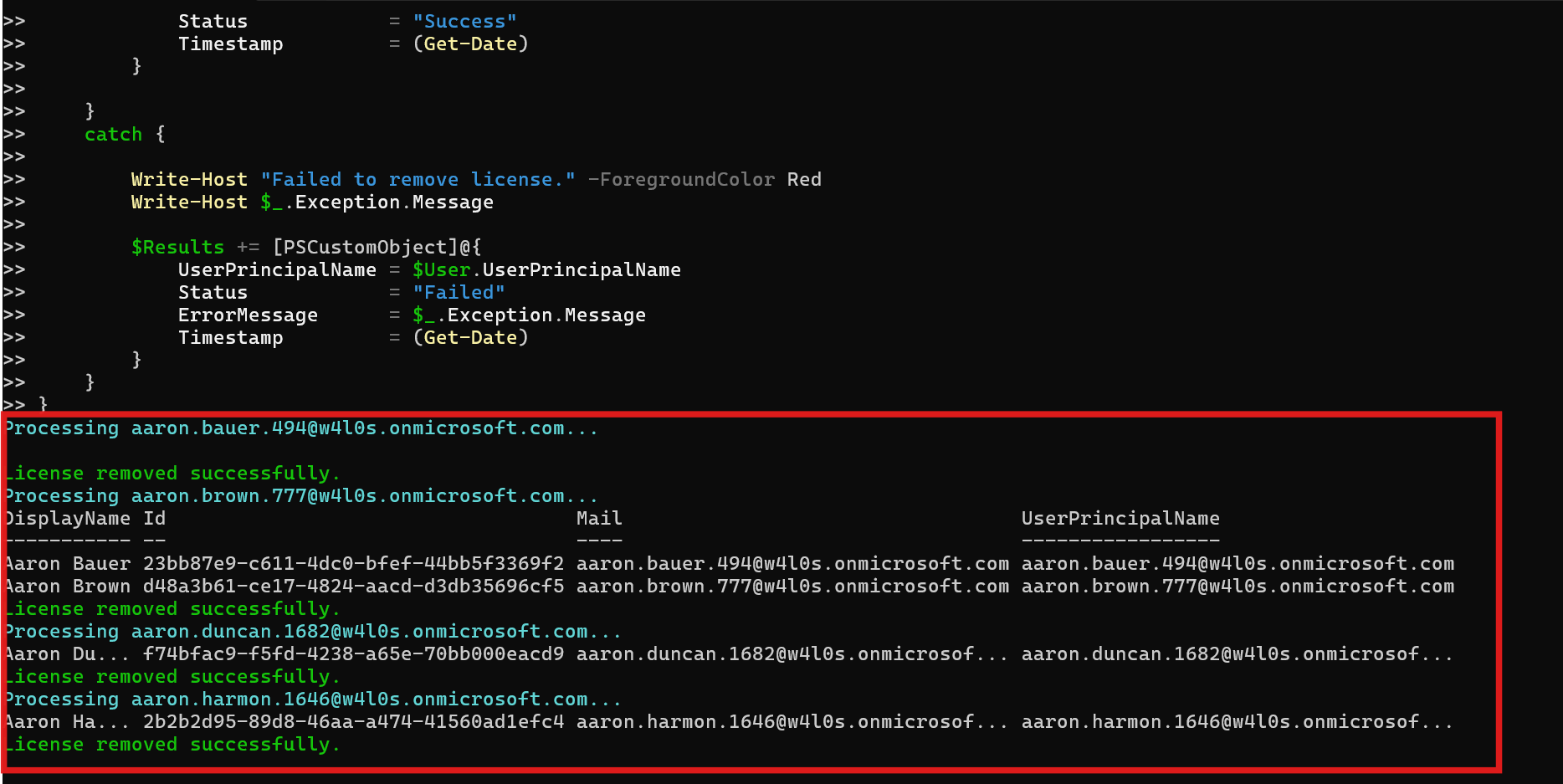

II) How the Script Works
Let’s break this down step-by-step.
- Connect to Microsoft Graph
Connect-MgGraph -Scopes User.ReadWrite.All, Organization.Read.All - User.ReadWrite.All → Required to modify user licenses
- Organization.Read.All → Required to validate SKU information
- Global Administrator
OR - License Administrator
- Define the SKU ID
- Import the CSV
- Check if License Is Assigned
- Skips the user
- Logs the status as Skipped - License Not Assigned
- Moves to the next entry
- Remove the License
We request:
You must sign in using:
$SkuId = "c42b9cae-ea4f-4ab7-9717-81576235ccac"
This represents the DEVELOPERPACK_E5 license in the tenant.
$Users = Import-Csv "C:\Path\UsersToRemoveLicense.csv"
Each row is treated as an object containing:
$User.UserPrincipalName
$UserDetails = Get-MgUser -UserId $User.UserPrincipalName -Property AssignedLicenses
We check whether the user already has the license.
If not assigned, the script:
This prevents unnecessary Graph calls and errors.
Set-MgUserLicense -UserId $User.UserPrincipalName `
  -AddLicenses @() `
  -RemoveLicenses @($SkuId)
Here we explicitly remove the license using its GUID.
NOTE 1: -AddLicenses @() Is Mandatory
When removing licenses, you must include:
-AddLicenses @()Even though you're not adding anything.
If omitted, you may receive:
Cannot convert the literal 'System.Collections.Hashtable' to the expected type 'Edm.Guid'
This is a common Microsoft Graph PowerShell licensing error.
Always include it.
NOTE 2: Validate SKU Before Running
Before executing bulk removal, verify the SKU exists in your tenant:
Get-MgSubscribedSku | Select SkuId, SkuPartNumberConfirm:
- SkuPartNumber = DEVELOPERPACK_E5
- SkuId = c42b9cae-ea4f-4ab7-9717-81576235ccac
Never assume SKU consistency across tenants.
Required Graph API Permissions
Azure AD Role Required: Global Administrator or License Administrator
Graph API Scopes: User.ReadWrite.All and Organization.Read.All
Without proper permissions, you will encounter authorization errors.
III) Further Enhancements
Here are some practical improvements you may consider implementing in production.
- ✅ 1. Remove Multiple Licenses
You can remove multiple licenses by modifying: - ✅ 2. Remove All Licenses From Users
- ✅ 3. Remove License Based on Department
- ✅ 4. Automate Report Distribution
- Email it using Send-MgUserMessage
- Archive it for compliance records
- Store in SharePoint or OneDrive
-RemoveLicenses @($SkuId1, $SkuId2)Useful during downgrade or license consolidation.
You can dynamically collect all assigned licenses:
$AllLicenses = $UserDetails.AssignedLicenses.SkuIdAnd pass them to -RemoveLicenses.
Filter users by department:
Get-MgUser -Filter "department eq 'Sales'"Then process dynamically without CSV.
After exporting the report, you can:
IV) Possible Errors & Solutions
| Error | Cause | Solution |
|---|---|---|
| Cannot convert the literal 'System.Collections.Hashtable' to the expected type 'Edm.Guid' | Missing -AddLicenses @() parameter. | Always include: -AddLicenses @() |
| Insufficient privileges to complete the operation | Incorrect SKU ID or license not available in tenant. | Run: Get-MgSubscribedSku | Select SkuId, SkuPartNumber Verify before executing bulk removal. |
| User Not Found | Incorrect or misspelled UPN in CSV file. | Validate UPNs before running script. |
Conclusion
Bulk license removal using Microsoft Graph PowerShell is: Efficient for offboarding, Ideal for license reclamation, Helpful during cost optimization, Safer with built-in reporting and Automation-ready.
The key takeaways from this guide:
- Always include -AddLicenses @() during removal
- Validate SKU before execution
- Use proper Graph scopes
- Log and export results for auditing
For Microsoft 365 administrators managing growing tenants, bulk license automation is not optional — it’s essential.