Bulk Delete Unified Groups Using PowerShell
Deleting Microsoft 365 (Unified) Groups one-by-one in the Entra admin center can be slow—especially when you’re cleaning up unused project groups, expired teams, or test groups created during pilots. This article shows how to bulk delete Unified Groups using Microsoft Graph PowerShell by reading group details from a CSV file, validating the group type for safety, deleting only Unified Groups, and exporting a results report.
🚀 Community Edition Released!
Try the M365Corner Microsoft 365 Reporting Tool — your DIY pack with 20+ out-of-the-box M365 reports for Users, Groups, and Teams.
I) Script
Import-Module Microsoft.Graph.Groups
Connect-MgGraph -Scopes "Group.ReadWrite.All"
$CsvPath = ".\UnifiedGroups.csv"
$Groups  = Import-Csv $CsvPath

$Results = @()

foreach ($G in $Groups) {

    $DisplayName  = $G.DisplayName
    $MailNickname = $G.MailNickname

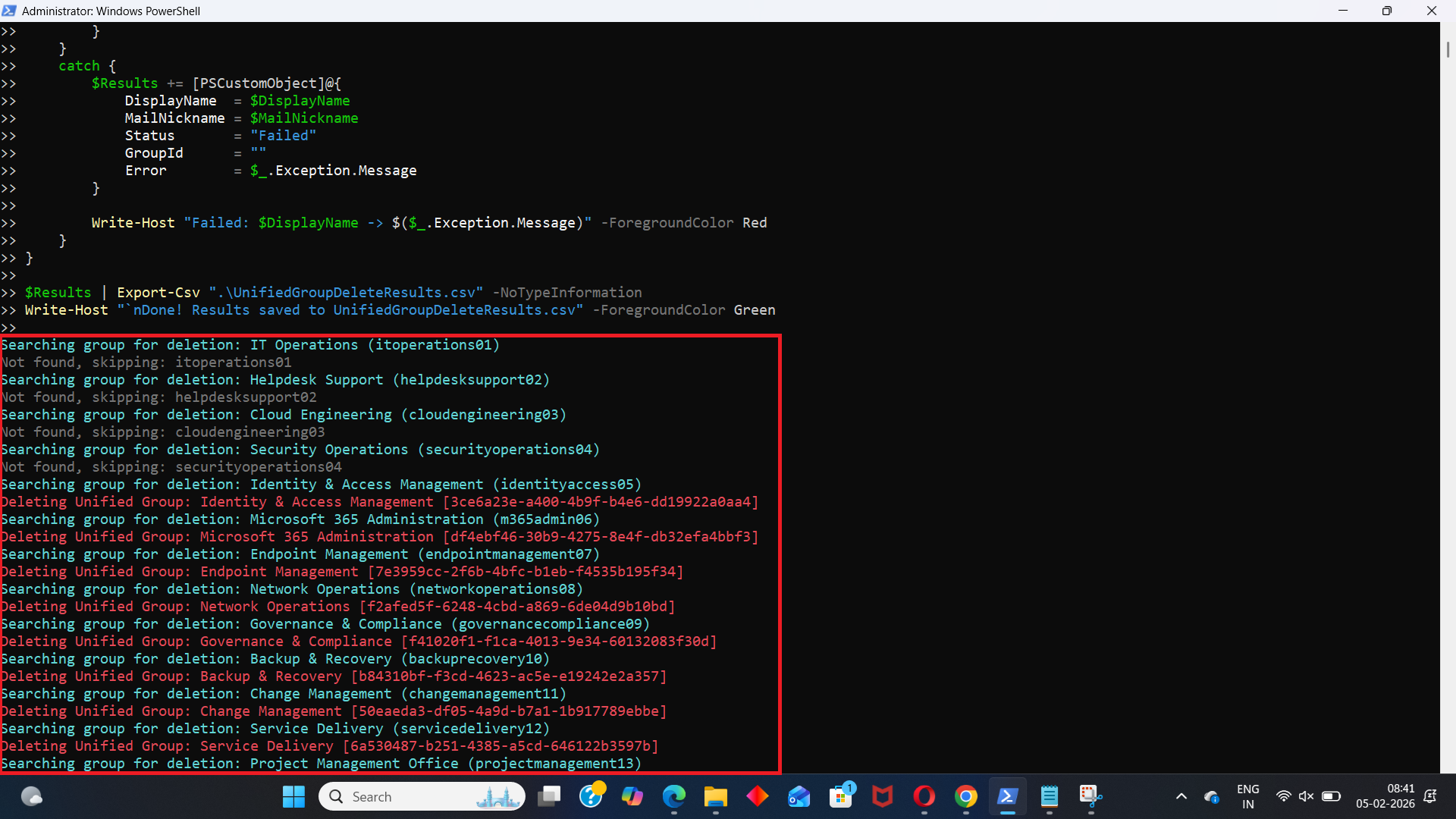
    Write-Host "Searching group for deletion: $DisplayName ($MailNickname)" -ForegroundColor Cyan

    try {
        $Group = Get-MgGroup -Filter "mailNickname eq '$MailNickname'" -ErrorAction SilentlyContinue

        if (-not $Group) {
            Write-Host "Not found, skipping: $MailNickname" -ForegroundColor DarkGray

            $Results += [PSCustomObject]@{
                DisplayName  = $DisplayName
                MailNickname = $MailNickname
                Status       = "Not Found"
                GroupId      = ""
            }
            continue
        }

        # Extra safety: ensure it's a Unified group before deleting
        if ($Group.GroupTypes -notcontains "Unified") {
            Write-Host "Not a Unified Group - skipping delete: $DisplayName" -ForegroundColor Yellow

            $Results += [PSCustomObject]@{
                DisplayName  = $DisplayName
                MailNickname = $MailNickname
                Status       = "Skipped (Not Unified)"
                GroupId      = $Group.Id
            }
            continue
        }

        Write-Host "Deleting Unified Group: $($Group.DisplayName) [$($Group.Id)]" -ForegroundColor Red
        Remove-MgGroup -GroupId $Group.Id -Confirm:$false

        $Results += [PSCustomObject]@{
            DisplayName  = $DisplayName
            MailNickname = $MailNickname
            Status       = "Deleted"
            GroupId      = $Group.Id
        }
    }
    catch {
        $Results += [PSCustomObject]@{
            DisplayName  = $DisplayName
            MailNickname = $MailNickname
            Status       = "Failed"
            GroupId      = ""
            Error        = $_.Exception.Message
        }

        Write-Host "Failed: $DisplayName -> $($_.Exception.Message)" -ForegroundColor Red
    }
}

$Results | Export-Csv ".\UnifiedGroupDeleteResults.csv" -NoTypeInformation
Write-Host "`nDone! Results saved to UnifiedGroupDeleteResults.csv" -ForegroundColor Green
Exported CSV file containing the deleted group details.

ii) How the Script Works
This script deletes Microsoft 365 Unified Groups in bulk using Microsoft Graph PowerShell, based on a list provided in a CSV file.
- Loads the Graph module required for groups
- Connects to Microsoft Graph with required scope
- Read groups (to find them)
- Delete groups (to remove them)
- Imports the list of groups from CSV
- Searches each group using MailNickname
- The script logs it as Not Found
- Skips deletion for that entry
- Safety check: deletes only Unified Groups
- Security Groups
- Mail-enabled security groups
- Other non-Unified group types
- Deletes the Unified Group without confirmation prompts
- Exports a deletion report
- Deleted
- Not Found
- Skipped (Not Unified)
- Failed (with error)
Import-Module Microsoft.Graph.Groups
This imports the Graph Groups module so group-related cmdlets like Get-MgGroup and Remove-MgGroup are available.
Connect-MgGraph -Scopes "Group.ReadWrite.All"
The scope Group.ReadWrite.All is required because the script must:
$CsvPath = ".\UnifiedGroups.csv"
$Groups = Import-Csv $CsvPath
Your CSV should include these headers (at minimum):
DisplayName,MailNickname
Finance Team,FinanceTeam
HR Projects,HRProjects
Test Group 01,TestGroup01
DisplayName is used for logging/output only.
MailNickname is used to search the group reliably using Graph filtering.
Inside the loop:
$Group = Get-MgGroup -Filter "mailNickname eq '$MailNickname'" -ErrorAction SilentlyContinue
If Graph does not find a matching group:
Before deleting, the script validates:
if ($Group.GroupTypes -notcontains "Unified") { ... }
This prevents accidental deletion of:
Such groups are marked as:
✅ Skipped (Not Unified)
If it’s a Unified Group, the script deletes it:
Remove-MgGroup -GroupId $Group.Id -Confirm:$false
Then it stores the result status as Deleted.
At the end, you get a results file:
$Results | Export-Csv ".\UnifiedGroupDeleteResults.csv" -NoTypeInformation
This report helps you audit what happened for each row:
iii) Further Enhancements
Here are practical enhancements you can add if you want to make the script more robust in production:
- Soft-delete vs permanent-delete awareness
Unified Groups typically go to a deleted state first (recoverable depending on settings). You can add a section to check and optionally restore if needed. - WhatIf / Dry-run mode
Add a toggle to simulate deletion first (log what would be deleted, but don’t delete). - Add an extra verification input
For example, confirm DisplayName from Graph matches the CSV DisplayName before deleting. - Support searching by GroupId
- Better logging
MailNicknames are usually unique, but IDs are absolute. Adding GroupId as an optional CSV column can reduce ambiguity.
Export console logs to a timestamped .log file for full audit trails.
Possible Errors & Solutions
| Error | Cause | Solution |
|---|---|---|
| Insufficient privileges to complete the operation | Your account lacks permissions/roles to delete groups, or consent wasn’t granted. |
|
| InvalidAuthenticationToken / Access token is empty | Token expired, auth session failed, or Graph connection is broken. | Reconnect: Disconnect-MgGraph Connect-MgGraph -Scopes "Group.ReadWrite.All" |
| Get-MgGroup returned nothing (but group exists) |
|
|
| Request_UnsupportedQuery / Filter not supported | In some environments, certain filters can behave unexpectedly depending on the property used and module behavior. |
|
| Cannot delete group because it is on hold / protected | The group may be tied to compliance/retention policies, eDiscovery holds, or other governance controls. |
|
Conclusion
Bulk deleting Microsoft 365 Unified Groups is a common cleanup task—especially after migrations, pilots, or when removing unused teams and project groups. This Graph PowerShell script helps you:
✅ Load groups from CSV
✅ Locate them using MailNickname
✅ Validate they’re actually Unified Groups (safety check)
✅ Delete them without prompts
✅ Export a detailed deletion report for auditing