Bulk Create Unified Groups Using PowerShell
Creating Microsoft 365 Unified Groups manually through the Entra admin center or Microsoft 365 admin portal can be slow when you have many teams, departments, or projects to onboard. A faster and cleaner approach is to bulk create Unified Groups using Microsoft Graph PowerShell, by importing group details from a CSV file and generating a report after execution.
In this M365Corner article, you’ll learn how to bulk create Unified Groups (Microsoft 365 Groups) using PowerShell, with built-in checks to avoid creating duplicates.
🚀 Community Edition Released!
Try the M365Corner Microsoft 365 Reporting Tool — your DIY pack with 20+ out-of-the-box M365 reports for Users, Groups, and Teams.
I) Script
Import-Module Microsoft.Graph.Groups
Connect-MgGraph -Scopes "Group.ReadWrite.All"
$CsvPath = ".\UnifiedGroups.csv"
$Groups  = Import-Csv $CsvPath

$Results = @()

foreach ($G in $Groups) {

    $DisplayName  = $G.DisplayName
    $MailNickname = $G.MailNickname
    $Description  = $G.Description

    Write-Host "Creating Unified Group: $DisplayName" -ForegroundColor Cyan

    try {

        # Optional: Check if group already exists with same MailNickname
        $Existing = Get-MgGroup -Filter "mailNickname eq '$MailNickname'" -ErrorAction SilentlyContinue

        if ($Existing) {
            Write-Host "Already exists, skipping: $DisplayName ($MailNickname)" -ForegroundColor Yellow

            $Results += [PSCustomObject]@{
                DisplayName  = $DisplayName
                MailNickname = $MailNickname
                Status       = "Skipped (Already Exists)"
                GroupId      = $Existing.Id
            }
            continue
        }

        $Params = @{
            DisplayName     = $DisplayName
            Description     = $Description
            MailEnabled     = $true
            MailNickname    = $MailNickname
            SecurityEnabled = $false
            GroupTypes      = @("Unified")
            Visibility      = "Private"
        }

        $NewGroup = New-MgGroup -BodyParameter $Params

        $Results += [PSCustomObject]@{
            DisplayName  = $DisplayName
            MailNickname = $MailNickname
            Status       = "Created"
            GroupId      = $NewGroup.Id
        }
    }
    catch {
        $Results += [PSCustomObject]@{
            DisplayName  = $DisplayName
            MailNickname = $MailNickname
            Status       = "Failed"
            GroupId      = ""
            Error        = $_.Exception.Message
        }

        Write-Host "Failed: $DisplayName -> $($_.Exception.Message)" -ForegroundColor Red
    }
}
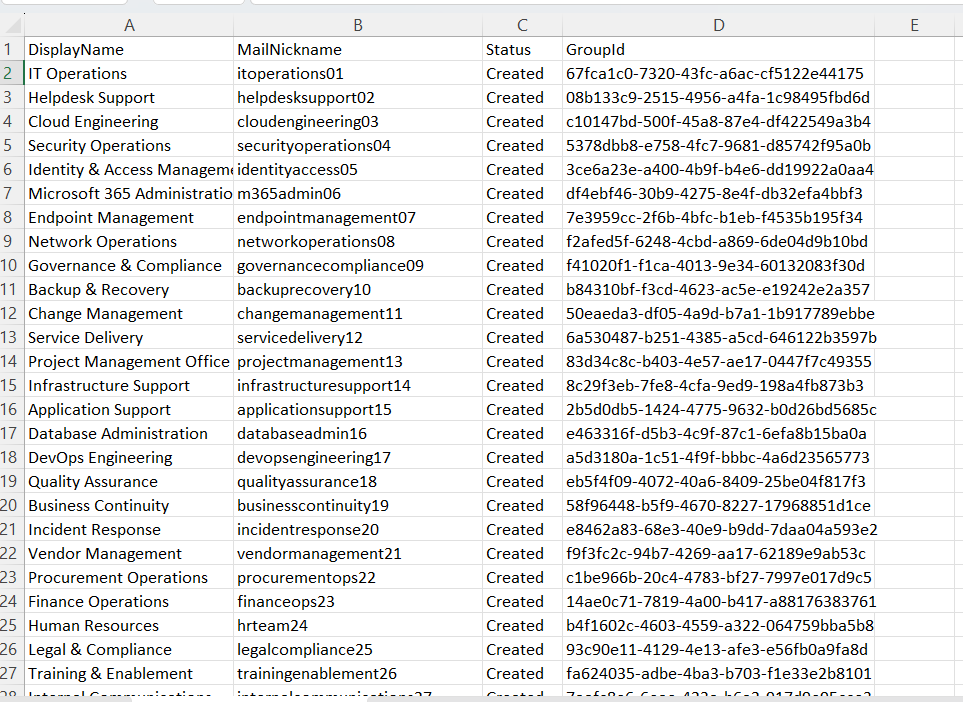
$Results | Export-Csv ".\UnifiedGroupCreateResults.csv" -NoTypeInformation
Write-Host "`nDone! Results saved to UnifiedGroupCreateResults.csv" -ForegroundColor Green
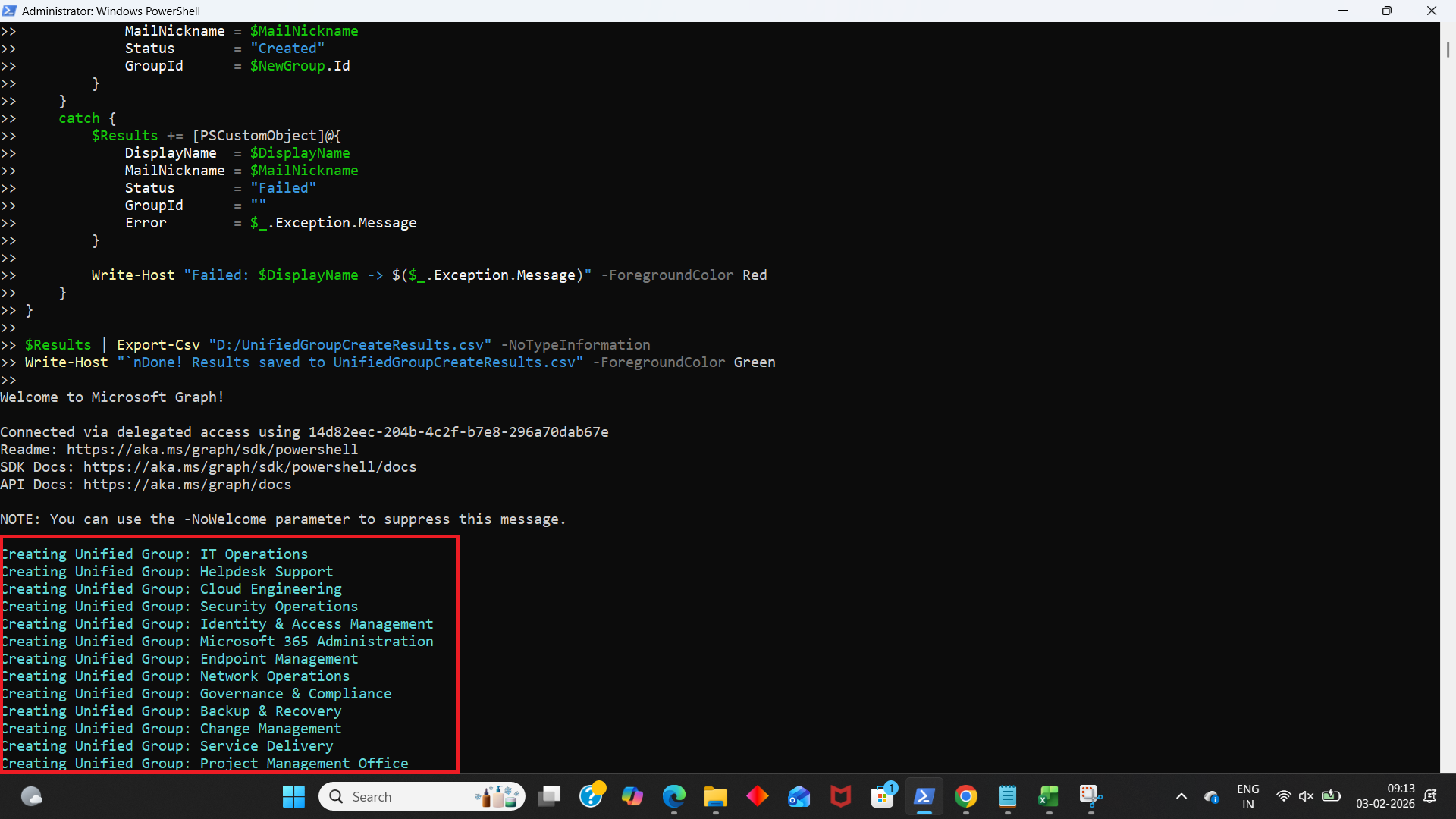
ii) How the Script Works
This script bulk creates Unified Groups (Microsoft 365 Groups) using Microsoft Graph PowerShell and a CSV input file.
- Imports the Microsoft Graph Groups module
- Get-MgGroup
- New-MgGroup
- Connects to Microsoft Graph with required permissions
- check if a group exists
- create new groups in Entra ID / Microsoft 365
- Imports the Unified Groups list from a CSV file
- Reads group values from each CSV row
- Checks if the group already exists (duplicate protection)
- the group is skipped
- the existing GroupId is recorded
- the script moves to the next row
- Builds the group creation parameters
- MailEnabled = $true
Required for Microsoft 365 Groups because they are mail-enabled. - SecurityEnabled = $false
Ensures it is not created as a security group. - GroupTypes = @("Unified")
This is the main property that makes it a Unified Group (Microsoft 365 Group). - Visibility = "Private"
Creates the group as private (membership requires approval/invite). - Creates the Unified Group
- Status = Created
- GroupId = newly created group ID
- Captures errors cleanly
If something fails, the script logs: - Status = Failed
- Error message
- GroupId blank
- Exports a results report
- Created groups
- Skipped groups
- Failed groups with error messages
Import-Module Microsoft.Graph.Groups
This module provides the group-related cmdlets required for the script such as:
Connect-MgGraph -Scopes "Group.ReadWrite.All"
The scope Group.ReadWrite.All is required because the script must:
$CsvPath = ".\UnifiedGroups.csv"
$Groups  = Import-Csv $CsvPath
Your CSV should contain these columns:
DisplayName,MailNickname,Description
Finance Team,FinanceTeam,Unified group for finance department collaboration
HR Projects,HRProjects,HR planning and internal project discussions
IT Support,ITSupport,IT team collaboration group
Inside the loop, the script assigns:
$DisplayName = $G.DisplayName $MailNickname = $G.MailNickname
$Description = $G.Description
These values are used to create the group with consistent naming.
Before creating the group, the script checks if a group already exists with the same MailNickname:
$Existing = Get-MgGroup -Filter "mailNickname eq '$MailNickname'" -ErrorAction SilentlyContinue
If a match is found:
This prevents accidental duplicates.
The script creates a hashtable for the Unified Group configuration:
$Params = @{
    DisplayName     = $DisplayName
    Description     = $Description
    MailEnabled     = $true
    MailNickname    = $MailNickname
    SecurityEnabled = $false
    GroupTypes      = @("Unified")
    Visibility      = "Private"
}
Key settings here:
The group is created using:
$NewGroup = New-MgGroup -BodyParameter $Params
If creation succeeds, the script logs:
This helps with troubleshooting and re-running only failed entries.
At the end, the script exports a report:
$Results | Export-Csv ".\UnifiedGroupCreateResults.csv" -NoTypeInformation
This file becomes your audit log showing:
iii) Further Enhancements
Here are a few useful improvements you can add later (without changing your current script):
- Allow visibility selection from CSV
Instead of always setting:
Visibility = "Private"
You can add a CSV column like: - Visibility (Public/Private)
- Automatically add owners and members after creation
- owners are assigned
- members are added automatically
- Owners via New-MgGroupOwnerByRef
- Members via New-MgGroupMemberByRef
- Enable Teams for created Unified Groups
- create a Team from the group
- Add retry logic for Graph throttling
- Export more details into the report
- CreatedDateTime
- Visibility
- MailEnabled status
- GroupType confirmation
Unified groups are most useful when:
You can extend the script to add:
If the goal is to create Teams-ready groups, you can add an optional step to:
In large bulk operations, Graph may throttle requests. A retry mechanism can help avoid partial failures.
You can add fields like:
Possible Errors & Solutions
| Error | Cause | Solution |
|---|---|---|
| Insufficient privileges to complete the operation | The signed-in user does not have permission to create Microsoft 365 groups. |
|
| Another object with the same value for property mailNickname already exists | A group already exists with the same MailNickname. | This script already handles it using the existing group check and marks the entry as: ✅ Skipped (Already Exists) |
| Invalid value specified for property 'mailNickname' | MailNickname contains invalid characters or spaces. |
Use a clean nickname format:
|
| Request_ResourceNotFound / Request_BadRequest | Commonly caused by invalid input values in the CSV or missing headers. | Ensure your CSV includes:
|
| TooManyRequests / throttling | Microsoft Graph throttling due to high request volume. |
|
Conclusion
Bulk creating Unified Groups is a common Microsoft 365 onboarding task—especially when new departments, projects, or teams are introduced frequently.
This Microsoft Graph PowerShell script helps you:
✅ Create Unified Groups in bulk using a CSV file
✅ Avoid duplicates by checking existing MailNicknames
✅ Capture success/failure results cleanly
✅ Export a detailed report for auditing and tracking