Bulk Create Microsoft 365 Dynamic Membership Groups Using Graph PowerShell
Managing dynamic membership groups one by one in the Microsoft 365 admin center can quickly become tedious—especially in large environments. A much better approach is to automate the process and create multiple dynamic Microsoft 365 groups in bulk using Microsoft Graph PowerShell.
In this article, we’ll walk through a simple and effective Graph PowerShell script that reads group details from a CSV file and creates Microsoft 365 (Unified) dynamic membership groups in bulk.
🚀 Community Edition Released!
Try the M365Corner Microsoft 365 Reporting Tool — your DIY pack with 20+ out-of-the-box M365 reports for Users, Groups, and Teams.
Prerequisites
Before running the script, ensure the following:
- Microsoft Graph PowerShell module is installed
- You are connected to Microsoft Graph with appropriate permissions:
- Group.ReadWrite.All
- Directory.ReadWrite.All
Connect-MgGraph -Scopes "Group.ReadWrite.All","Directory.ReadWrite.All"CSV File Format
The script reads group information from a CSV file. Your CSV must include the following columns:
DisplayName,Description,MailNickname,MembershipRule
HR – Employees,Dynamic group for HR users,hremployees,(user.department -eq "HR")
IT – Users,Dynamic group for IT users,itusers,(user.department -eq "IT")
US Users,All users located in the US,ususers,(user.country -eq "United States")
Column Explanation
| Column | Description |
|---|---|
| DisplayName | Display name of the Microsoft 365 group |
| Description | Description of the group |
| MailNickname | Unique mail alias (no spaces) |
| MembershipRule | Dynamic membership rule |
The Script
Below is the exact script used to bulk create dynamic Microsoft 365 groups by reading data from a CSV file.
$CsvPath = "D:\DynamicM365Groups.csv"

$Groups = Import-Csv $CsvPath

foreach ($Group in $Groups) {

    Write-Host "Creating group: $($Group.DisplayName)" -ForegroundColor Cyan

    try {
        $Params = @{
            DisplayName                   = $Group.DisplayName
            Description                   = $Group.Description
            GroupTypes                    = @("Unified", "DynamicMembership")
            MailEnabled                   = $true
            MailNickname                  = $Group.MailNickname
            SecurityEnabled               = $false
            MembershipRule                = $Group.MembershipRule
            MembershipRuleProcessingState = "On"
        }

        New-MgGroup -BodyParameter $Params

        Write-Host "✔ Successfully created: $($Group.DisplayName)" -ForegroundColor Green
    }
    catch {
        Write-Host "✖ Failed to create: $($Group.DisplayName)" -ForegroundColor Red
        Write-Host $_.Exception.Message -ForegroundColor Yellow
    }
}
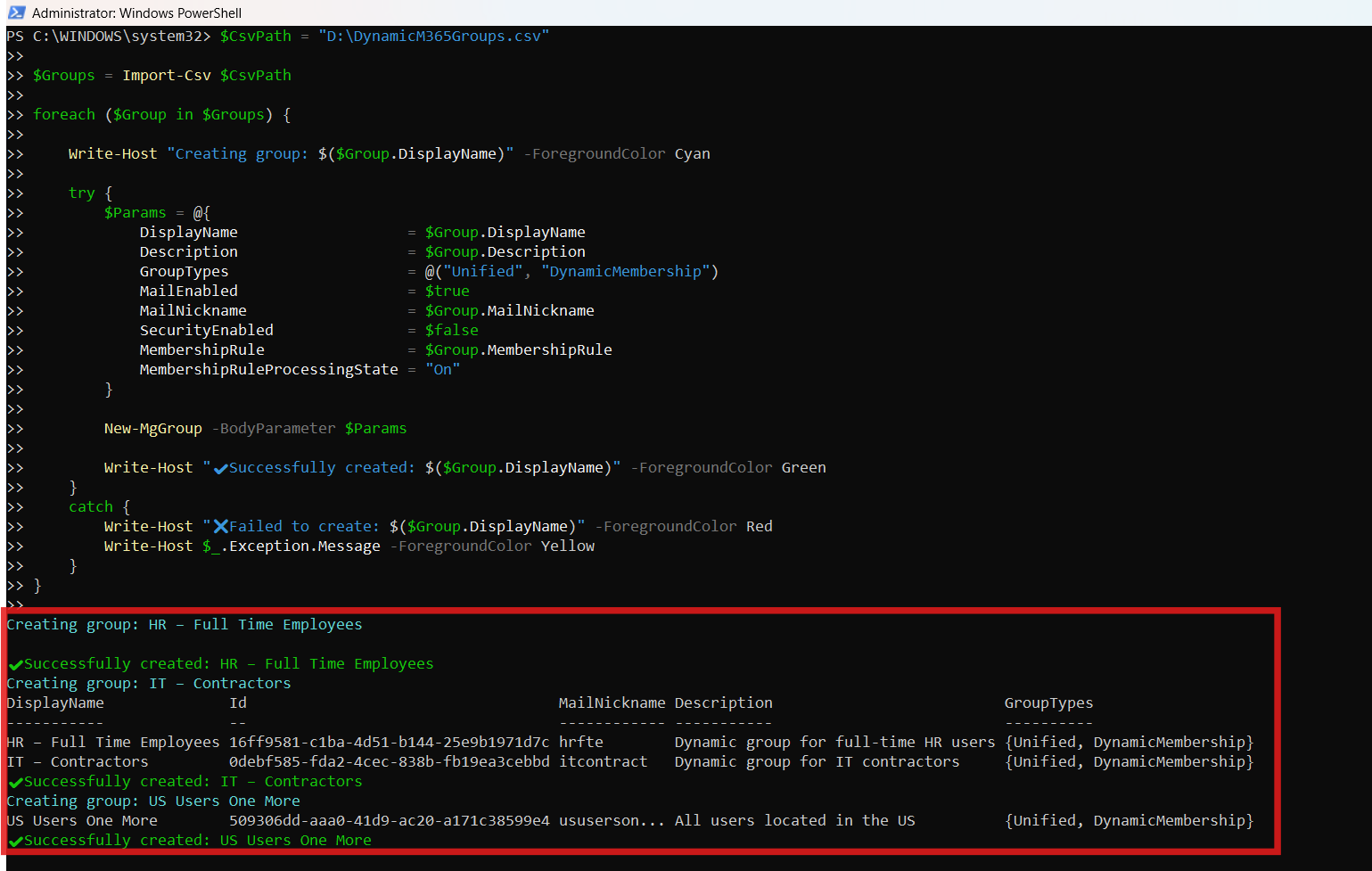
Your CSV file should read as follows with the appropriate headers:
DisplayName,Description,MailNickname,MembershipRule
HR – Full Time Employees,Dynamic group for full-time HR users,hrfte,(user.department -eq "HR")
IT – Contractors,Dynamic group for IT contractors,itcontract,(user.department -eq "IT")
US Users One More,All users located in the US,ususersonemore,(user.country -eq "USA")
How the Script Works
Let’s break this down in simple terms:
- CSV Import
- The script reads group details from a CSV file using Import-Csv.
- Loop Through Each Group
- Each row in the CSV represents one dynamic Microsoft 365 group.
- Build the Group Parameters
- The -BodyParameter hashtable defines:
- Group type (Unified + DynamicMembership)
- Mail settings
- Membership rule
- Rule processing state
- Create the Group
- New-MgGroup creates the Microsoft 365 group and applies the dynamic membership rule.
- Error Handling
- If group creation fails, the error is caught and displayed without stopping the script.
Further Enhancements
Once you’re comfortable with this script, you can extend it in several useful ways:
- Pre-check if a group already exists (to avoid duplicates)
- Export created group IDs for reporting or auditing
- Add a “WhatIf” / dry-run mode
- Validate membership rules before attempting creation
- Log results to a CSV or text file
These enhancements are especially useful when running the script in production tenants.
Possible Errors & Solutions
| Error | Cause | Solution |
|---|---|---|
| Duplicate MailNickname Error | Another object with the same value for property mailNickname already exists | Ensure MailNickname values in the CSV are unique across the tenant. |
| Invalid Membership Rule | DynamicGroupQueryParseError | Verify that the membership rule uses only supported dynamic rule attributes and correct syntax. |
| Insufficient Permissions | Insufficient privileges to complete the operation | Reconnect to Microsoft Graph with Group.ReadWrite.All and Directory.ReadWrite.All permissions. |
Conclusion
Bulk creating Microsoft 365 dynamic membership groups using Graph PowerShell is a clean, repeatable, and admin-friendly approach—especially when combined with CSV input. This script keeps things simple, avoids unnecessary complexity, and works well for real-world tenant management.
If you manage multiple departments, regions, or user categories, this approach can save significant time while ensuring consistency across your Microsoft 365 environment.