Bulk Assign Microsoft 365 Licenses Using PowerShell
Assigning licenses one-by-one from the Microsoft 365 admin center is inefficient — especially during onboarding, migrations, or tenant setup.
In this guide, we’ll use Microsoft Graph PowerShell to bulk assign the DEVELOPERPACK_E5 license using its:
- SkuId: c42b9cae-ea4f-4ab7-9717-81576235ccac
- SkuPartNumber: DEVELOPERPACK_E5
This script uses the correct Set-MgUserLicense structure and avoids common Graph errors.
🚀 Community Edition Released!
Try the M365Corner Microsoft 365 Reporting Tool — your DIY pack with 20+ out-of-the-box M365 reports for Users, Groups, and Teams.
I) The Script
Step 1: Prepare the CSV File
Create a file named: UsersToLicense.csv with the following format:
UserPrincipalName
john.doe@yourtenant.onmicrosoft.com
jane.smith@yourtenant.onmicrosoft.com
alex.wilson@yourtenant.onmicrosoft.com
✅ Header must be UserPrincipalName
✅ Use full UPN (not display name)
✅ Save it with .csv extension
Step 2: Bulk License Assignment Script
# Connect to Microsoft Graph
Connect-MgGraph -Scopes User.ReadWrite.All, Organization.Read.All

# Define License SKU ID (DEVELOPERPACK_E5)
$SkuId = "c42b9cae-ea4f-4ab7-9717-81576235ccac"

# Import CSV
$Users = Import-Csv "C:\Path\UsersToLicense.csv"

foreach ($User in $Users) {

    try {
        Write-Host "Assigning license to $($User.UserPrincipalName)..." -ForegroundColor Cyan

        Set-MgUserLicense -UserId $User.UserPrincipalName `
            -AddLicenses @(
                @{
                    SkuId = $SkuId
                }
            ) `
            -RemoveLicenses @()

        Write-Host "Successfully assigned license to $($User.UserPrincipalName)" -ForegroundColor Green
    }
    catch {
        Write-Host "Failed to assign license to $($User.UserPrincipalName)" -ForegroundColor Red
        Write-Host $_.Exception.Message
    }
}
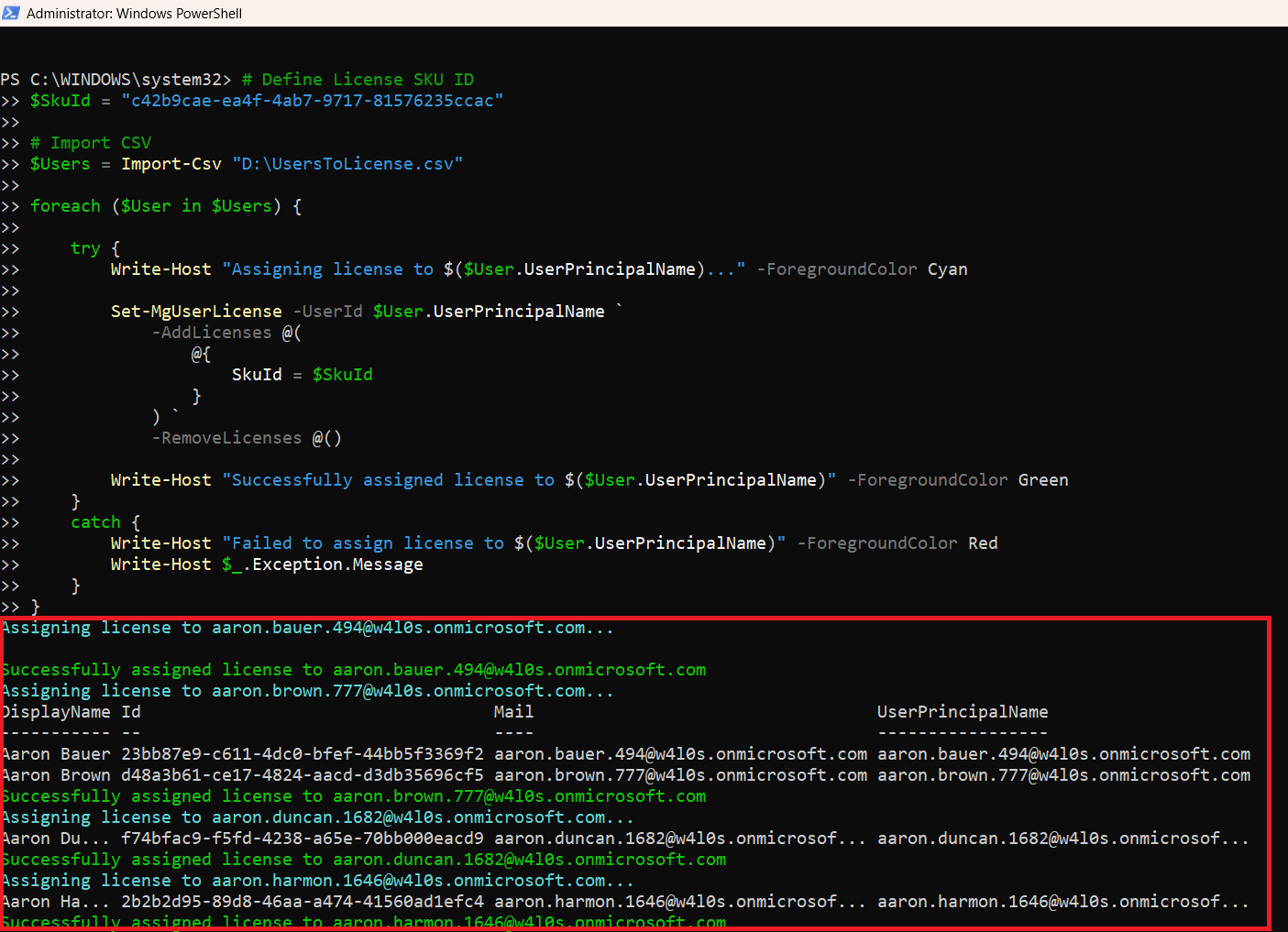
II) How the Script Works
Let’s break this down.
- Connect-MgGraph
Connect-MgGraph -Scopes User.ReadWrite.All, Organization.Read.All - User.ReadWrite.All → Required to modify user licenses
- Organization.Read.All → Required to read SKU details
- Global Administrator
OR - License Administrator
- Define the SKU ID
- Import CSV
- Assign License Using Set-MgUserLicense
- -AddLicenses must be a hashtable array
- SkuId must be GUID format
- -RemoveLicenses must be explicitly defined
We request:
You must sign in with:
$SkuId = "c42b9cae-ea4f-4ab7-9717-81576235ccac"
This identifies the DEVELOPERPACK_E5 license.
$Users = Import-Csv "C:\Path\UsersToLicense.csv"
Each row becomes an object accessible as:
$User.UserPrincipalName
Set-MgUserLicense -UserId $User.UserPrincipalName `
    -AddLicenses @(
        @{
            SkuId = $SkuId
        }
    ) `
    -RemoveLicenses @()
Important details:
NOTE: -RemoveLicenses @() Is Mandatory
Even if you're not removing licenses, you must include:
-RemoveLicenses @()
If omitted, you may encounter:
Cannot convert the literal 'System.Collections.Hashtable' to the expected type 'Edm.Guid'
This is one of the most common Graph PowerShell licensing errors.
Always include it.
NOTE 2: Validate SKU Before Running
Before assigning licenses, verify the SKU exists in your tenant:
Get-MgSubscribedSku | Select SkuId, SkuPartNumberConfirm:
- SkuPartNumber = DEVELOPERPACK_E5
- SkuId = c42b9cae-ea4f-4ab7-9717-81576235ccac
Never blindly copy SKU IDs between tenants.
Required Graph API Permissions
Your account must have:
Azure AD Role: Global Administrator or License Adminstrator
Graph Scopes: User.ReadWrite.All or Organization.Read.All
Without these, you’ll receive authorization errors.
III) Further Enhancements
Here are production-ready improvements you can implement.
- Skip Already Licensed Users
Avoid duplicate assignment: - Export Success/Failure Report
- Assign License with Disabled Service Plans
- Add License Availability Check
$UserDetails = Get-MgUser -UserId $User.UserPrincipalName -Property AssignedLicenses

if ($UserDetails.AssignedLicenses.SkuId -contains $SkuId) {
    Write-Host "$($User.UserPrincipalName) already has license. Skipping." -ForegroundColor Yellow
    continue
}
Capture results into an array:
$Results = @()

# Inside foreach loop:
$Results += [PSCustomObject]@{
    UserPrincipalName = $User.UserPrincipalName
    Status = "Success"
}

# Export
$Results | Export-Csv "C:\Path\LicenseAssignmentReport.csv" -NoTypeInformation
Useful during onboarding of 100+ users.
If you want to disable specific services:
-AddLicenses @(
    @{
        SkuId = $SkuId
        DisabledPlans = @("SWAY", "YAMMER_ENTERPRISE")
    }
)
This is helpful in controlled environments.
Before assignment:
$Sku = Get-MgSubscribedSku | Where-Object {$_.SkuId -eq $SkuId}

if ($Sku.PrepaidUnits.Enabled -le $Sku.ConsumedUnits) {
    Write-Host "No available licenses." -ForegroundColor Red
    break
}
Prevents runtime failures.
IV) Possible Errors & Solutions
| Error | Cause | Solution |
|---|---|---|
| Edm.Guid Conversion Error | Cannot convert the literal 'System.Collections.Hashtable' to the expected type 'Edm.Guid' -RemoveLicenses parameter missing. |
Always include: -RemoveLicenses @() |
| Insufficient Privileges | Insufficient privileges to complete the operation Missing Graph scopes or role permissions. |
Reconnect with: Connect-MgGraph -Scopes User.ReadWrite.All, Organization.Read.All Ensure account is License Administrator or Global Admin and the Graph API permission have been given admin consent. |
| License Not Found Invalid SKU ID |
Wrong SKU ID or license not available in tenant. | Run: Get-MgSubscribedSku | Select SkuId, SkuPartNumber Verify before running bulk script. |
| No Available Licenses LicenseLimitExceeded |
All purchased licenses are consumed. | Purchase additional licenses or free unused ones. |
Conclusion
Bulk license assignment using Microsoft Graph PowerShell is: i) Faster than admin center, 2)Ideal for onboarding, 3) Migration-friendly, 4) Automation-ready and 5) Fully scriptable.
The key takeaways from this guide: 1) Always include -RemoveLicenses @(), 2) Validate SKU before running, 3) Use correct Graph scopes and 4) Handle errors properly.
For Microsoft 365 administrators managing medium to large tenants, this approach becomes essential — especially when combined with automated user provisioning workflows.