Bulk Assign Global Administrator Role Using Microsoft Graph PowerShell
Assigning Global Administrator permissions is a sensitive but common task for Microsoft 365 administrators—especially during tenant setup, mergers, or admin role realignments. Doing this manually via the Entra admin center is not only time-consuming but also error-prone when multiple users are involved.
In this article, we’ll walk through a tested and working Microsoft Graph PowerShell script that bulk assigns the Global Administrator role to users read from a CSV file using the New-MgDirectoryRoleMemberByRef cmdlet.
⚠️ Important prerequisite:
The CSV file must contain User Object IDs (GUIDs) — UPNs are not supported for this operation.
🚀 Community Edition Released!
Try the M365Corner Microsoft 365 Reporting Tool — your DIY pack with 20+ out-of-the-box M365 reports for Users, Groups, and Teams.
i) The Script
Below is the final, working Graph PowerShell script that dynamically resolves the Global Administrator role and assigns it to users in bulk.
Connect-MgGraph -Scopes "RoleManagement.ReadWrite.Directory","Directory.Read.All"

$CsvPath = "C:\Temp\GlobalAdmins.csv"

# Well-known Global Administrator role template ID
$GlobalAdminTemplateId = "62e90394-69f5-4237-9190-012177145e10"

# Activate the Global Administrator role if not already activated
if (-not (Get-MgDirectoryRole | Where-Object DisplayName -eq "Global Administrator")) {
    New-MgDirectoryRole -RoleTemplateId $GlobalAdminTemplateId
}

# Fetch the tenant-specific DirectoryRole ID
$GlobalAdminRoleId = (Get-MgDirectoryRole | Where-Object DisplayName -eq "Global Administrator").Id

# Import users from CSV (User Object IDs only)
$Users = Import-Csv $CsvPath

foreach ($User in $Users) {
    try {
        $BodyParameter = @{
            "@odata.id" = "https://graph.microsoft.com/v1.0/directoryObjects/$($User.UserId)"
        }

        New-MgDirectoryRoleMemberByRef `
            -DirectoryRoleId $GlobalAdminRoleId `
            -BodyParameter $BodyParameter

        Write-Host "SUCCESS: Assigned Global Admin role to $($User.UserId)" -ForegroundColor Green
    }
    catch {
        Write-Host "FAILED: $($User.UserId)" -ForegroundColor Red
        Write-Host $_.Exception.Message
    }
}
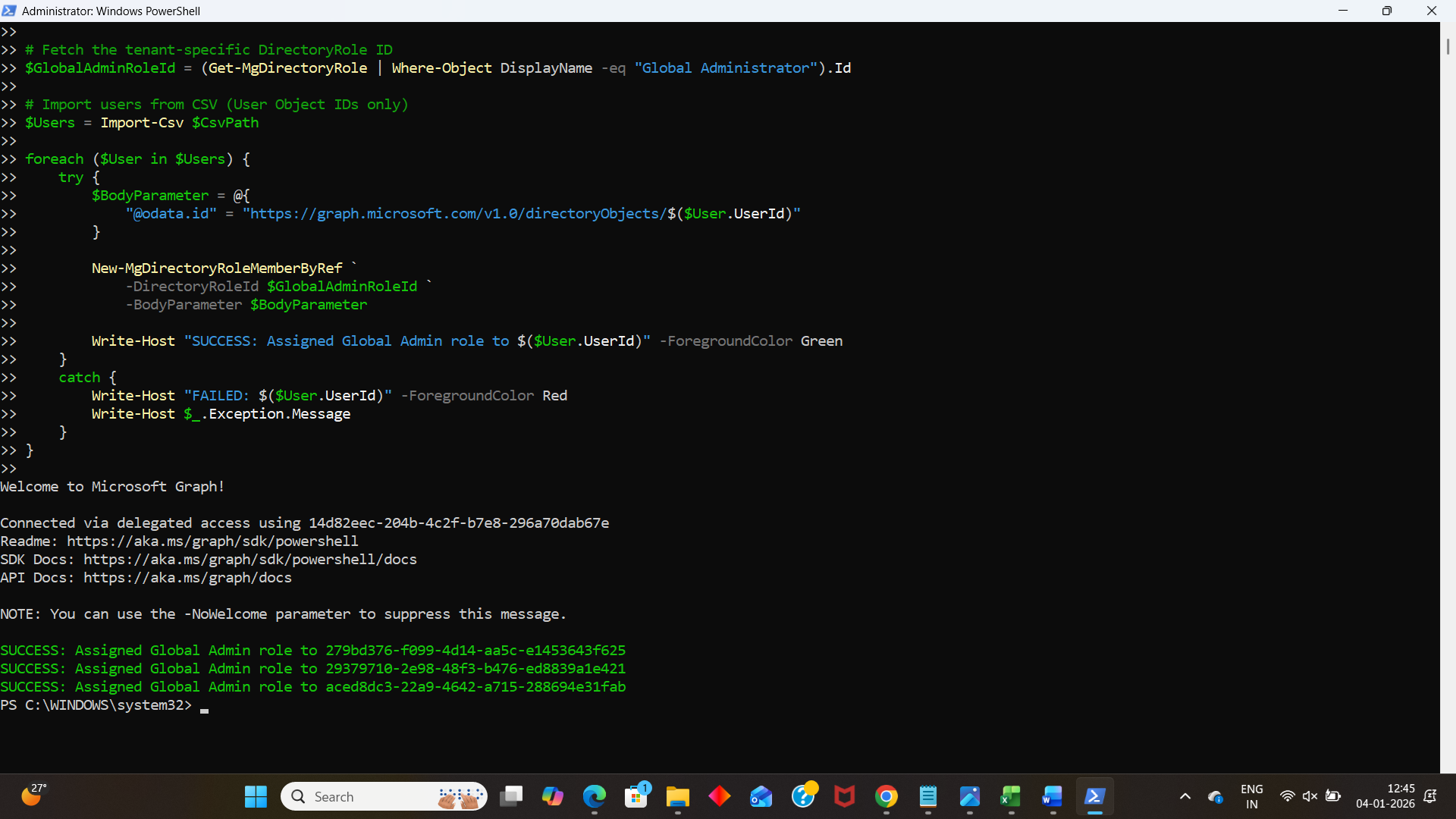
ii) How the Script Works
Let’s break down what the script does step by step.
- Graph Connection & Permissions
- RoleManagement.ReadWrite.Directory
- Directory.Read.All
- Role Activation (Critical Step)
- Resolving the Correct Role ID
- Reading Users from CSV
- Assigning the Role
The script connects to Microsoft Graph using:
These permissions are mandatory for managing directory roles.
Microsoft Entra roles do not exist in a tenant until they are activated.
The script checks whether the Global Administrator role exists in /directoryRoles.
If not, it activates the role using the well-known role template ID:
62e90394-69f5-4237-9190-012177145e10
This template ID is constant across all tenants.
Once activated, the script dynamically retrieves the tenant-specific DirectoryRole ID.
✅ This is the only valid role ID that New-MgDirectoryRoleMemberByRef accepts.
Hardcoding role IDs is strongly discouraged, as they differ between tenants and can lead to 404 ResourceNotFound errors.
The script imports users from a CSV file that must contain User Object IDs.
Example CSV:
UserId
18a80140-b0fb-4489-b360-2f6efaf225a0
86503198-b81b-43fe-81ee-ad45b8848ac9
⚠️ UPNs are not supported when building the @odata.id reference.
Each user is assigned the Global Administrator role using:
New-MgDirectoryRoleMemberByRefThe role assignment is performed via an OData reference, which is the format strictly required by Microsoft Graph.
iii) Further Enhancements
You can easily extend this script for real-world admin scenarios:
- ✅ Skip users who are already Global Admins
- 📄 Export success and failure logs to CSV
- 🔍 Validate User IDs before assignment
- 🔐 Add confirmation prompts for safety
- 🧪 Implement a dry-run mode
- ⏳ Integrate PIM role eligibility instead of permanent assignment
These enhancements are especially useful in enterprise or audited environments.
iv) Possible Errors and Solutions
| Error | Cause | Solution |
|---|---|---|
| Request_ResourceNotFound (404) | Using a role ID that does not exist in /directoryRoles. | Always activate the role and dynamically fetch the DirectoryRole ID. |
| Error: Authorization_RequestDenied | Missing Graph permissions. | Ensure the session has:
|
| Error: Invalid object identifier | Using UPN instead of User Object ID. | Update the CSV to use User IDs only. |
How to Obtain Required IDs
- Get User Object IDs
Get-MgUser -Filter "userPrincipalName eq 'john.doe@contoso.com'" | Select Id, DisplayNameGet-MgDirectoryRole | Select DisplayName, Idv) Conclusion
Bulk assigning administrative roles is a task that demands accuracy, repeatability, and safety. By leveraging Microsoft Graph PowerShell and dynamically resolving directory roles, administrators can avoid common pitfalls such as hardcoded IDs, missing role activation, and unsupported identifiers.
This script provides a reliable, tenant-safe approach to bulk Global Administrator assignments—fully aligned with Microsoft Graph’s design principles.
As always, use caution when assigning privileged roles and ensure changes are reviewed and logged appropriately.