Assign User as Eligible Global Administrator Using Graph PowerShell (PIM)
Privileged Identity Management (PIM) is a critical security feature in Microsoft Entra ID that helps organizations enforce least privilege access. Instead of granting permanent admin rights, administrators can make users eligible for privileged roles, allowing them to activate access only when required.
In this article, we’ll walk through a Graph PowerShell script that converts a user (identified by UPN) into an eligible Global Administrator, fully aligned with Microsoft Entra PIM.
🚀 Community Edition Released!
Try the M365Corner Microsoft 365 Reporting Tool — your DIY pack with 20+ out-of-the-box M365 reports for Users, Groups, and Teams.
i) The Script
# ==============================
# CONFIGURATION
# ==============================
$UserUPN       = "user@contoso.com"
$Duration      = "P180D"   # Eligibility duration (ISO 8601 format)
$Justification = "Assign eligible Global Administrator via automation"

# ==============================
# CONNECT TO MICROSOFT GRAPH
# ==============================
Connect-MgGraph -Scopes "RoleManagement.ReadWrite.Directory","User.Read.All"

# ==============================
# GET USER OBJECT ID
# ==============================
$user = Get-MgUser -UserId $UserUPN -Property Id,UserPrincipalName

if (-not $user) {
    throw "User not found: $UserUPN"
}

# ==============================
# GLOBAL ADMIN ROLE DEFINITION ID
# (Tenant-independent)
# ==============================
$GlobalAdminRoleId = "62e90394-69f5-4237-9190-012177145e10"

# ==============================
# CREATE PIM ELIGIBLE ASSIGNMENT
# ==============================
$params = @{
    PrincipalId      = $user.Id
    RoleDefinitionId = $GlobalAdminRoleId
    DirectoryScopeId = "/"
    Action           = "AdminAssign"
    Justification    = $Justification
    ScheduleInfo     = @{
        StartDateTime = (Get-Date).ToUniversalTime()
        Expiration    = @{
            Type     = "AfterDuration"
            Duration = $Duration
        }
    }
}

New-MgRoleManagementDirectoryRoleEligibilityScheduleRequest `
    -BodyParameter $params

Write-Host "SUCCESS: $($user.UserPrincipalName) is now ELIGIBLE Global Administrator" -ForegroundColor Green
Note: Use Get-MgRoleManagementDirectoryRoleDefinition cmdlet to get the global administrator id as follows: Get-MgRoleManagementDirectoryRoleDefinition | Where-Object DisplayName -eq "Global Administrator" | Select-Object Id, DisplayName
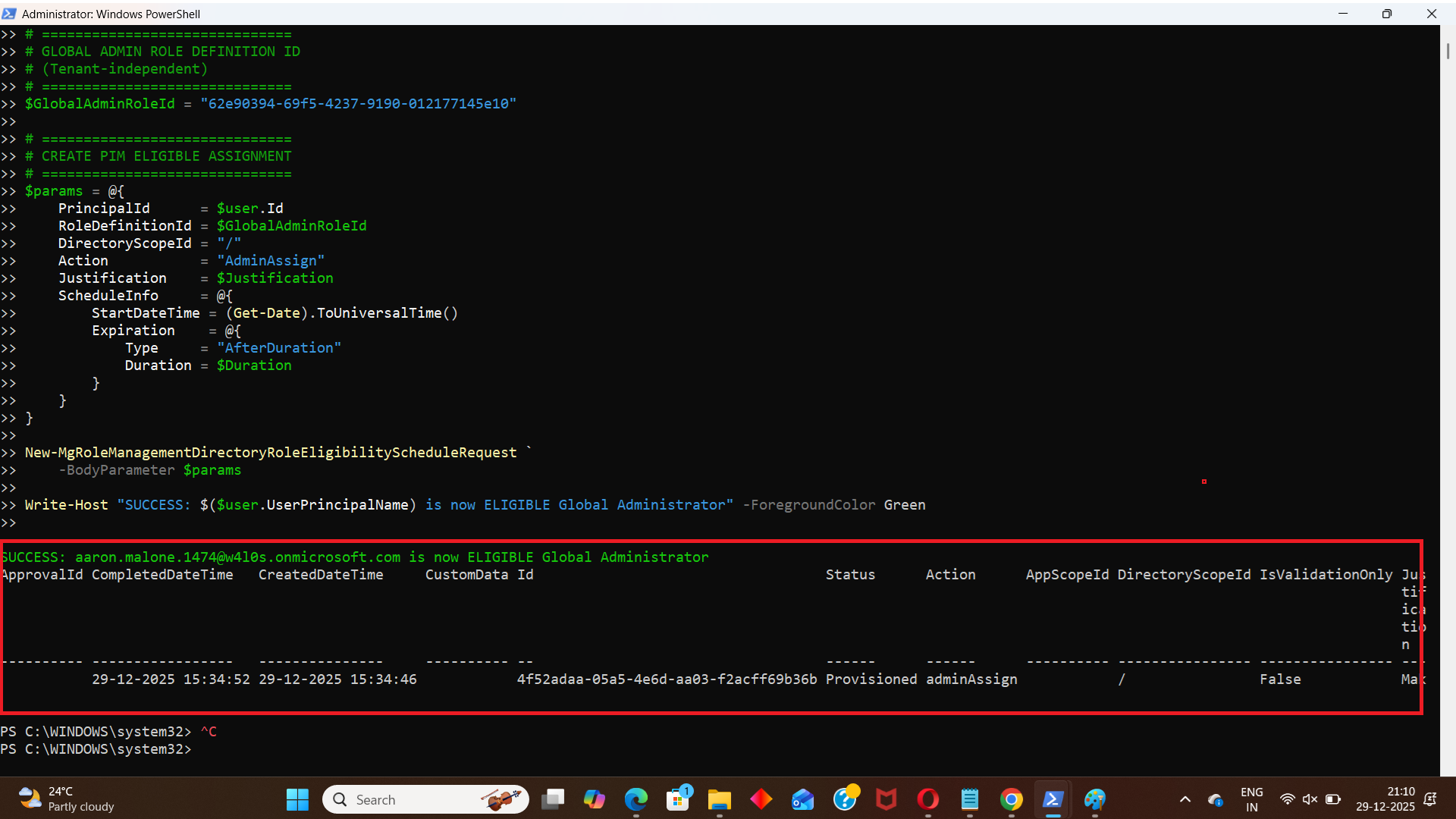
ii) How the Script Works
Let’s break down what the script does, step by step.
- Connects to Microsoft Graph
The script authenticates using delegated permissions required for PIM role management: - RoleManagement.ReadWrite.Directory
- User.Read.All
- Resolves User UPN to Object ID
PIM role assignments require the user’s Object ID, not the UPN.
This step ensures the script works reliably across tenants and avoids hardcoding IDs. - Uses the Global Administrator RoleDefinitionId
The Global Administrator role definition ID is tenant-independent and always remains: - Creates an Eligible (Not Active) Assignment
The script uses the AdminAssign action with the cmdlet: - The user does not receive permanent admin rights
- The role must be activated via PIM when needed
- Eligibility expires automatically based on the configured duration
- Sets Eligibility Expiration
- Zero standing privileges
- Compliance and audit requirements
- Reduced attack surface
These permissions allow the script to resolve users and create role eligibility assignments.
62e90394-69f5-4237-9190-012177145e10
Using the role definition ID ensures the script targets the correct Entra role every time.
New-MgRoleManagementDirectoryRoleEligibilityScheduleRequest
This ensures:
The ScheduleInfo block enforces time-bound eligibility (e.g., 180 days), supporting:
iii) Further Enhancements
You can easily extend this script to support additional scenarios:
- Bulk assignments using a CSV file (UPN list)
- Role parameterization (Security Admin, Exchange Admin, etc.)
- Custom eligibility durations per user
- Duplicate eligibility checks before assignment
- Logging and reporting for audit trails
- Admin Unit–scoped assignments instead of tenant-wide (/)
We’ll cover the CSV-based bulk assignment version in the next article.
iv) Possible Errors and Solutions
| Error | Cause | Solution |
|---|---|---|
| Insufficient privileges to complete the operation | The signed-in account is not a Privileged Role Administrator or lacks PIM permissions. | Ensure the executing account has:
|
| Error: User not found | Incorrect or misspelled UPN. | Verify the UPN exists using: Get-MgUser -UserId user@contoso.com |
| Error: Role assignment already exists | The user is already eligible for Global Administrator. | Query existing eligibility assignments before creating a new one: Get-MgRoleManagementDirectoryRoleEligibilityScheduleInstance |
| Error: Authorization_RequestDenied | Missing Graph scopes during connection. | Reconnect using: Connect-MgGraph -Scopes "RoleManagement.ReadWrite.Directory","User.Read.All" |
v) Conclusion
Using Microsoft Graph PowerShell, administrators can fully automate PIM-based eligible role assignments, eliminating the need for manual portal workflows.
This script demonstrates how to:
- Assign Global Administrator eligibility securely
- Avoid permanent privileged access
- Avoid permanent privileged access
- Align with Zero Trust and least-privilege principles
In the next article, we’ll build on this foundation and show how to bulk-create PIM eligible administrators from a CSV file, making it ideal for onboarding, audits, and enterprise-scale administration.