Multi-Role PIM Eligible Admin Assignments from CSV Using Graph PowerShell
Managing privileged access at scale often requires assigning multiple administrative roles to users while still maintaining strong security controls. Microsoft Entra Privileged Identity Management (PIM) enables this by allowing administrators to make users eligible for roles instead of granting permanent access.
In this article, we’ll walk through a Graph PowerShell automation that allows you to assign multiple PIM-eligible admin roles to multiple users using a single CSV file—a common enterprise requirement during onboarding, role reviews, or access audits.
🚀 Community Edition Released!
Try the M365Corner Microsoft 365 Reporting Tool — your DIY pack with 20+ out-of-the-box M365 reports for Users, Groups, and Teams.
i) The Script
Bulk Assign Multiple PIM Eligible Roles per User from CSV
CSV File Format
Create a CSV file (for example: PIMEligibleUsers.csv) with the following structure:
UserPrincipalName
user1@contoso.com
user2@contoso.com
user3@contoso.com
user4@contoso.com
user5@contoso.com
🔹 The script assigns the same set of roles to every user listed in the CSV.
🔹 This keeps the input simple and reduces data errors.
PowerShell Script
# ==============================
# CONFIGURATION
# ==============================
$CsvPath       = "C:\Temp\PIMEligibleUsers.csv"
$Duration      = "P180D"   # ISO 8601 duration
$Justification = "Bulk multi-role PIM eligibility assignment via Graph PowerShell"

# Correct Entra roleDefinitionIds
$RoleDefinitionIds = @(
    "62e90394-69f5-4237-9190-012177145e10", # Global Administrator
    "29232cdf-9323-42fd-ade2-1d097af3e4de", # Exchange Administrator
    "69091246-20e8-4a56-aa4d-066075b2a7a8"  # Teams Administrator
)

# ==============================
# CONNECT TO MICROSOFT GRAPH
# ==============================
Connect-MgGraph -Scopes "RoleManagement.ReadWrite.Directory","User.Read.All"

# ==============================
# IMPORT CSV
# ==============================
$users = Import-Csv $CsvPath
if (-not $users) {
    throw "CSV file is empty or not found."
}

# ==============================
# CACHE EXISTING ELIGIBILITY
# ==============================
$existingEligibility = Get-MgRoleManagementDirectoryRoleEligibilityScheduleInstance

# ==============================
# PROCESS USERS
# ==============================
foreach ($entry in $users) {

    try {
        # Resolve user
        $user = Get-MgUser -UserId $entry.UserPrincipalName `
            -Property Id,UserPrincipalName `
            -ErrorAction Stop
    }
    catch {
        Write-Error "FAILED: User not found - $($entry.UserPrincipalName)"
        continue
    }

    foreach ($roleId in $RoleDefinitionIds) {

        # Skip if already eligible
        $alreadyEligible = $existingEligibility |
            Where-Object {
                $_.PrincipalId -eq $user.Id -and
                $_.RoleDefinitionId -eq $roleId
            }

        if ($alreadyEligible) {
            Write-Warning "SKIPPED: $($user.UserPrincipalName) already eligible for role $roleId"
            continue
        }

        try {
            New-MgRoleManagementDirectoryRoleEligibilityScheduleRequest `
                -BodyParameter @{
                    PrincipalId      = $user.Id
                    RoleDefinitionId = $roleId
                    DirectoryScopeId = "/"
                    Action           = "AdminAssign"
                    Justification    = $Justification
                    ScheduleInfo     = @{
                        StartDateTime = (Get-Date).ToUniversalTime()
                        Expiration    = @{
                            Type     = "AfterDuration"
                            Duration = $Duration
                        }
                    }
                } -ErrorAction Stop

            Write-Host "SUCCESS: $($user.UserPrincipalName) → Role $roleId (ELIGIBLE)" -ForegroundColor Green
        }
        catch {
            Write-Error "FAILED: $($user.UserPrincipalName) → Role $roleId - $($_.Exception.Message)"
        }
    }
}

Write-Host "Multi-role PIM eligibility assignment completed." -ForegroundColor Cyan
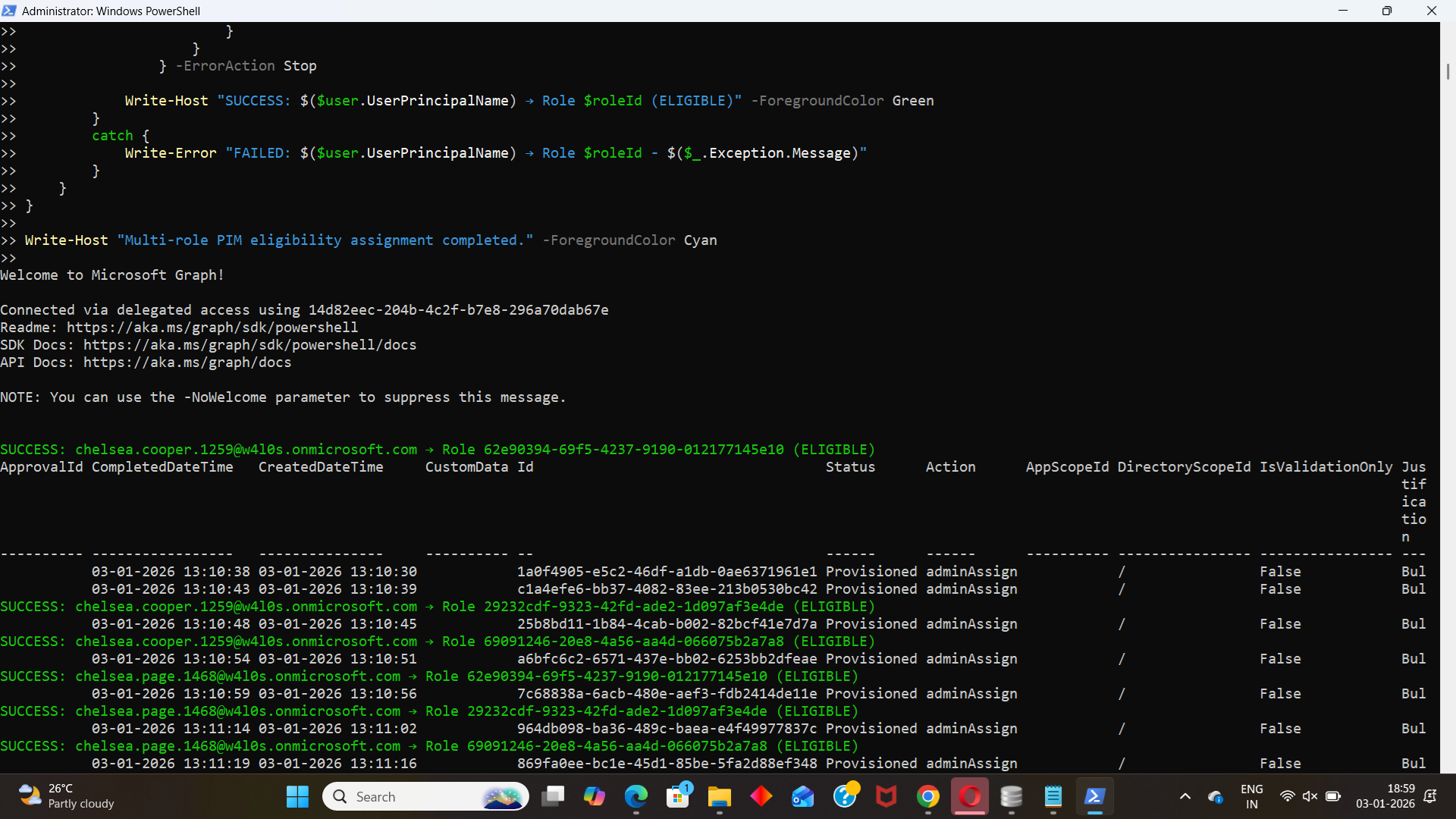
ii) How the Script Works
- Imports users from a CSV file
- Resolves UPNs to Object IDs
- Uses valid Entra roleDefinitionIds
- Prevents duplicate eligibility
- Duplicate assignments
- API failures
- Inconsistent role states
- Creates eligible (not active) assignments
- No permanent admin access
- Role activation is required via PIM
- All assignments are auditable and time-bound
The script reads user UPNs from a CSV file, allowing administrators to manage large batches without modifying the script logic.
PIM role assignments require user object IDs.
The script safely resolves each UPN using Get-MgUser, ensuring compatibility with Microsoft Graph.
The script relies on Microsoft Entra directory roleDefinitionIds, which are required for PIM operations. These IDs are tenant-independent and retrieved via:
Get-MgRoleManagementDirectoryRoleDefinition
Before creating a new assignment, the script checks existing PIM eligibility to avoid:
This makes the script safe to re-run.
The script uses:
New-MgRoleManagementDirectoryRoleEligibilityScheduleRequest
with the AdminAssign action to ensure:
iii) Further Enhancements
This script can be extended in several enterprise-friendly ways:
- CSV-based role mapping per user (different roles per user)
- CSV reporting (Success / Skipped / Failed per user and role)
- Rollback logic to remove assigned eligibility
- Admin Unit-scoped PIM role assignments
- Dry-run mode for change review
- Support for custom eligibility durations per role
Although this example assigns the same roles to all users, the design can be easily adapted for more granular control.
iv) Possible Errors & Solutions
| Error | Cause | Solution |
|---|---|---|
| Invalid or incorrect roleDefinitionId. | Invalid or incorrect roleDefinitionId. | Always retrieve role IDs using: Get-MgRoleManagementDirectoryRoleDefinition |
| Incorrect or deleted UPN in the CSV. | Incorrect or deleted UPN in the CSV. | Validate users before execution: Get-MgUser -UserId user@contoso.com |
| Authorization_RequestDenied | Missing permissions or insufficient admin role. | Ensure the executing account has:
|
| Assignment already exists | User is already eligible for the role. | The script detects this automatically and safely skips the assignment. |
Conclusion
Using Microsoft Graph PowerShell, administrators can securely and efficiently assign multiple PIM-eligible admin roles to multiple users using a CSV file—without relying on manual portal workflows.
This approach:
- Eliminates permanent privileged access
- Enforces least-privilege principles
- Scales across enterprise environments
- Aligns fully with Microsoft Entra PIM best practices