Creating Entra ID or Azure AD App
To register your tenant with the M365Corner Reporting Tool, you need to create an Entra ID app.
- Go to the Entra ID Admin Center:
- From Microsoft 365 Admin Center, navigate to Admin Centers → Identity
- Or go directly to https://entra.microsoft.com
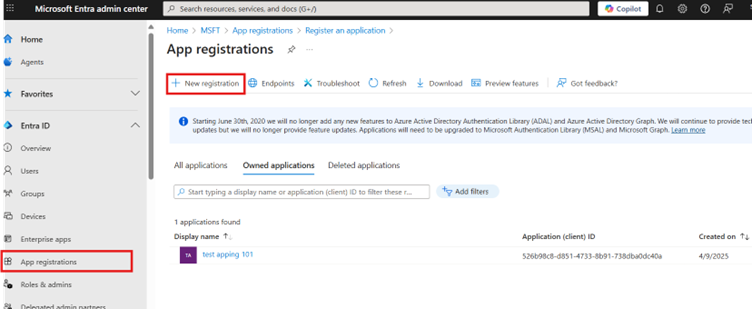
- In the left-hand menu, select App registrations, then click + New registration.
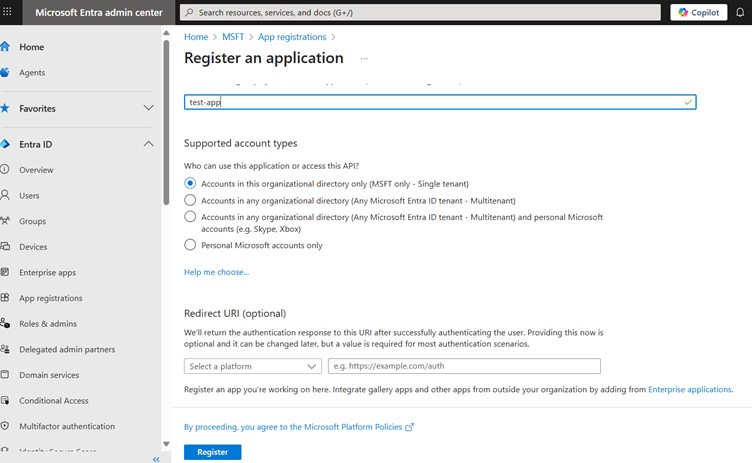
- Enter a name for the app and click Register.
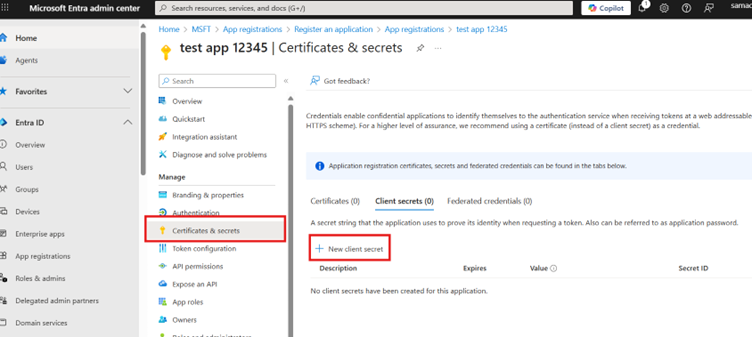
- After registration, go to Certificates & secrets, then click + New client secret:
- Enter a description for the client secret.
- Choose an expiration period.
- Click Add.
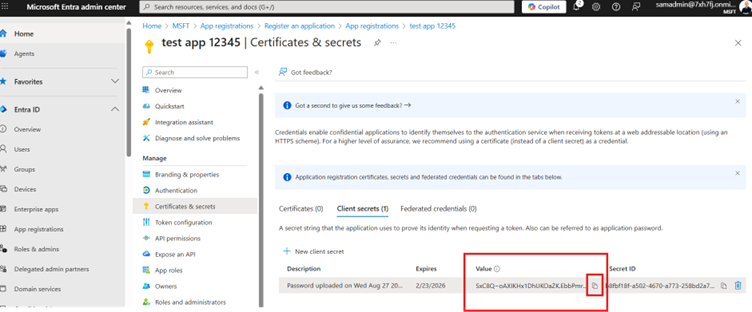
- Copy the client secret value before you leave the screen — it won't be visible again. You'll need this when registering the app with the M365Corner Reporting Tool.
- Notes
- ✅ Do not change the Supported account types setting. Leave it as Accounts in this organizational directory only (Single tenant). The M365Corner Reporting Tool does not support multi-tenant apps.
- ❌ Do not configure a Redirect URI — it is not required by the M365Corner Reporting Tool.
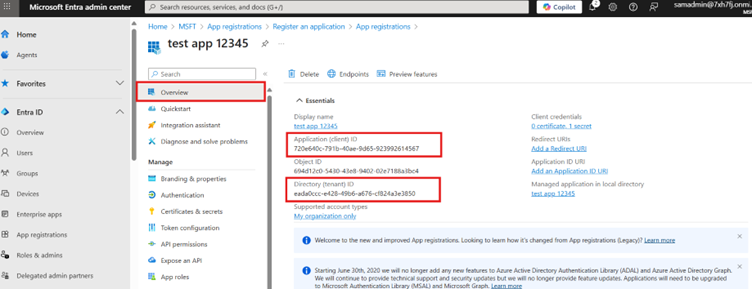
- 📌 In addition to the client secret, make sure to copy the following values from the Overview section:
- Tenant ID
- Client ID
Register App With M365Corner Free Reporting Tool
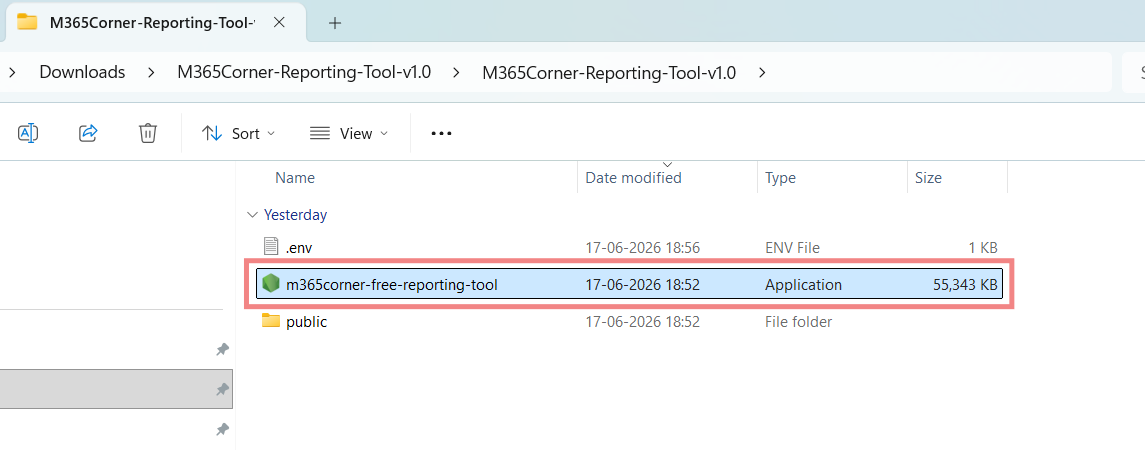
- Launch the M365Corner-Reporting-Tool.exe by double-clicking on it.
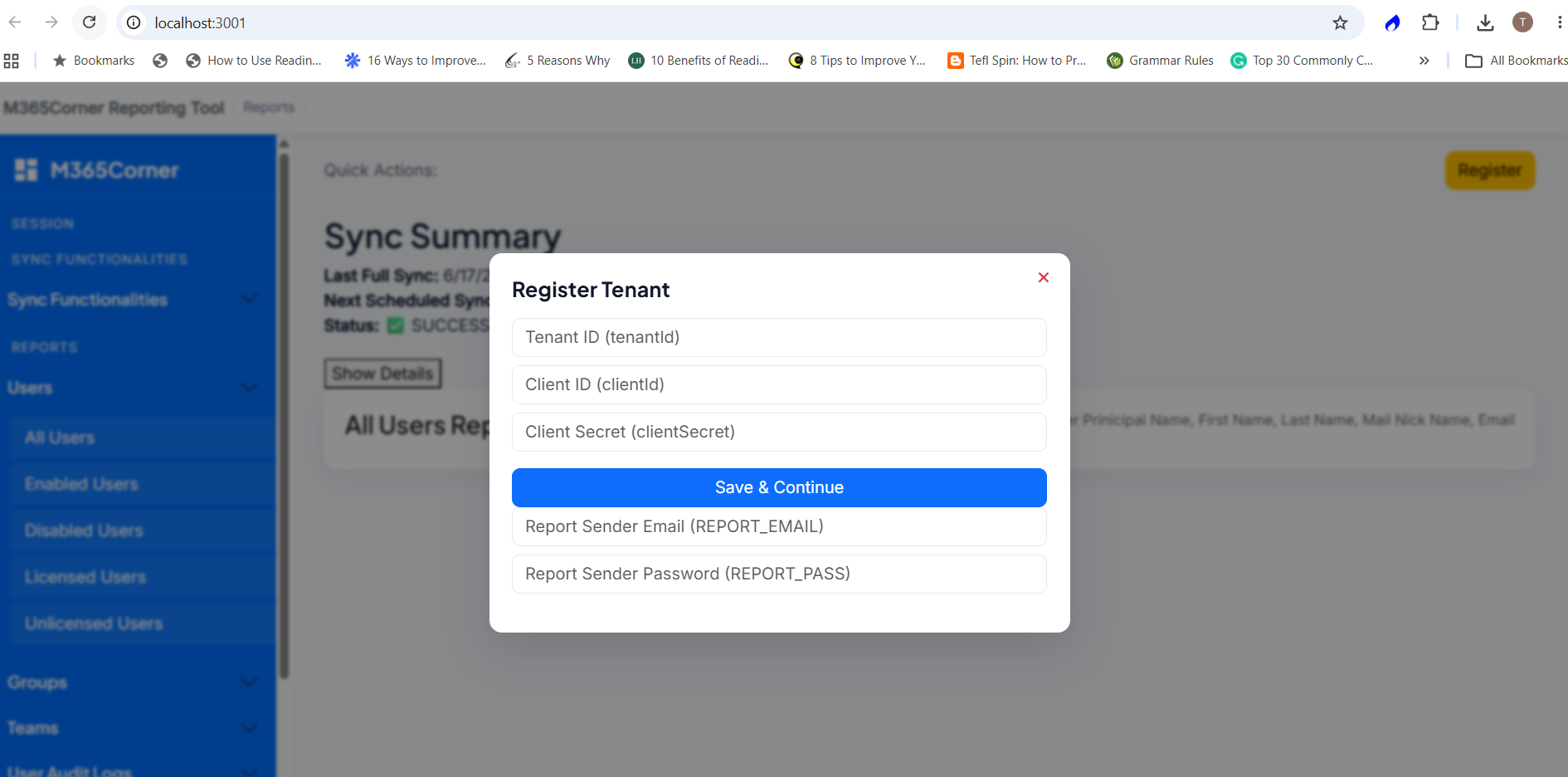
- Click Register button and enter your tenant ID, client ID, client secret, Report sender email and Report sender password (or passcode) details. Click Save & Continue.
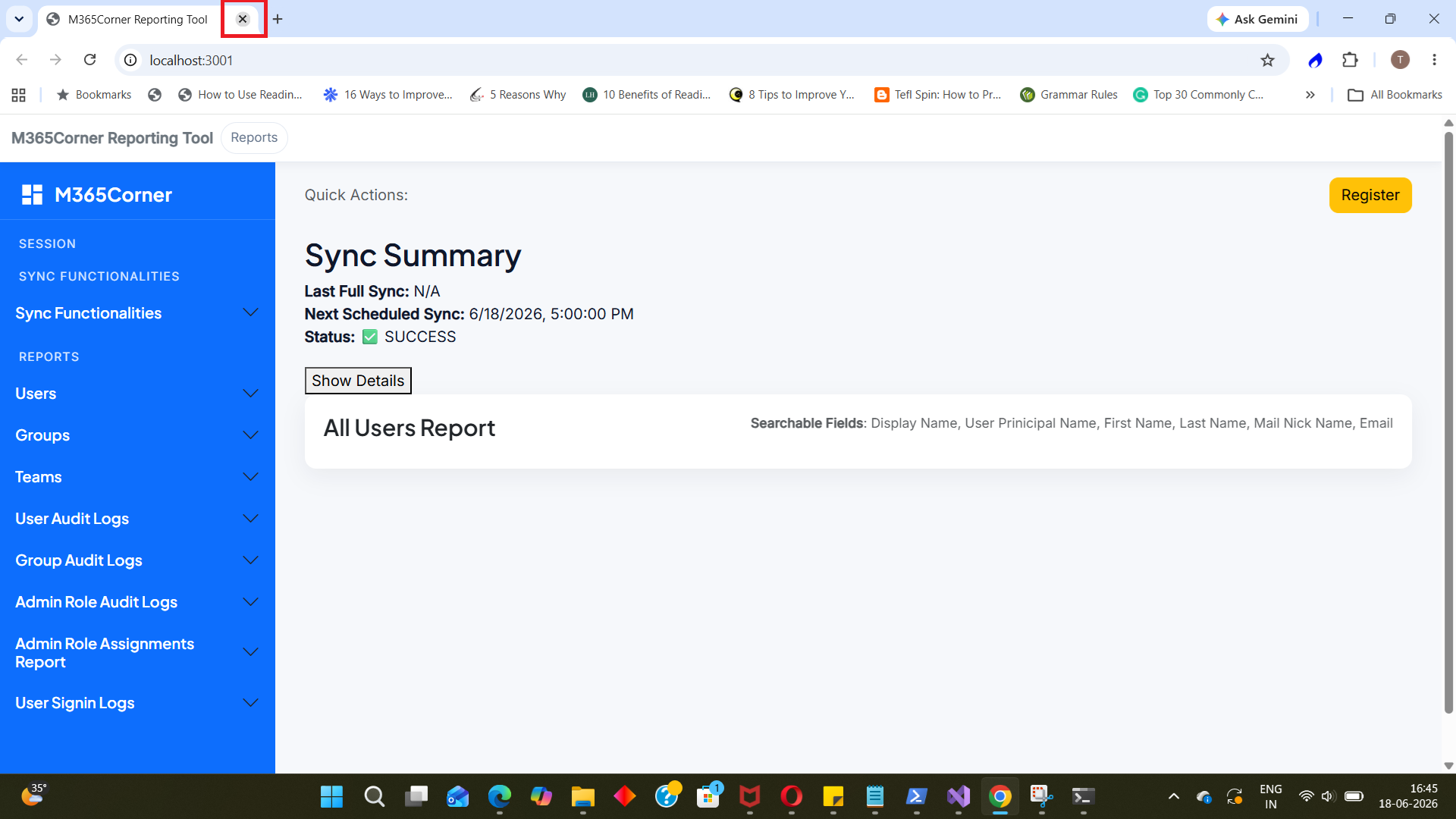
- Close the app and Restart it again.
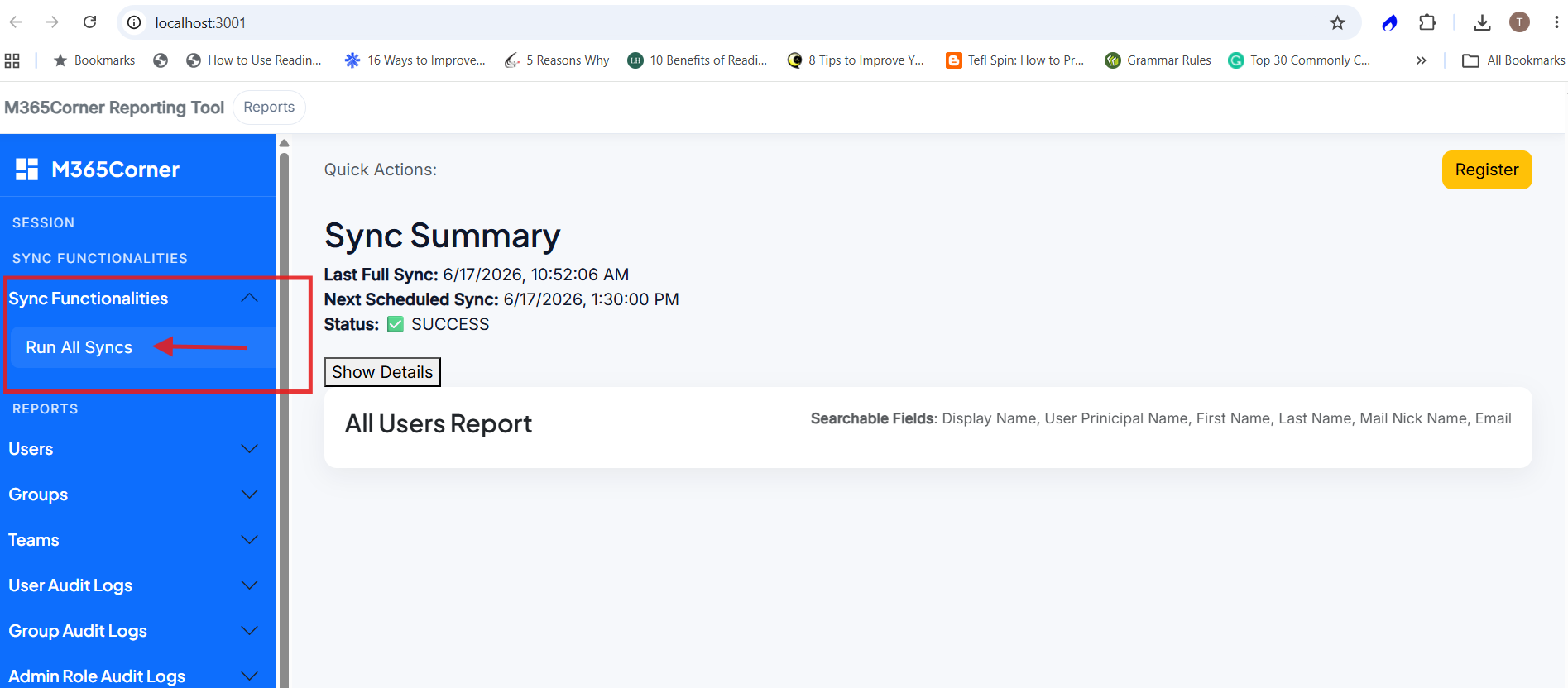
- Syncing your tenant data: Click Sync Functionalities >> Run All Syncs option. Wait for the sync to complete.
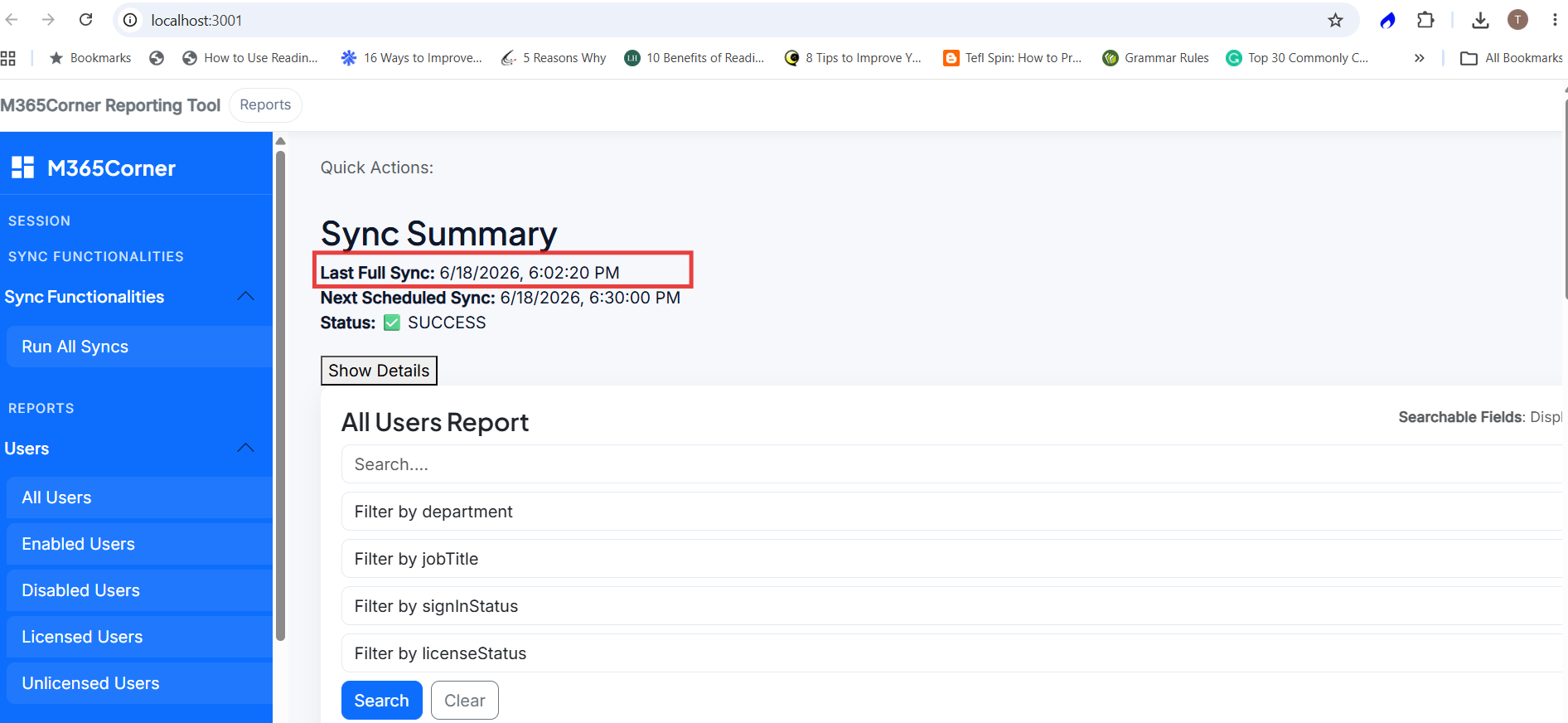
- You'll know the sync is complete when the " Last Full Sync" gets populated.
 The M365Corner Free Reporting Tool is ready to
generate Microsoft 365 reports.
The M365Corner Free Reporting Tool is ready to
generate Microsoft 365 reports.
Note: Please ensure the app is run at least once every day for 30 minutes or longer. This will ensure your tenant data stays synced for reporting purposes.
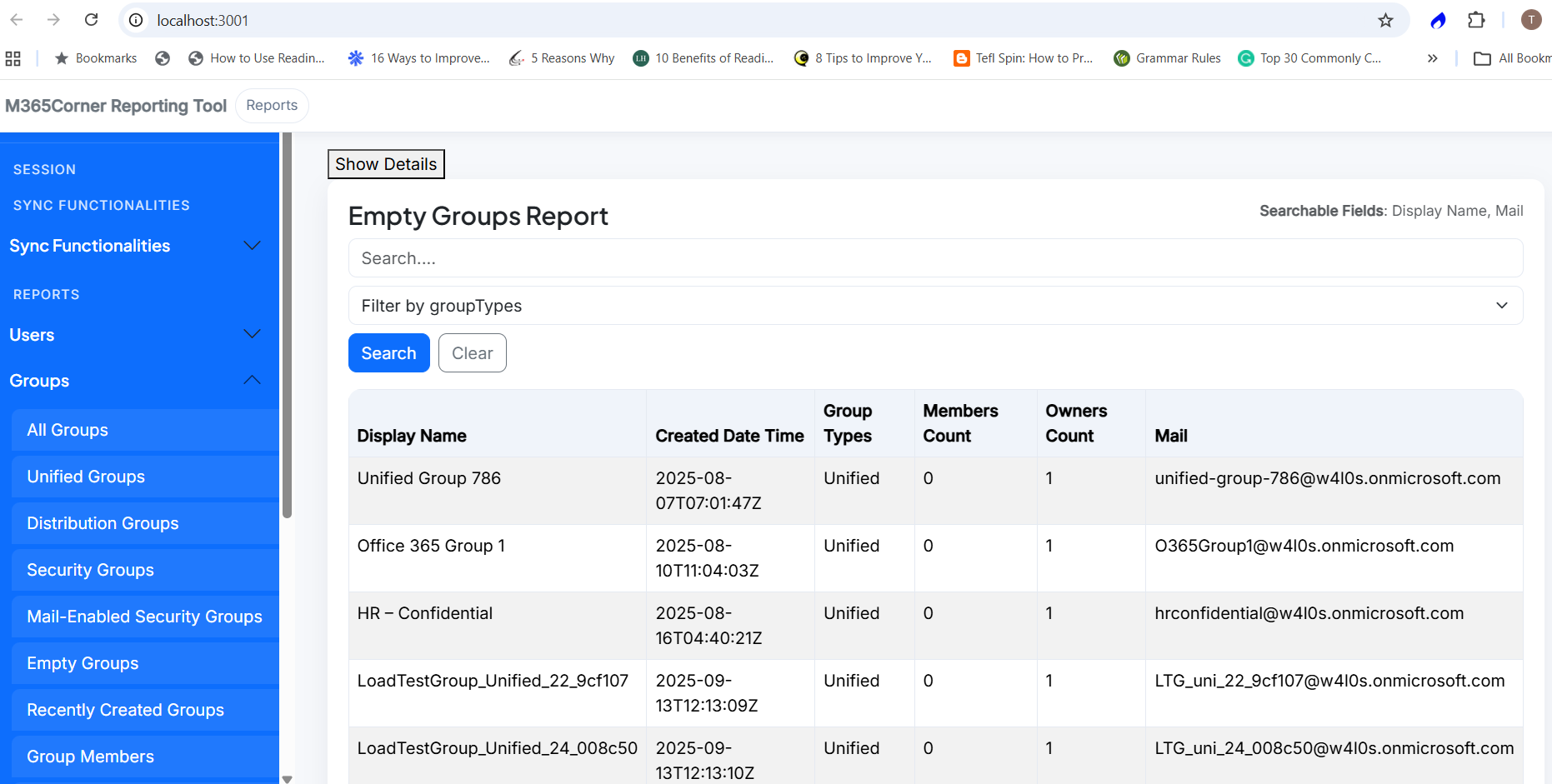
Up and running M365Corner Reporting Tool
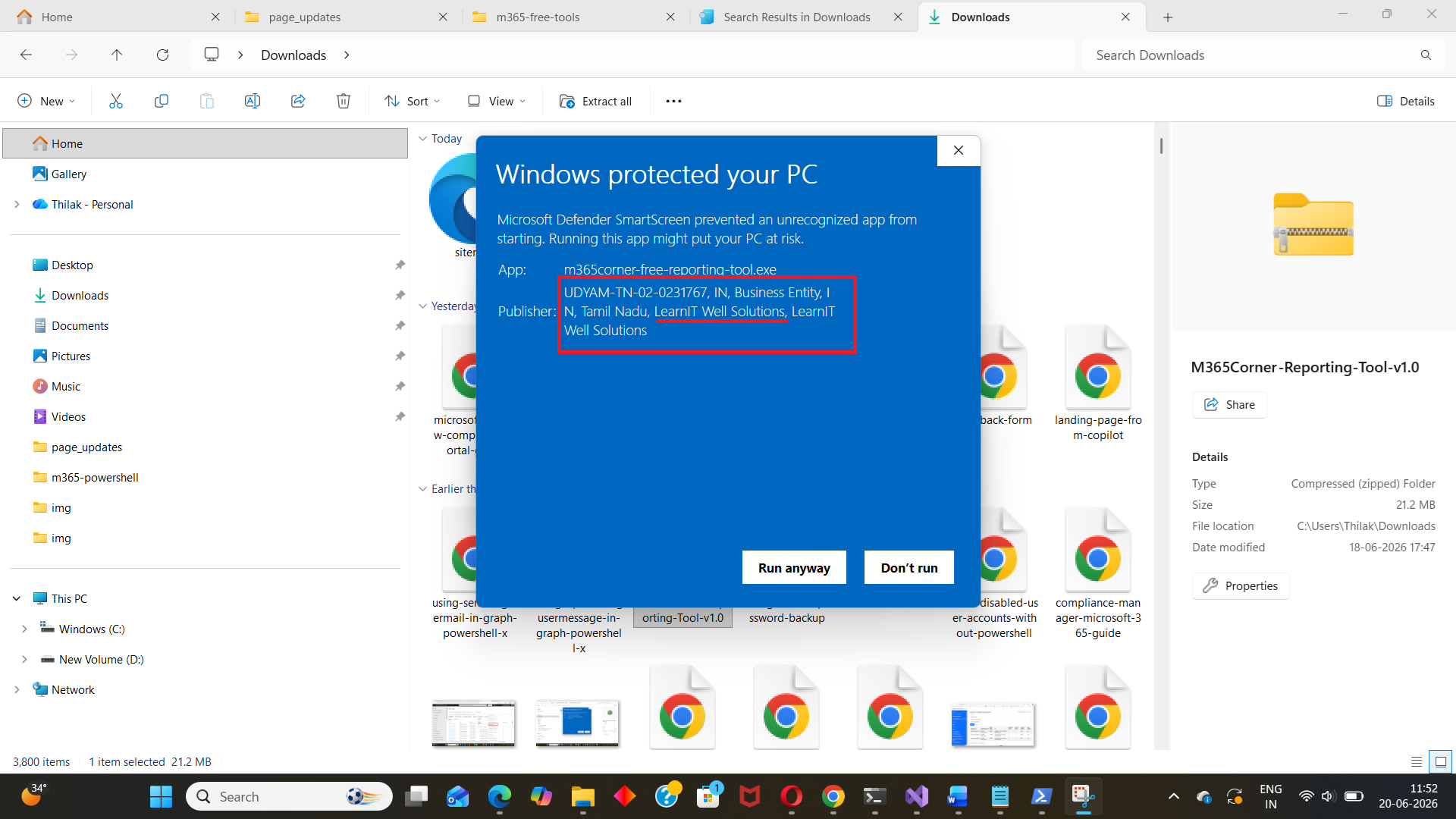
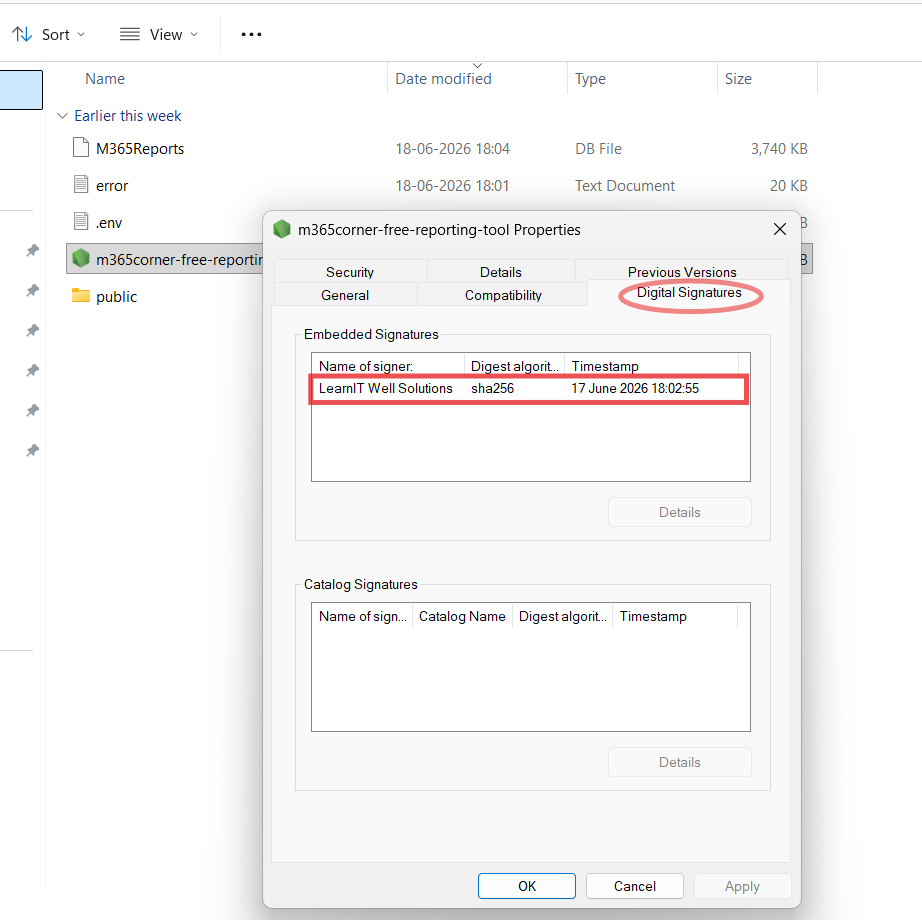
M365Corner Reporting Tool is digitally code-signed for authenticity. Always download the tool directly from M365Corner.com and verify the publisher information before running the executable.