Creating Entra ID or Azure AD App
To register your tenant with the M365Corner Reporting Tool, you need to create an Entra ID app.
- Go to the Entra ID Admin Center:
- From Microsoft 365 Admin Center, navigate to Admin Centers → Identity
- Or go directly to https://entra.microsoft.com
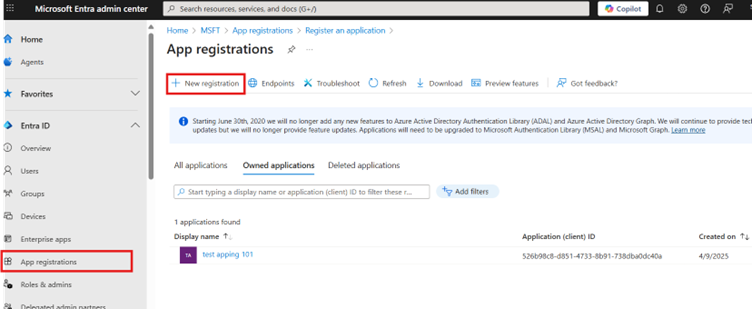
- In the left-hand menu, select App registrations, then click + New registration.
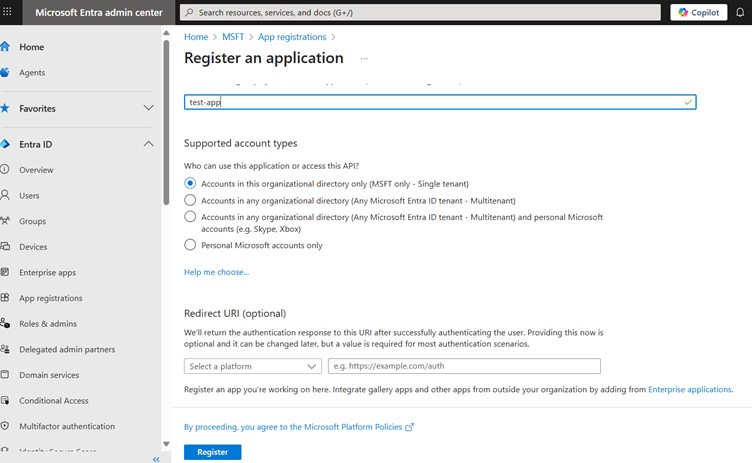
- Enter a name for the app and click Register.
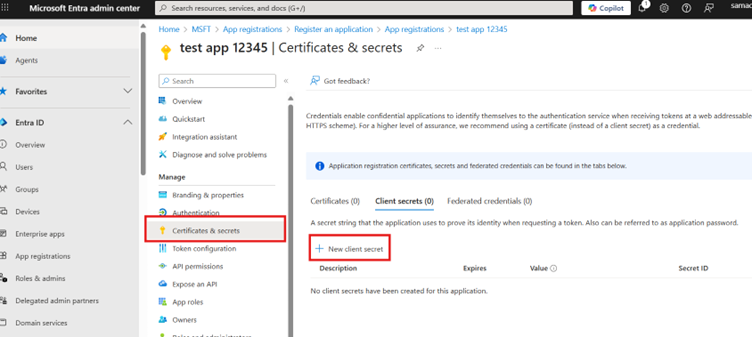
- After registration, go to Certificates & secrets, then click + New client secret:
- Enter a description for the client secret.
- Choose an expiration period.
- Click Add.
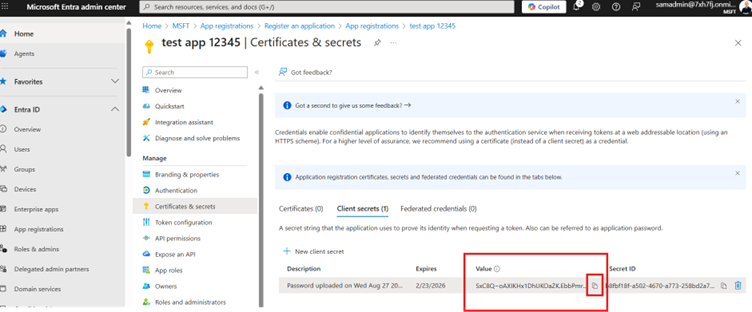
- Copy the client secret value before you leave the screen — it won't be visible again. You'll need this when registering the app with the M365Corner Reporting Tool.
- Notes
- ✅ Do not change the Supported account types setting. Leave it as Accounts in this organizational directory only (Single tenant). The M365Corner Reporting Tool does not support multi-tenant apps.
- ❌ Do not configure a Redirect URI — it is not required by the M365Corner Reporting Tool.
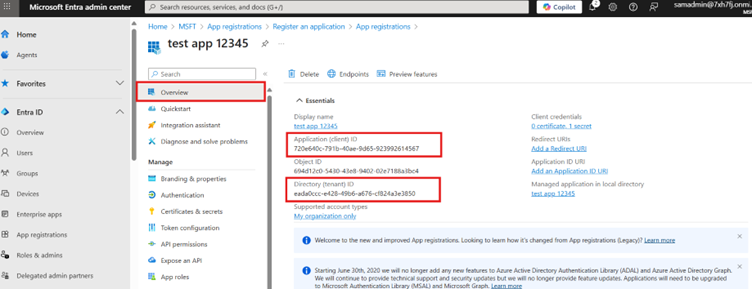
- 📌 In addition to the client secret, make sure to copy the following values from the Overview section:
- Tenant ID
- Client ID