The Challenge with Native Sign-In Logs
To track failed logins using the default approach, admins typically need to:
- Navigate to the Entra Admin Center
- Open Monitoring & health >> Sign-in Logs
- Apply filters manually (set Status as Filter and Value as Failure)
- Review results
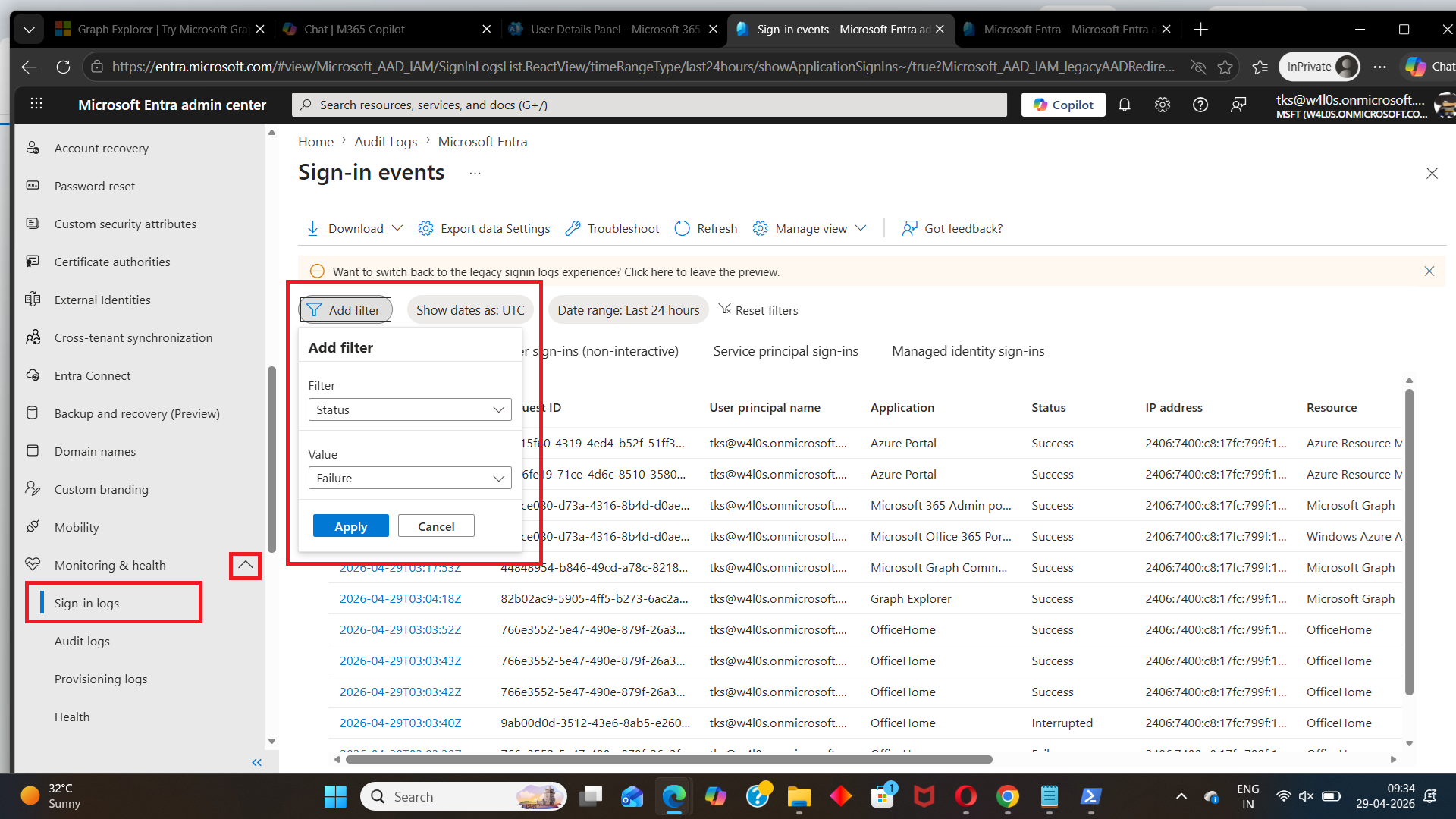 In practice, this comes with a few limitations:
- There is no simple, direct way to view only failed logins
- Filtering requires manual setup and can be confusing
- Logs must be downloaded before sharing via email
- Navigation across portals adds extra steps
A Simpler Approach Is Coming Soon
To address these challenges, we’ve been working on the M365Corner Reporting Tool — a free Microsoft 365 reporting tool designed to simplify how admins access and analyze critical reports.
One of the key focus areas: Making failed login tracking fast, clear, and actionable.How This Will Work (Preview)
Once released, tracking failed logins will be as simple as:
- Go to User Sign-In Logs
- Click on Failed User Logins Report
- The report is generated instantly
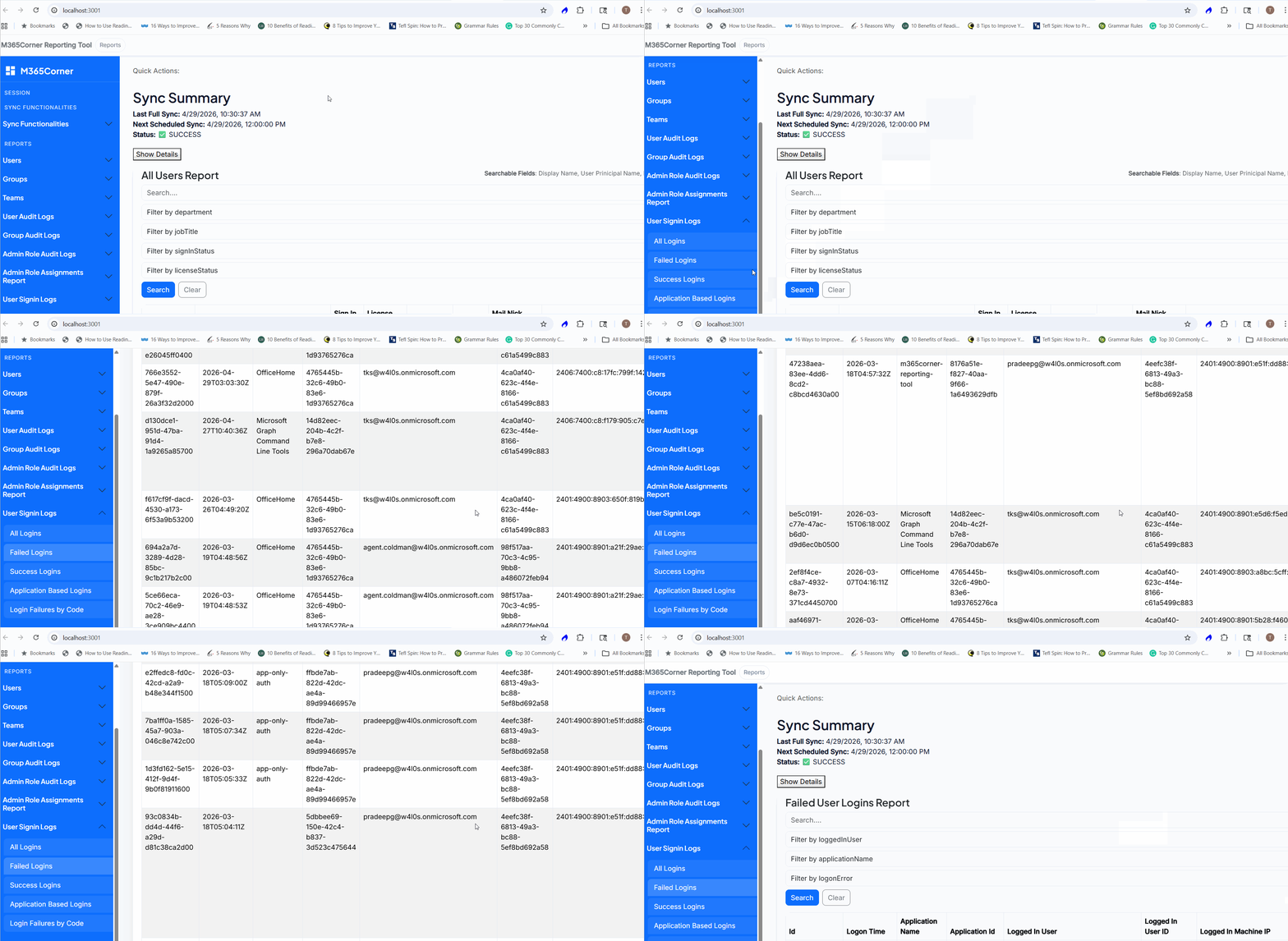
What the Failed User Logins Report Will Offer
The upcoming report is designed specifically for security-focused visibility.
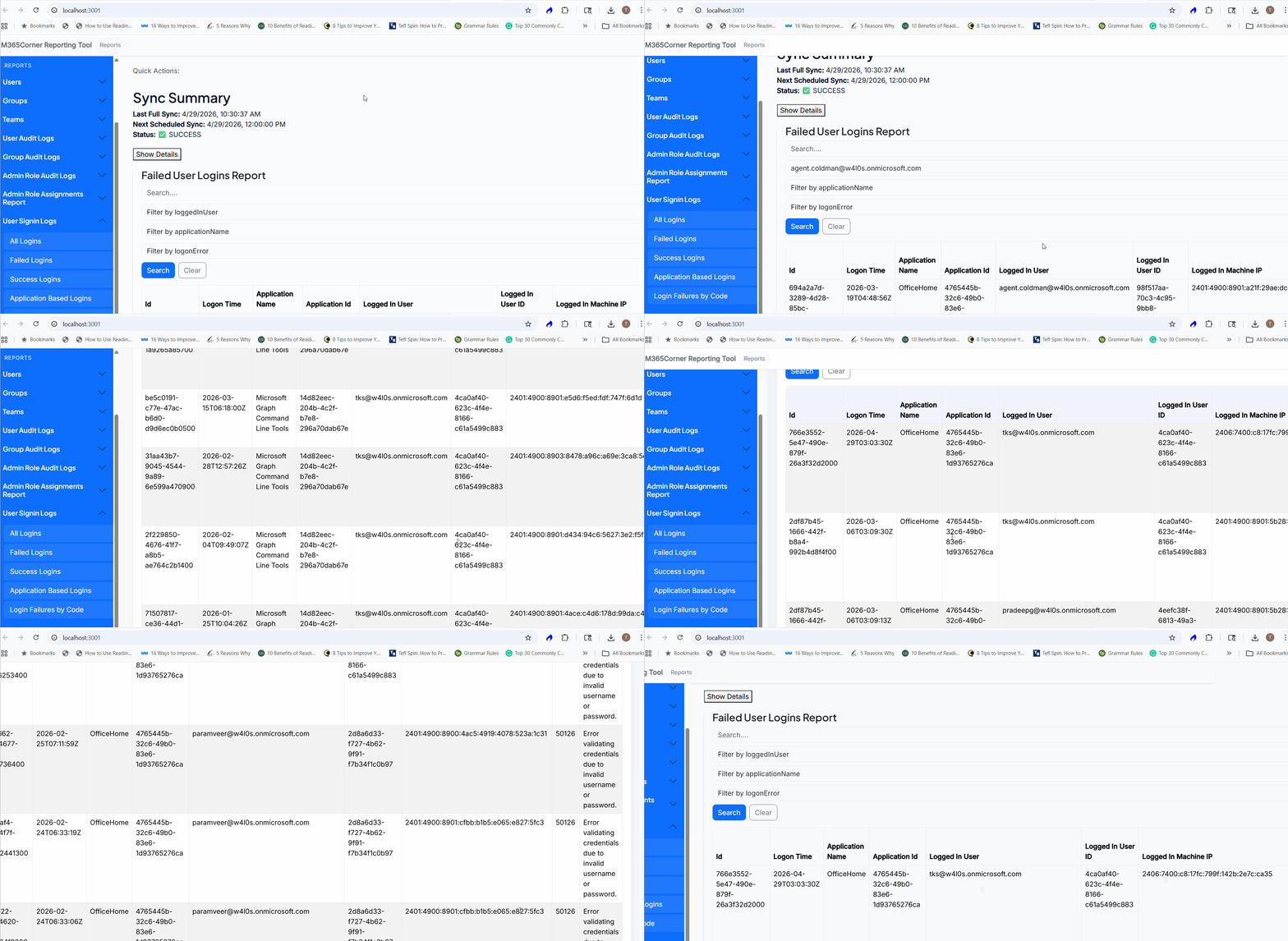
View Only Failed Logins
- Instantly isolate failed login attempts
- No need to filter manually 👉 Focus only on what matters.
Filter Failed Logins by User
- Filter failed logins by loggedInUser 👉 Investigate specific users quickly.
Filter Failed Logins by Application
- Identify which application triggered the login failure 👉 Helps diagnose app-specific issues
Filter Failed Logins by Error Code
- Analyze failures based on login error codes 👉 Useful for troubleshooting and security investigations
Email Reports Instantly
- Send the report directly via email
- No need to download files first 👉 Saves time and simplifies sharing
Optional CSV Download
- Export the report if needed 👉 Flexibility for further analysis
Important Note: Data Sync
To generate accurate reports, the tool will sync with your tenant data.
You can choose:
- Automatic Sync → Runs every 30 minutes
- Manual Sync → Trigger on demand
Native Method vs What’s Coming
| Task | Native Approach | Upcoming Tool |
| View failed logins | Manual filtering | Direct report |
| Filter by user | Multiple steps | Built-in |
| Filter by app/error | Complex | Simple filters |
| Share logs | Download first | Direct email |
| Time taken | High | Minimal |
Why This Matters
Tracking failed logins effectively helps you:
- Detect security threats early
- Respond faster to suspicious activity
- Reduce investigation time
- Improve overall tenant security posture
Final Thoughts
Microsoft Entra provides detailed sign-in logs — but isolating failed login activity shouldn’t be complicated. With the upcoming M365Corner Free Reporting Tool, failed login tracking will become faster, more focused, and easier to act on.
If you’re looking for a free Microsoft 365 reporting tool that simplifies security monitoring without PowerShell, this is something worth watching.
👉 More updates coming soon.