What is New-MgUserMessage cmdlet?
The New-MgUserMessage cmdlet in Microsoft Graph PowerShell enables administrators and users to create new email messages programmatically within Microsoft 365 mailboxes. This cmdlet allows the creation of simple or HTML-formatted emails, as well as messages with attachments, providing a powerful way to automate email communication.
Why use New-MgUserMessage cmdlet?
The New-MgUserMessage cmdlet is useful for:
- Automating email notifications and reminders
- Managing email workflows with attachments
- Streamlining communication in Microsoft 365 environments
- Enhancing security by sending predefined messages through automation
Setting Up Microsoft Graph PowerShell
Before using New-MgUserMessage, you need to set up Microsoft Graph PowerShell and authenticate with the necessary permissions.
Install the Module
Run the following command to install the Microsoft Graph module:
Install-Module Microsoft.Graph -Scope CurrentUser
This installs the module for the current user without requiring administrative privileges.
Connect to Microsoft Graph
Authenticate and connect to Microsoft Graph with the required permissions:
Connect-MgGraph -Scopes "Mail.ReadWrite"
You'll be prompted to sign in using a Microsoft 365 account with the necessary permissions to create emails.
Disconnect After Use
Once you've completed your tasks, always disconnect the session:
Disconnect-MgGraph
This helps maintain security and prevent unnecessary active sessions.
Exploring the New-MgUserMessage Cmdlet
The New-MgUserMessage cmdlet allows users to create new email messages, set their recipients, define their content, and add attachments. The flexibility of the cmdlet makes it a great tool for automating email workflows.
Cmdlet Syntax
New-MgUserMessage -UserId <String> -BodyParameter <IMicrosoftGraphMessage> [<CommonParameters>]
- -UserId: Specifies the email sender’s Microsoft 365 user ID.
- -BodyParameter: Defines the structure of the email, including recipients, subject, body, and optional attachments.
New-MgUserMessage vs Send-MgUserMessage
Although both cmdlets are related to Microsoft 365 email automation, they serve different purposes.
| Cmdlet | Purpose |
| New-MgUserMessage | Creates a new email message or draft |
| Send-MgUserMessage | Sends an existing message |
Understanding Message Components in New-MgUserMessage
The New-MgUserMessage cmdlet uses the -BodyParameter hashtable to define different email properties.
| Component | Purpose |
| Subject | Defines the email subject |
| Body | Contains the email content |
| ToRecipients | Specifies recipient addresses |
| CcRecipients | Adds CC recipients |
| Attachments | Includes file attachments |
| Importance | Sets message priority |
Practical Examples of New-MgUserMessage
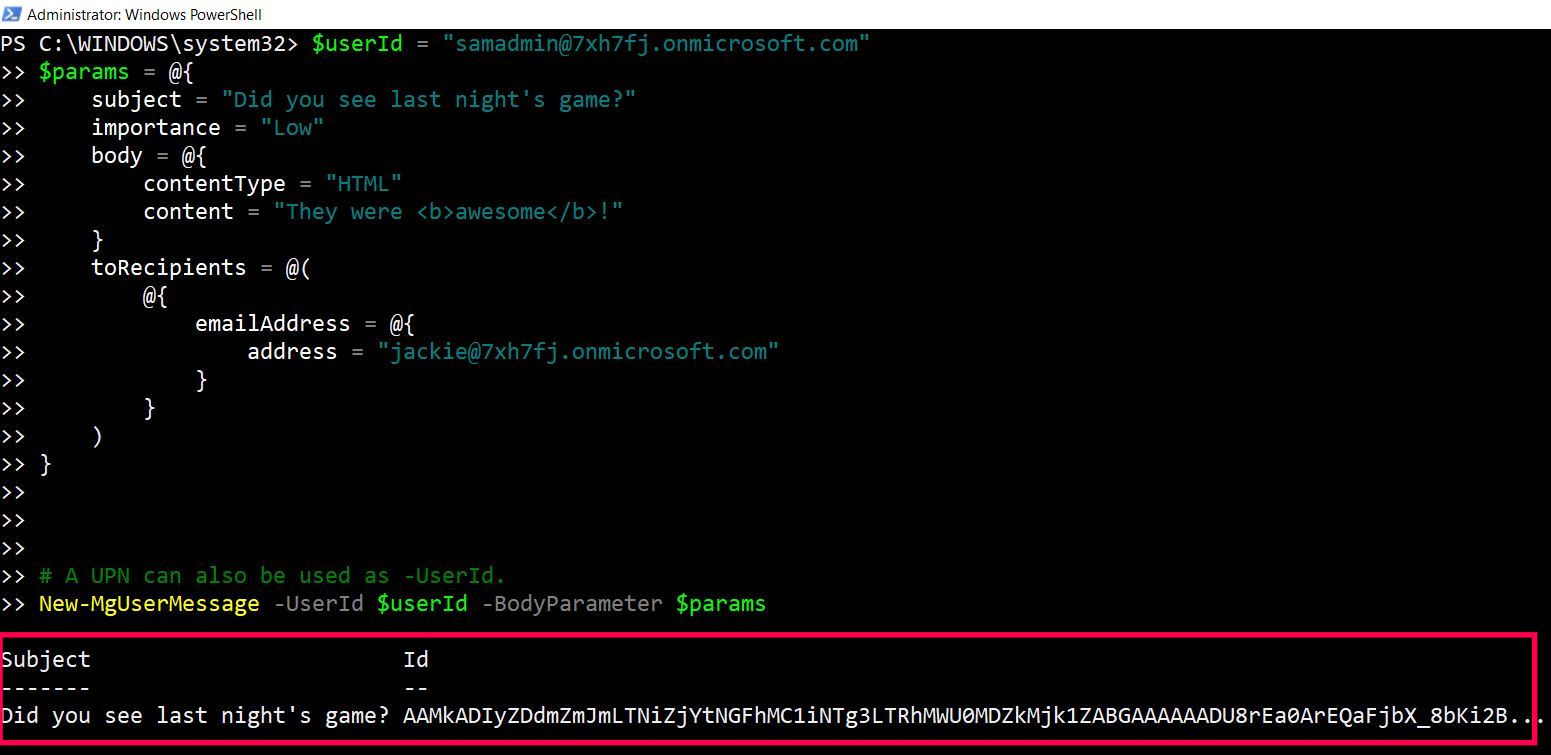
Create a Simple Email Message
$params = @{
subject = "Meeting Reminder"
body = @{
    contentType = "Text"
    content = "This is a reminder for the team meeting scheduled for tomorrow at 10 AM."
}
toRecipients = @(
    @{
        emailAddress = @{
        address = "john.doe@example.com"
    }
}
)
}

New-MgUserMessage -UserId "jane.doe@example.com" -BodyParameter $params
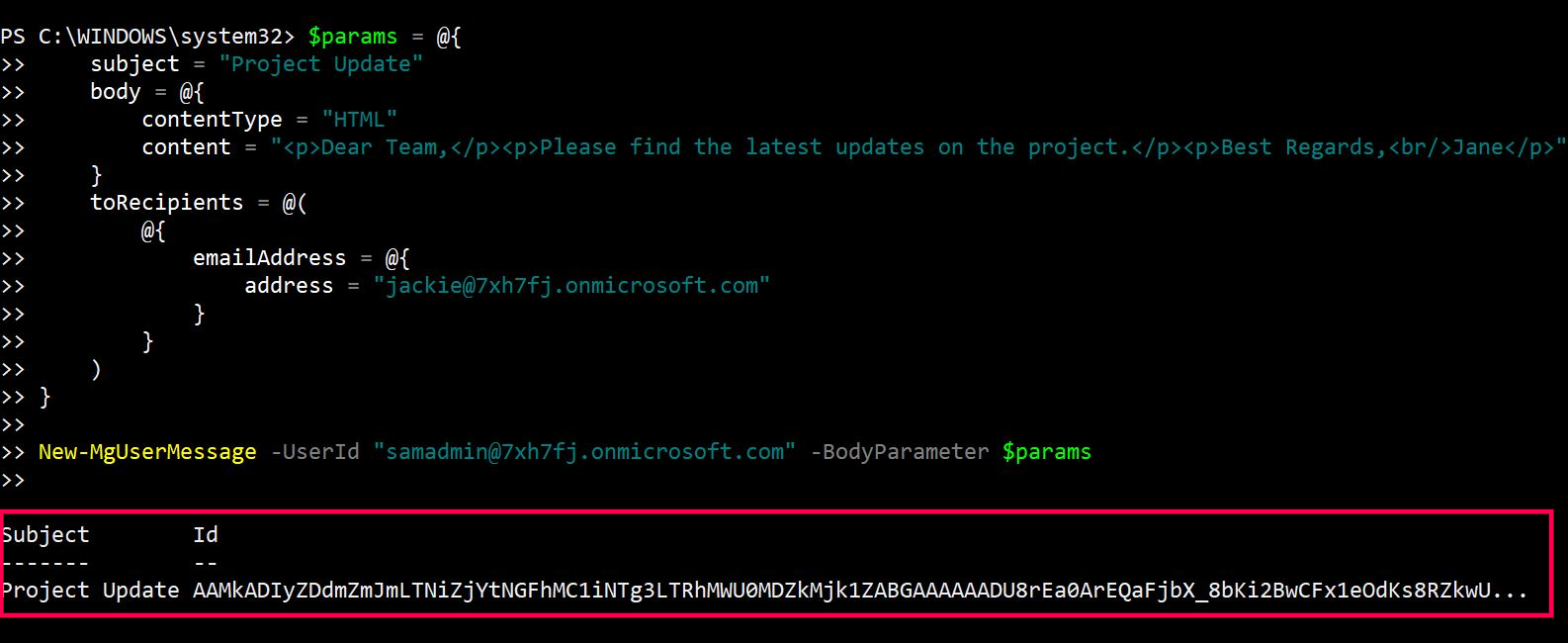
Create an HTML Email Message
$params = @{
subject = "Project Update"
body = @{
    contentType = "HTML"
    content = "<p>Dear Team</p><p>Please find the latest updates on the project.</p><p>Best
    Regards<br/>Jane</p>"
}
toRecipients = @(
    @{
        emailAddress = @{
        address = "team@example.com"
    }
}
)
}

New-MgUserMessage -UserId "jane.doe@example.com" -BodyParameter $params
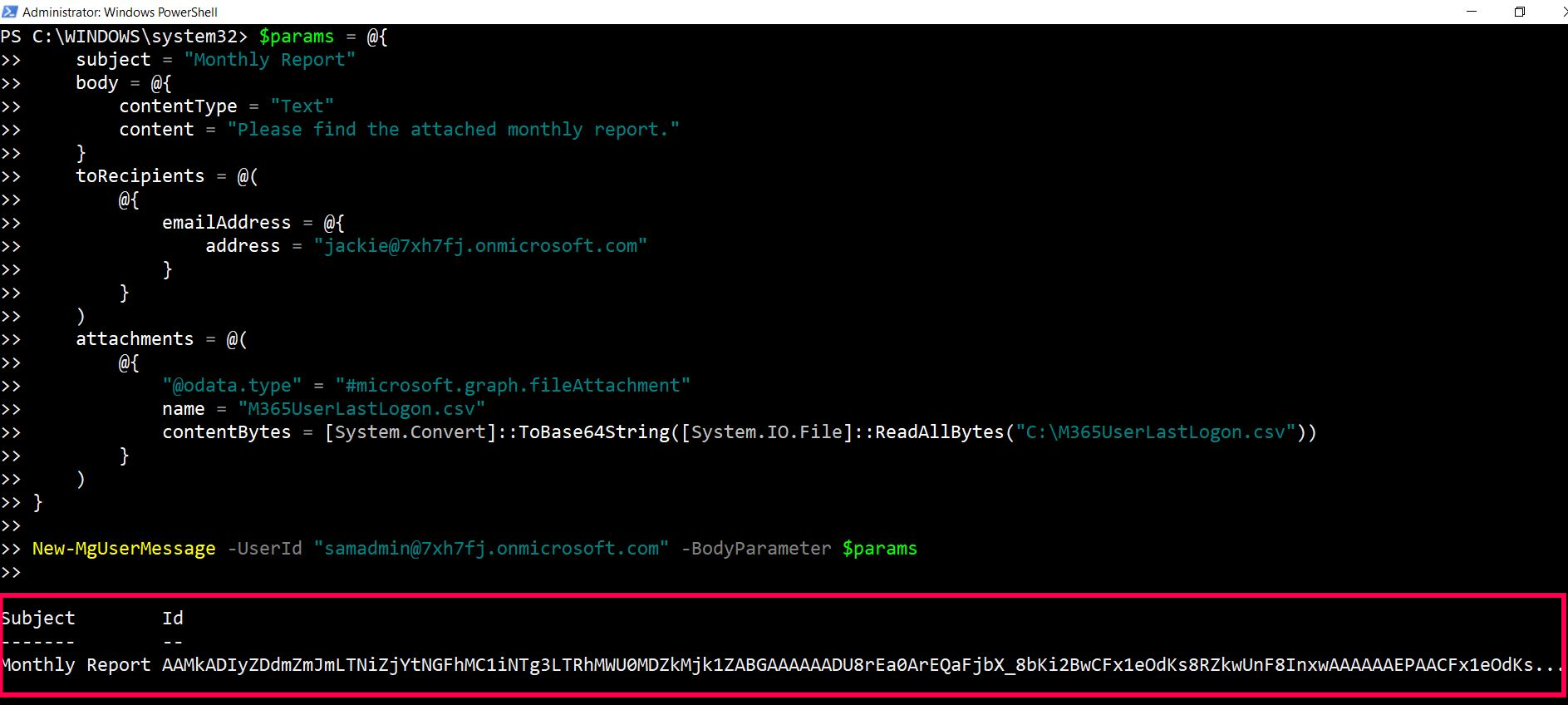
Create an Email with Attachments
$params = @{
subject = "Monthly Report"
    body = @{
    contentType = "Text"
    content = "Please find the attached monthly report."
    }
toRecipients = @(
    @{
    emailAddress = @{
    address = "manager@example.com"
    }
}
)
attachments = @(
    @{
        "@odata.type" = "#microsoft.graph.fileAttachment"
        name = "report.pdf"
        contentBytes =
        [System.Convert]::ToBase64String([System.IO.File]::ReadAllBytes("C:\Reports\report.pdf"))
    }
)

}
New-MgUserMessage -UserId "jane.doe@example.com" -BodyParameter $params
Real-World Email Automation Scenarios
Create a Draft Email
    $params = @{
    Subject = "Monthly Report"
        Body = @{
            ContentType = "Text"
            Content = "Please review the attached monthly report."
        }
    ToRecipients = @(
        @{
            EmailAddress = @{
            Address = "manager@contoso.com"
        }
    }
    )
    }

    New-MgUserMessage -UserId "admin@contoso.com" -BodyParameter $params
Use Case
This example creates a draft email that can later be reviewed or sent programmatically.
Bulk Notification Emails Using CSV
    Import-Csv users.csv | ForEach-Object {

    $params = @{
    Subject = "Policy Update"
        Body = @{
            ContentType = "Text"
            Content = "Please review the updated organizational policies."
        }
    ToRecipients = @(
        @{
            EmailAddress = @{
            Address = $_.Email
        }
    }
    )
    }

    New-MgUserMessage -UserId "admin@contoso.com" -BodyParameter $params
    }
Use Case
This is useful for organization-wide announcements and automated user communication.
Best Practices for New-MgUserMessage
To optimize the use of New-MgUserMessage, follow these best practices:
- Use the Correct API Permissions: Ensure the Mail.ReadWrite permission is granted to avoid authentication errors.
- Handle Errors Gracefully: Implement error handling to manage issues such as invalid email addresses.
- Secure Sensitive Information: Avoid exposing credentials or sensitive email data in scripts.
- Limit Attachments: Large attachments may cause performance issues, so consider alternative file-sharing methods if needed.
- Test Before Deployment: Always test your scripts in a non-production environment before deploying them.
Frequently Asked Questions
-
Can I create emails for multiple recipients using New-MgUserMessage?
Yes, you can include multiple recipients in the toRecipients array by adding additional email addresses. -
How do I format an email using New-MgUserMessage with both plain text and HTML?
You can set contentType to HTML in the body parameter to format the email content using HTML tags. - Can I create emails for a shared mailbox using New-MgUserMessage?
Yes, but you need Send As or Send on Behalf permissions for the shared mailbox. -
How do I add multiple attachments using New-MgUserMessage?
You can add multiple attachment objects in the attachments array following the same structure used for single attachments. -
How do I troubleshoot permission-related errors?
Ensure that the user running the command has the Mail.ReadWrite API permission and that the token is properly authenticated. -
What does New-MgUserMessage do?
The New-MgUserMessage cmdlet creates new email messages or draft messages in Exchange Online mailboxes using Microsoft Graph PowerShell. -
What permissions are required?
Common required permissions include: Mail.ReadWrite and Mail.Send -
Is New-MgUserMessage supported in Exchange Online?
Yes. The cmdlet works with Microsoft 365 mailboxes through Microsoft Graph PowerShell.
Possible Errors & Solutions
| Error | Cause | Solution |
| Access Denied | The user does not have Mail.ReadWrite permission. | Ensure that the user account has the required API permission. |
| Invalid Recipient Address | The email address provided is incorrect or does not exist. | Double-check the recipient email format and ensure the user exists. |
| Attachment Size Limit Exceeded | The attachment exceeds the allowed size limit. | Compress the file or use an alternative file-sharing method. |
| Message Not Sent | API rate limit exceeded or misconfigured parameters. | Check API limits and ensure the correct parameters are used. |
Conclusion
The New-MgUserMessage cmdlet is a powerful tool for sending emails programmatically using Microsoft Graph PowerShell. By leveraging its capabilities, IT administrators and developers can automate email workflows and enhance communication within Microsoft 365 environments.
Follow the best practices outlined in this guide to make the most out of New-MgUserMessage while ensuring security and efficiency in your PowerShell scripts.
New: User Management Graph PowerShell Toolkit
Simplify user tasks like bulk creation, updates, password resets, deletions, license checks, and more — all from one place.
Launch Toolkit