Microsoft 365 Free Reporting Tool — Unlicensed Users Report
Licenses are one of the most critical — and expensive — aspects of Microsoft 365 administration. Over time, it’s common to find users without licenses in the tenant, either intentionally or due to oversight.
The challenge is visibility.
The Microsoft 365 Unlicensed Users Report, available in the M365Corner Free Reporting Tool (also known as the Microsoft 365 free community dashboard or Free M365 Community Dashboard), gives administrators instant clarity into which users are unlicensed — without relying on manual filters or complex scripts.
Who Are Microsoft 365 Unlicensed Users?
Microsoft 365 unlicensed users are user accounts that exist in the tenant but do not have any Microsoft 365 licenses assigned.
These users may include:
- Newly created users awaiting license assignment
- External or internal users created for testing
- Accounts created by automation or sync processes
- Users whose licenses were removed but accounts retained
While unlicensed users may not have access to services like Exchange or Teams, they still exist in the directory and should be monitored for governance, compliance, and cost management.
Why Generate Microsoft 365 Unlicensed Users Report?
A Microsoft 365 Unlicensed Users Report helps admins make informed decisions and maintain tenant hygiene.
- ✔ Optimize license usage
- ✔ Improve onboarding workflows
- ✔ Strengthen governance
- ✔ Support audits and reviews
Identify users who need licenses assigned — or accounts that can be removed entirely.
Ensure new users are not forgotten without licenses.
Understand why unlicensed users exist and whether they are still required.
Auditors often ask for clarity around unused or inactive accounts.
Without a consolidated report, this process becomes fragmented and manual.
How to Generate Microsoft 365 Unlicensed Users Report?
Admins typically rely on one of the following approaches.
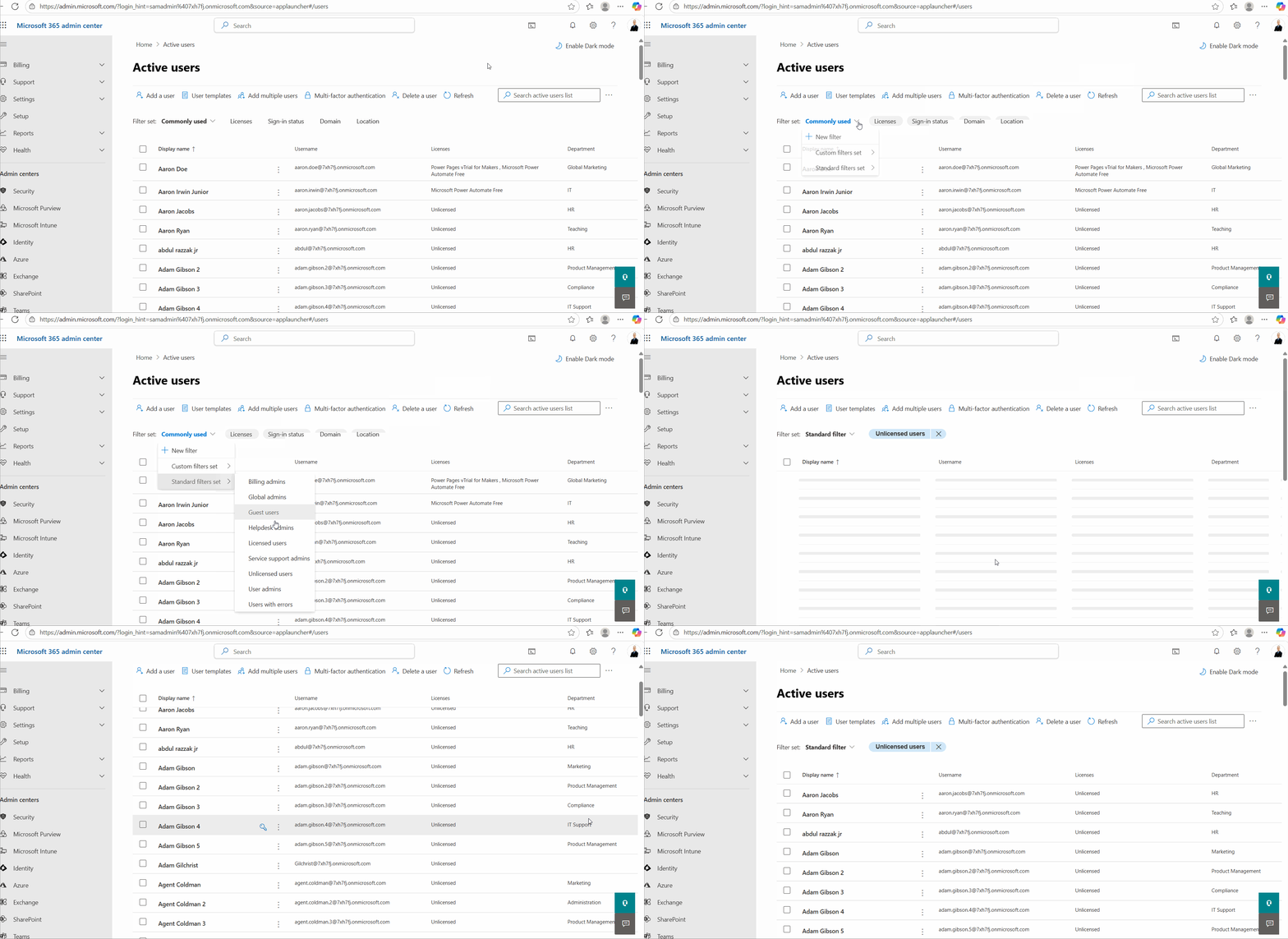
- Using Microsoft 365 Admin Center
- Go to Users → Active users
- Manually apply License status = Unlicensed
- Review results
- Filters must be applied manually each time
- No filtering by Department or Job Title
- Not designed for reporting or exports
- Time-consuming for repeated checks
- Using Microsoft Entra ID Admin Center
- View users individually
- Check license assignments per user
- No native unlicensed user filter
- No bulk visibility
- Not suitable for reporting
- Using Graph PowerShell
- Requires Graph and PowerShell expertise
- Requires $count logic and consistency level handling
- Manual CSV export and error handling
- Not ideal for quick or frequent reporting
- Using M365Corner Microsoft 365 Free Reporting Tool
- No scripts required
- No complex filters
- Filter by Department, Job Title, and Account status
- One-click CSV export
- Report Shareable by Mail
The Microsoft 365 Admin Center allows you to view license status — but only with manual filtering.
Steps involved:
Limitations
Currently, the Microsoft Entra ID Admin Center does not provide a direct filter for unlicensed users.
Admins must:
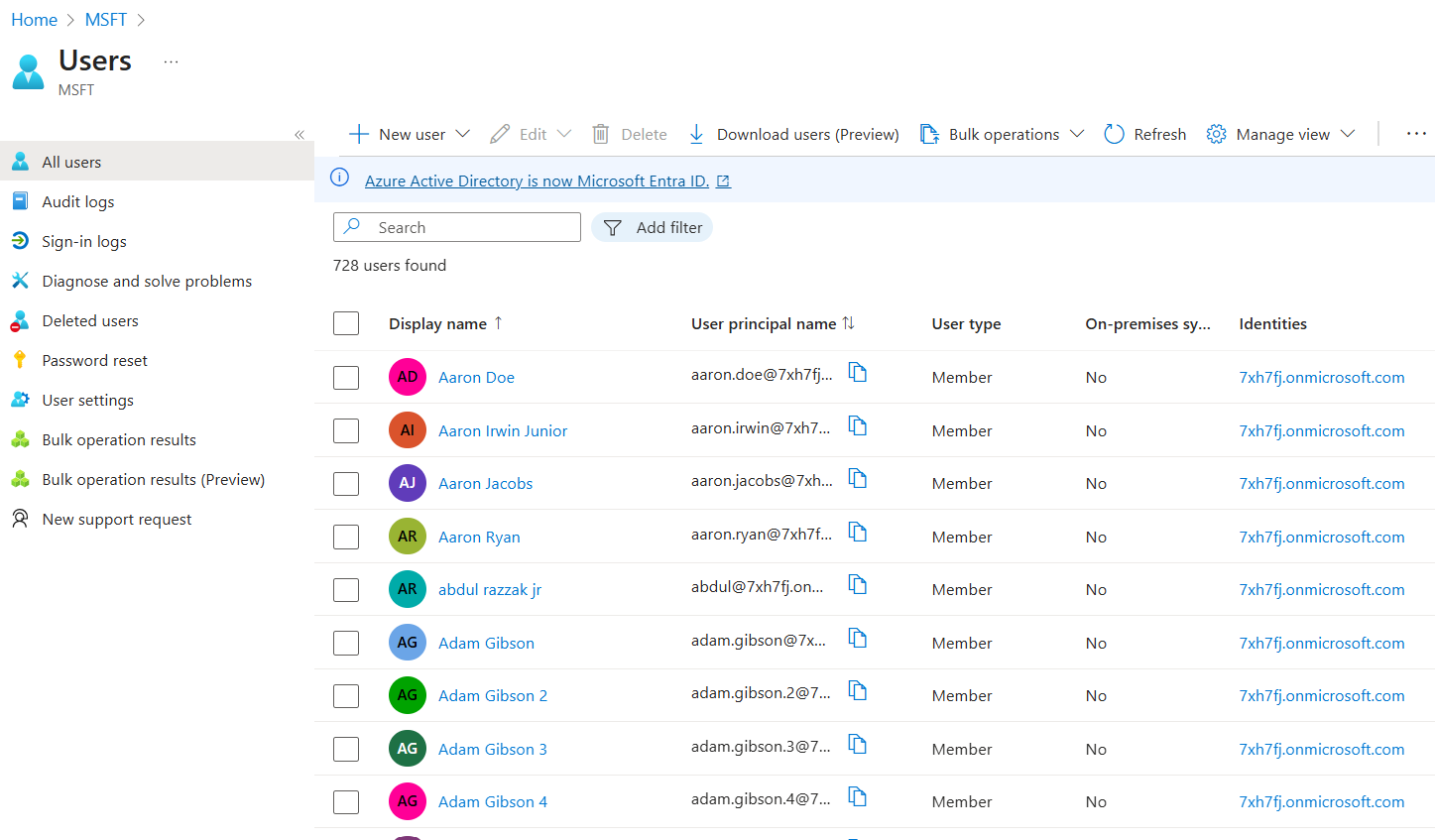
Limitations
Graph PowerShell provides the flexibility to identify unlicensed users programmatically — but it requires scripting knowledge and additional setup.
Sample Graph PowerShell Script
(As demonstrated here: https://m365corner.com/m365-powershell/fetch-unlicensed-users-email-report-graph-powershell.html)
Connect-MgGraph -Scopes "User.Read.All","Mail.Send"

# --- Build Filter: unlicensed members only, enabled accounts ---
# Note: Using $count in filter requires -ConsistencyLevel eventual and -CountVariable
$filter = "assignedLicenses/`$count eq 0 and userType eq 'Member' and accountEnabled eq true"

# --- Fetch Users ---
$selectProps = "id","displayName","userPrincipalName","jobTitle","department","accountEnabled","createdDateTime"
$null = $null
$users = Get-MgUser -All -Filter $filter -ConsistencyLevel eventual -CountVariable total -Property $selectProps |
Select-Object $selectProps

# --- Export to CSV ---
if (-not (Test-Path -Path $CsvOutDir)) { New-Item -ItemType Directory -Path $CsvOutDir | Out-Null }
$ts = Get-Date -Format "yyyyMMdd_HHmmss"
$csvPath = Join-Path $CsvOutDir ("UnlicensedUsers_{0}.csv" -f $ts)
$users | Export-Csv -Path $csvPath -NoTypeInformation -Encoding UTF8
Downsides of PowerShell
This is where the Free M365 Community Dashboard offers a simpler alternative.
With the M365Corner Microsoft 365 Free Reporting Tool, generating a Microsoft 365 Unlicensed Users Report is effortless.
👉 You can generate the Unlicensed Users Report at the click of a button.
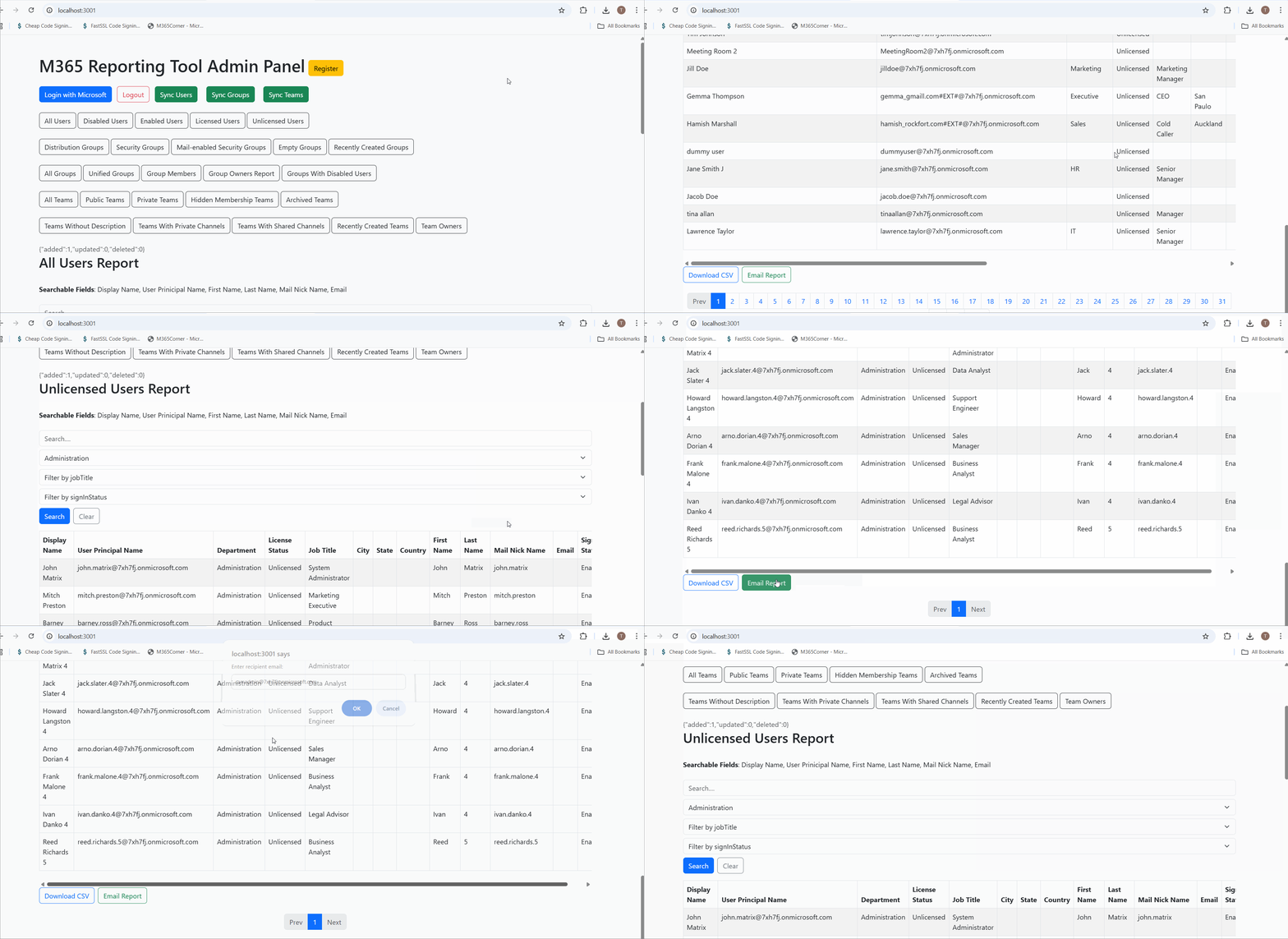
Why this helps admins
This dramatically quickens reporting, giving admins instant clarity on license gaps and helping optimize Microsoft 365 licensing with confidence.
Unlicensed Users Report
- 🔗 Learn More About Unlicensed Users Report
- 🔗 Explore All Reports in the M365 Free Reporting Tool
- 🔗 Download the Community Edition
https://m365corner.com/m365-free-tools/microsoft-365-unlicensed-user-report.html
See what the report includes and how it helps optimize license usage.
https://m365corner.com/m365-free-tools/m365corner-reporting-tool.html
Discover all reports available in the Microsoft 365 free community dashboard.
https://github.com/m365corner/m365corner-reporting-tool-community-edition.git
Start using the Free M365 Community Dashboard today.
The M365 Free Reporting Tool removes guesswork from license management and gives Microsoft 365 administrators the visibility they need — quickly, reliably, and without complexity.
Did You Know? Managing Microsoft 365 applications is even easier with automation. Try our Graph PowerShell scripts to automate tasks like generating reports, cleaning up inactive Teams, or assigning licenses efficiently.
Ready to get the most out of Microsoft 365 tools? Explore our free Microsoft 365 administration tools to simplify your administrative tasks and boost productivity.