Microsoft 365 Free Reporting Tool — Empty Groups Report
Microsoft 365 groups play a critical role in collaboration, access control, and service integrations across Microsoft 365. But over time, many environments accumulate empty Microsoft 365 groups — groups that exist without any members.
The M365 Free Reporting Tool (also referred to as the Microsoft 365 free community dashboard or Free M365 Community Dashboard) makes identifying these groups effortless through a dedicated Empty Groups Report.
This blog explains what empty groups are, why they matter, and how to generate an Empty Groups Report using native tools, PowerShell, and finally, the simplest approach — the M365Corner Free Reporting Tool.
What Are Empty Microsoft 365 Groups?
An empty Microsoft 365 group is a group that has no members assigned to it. These groups may have been created for:
- Projects that never started
- Teams that were deleted later
- Temporary collaboration needs
- Automation or testing purposes
Although empty, these groups still exist in the tenant and can:
- Consume directory objects
- Create confusion during audits
- Pose governance and security concerns
- Add unnecessary clutter to the environment
Why Generate an Empty Microsoft 365 Groups Report?
Identifying empty groups is essential for maintaining a clean and well-governed tenant.
- ✔ Improve tenant hygiene
- ✔ Reduce security risks
- ✔ Support audits and compliance
- ✔ Simplify administration
Remove unused or orphaned groups that serve no purpose.
Ensure empty groups are not mistakenly granted permissions later.
Auditors often ask for unused or inactive object reviews.
Fewer unnecessary groups mean less confusion for admins and users alike.
Generating an Empty Microsoft 365 Groups Report gives admins the clarity needed to take informed action.
How to Generate Empty Microsoft 365 Groups Report?
There are three common ways to identify empty Microsoft 365 groups. Let’s walk through each.
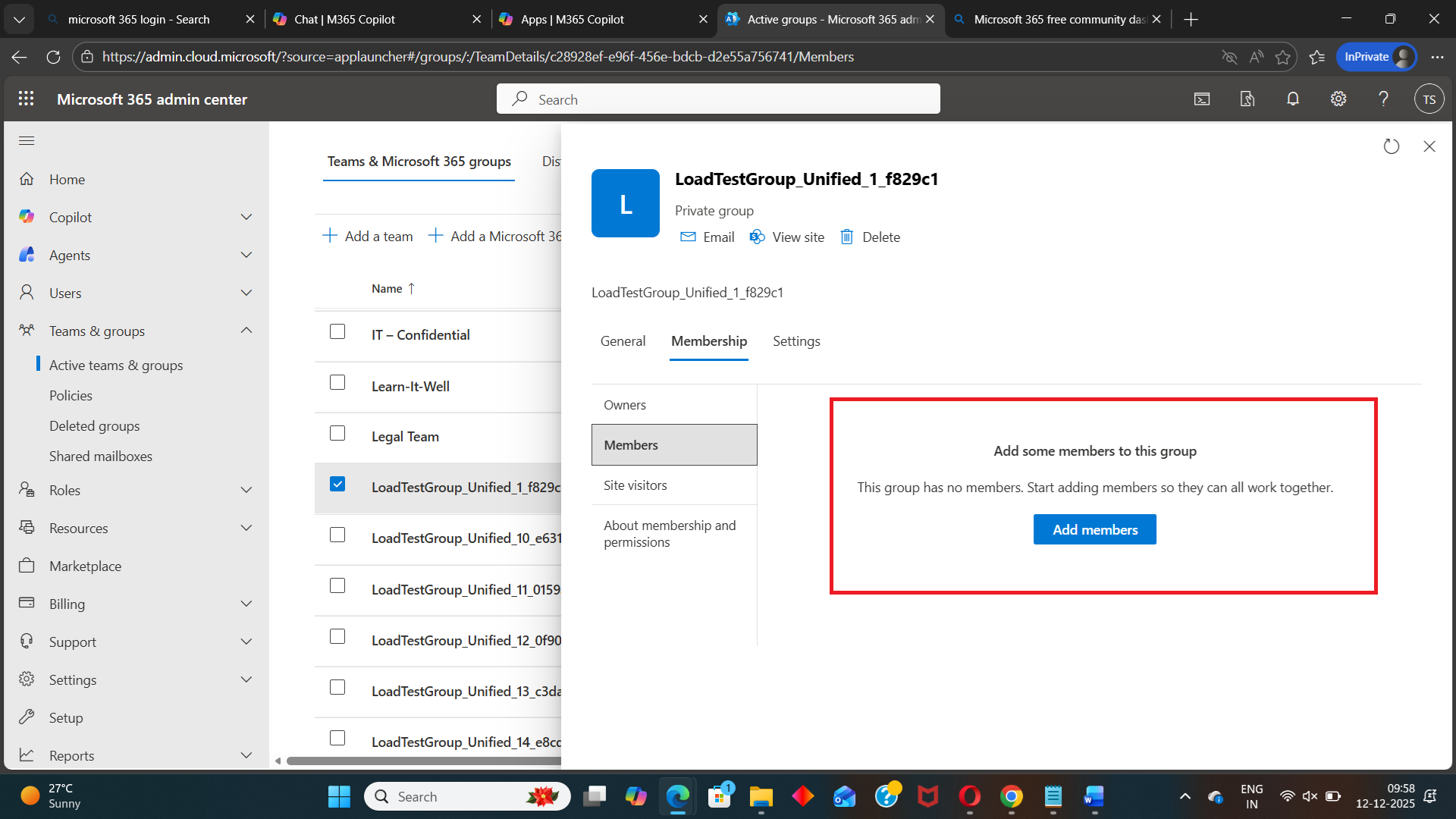
- Using Microsoft 365 Admin Center
- Open each Microsoft 365 group individually
- Navigate to the Members tab
- Manually verify whether members exist
- Extremely time-consuming
- No bulk visibility
- Not scalable for large tenants
- Using Graph PowerShell
- Requires Graph permissions and scripting expertise
- Error handling required
- Manual CSV export needed
- Not ideal for frequent or quick reporting
- Using M365Corner Microsoft 365 Free Reporting Tool
- No scripts
- No admin center hopping
- Instant visibility across the tenant
- One-click CSV export
- Ability to mail report
- Clear and consistent reporting
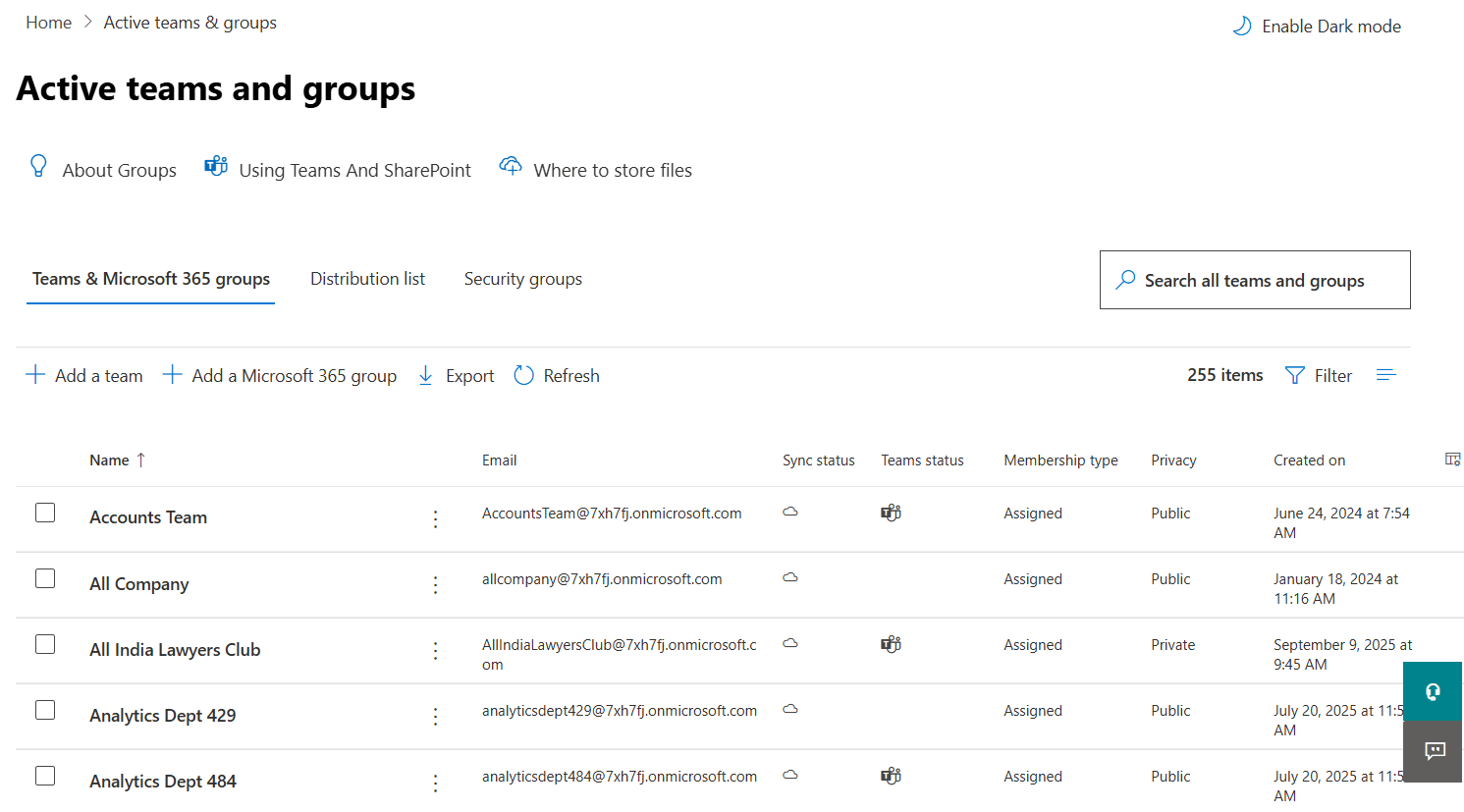
The Microsoft 365 Admin Center does not offer a direct way to identify empty groups.
Admins must:
❌ Drawbacks
Graph PowerShell allows you to programmatically identify empty groups — but it requires scripting knowledge and additional effort.
Sample PowerShell Script
(As demonstrated here:
https://m365corner.com/m365-powershell/generate-empty-microsoft-365-groups-report-using-graph-powershell.html)
Connect-MgGraph -Scopes "Group.Read.All", "GroupMember.Read.All", "Mail.Send"

$AdminUPN = "admin@yourtenant.onmicrosoft.com"

$unifiedGroups = Get-MgGroup -All -Property Id, DisplayName, Mail, GroupTypes, CreatedDateTime, ResourceProvisioningOptions |
Where-Object {
    $_.GroupTypes -contains "Unified" -and
    ($_.ResourceProvisioningOptions -notcontains "Team")
}

Write-Host "`nChecking each Microsoft 365 Group (excluding Teams) for members..." -ForegroundColor Cyan

$emptyUnifiedGroups = foreach ($group in $unifiedGroups) {
    $members = Get-MgGroupMember -GroupId $group.Id -ErrorAction SilentlyContinue
    if (-not $members) {
        [PSCustomObject]@{
            DisplayName = $group.DisplayName
            Mail        = $group.Mail
            GroupId     = $group.Id
            CreatedDate = $group.CreatedDateTime
        }
    }
}
⚠️ Downsides of PowerShell
This is where the Free M365 Community Dashboard becomes the better alternative.
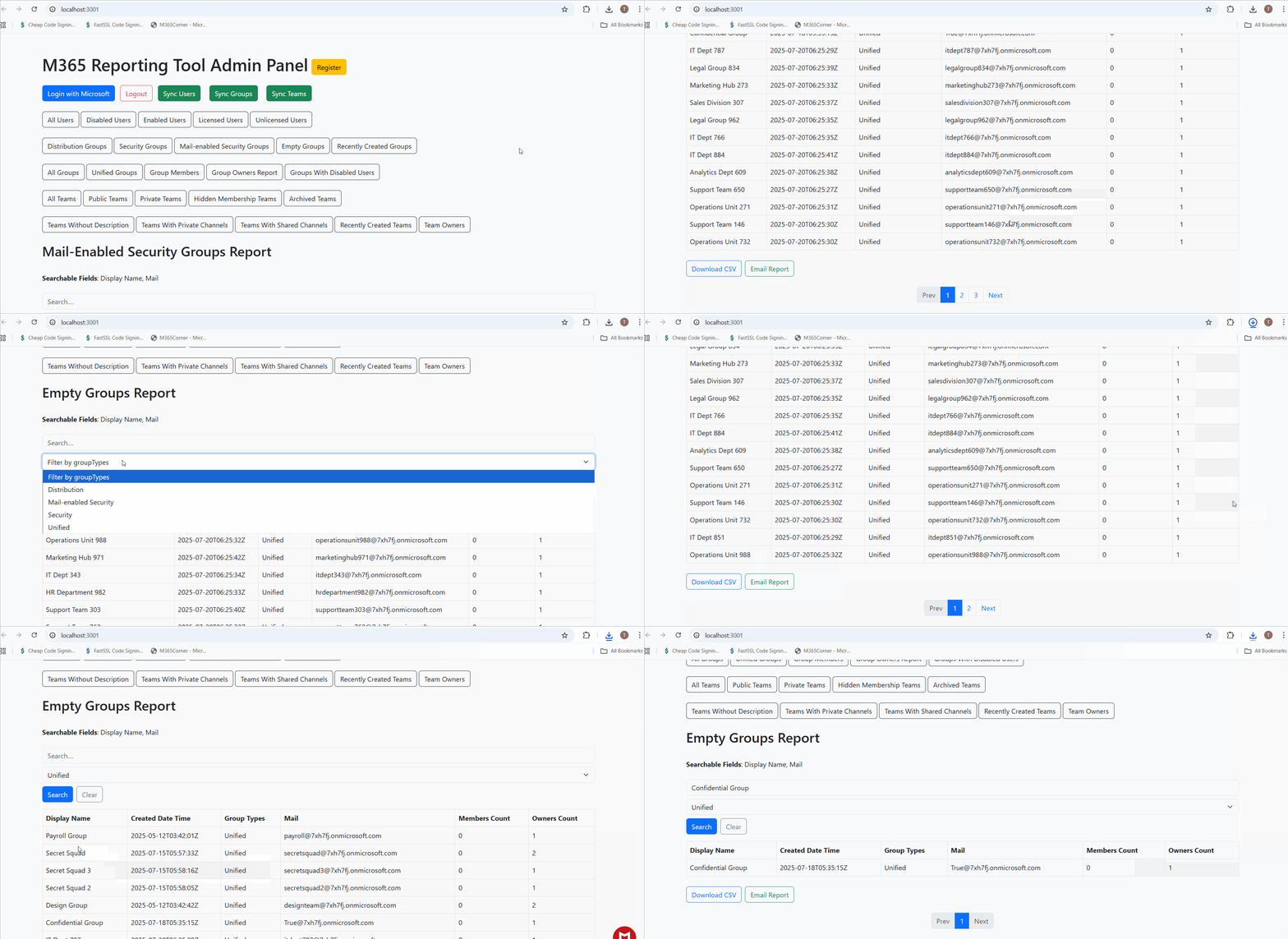
With the M365Corner Microsoft 365 Free Reporting Tool, generating an Empty Groups Report is effortless.
👉 You can generate the Microsoft 365 Empty Groups Report at the click of a button.
Why this matters for admins
This dramatically speeds up decision-making, helping admins quickly identify cleanup candidates and maintain tenant hygiene with confidence.
Explore the Empty Groups Report
- Learn More About Empty Groups Report https://m365corner.com/m365-free-tools/microsoft-365-empty-groups-report.html
- Explore All Reports in the M365 Free Reporting Tool https://m365corner.com/m365-free-tools/m365corner-reporting-tool.html
- Download the Community Edition https://github.com/m365corner/m365corner-reporting-tool-community-edition.git
Discover what the report shows and how it helps maintain a clutter-free tenant.
View all reports included in the Microsoft 365 free community dashboard.
Download and start using the M365 Free Reporting Tool today.
The Free M365 Community Dashboard removes complexity from Microsoft 365 reporting and replaces it with clarity, speed, and simplicity — exactly what admins need.
Did You Know? Managing Microsoft 365 applications is even easier with automation. Try our Graph PowerShell scripts to automate tasks like generating reports, cleaning up inactive Teams, or assigning licenses efficiently.
Ready to get the most out of Microsoft 365 tools? Explore our free Microsoft 365 administration tools to simplify your administrative tasks and boost productivity.