Microsoft 365 Free Reporting Tool — Archived Teams Report
Microsoft Teams is the core of collaboration for many organizations. As Teams grow in number, so does the need for proper lifecycle management. One critical part of that lifecycle is identifying archived Teams — Teams that are no longer active but still present in your environment.
The M365Corner Microsoft 365 Free Reporting Tool (also known as the Microsoft 365 free community dashboard or Free M365 Community Dashboard) makes this process extremely simple by offering a clean, prebuilt Archived Teams Report.
This blog walks you through what archived Teams are, why this report matters, and how to generate it using Admin Center, PowerShell, and finally, the most convenient method — the M365 Free Reporting Tool.
What Are Archived Microsoft Teams?
An archived Microsoft Team is a team that has been placed in a read-only state.
This means:
- Members can still view content
- No new posts, edits, or file uploads can be made
- Owners can restore the Team whenever needed
- Channels remain accessible but inactive
Organizations archive Teams when a project is completed, a department is restructured, or collaborative work has concluded — effectively preserving historical information without deleting it.
Why Generate an Archived Microsoft Teams Report?
Knowing which Teams are archived provides important clarity for admins:
- ✔ Identify stale or inactive collaboration spaces
- ✔ Improve governance and reduce clutter
- ✔ Support compliance and audit workflows
- ✔ Help owners plan lifecycle actions
Archived Teams often indicate completed work, making them ideal candidates for cleanup, retention review, or migration planning.
Too many active Teams can confuse users. A clean environment improves productivity and security.
Many organizations must show that inactive Teams are properly handled during audits.
With a report, admins can notify owners or take bulk action based on archived status.
For these reasons, an Archived Teams Report is one of the most valuable insights an admin can generate.
How to Generate Archived Teams Report?
There are three major ways to generate this report. Below, we compare each one.
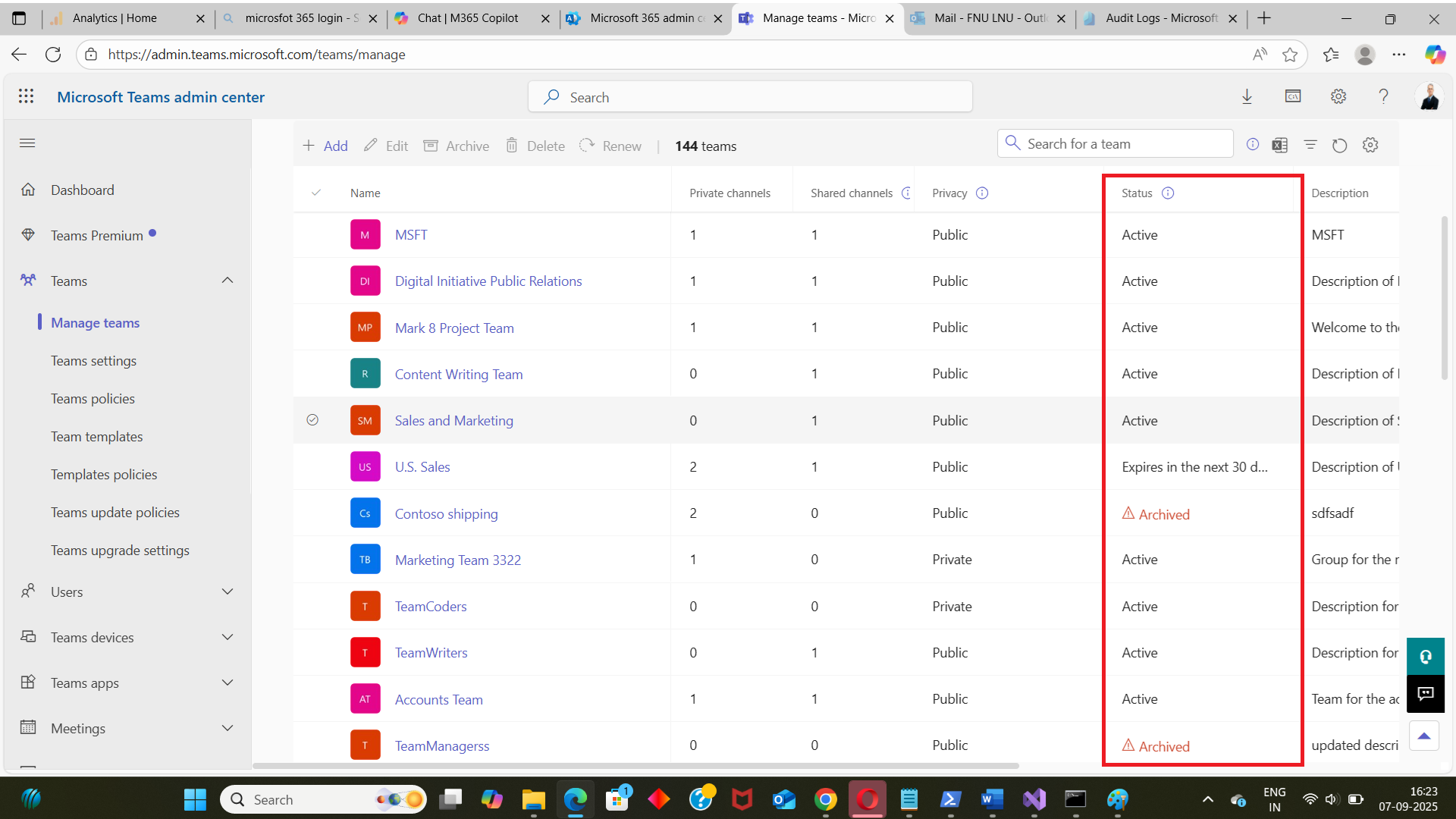
- Using Microsoft Teams Admin Center
- Go to Teams admin center
- Navigate to Teams → Manage Teams
- Look for the Status column
- Teams marked as Archived will show an “Archived” label
- Using Graph PowerShell
- Requires script knowledge
- Takes more time
- Must handle authentication, modules, errors
- Requires CSV export logic
- Not ideal for quick, repeated reporting
- Using M365Corner Microsoft 365 Free Reporting Tool
- Fastest way to fetch archived Teams
- Zero scripting knowledge required
- Cleaner visibility than Admin Center
- Reliable results powered by Microsoft Graph
- Perfect for audits, cleanup, and lifecycle management
- Archived Teams Report Overview https://m365corner.com/m365-free-tools/microsoft-archived-teams-report.html
- All Reports in the M365 Free Reporting Tool https://m365corner.com/m365-free-tools/m365corner-reporting-tool.html
- Download the Community Edition on GitHub https://github.com/m365corner/m365corner-reporting-tool-community-edition.git
You can check archived Teams inside the Teams Admin Center, but it’s manual and slow.
Where to find it:
Downside:
PowerShell gives you full control — but requires scripting knowledge, Graph permissions, and handling output formatting manually.
Sample Script to Fetch Archived Teams
(From the M365Corner article listed here:
https://m365corner.com/m365-powershell/email-archived-teams-report-graph-powershell.html)
# --- Connect to Microsoft Graph ---
Import-Module Microsoft.Graph -ErrorAction Stop
Connect-MgGraph -Scopes "Group.Read.All","Team.ReadBasic.All","Mail.Send"

# --- Get Teams-enabled groups (Microsoft 365 groups that back Teams) ---
$teamsGroups = Get-MgGroup -All -Filter "resourceProvisioningOptions/Any(x:x eq 'Team')" `
-Property "id,displayName,description,visibility,createdDateTime,mailNickname"

# --- Build rows only for archived Teams ---
$rows = @()

foreach ($g in $teamsGroups) {
    try {
        # Fetch the Team resource to read IsArchived
        $team = Get-MgTeam -TeamId $g.Id -ErrorAction Stop
        if ($team.IsArchived -eq $true) {
            $rows += [PSCustomObject]@{
                TeamId       = $g.Id
                TeamName     = $g.DisplayName
                Description  = $g.Description
                Visibility   = $g.Visibility
                CreatedDate  = $g.CreatedDateTime
                IsArchived   = $team.IsArchived
            }
        }
    } catch {
        # If team fetch fails (e.g., recently deleted/team not fully provisioned), skip gracefully
    }
}
Downside of Using PowerShell
This is where the M365 Free Reporting Tool becomes the simpler and more efficient choice.
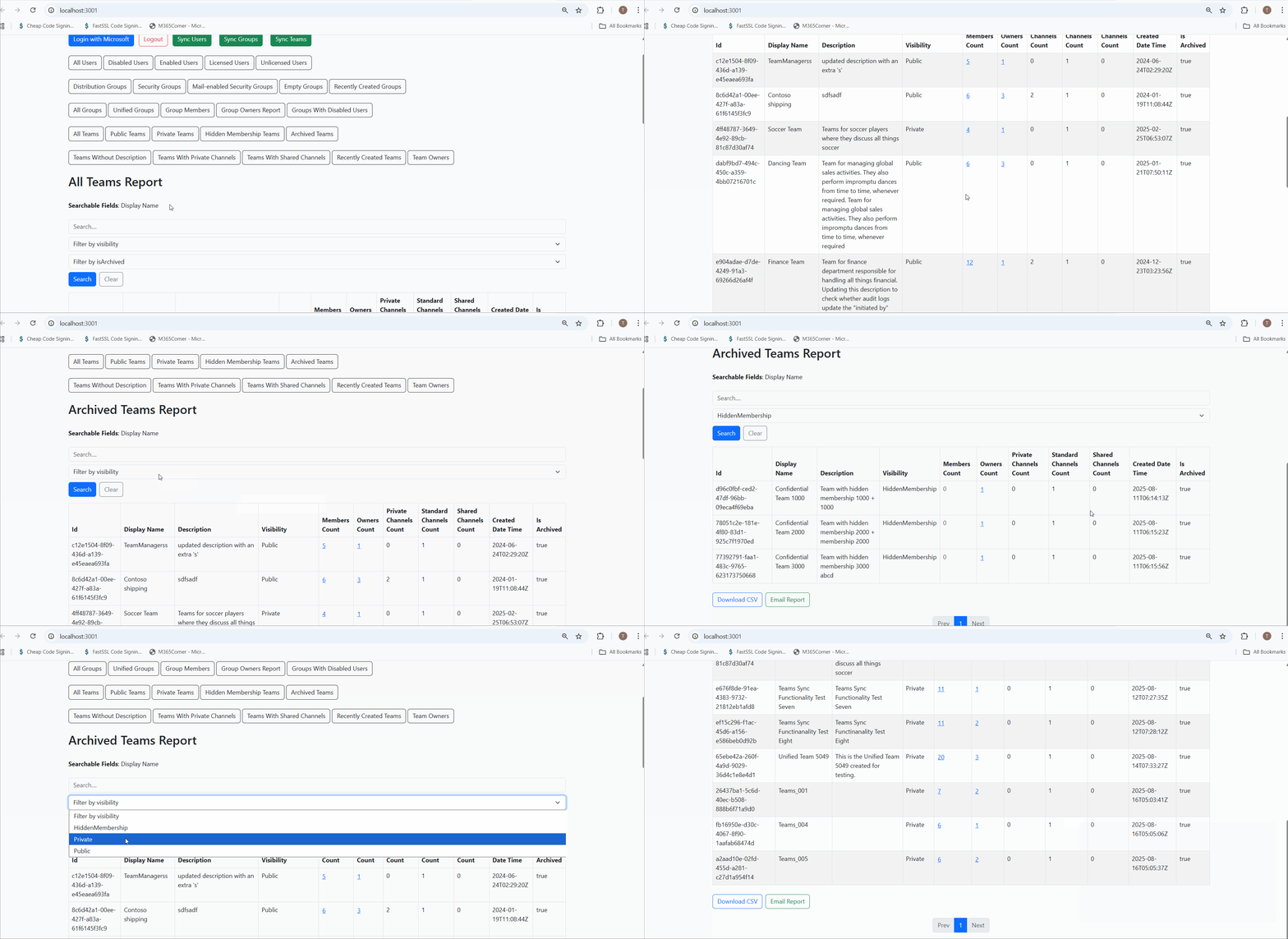
The M365Corner Free Reporting Tool (also known as the Free M365 Community Dashboard) gives you the Archived Teams Report at the click of a button — no scripts, no Admin Center navigation, no complexity.
What you get instantly: Team ID, Team Name, Description, Visibility, Created Date, Archived Status and more details about archived teams, plus CSV export and mail report options.
Why admins prefer this method:
In short:
It quickens reporting, gives clarity, and reduces admin effort significantly.
Call to Action — Try the Archived Teams Report Today
To learn more about the report or start using the M365 Free Reporting Tool, visit the links below:
Learn what the report shows and how it helps with lifecycle management.
Explore 20+ reports included in the Microsoft 365 free community dashboard.
Install and start using the M365 Free Reporting Tool in minutes.
Did You Know? Managing Microsoft 365 applications is even easier with automation. Try our Graph PowerShell scripts to automate tasks like generating reports, cleaning up inactive Teams, or assigning licenses efficiently.
Ready to get the most out of Microsoft 365 tools? Explore our free Microsoft 365 administration tools to simplify your administrative tasks and boost productivity.