How to Get Microsoft 365 User Creation Audit Logs Without PowerShell
Tracking user creation activity in Microsoft 365 is a critical task for administrators.
Whether it’s for:
- Security monitoring
- Compliance audits
- Investigating unexpected account creation
👉 You need clear visibility into who created a user and when.
While Microsoft provides audit logs for this, getting the exact information you need isn’t always straightforward.
The Challenge with Native Audit Logs
To retrieve user creation logs using the default approach, admins typically need to:
- Navigate to the Entra Admin Center
- Go to Audit Logs
- Apply filters for “Add user” activity
- Manually inspect each log entry
Sounds simple — but in practice:
- Filtering isn’t always intuitive (especially for new admins)
- Results are not structured for quick analysis
- You often need to open individual logs to identify:
- Who performed the action (Actor)
- Which user was created (Target)
👉 This process can quickly become time-consuming.
A Simpler Approach Is Coming Soon
If you’ve ever felt that this process could be simpler — you’re not alone.
At M365Corner, we’ve been working on a free Microsoft 365 reporting tool designed to eliminate these exact challenges.
👉 The idea is simple:
Instead of navigating multiple portals and applying filters manually, you’ll be able to generate structured audit reports in just a few clicks.
How This Will Work (Preview)
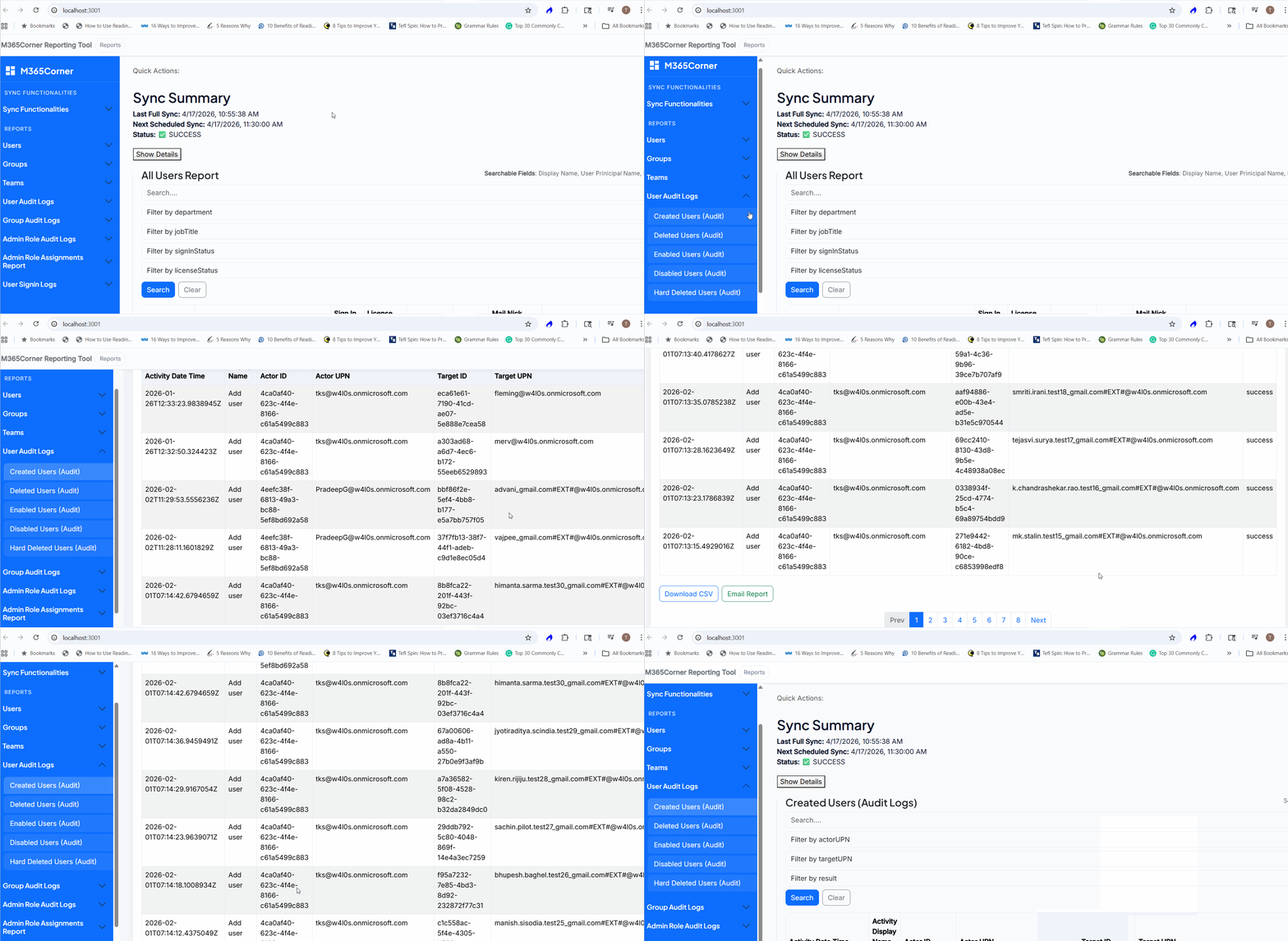
Once released, generating a User Creation Audit Logs report will be as simple as:
- Go to User Audit Logs
- Click on Created Users (Audit) Report
- The report is generated instantly
No complex filters. No digging through logs.
What the Report Will Provide
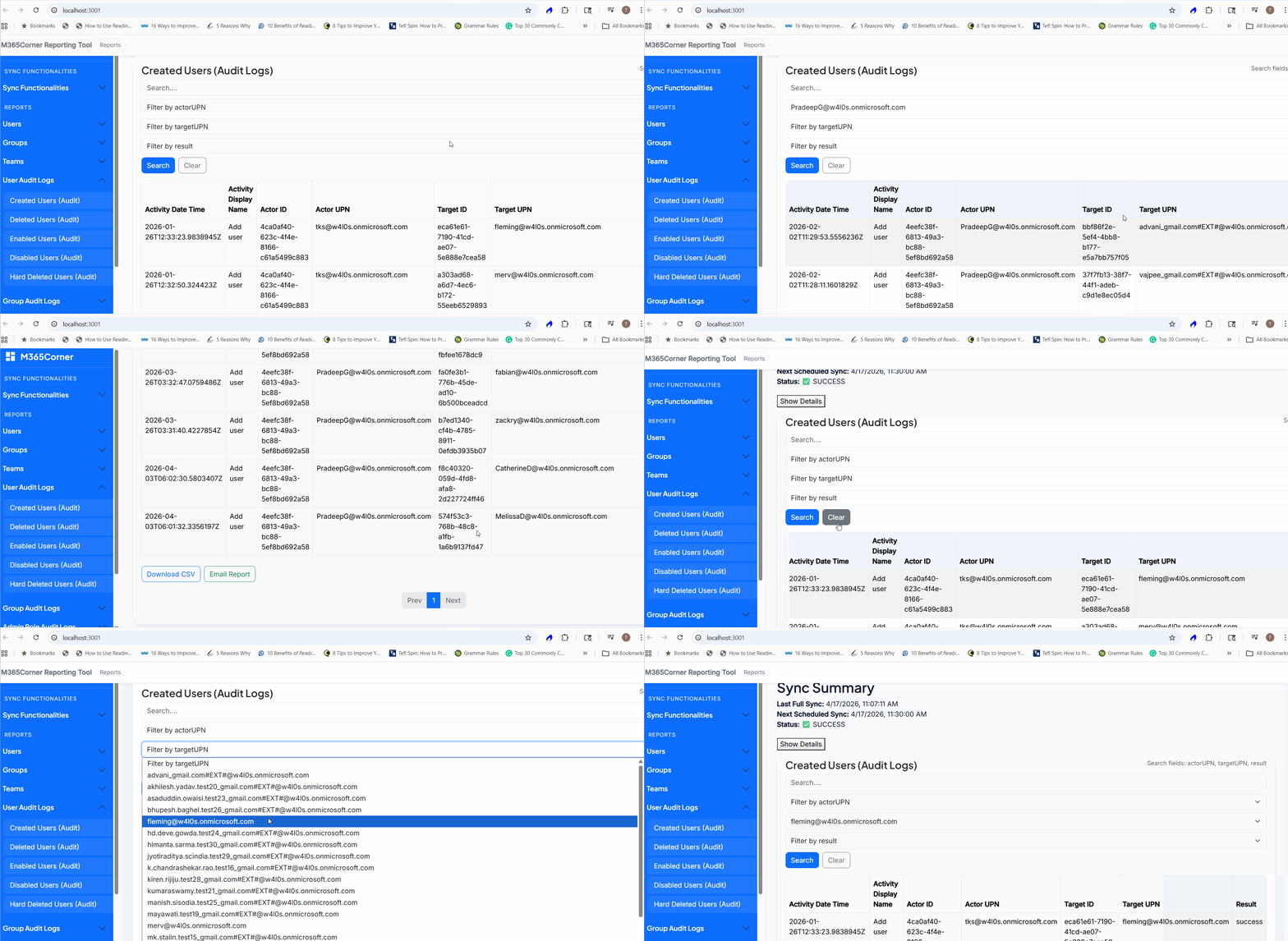
The upcoming Created Users (Audit) Report is designed to give you clear, actionable insights:
- Actor UPN
- Actor ID
- Target UPN
- Target ID
- Success
- Failure
- Activity date and time
- Modified properties (if required)
Filter by Actor (Who performed the action)
👉 Quickly identify who created the user
Filter by Target (Which user was created)
👉 Track exactly which accounts were created
Filter by Result
👉 Spot failed attempts or suspicious activity
Activity Details
👉 Get full context without opening individual logs
Understanding Actor vs Target (Quick Note)
In Entra audit logs:
- Actor → The user/admin who performs the action
- Target → The object being affected (in this case, the newly created user)
This distinction is critical for auditing and investigations.
Important Note: Data Sync
For accurate reporting, the tool will sync with your tenant data.
This can be done via:
- 🔄 Scheduled sync (every 30 minutes)
- 🖱️ Manual sync (on demand)
👉 Once data is synced, reports can be generated instantly.
Native Method vs What’s Coming
| Task | Native Approach | Upcoming Tool |
|---|---|---|
| Navigate to logs | Multiple steps | Single screen |
| Apply filters | Manual | Built-in |
| Identify Actor/Target | Manual inspection | Pre-structured |
| Time taken | High | Minimal |
👉 What currently takes minutes (or longer) will soon take just seconds.
Why This Matters
Efficient reporting is not just about convenience — it’s about:
- Faster investigations
- Better security visibility
- Reduced admin effort
- Consistent monitoring
This is exactly where a Microsoft 365 free reporting tool can make a difference.
Final Thoughts
Microsoft provides powerful audit logs — but accessing and interpreting them shouldn’t slow you down.
With the upcoming M365Corner Free Reporting Tool, user creation tracking is set to become faster, simpler, and more actionable.
If you’re looking for a free Microsoft 365 reporting tool that eliminates scripting and manual filtering, this is something worth keeping an eye on.
👉 We’ll be sharing more details, including release updates, very soon.