How to Enable MFA in Microsoft Entra
Multi-Factor Authentication (MFA) in Microsoft Entra ID adds an extra layer of security by requiring users to verify their identity using more than just a password.
MFA helps protect accounts from unauthorized access, even if a password is compromised.
Administrators can enable MFA using the Microsoft Entra Admin Center or configure it using Microsoft Graph PowerShell (via policies).
MFA can be enabled using:
- Microsoft Entra Admin Center (GUI)
- Conditional Access policies (recommended approach)
- Microsoft Graph PowerShell (policy-based configuration)
Enable MFA Using the Microsoft Entra Admin Center
Method 1: Per-User MFA (Legacy Method)
- Go to: https://entra.microsoft.com
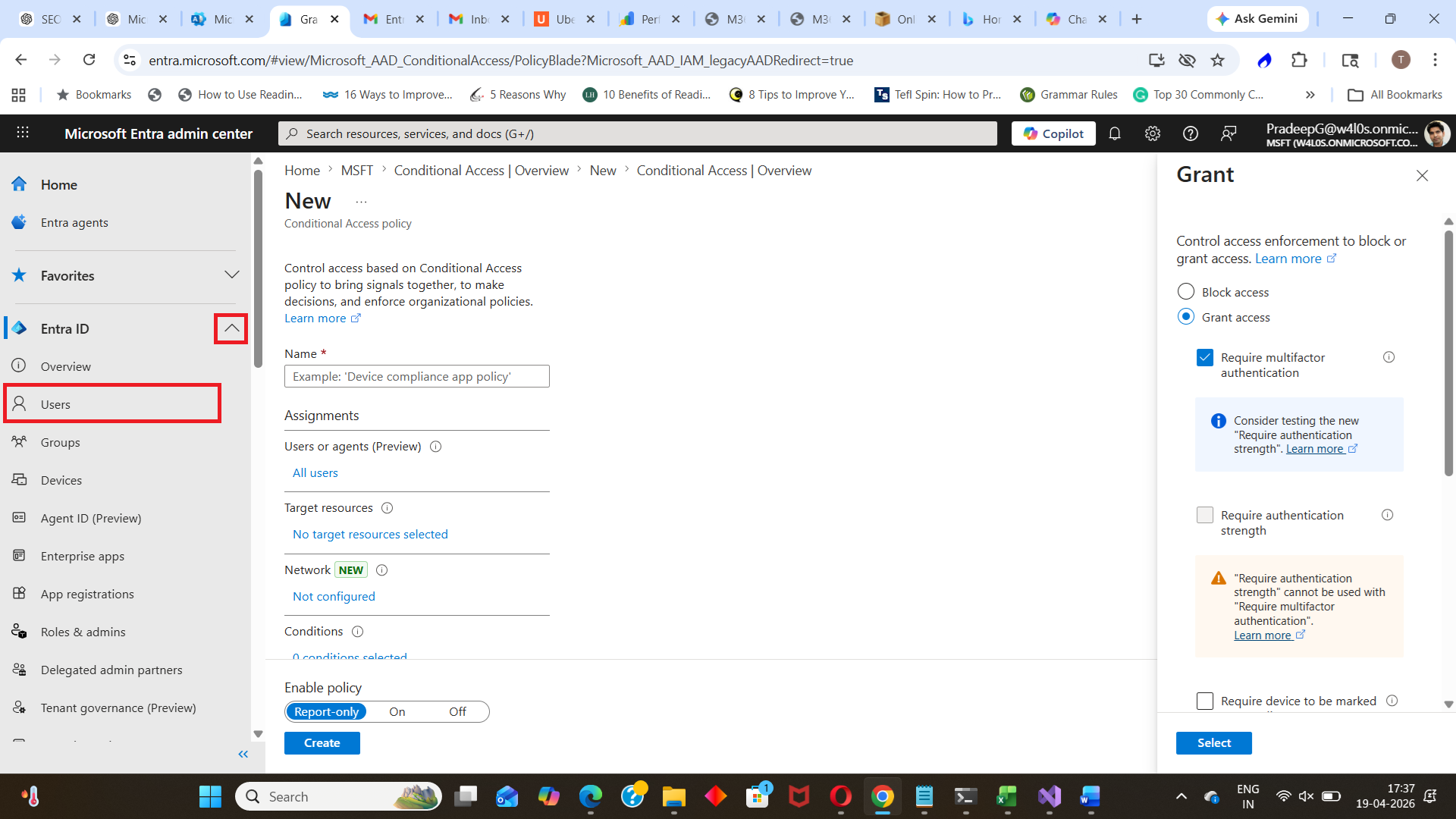
- Navigate to: Microsoft Entra ID → Users
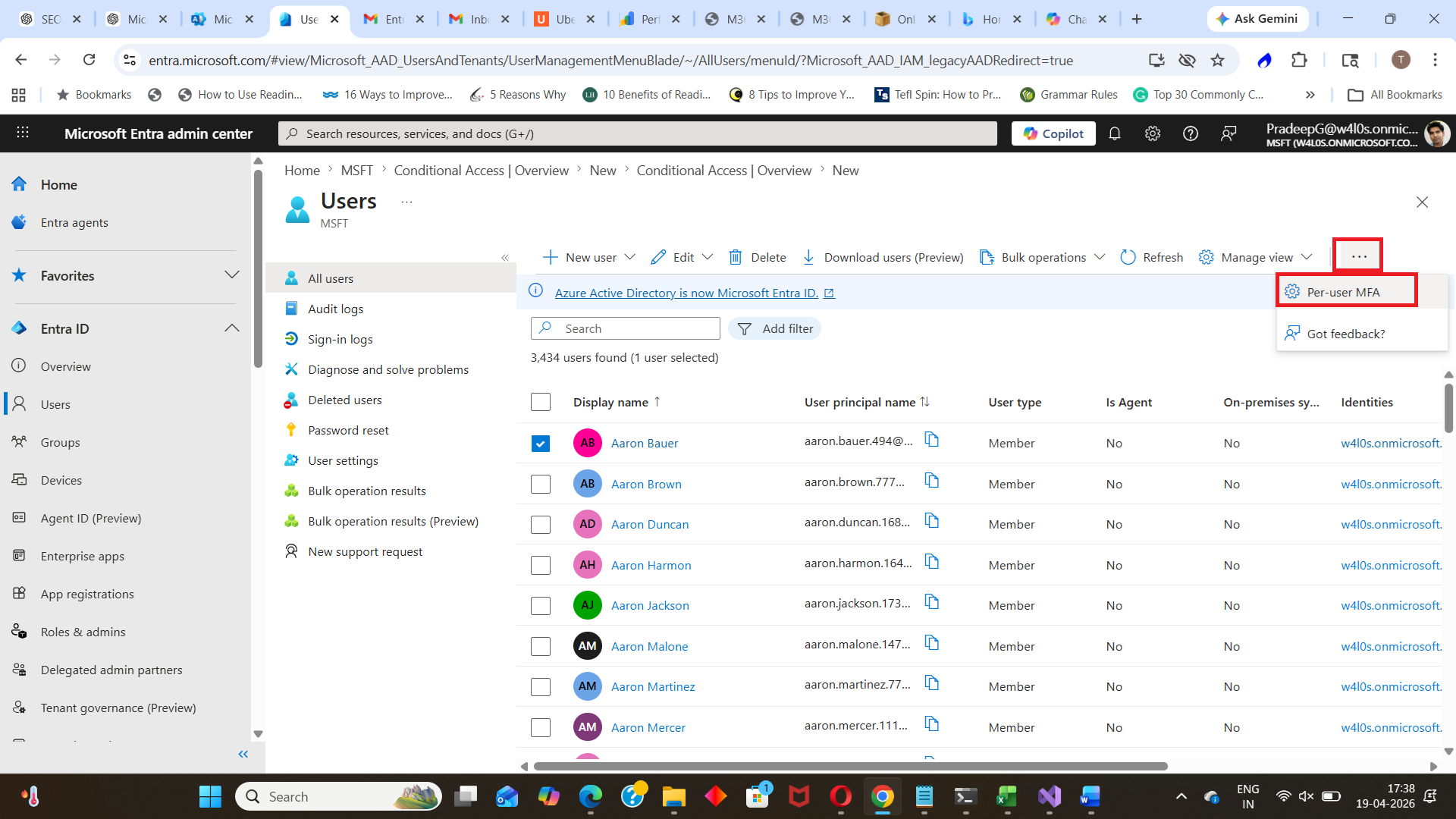
- Select the user → Click Per-user MFA (or open MFA settings)
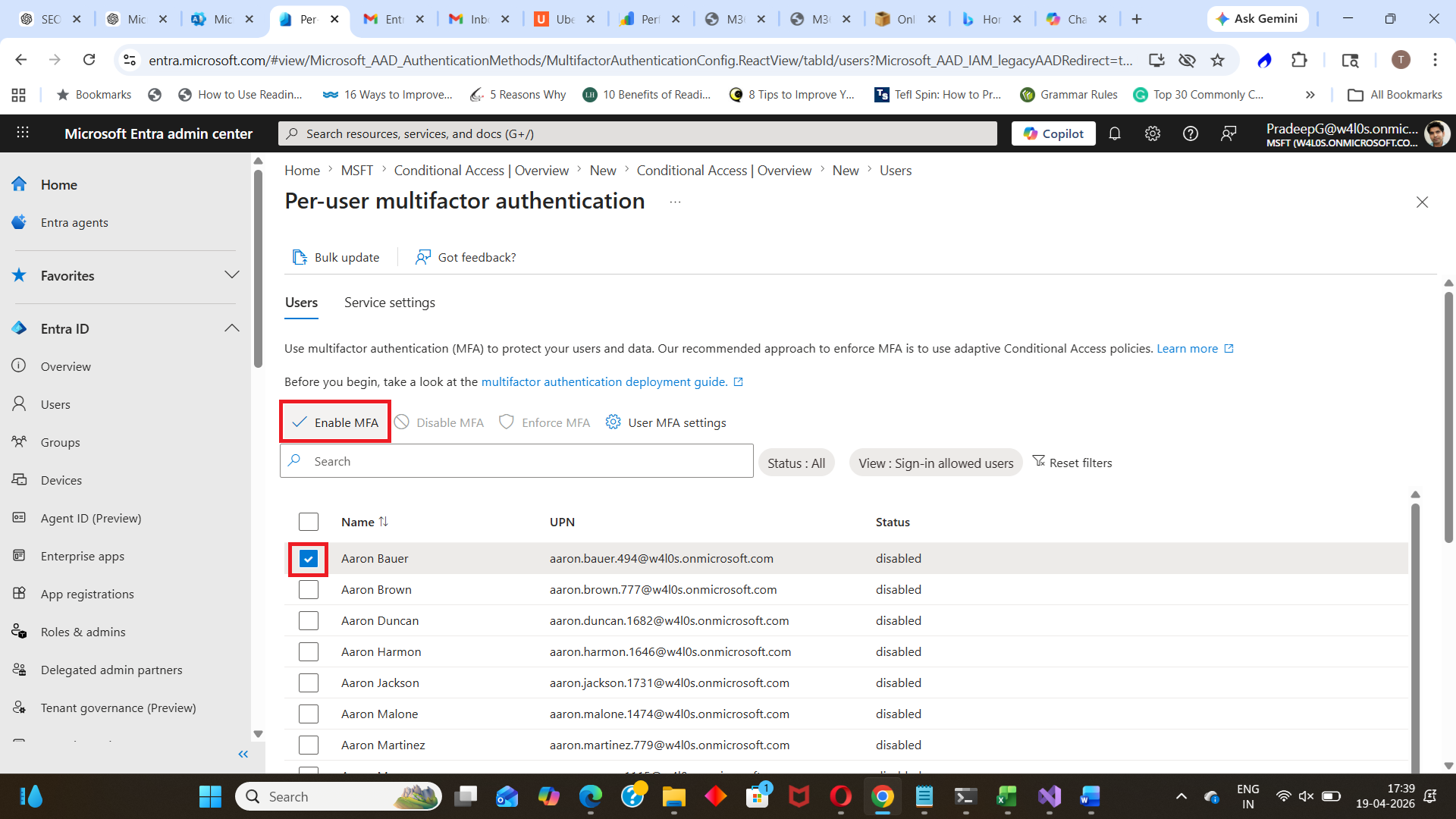
- Enable MFA for the user
⚠️ Note: Per-user MFA is considered a legacy method. Microsoft recommends using Conditional Access policies instead.
Method 2: Enable MFA Using Conditional Access (Recommended)
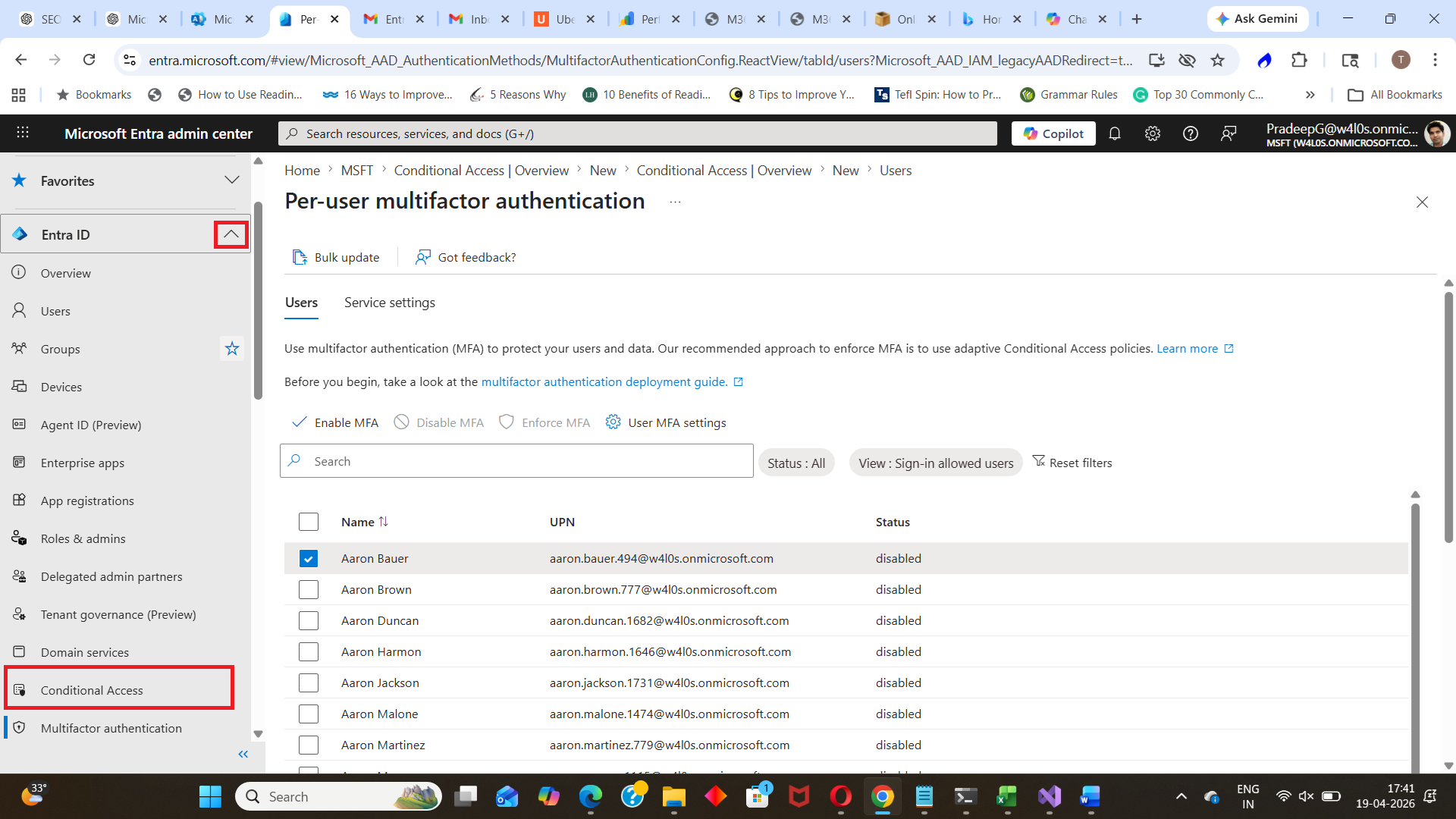
- Go to: Microsoft Entra ID → Conditional Access
- Click Create New policy
- Give a name for the policy and Configure users/groups to whom the policy will apply.
- Under Grant, select: ✔ Require multi-factor authentication
- Enable the policy and click Create
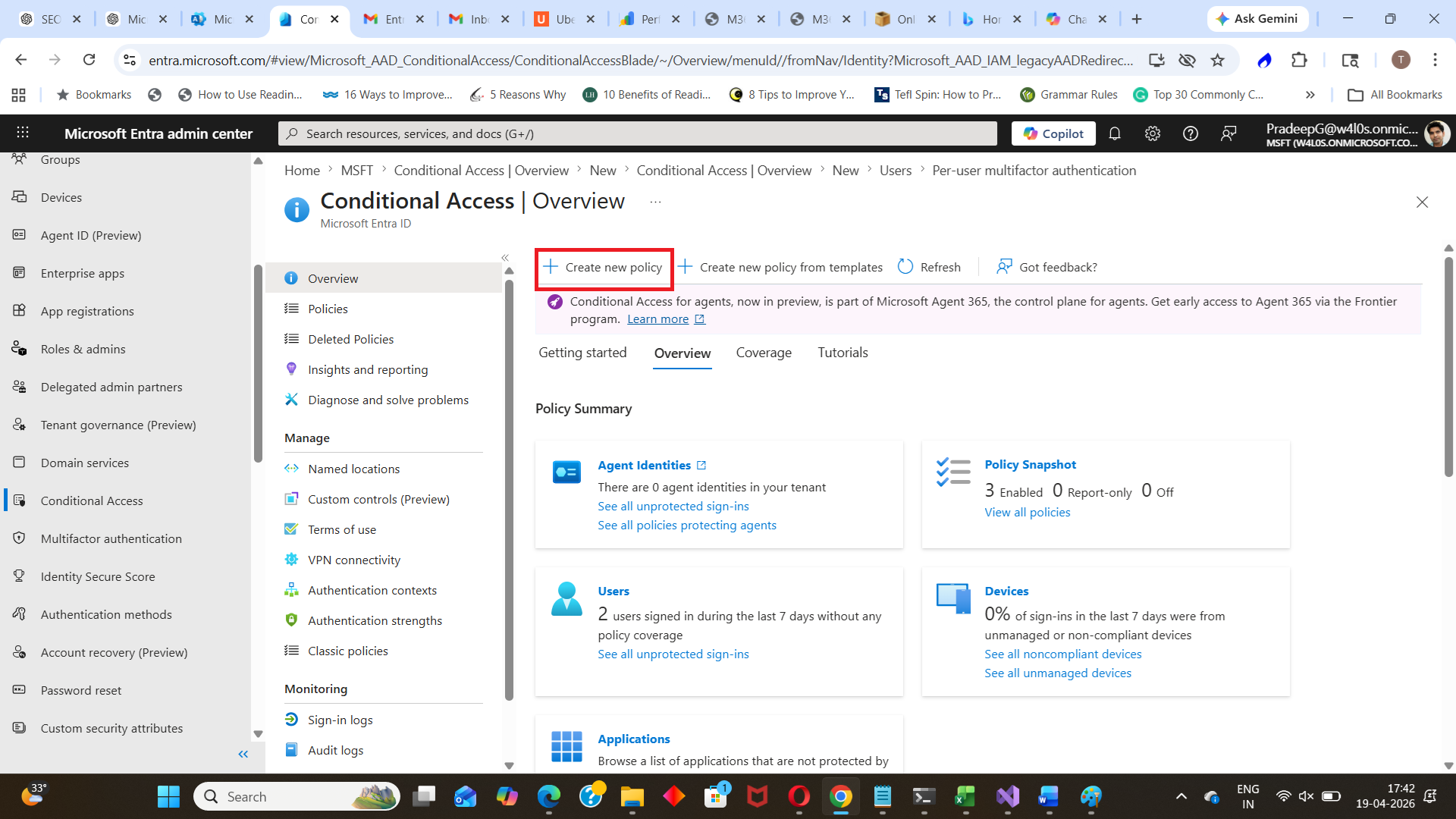
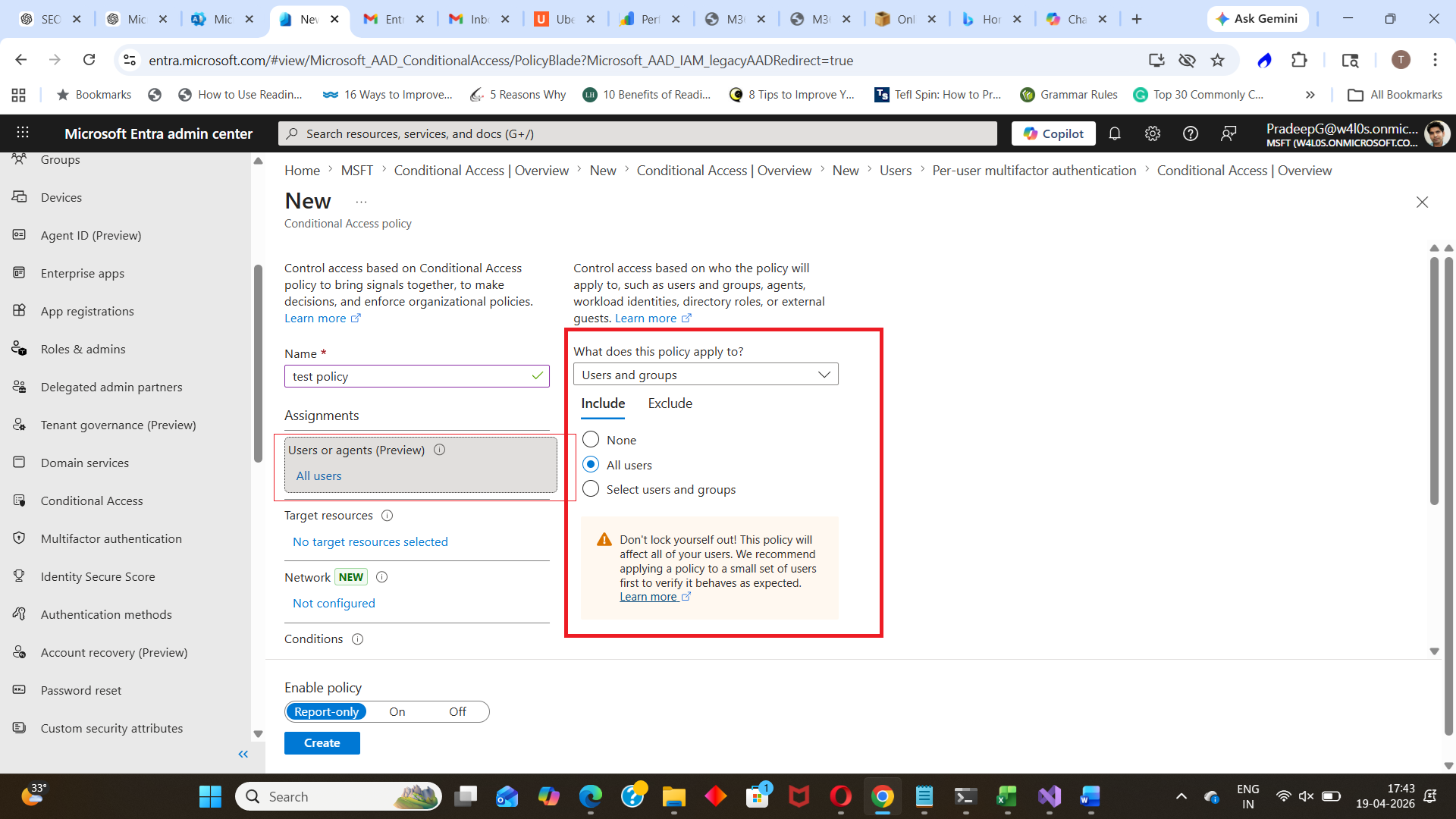
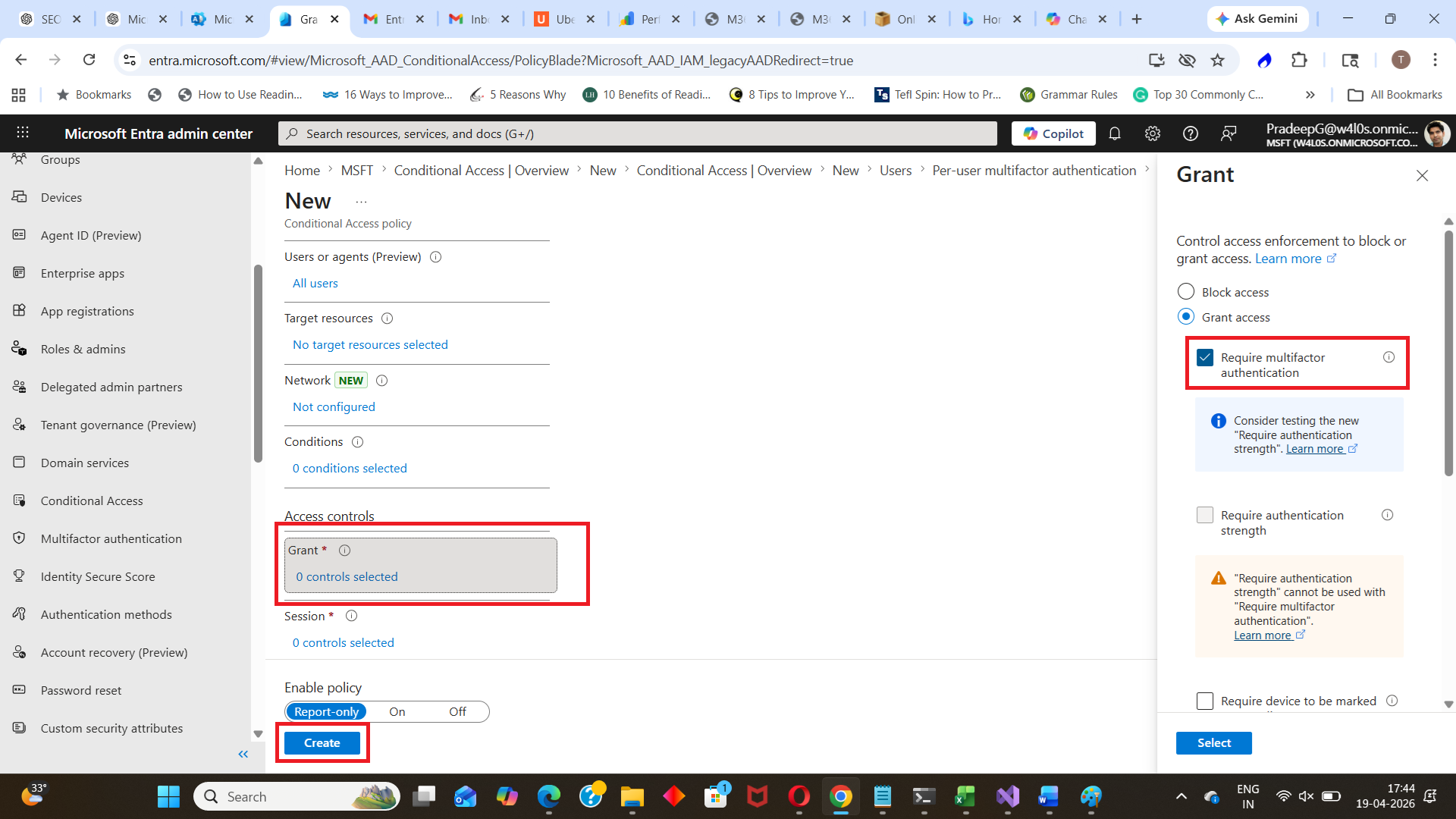
This enforces MFA based on defined conditions.
Enable MFA Using Microsoft Graph PowerShell
MFA is typically enforced via Conditional Access policies, which can be created using Graph PowerShell.
Example (Simplified Concept)
Connect-MgGraph -Scopes "Policy.ReadWrite.ConditionalAccess"Then create a Conditional Access policy with MFA enforced.
⚠️ Note: Creating full MFA policies via Graph requires structured JSON payloads and multiple parameters.
Key Features of MFA in Microsoft Entra
| Feature | Description |
| Multi-Factor Verification | Requires additional authentication methods |
| Conditional Access Integration | Enforce MFA based on conditions |
| Multiple Methods | App, SMS, phone call, security key |
| Strong Security | Protects against password-based attacks |
| Flexible Policies | Apply MFA to users, apps, or scenarios |
Common Use Cases
Administrators enable MFA when:
- Securing all user accounts
- Protecting privileged roles
- Enabling secure remote access
- Enforcing Zero Trust security models
- Preventing unauthorized sign-ins
Best Practices
- Use Conditional Access instead of per-user MFA
- Enable MFA for all users, especially admins
- Require MFA for high-risk sign-ins
- Combine MFA with sign-in risk policies
- Regularly review authentication methods
Conclusion
Enabling MFA in Microsoft Entra is one of the most effective ways to secure user accounts and prevent unauthorized access.
While per-user MFA can be used for quick setup, Conditional Access policies provide a more flexible and secure approach for enforcing MFA across the organization.
Did You Know? Managing Microsoft 365 applications is even easier with automation. Try our Graph PowerShell scripts to automate tasks like generating reports, cleaning up inactive Teams, or assigning licenses efficiently.
Ready to get the most out of Microsoft 365 tools? Explore our free Microsoft 365 administration tools to simplify your administrative tasks and boost productivity.