How to Create Microsoft Entra ID Custom Roles
Microsoft Entra ID comes with several built-in administrator roles such as Global Administrator, User Administrator, Groups Administrator, Application Administrator, and Privileged Role Administrator. These roles are useful, but they may not always match your organization’s exact administrative needs.
For example, you may want a helpdesk user to update only specific application registration properties, or you may want an application support team to manage app credentials without giving them broader directory-level permissions. This is where Microsoft Entra ID custom roles help.
In this article, you will learn what Microsoft Entra ID custom roles are, who can create them, and how Microsoft 365 administrators can create custom Entra roles using both the Microsoft Entra admin center and Microsoft Graph PowerShell.
What are Microsoft Entra ID Custom Roles?
Microsoft Entra ID custom roles are administrator roles that you create manually by selecting only the permissions required for a specific task. Instead of assigning a broad built-in role, you can create a custom role with a limited set of permissions and assign it to users, groups, or service principals.
Custom roles are useful when built-in Entra roles provide either too much access or not the exact access required for your admin scenario.
For example, you can create a custom role that allows an admin to:
- Update basic properties of app registrations.
- Manage application credentials.
- Perform limited app registration management tasks.
- Support application teams without granting full Application Administrator permissions.
According to Microsoft, Microsoft Entra custom roles can be assigned at the directory-level scope or at an app registration resource scope.
Who can create Microsoft Entra ID Custom Roles?
To create Microsoft Entra ID custom roles, you need the right license, role, and tools.
You need:
- Microsoft Entra ID P1 or P2 license
- Privileged Role Administrator role
- Microsoft Graph PowerShell module, if creating the role using PowerShell
Microsoft lists these as prerequisites for creating custom roles in Microsoft Entra ID.
In short, regular Microsoft 365 administrators cannot create custom Entra roles unless they have the required privileged role permissions.
Creating Custom Roles Using Entra ID Admin Center
Follow these steps to create a Microsoft Entra ID custom role using the Entra admin center.
- Sign in to Microsoft Entra admin center
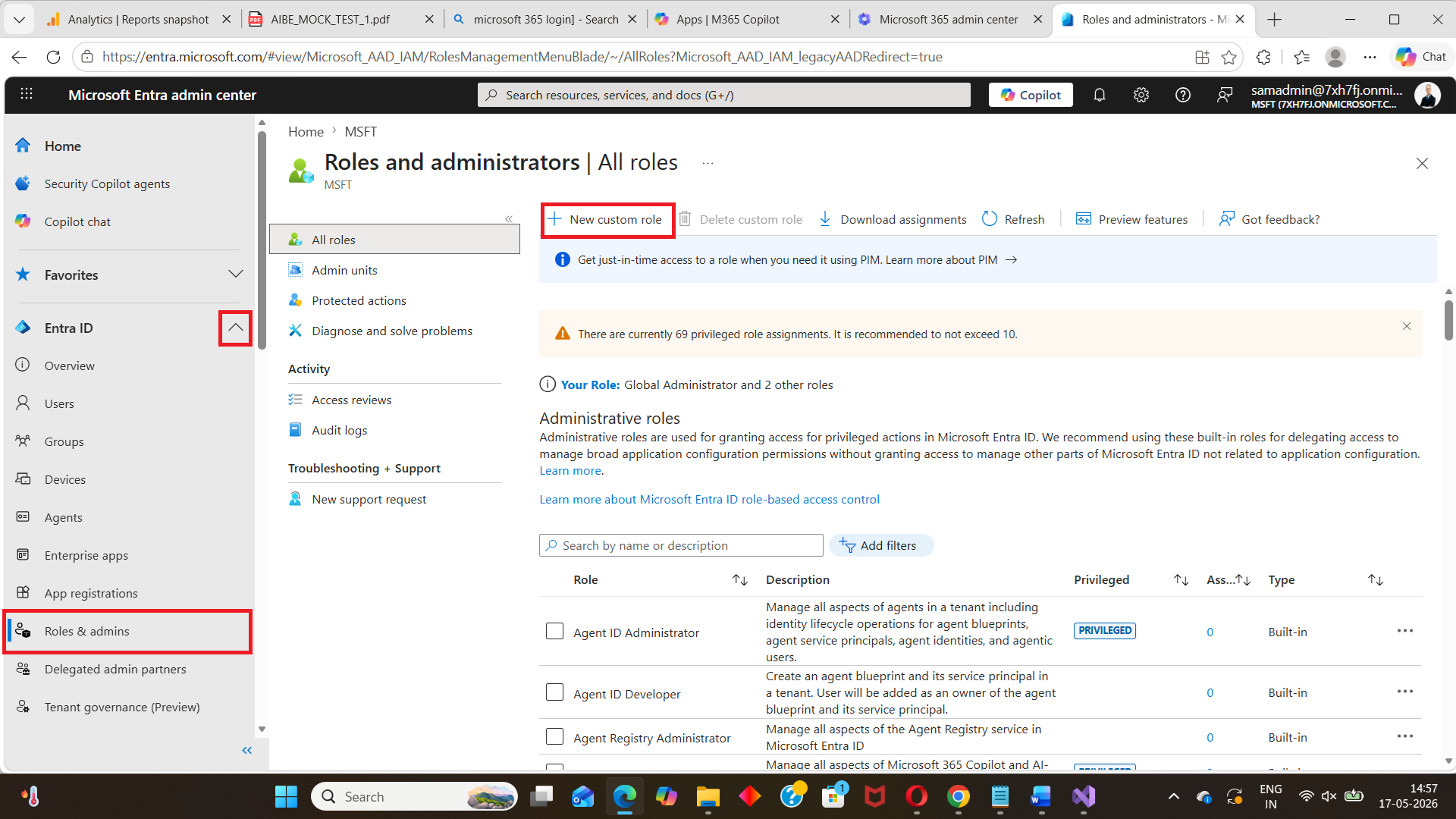
- Open Roles and admins
- Entra ID > Roles & admins
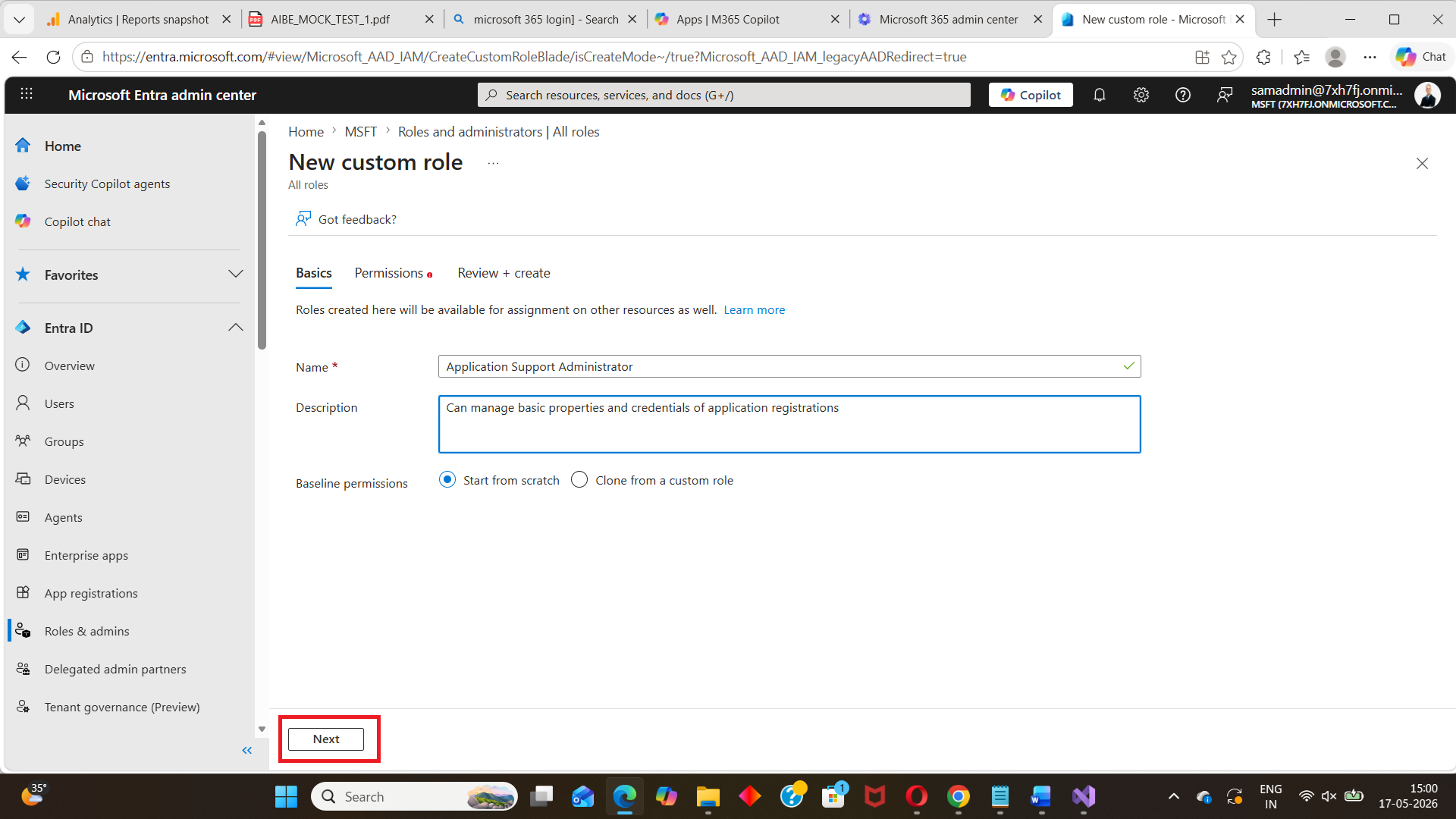
- Select New custom role. Enter basic role details.
- Name: Enter a clear role name.
- Description: Explain what the role allows the admin to do.
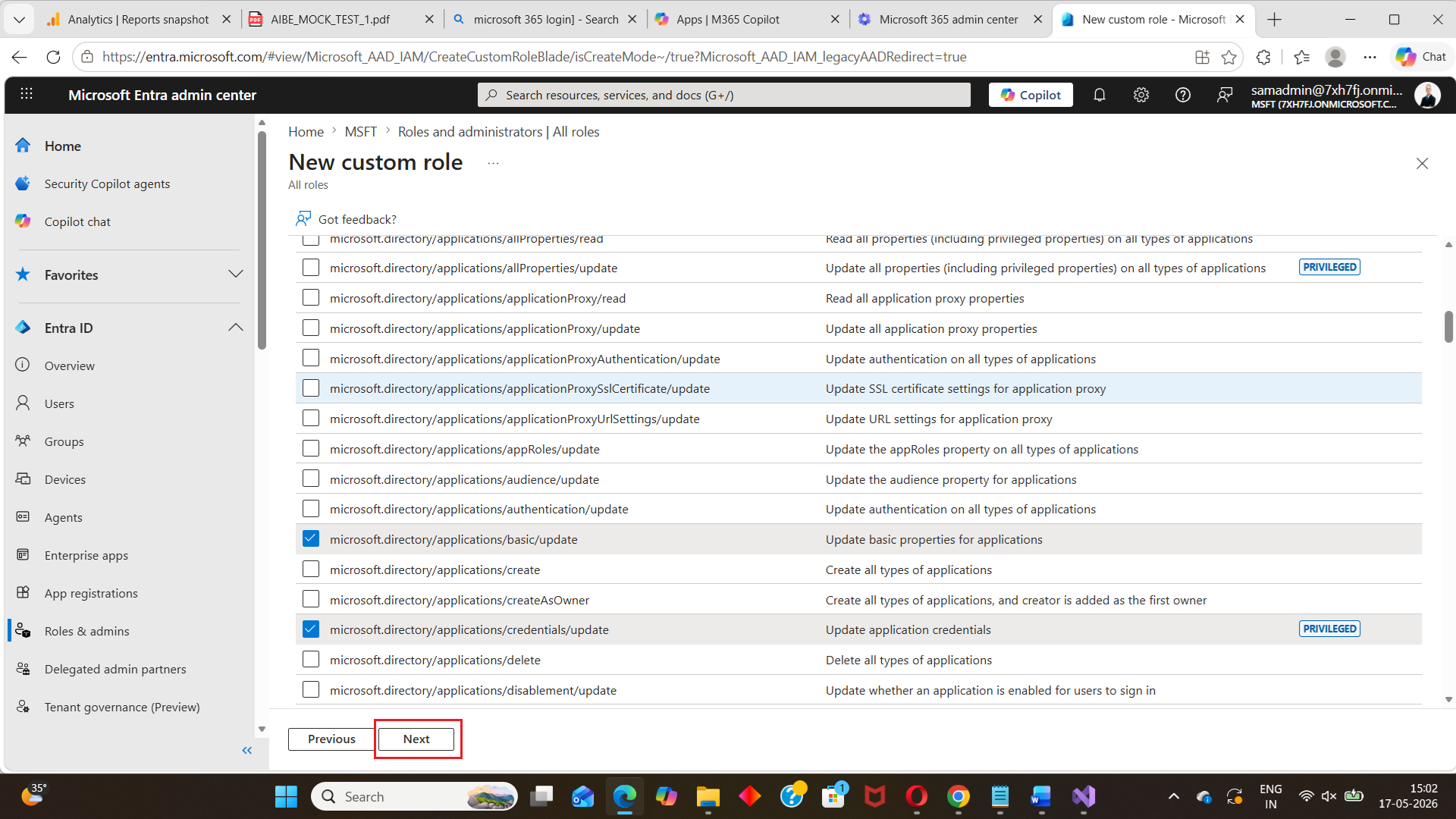
- Add permissions
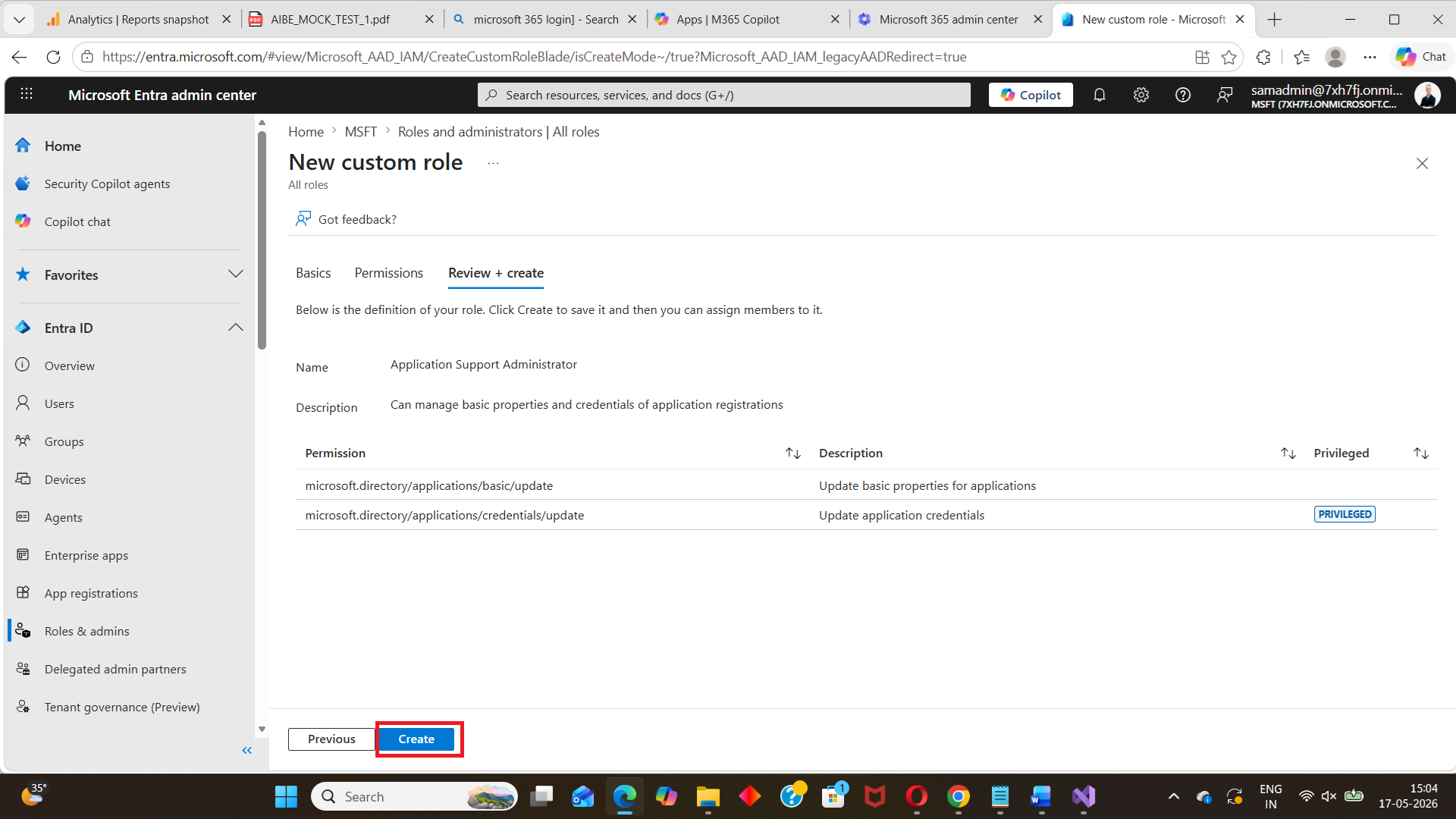
- Review and create the role
- Role name
- Description
- Selected permissions
Go to the Microsoft Entra admin center and sign in with an account that has the Privileged Role Administrator role.
From the left navigation menu, go to:
This page lists the built-in and custom roles available in your tenant.
Click Next to proceed further.
On the Permissions tab, search for the permissions required for the custom role. For example, to create a role that manages basic app registration properties and credentials, add these permissions: i) microsoft.directory/applications/basic/update and ii) microsoft.directory/applications/credentials/update
These permissions allow the role holder to update basic application properties and application credentials.
Click Next to proceed further.
On the Review + create tab, verify:
Then click Create.
Once created, the custom role appears in the list of available Entra roles and can be assigned to users or other supported principals.
Creating Custom Roles Using PowerShell
You can also create Microsoft Entra ID custom roles using Microsoft Graph PowerShell. This method is useful when you want to automate custom role creation or reuse the same role configuration across tenants.
Step 1: Connect to Microsoft Graph PowerShell
Run the following command:
Connect-MgGraph -Scopes "RoleManagement.ReadWrite.Directory"This permission scope is required to create and manage role definitions using Microsoft Graph PowerShell.
Step 2: Create the custom role
Use the following script to create a custom Microsoft Entra role that can manage basic app registration properties and credentials.
# Define custom role details
$DisplayName = "Application Support Administrator"
$Description = "Can manage basic properties and credentials of application registrations."
$TemplateId = (New-Guid).Guid

# Define role permissions
$RolePermissions = @{
    allowedResourceActions = @(
        "microsoft.directory/applications/basic/update",
        "microsoft.directory/applications/credentials/update"
    )
}

# Create the custom Entra ID role
$CustomRole = New-MgRoleManagementDirectoryRoleDefinition `
   -DisplayName $DisplayName `
   -Description $Description `
   -TemplateId $TemplateId `
   -IsEnabled:$true `
   -RolePermissions $RolePermissions

# Display created role details
$CustomRole | Select-Object Id, DisplayName, Description, IsEnabled
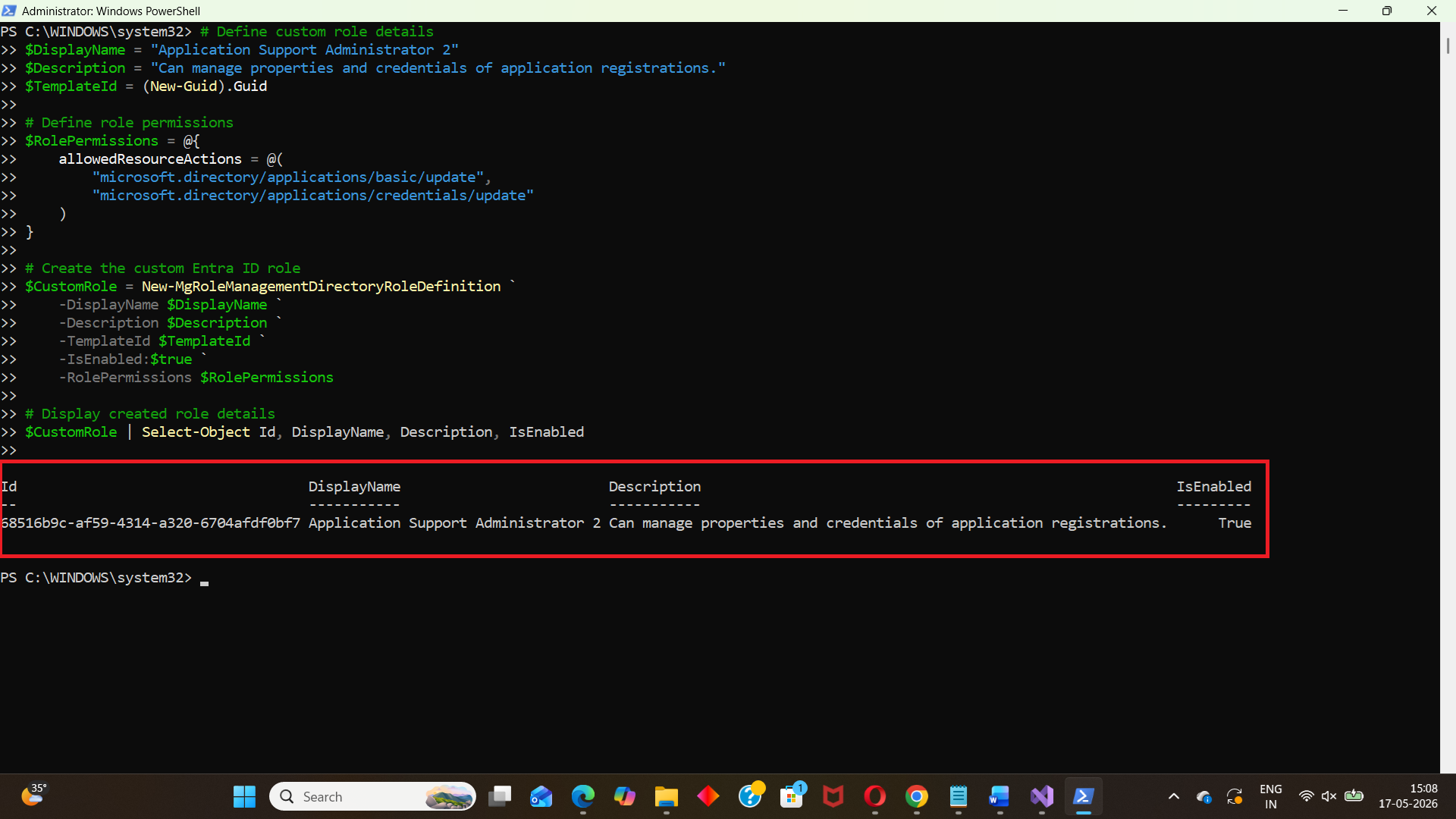
How the script works
The script first defines the custom role name, description, and template ID. The template ID is generated using New-Guid.
Next, the $RolePermissions hashtable stores the allowed Microsoft Entra resource actions. In this example, the role allows admins to update basic application properties and application credentials.
Finally, the New-MgRoleManagementDirectoryRoleDefinition cmdlet creates the custom role definition in Microsoft Entra ID.
Step 3: Verify the custom role
After creating the role, run:
Get-MgRoleManagementDirectoryRoleDefinition `
  -Filter "displayName eq 'Application Support Administrator'" |
  Select-Object Id, DisplayName, Description, IsEnabled
This confirms whether the custom role was created successfully.
Optional: Update a custom role
To update the display name of a custom role, use:
Update-MgRoleManagementDirectoryRoleDefinition `
 -UnifiedRoleDefinitionId "<RoleDefinitionId>" `
 -DisplayName "Updated Application Support Administrator"
Replace <RoleDefinitionId> with the ID of your custom role.
Optional: Delete a custom role
To remove a custom role, use:
Remove-MgRoleManagementDirectoryRoleDefinition `
  -UnifiedRoleDefinitionId "<RoleDefinitionId>"
Use this carefully. Deleting a custom role removes the role definition from Microsoft Entra ID.
Frequently Asked Questions
- What is a Microsoft Entra ID custom role?
- Do I need Microsoft Entra ID P1 or P2 to create custom roles?
- Which admin role is required to create custom Entra roles?
- Can I create custom roles using Microsoft Graph PowerShell?
- Can custom roles replace built-in Entra roles?
- Can I assign a custom role to an app registration scope?
A Microsoft Entra ID custom role is an administrator role created with selected permissions. It allows organizations to provide limited admin access instead of assigning broader built-in roles.
Yes. Microsoft lists Microsoft Entra ID P1 or P2 as a prerequisite for creating custom roles.
You need the Privileged Role Administrator role to create Microsoft Entra ID custom roles.
Yes. You can use the New-MgRoleManagementDirectoryRoleDefinition cmdlet to create custom Entra ID roles using Microsoft Graph PowerShell.
Not always. Custom roles are best used when you need specific permissions that are narrower than built-in roles. Built-in roles are still useful for common admin tasks.
Yes. Microsoft states that custom roles can be assigned at the directory-level scope or at an app registration resource scope.
Conclusion
Microsoft Entra ID custom roles help Microsoft 365 administrators follow the principle of least privilege. Instead of assigning powerful built-in roles, admins can create custom roles with only the permissions required for a specific job.
For beginners, the Microsoft Entra admin center is the easiest way to create custom roles because it provides a guided interface. For automation-focused administrators, Microsoft Graph PowerShell is better because it allows repeatable and script-based role creation.
If your organization frequently delegates Microsoft Entra administration tasks, custom roles can help reduce unnecessary privileges, improve security, and give administrators access only to what they truly need.
Did You Know? Managing Microsoft 365 applications is even easier with automation. Try our Graph PowerShell scripts to automate tasks like generating reports, cleaning up inactive Teams, or assigning licenses efficiently.
Ready to get the most out of Microsoft 365 tools? Explore our free Microsoft 365 administration tools to simplify your administrative tasks and boost productivity.