How to Delete Users in Microsoft Entra ID
Deleting users in Microsoft Entra ID is a common administrative task used to remove user accounts from the organization.
When a user is deleted, the account is first placed in a soft-deleted state, allowing administrators to restore it if needed. After a certain period, the account gets permanently deleted (hard delete).
Understanding the difference between soft delete and hard delete is important for proper user lifecycle management.
How to Delete Users in Microsoft Entra ID
Administrators can delete users using:
- Microsoft Entra Admin Center (GUI)
- Microsoft Graph PowerShell (automation)
Delete a User Using the Microsoft Entra Admin Center
Follow these steps to delete a user.
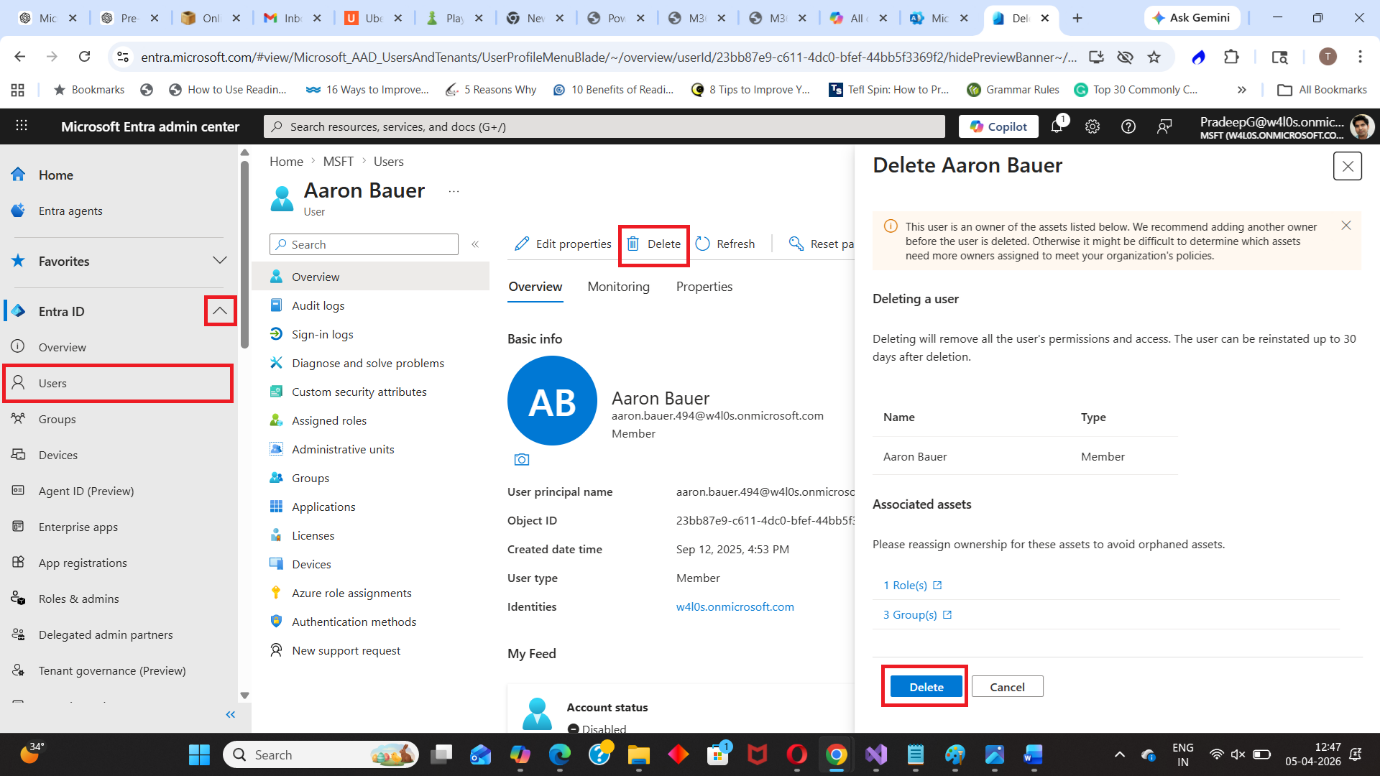
| Step 1 | Go to the Microsoft Entra Admin Center https://entra.microsoft.com |
| Step 2 | Navigate to: Microsoft Entra ID → Users |
| Step 3 | Select the user Select the user you want to delete |
| Step 4 | Click Delete |
| Step 5 | Confirm the deletion The user account will be moved to the Deleted users section. |
What Happens When You Delete a User?
When a user is deleted:
- The account is soft deleted
- The user cannot sign in
- The account is retained for 30 days
- The user can be restored within this period
Soft Delete vs Hard Delete
| Type | Description |
|---|---|
| Soft Delete | User is moved to Deleted Users and can be restored within 30 days |
| Hard Delete | User is permanently removed and cannot be recovered |
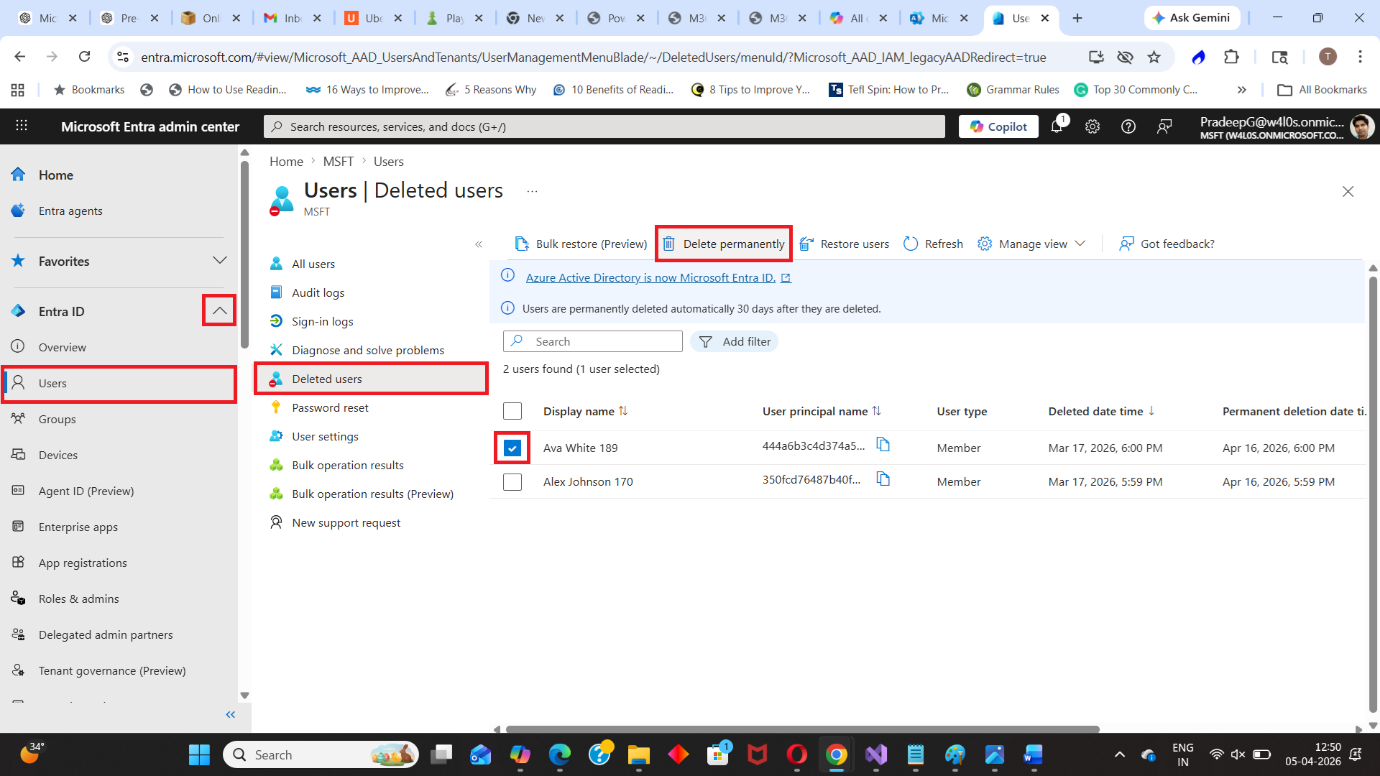
Permanently Delete (Hard Delete) a User
Using the Entra Admin Center
- Go to Microsoft Entra ID → Users → Deleted users
- Select the user
- Click Delete permanently
Using Microsoft Graph PowerShell
Soft Delete a User
Remove-MgUser -UserId "user@contoso.com"Hard Delete a User
Remove-MgDirectoryDeletedItem -DirectoryObjectId "<UserObjectId>"This command permanently deletes the user from the directory.
Key Parameters Explained
| Parameter | Description |
|---|---|
| UserId | User Principal Name or Object ID |
| DirectoryObjectId | Object ID of the deleted user |
When to Delete vs Disable a User
| Action | When to Use |
|---|---|
| Disable User | Temporary access removal |
| Delete User | Permanent removal of account |
It is recommended to disable users first before deletion, especially during employee offboarding.
Common Use Cases
Administrators delete users when:
- Employees leave permanently
- Test accounts are no longer needed
- Duplicate accounts exist
- Cleanup of inactive accounts
Best Practices
- Disable users before deleting
- Review licenses and group memberships before deletion
- Ensure important data is backed up
- Avoid hard deletion unless necessary
Conclusion
Deleting users in Microsoft Entra ID is an essential part of user lifecycle management.
Understanding soft delete and hard delete ensures that administrators can safely remove users while retaining the option to restore accounts when needed.
Did You Know? Managing Microsoft 365 applications is even easier with automation. Try our Graph PowerShell scripts to automate tasks like generating reports, cleaning up inactive Teams, or assigning licenses efficiently.
Ready to get the most out of Microsoft 365 tools? Explore our free Microsoft 365 administration tools to simplify your administrative tasks and boost productivity.