Create Teams Channels Using Teams Admin Center
Channels are where real collaboration happens inside Microsoft Teams. Whether it’s project discussions, departmental updates, or private conversations, channels help keep conversations organized and focused.
In this article, you’ll learn how to create Microsoft Teams channels using:
- Teams Admin Center (UI-based)
- Microsoft Graph PowerShell (automation-friendly)
What are Microsoft Teams Channels?
Microsoft Teams channels are dedicated spaces within a Team where members collaborate around a specific topic, project, or workstream.
Each channel includes:
- Conversations (posts and replies)
- File storage (backed by SharePoint)
- Tabs for apps, documents, and tools
Types of Microsoft Teams Channels
- Standard Channel
- Accessible to all Team members
- Best for general collaboration
- Private Channel
- Accessible only to selected members
- Has its own SharePoint site
- Ideal for sensitive discussions
- Shared Channel (not covered in this article)
How to Create Microsoft Teams Channels?
You can create Teams channels in two common ways:
- Teams Admin Center – Best for manual, UI-based management
- Microsoft Graph PowerShell – Best for automation and bulk creation
Let’s explore both methods.
Using Teams Admin Center
The Teams Admin Center allows administrators to create and manage channels without using PowerShell.
Step-by-Step Instructions
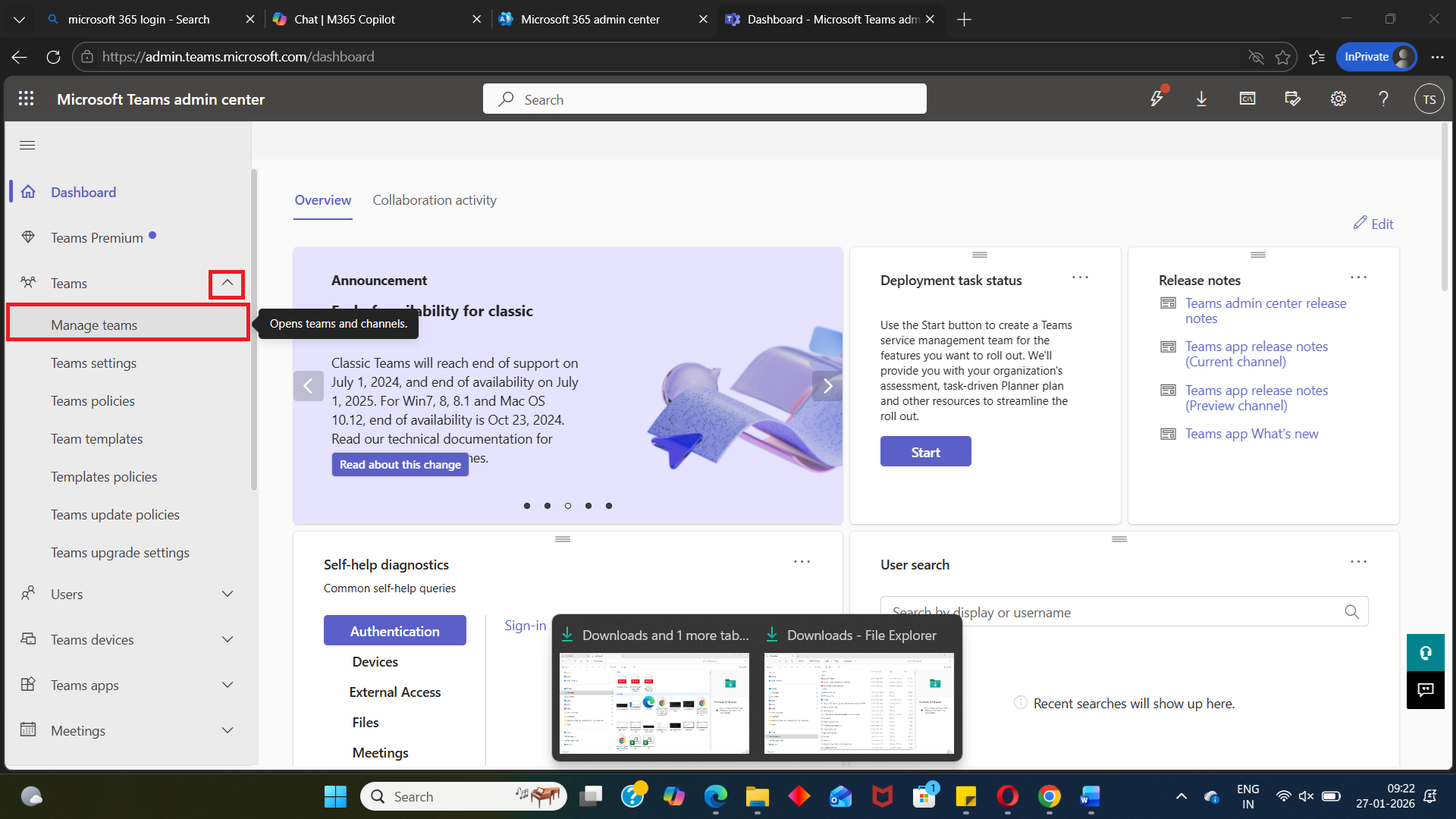
- Sign in to the Teams Admin Center
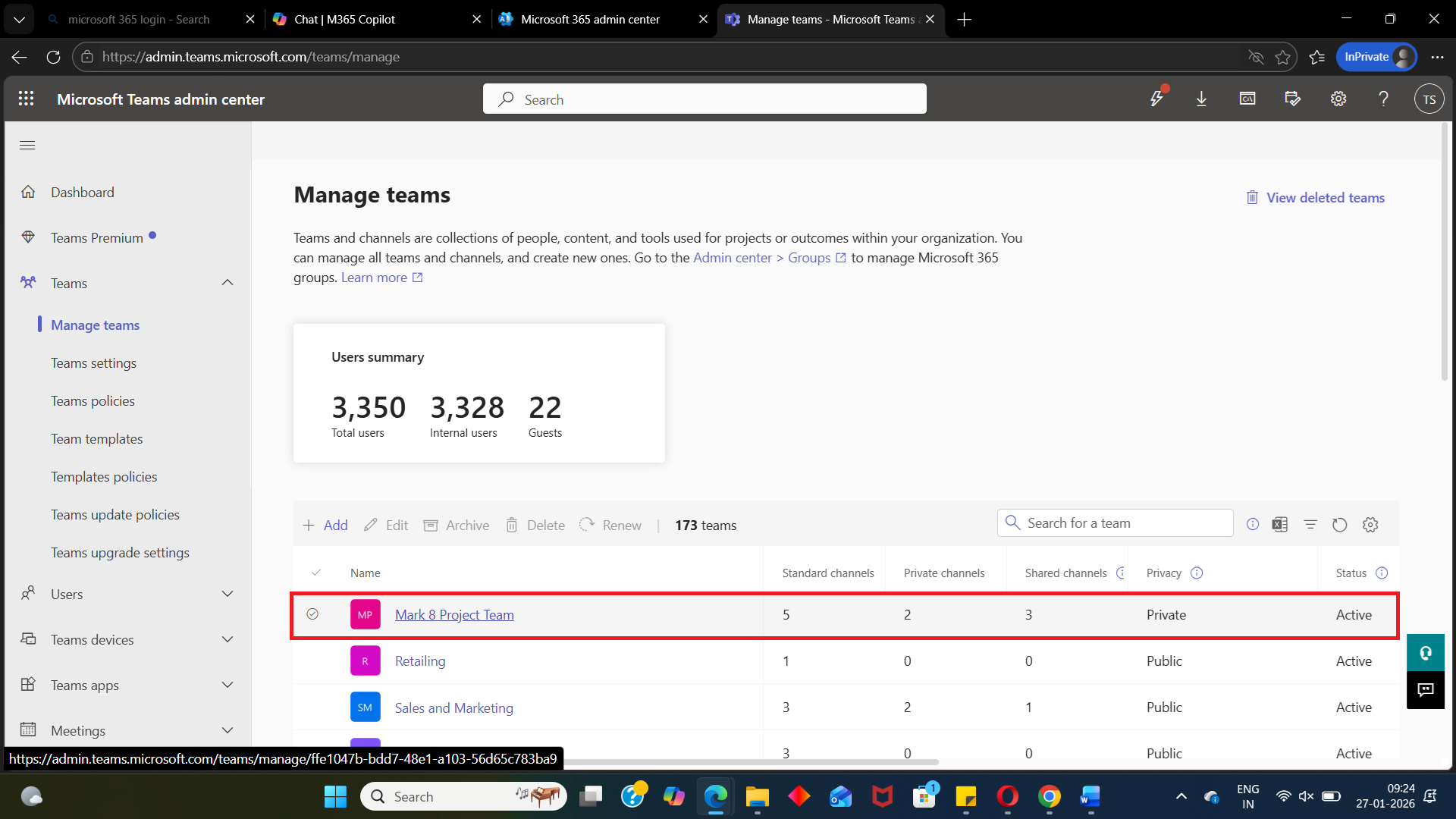
https://admin.teams.microsoft.com - Navigate to:
Teams → Manage teams - Select the Team where you want to create a channel
- Go to the Channels tab Click + Add Enter the channel details:
- Channel name
- Description
- Privacy (Standard or Private)
- Click Apply
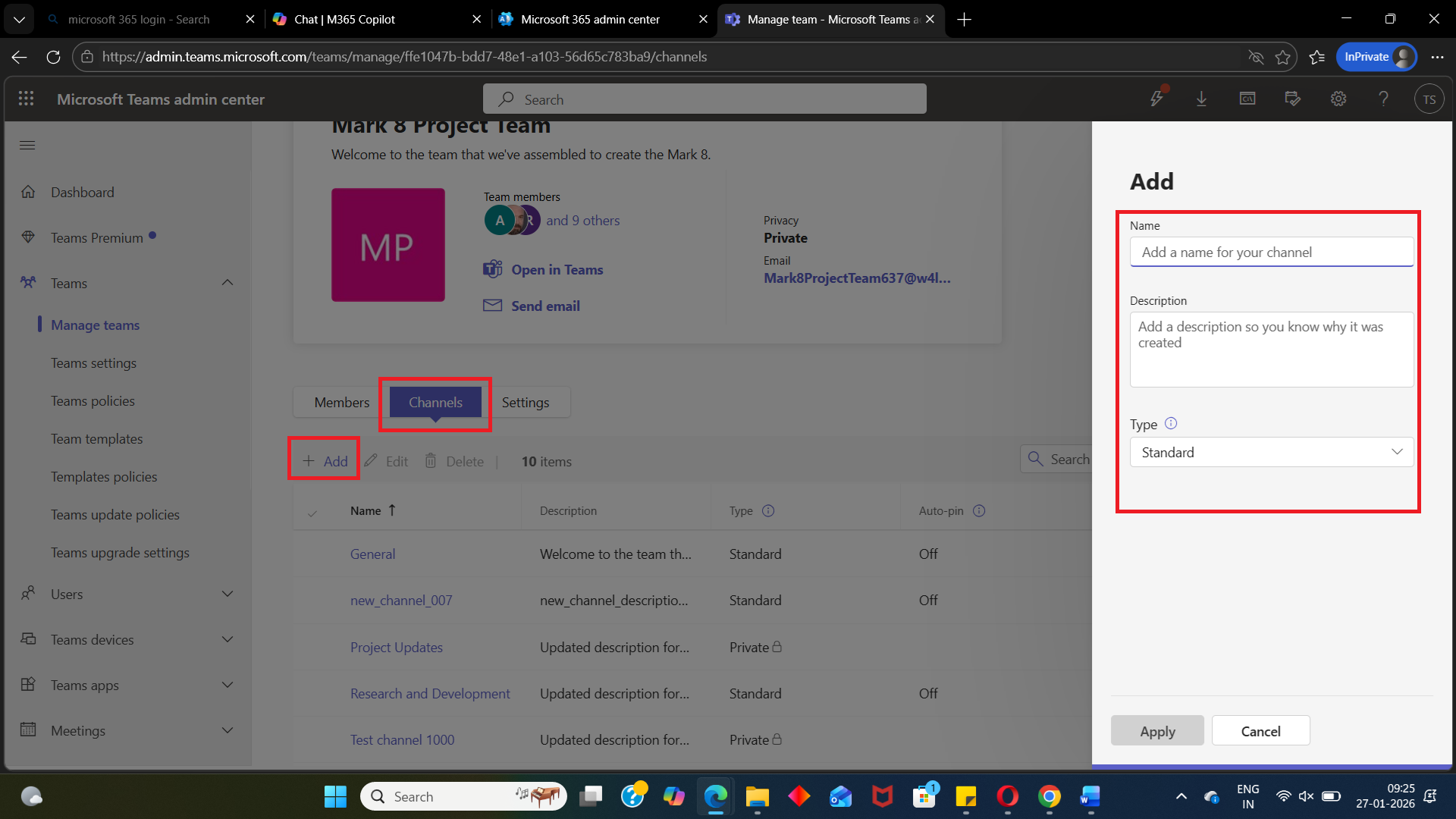
The channel is created instantly and becomes available to eligible Team members.
✅ Best for:
- One-off channel creation
- Visual confirmation
- Admins who prefer a GUI
Using Graph PowerShell
For administrators managing Teams at scale, Microsoft Graph PowerShell provides flexibility and automation.
Install Microsoft Graph PowerShell
Install-Module Microsoft.Graph -Scope CurrentUserImport Teams Module
Import-Module Microsoft.Graph.TeamsConnect to Microsoft Graph
Connect-MgGraph -Scopes "Channel.Create","Group.ReadWrite.All"These scopes allow you to create and manage Teams channels.
Usage Examples
- Example 1: Create a Standard Channel
Import-Module Microsoft.Graph.Teams
$params = @{
    displayName = "Architecture Discussion"
    description = "This channel is where we debate all future architecture plans"
    membershipType = "standard"
}
New-MgTeamChannel -TeamId $teamId -BodyParameter $params
✅ Creates a standard channel accessible to all Team members.
Import-Module Microsoft.Graph.Teams
$params = @{
    membershipType = "private"
    displayName = "My First Private Channel"
    description = "This is my first private channel"
}
New-MgTeamChannel -TeamId $teamId -BodyParameter $params
✅ Creates a private channel with restricted access.
⚠️ Private channel membership must be managed separately after creation.
Import-Module Microsoft.Graph.Teams
$params = @{
    displayName = "Architecture Discussion"
    description = "This channel is where we debate all future architecture plans"
    membershipType = "standard"
    IsFavoriteByDefault = $true
}
New-MgTeamChannel -TeamId $teamId -BodyParameter $params
✅ Automatically marks the channel as a favorite for Team members.
Conclusion
Creating channels in Microsoft Teams helps keep collaboration structured and efficient.
- Teams Admin Center is ideal for quick, manual channel creation
- Graph PowerShell is powerful for automation and standardized setups
For organizations managing Teams at scale, mastering Graph PowerShell ensures consistency and saves time.
👉 By choosing the right approach, you can keep Teams clean, organized, and productive.
Did You Know? Managing Microsoft 365 applications is even easier with automation. Try our Graph PowerShell scripts to automate tasks like generating reports, cleaning up inactive Teams, or assigning licenses efficiently.
Ready to get the most out of Microsoft 365 tools? Explore our free Microsoft 365 administration tools to simplify your administrative tasks and boost productivity.