Create Microsoft Teams Using Teams Admin Center
Microsoft Teams has become the backbone of collaboration in Microsoft 365. Whether you’re an IT administrator managing Teams at scale or a beginner exploring Teams for the first time, knowing how to create Teams correctly is essential.
In this article, we’ll walk through how to create Microsoft Teams using two commonly used approaches:
- Teams Admin Center (GUI-based, beginner-friendly)
- Microsoft Graph PowerShell (automation and bulk operations)
What are Microsoft Teams?
Microsoft Teams is a collaboration platform in Microsoft 365 that brings together:
- Chat and conversations
- Online meetings and calls
- File sharing (SharePoint-backed)
- App integrations
Every Microsoft Team is backed by a Microsoft 365 Group, which means it automatically gets:
- A shared mailbox
- A SharePoint site
- A OneNote notebook
- Planner and other M365 services
This tight integration makes Teams ideal for departments, projects, and cross-functional collaboration.
How to Create Microsoft Teams?
There are multiple ways to create a Microsoft Team, but in this blog, we’ll focus on two administrator-friendly methods:
- Using Teams Admin Center – Best for manual creation and one-off Teams
- Using Microsoft Graph PowerShell – Best for automation, bulk creation, and advanced configurations
Let’s start with the easiest option.
Using Teams Admin Center
The Teams Admin Center provides a graphical interface to create and manage Teams without writing any code. This is ideal for administrators who prefer a UI-based approach.
Step-by-Step Instructions
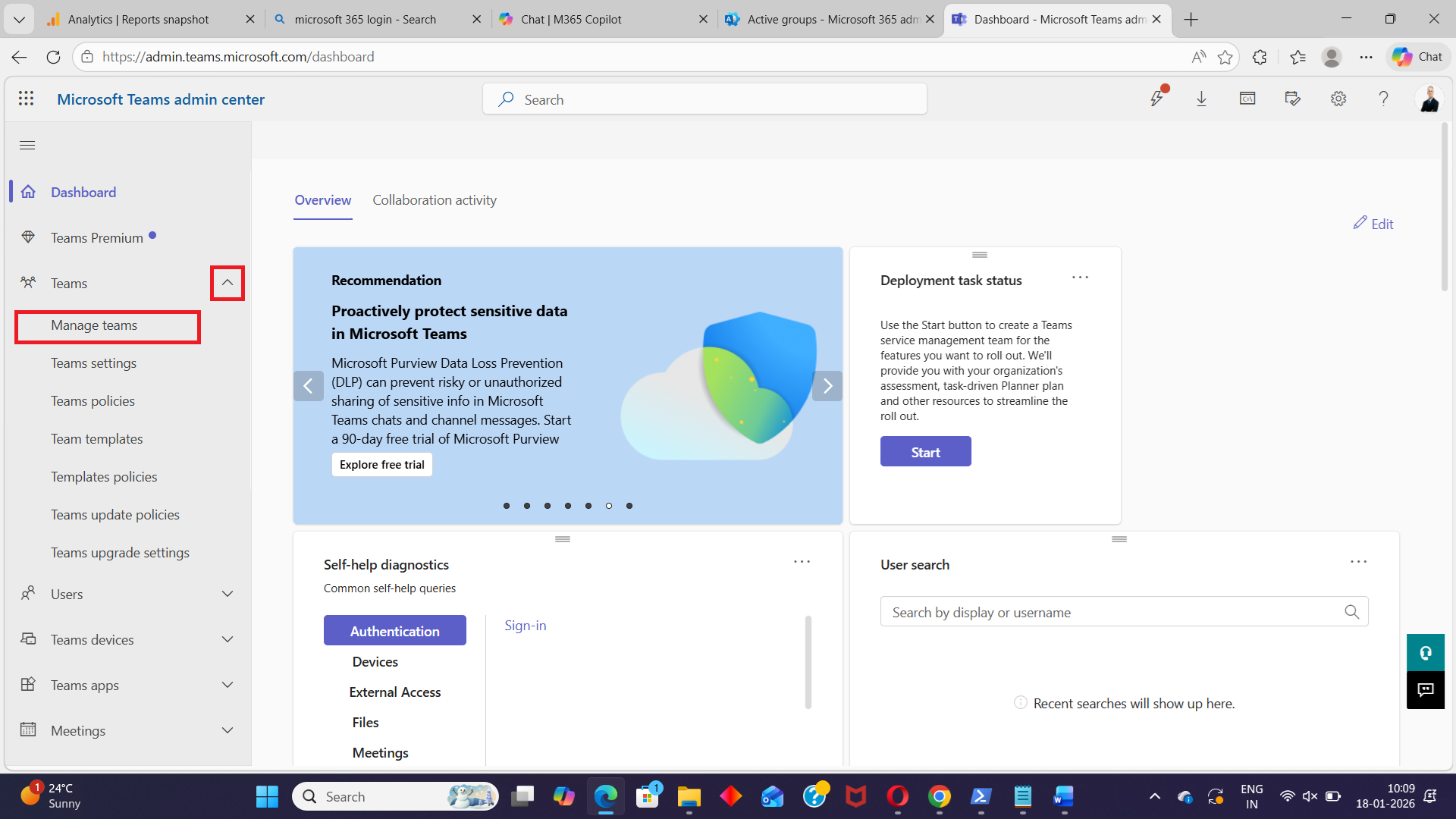
- Sign in to the Teams Admin Center
https://admin.teams.microsoft.com - In the left navigation pane, go to:
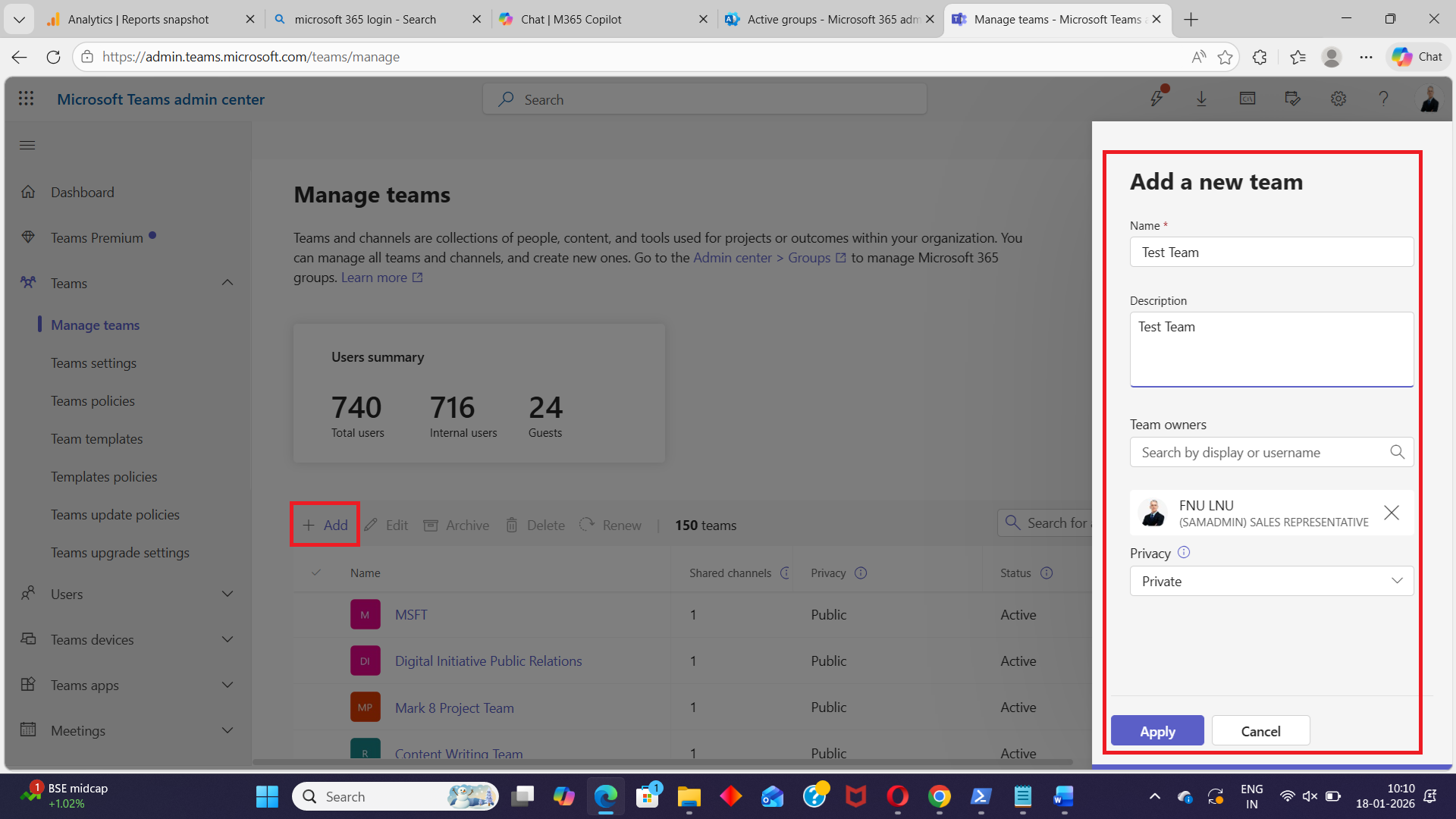
Teams → Manage teams - Click + Add (or Create team, depending on the UI)
- Provide the following details:
- Team name
- Description
- Visibility (Public or Private)
- Owner
- Review the settings and click Create
- Once the Team is created, you can:
- Add members
- Configure channels
- Manage policies and settings
✅ Best for:
- Small environments
- One-time Team creation
- Admins who prefer a visual interface
⚠️ Limitation:
- Not suitable for bulk creation or automation
Adding Teams to Existing Microsoft 365 Groups (from Microsoft 365 Admin Center)
In some scenarios, a Microsoft 365 Group may already exist without a Team. Instead of creating a brand-new Team, you can easily add Teams capabilities to an existing group from Microsoft 365 Admin Center.
This is especially useful when:
- A group was originally created for email or SharePoint collaboration
- Teams adoption happened later
- You want to avoid duplicate groups
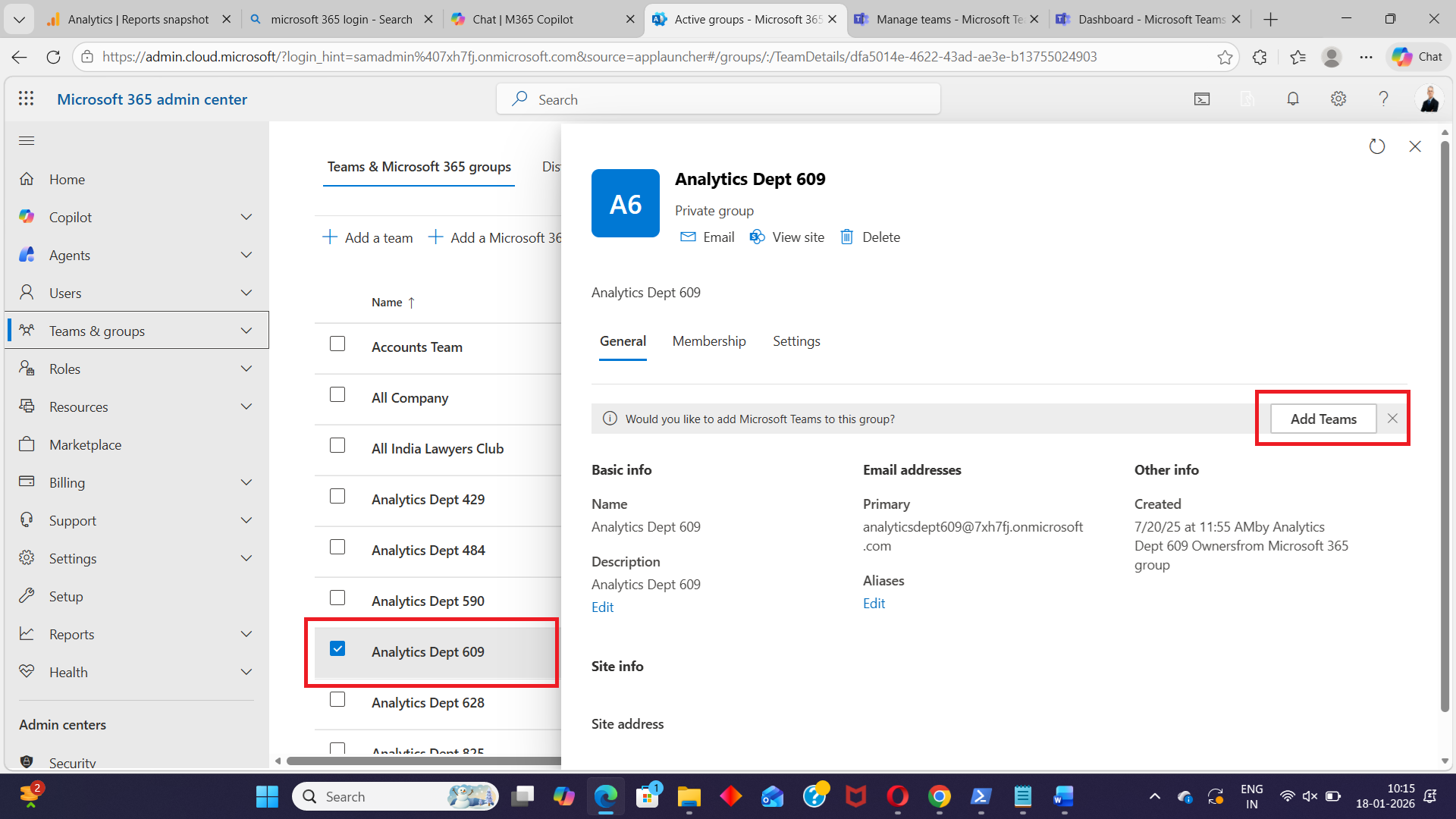
Steps to Add Teams to an Existing Group (Using Microsoft 365 Admin Center)
- Select the group you want to add teams to.
- Click the Add Teams button and confirm the action.
Once completed, the existing Microsoft 365 Group is enabled as a Team, and all group members automatically become Team members.
✅ Key Advantage:
- Preserves the existing group, SharePoint site, and membership
- Avoids creating duplicate Teams
⚠️ Note:
- This action cannot be reversed once the Team is created
Using Microsoft Graph PowerShell
For administrators who manage Teams at scale, Microsoft Graph PowerShell is the preferred approach. It allows automation, repeatability, and bulk operations.
Prerequisites
Install Microsoft Graph PowerShell Module
Install-Module Microsoft.Graph -Scope CurrentUserConnect to Microsoft Graph
Connect-MgGraph -Scopes "Group.ReadWrite.All","Team.Create"These permissions are required to create Microsoft 365 groups and convert them into Teams.
Basic Team Creation
This example creates a Team with only the essential details like DisplayName, Description, Visibility, and the standard template.
$team = @{
    DisplayName = "Team Name"
    Description = "This is a sample team"
    Visibility = "Public"
    "template@odata.bind" = "https://graph.microsoft.com/v1.0/teamsTemplates('standard')"
}

New-MgTeam -BodyParameter $team
✅ Use case:
Quick Team creation with default settings.
Creating a Team with Specific Settings
This example demonstrates how to configure member settings, guest settings, messaging settings, and fun settings during Team creation.
$team = @{
    DisplayName = "Team Name"
    Description = "This is a sample team with specific settings"
    Visibility = "Private"
    "template@odata.bind" = "https://graph.microsoft.com/v1.0/teamsTemplates('standard')"
    MemberSettings = @{
        AllowCreateUpdateChannels = $true
        AllowDeleteChannels = $false
    }
    GuestSettings = @{
        AllowCreateUpdateChannels = $false
        AllowDeleteChannels = $false
    }
    MessagingSettings = @{
        AllowUserEditMessages = $true
        AllowUserDeleteMessages = $false
    }
    FunSettings = @{
        AllowGiphy = $true
        GiphyContentRating = "Moderate"
    }
}

New-MgTeam -BodyParameter $team
✅ Use case:
Standardized Teams with controlled permissions and behavior.
Bulk Creating Teams from a CSV File
When you need to create multiple Teams at once, CSV-based automation is extremely useful.
Example CSV File
Ensure your CSV file contains the following headers:
DisplayName,Description,Visibility
Team1,Description for Team1,Private
Team2,Description for Team2,Public
PowerShell Script to Create Teams from CSV
$teams = Import-Csv -Path "C:\path\to\teams.csv"

foreach ($team in $teams) {
    $teamParams = @{
        DisplayName = $team.DisplayName
        Description = $team.Description
        Visibility = $team.Visibility
        "template@odata.bind" = "https://graph.microsoft.com/v1.0/teamsTemplates('standard')"
    }
    New-MgTeam -BodyParameter $teamParams
}
✅ Use case:
- Department onboarding
- Project-based Teams
- Tenant migrations
Creating a Team from an Existing Microsoft 365 Group
If you already have a Microsoft 365 Group, you can convert it into a Team using its Group ID.
$params = @{
    "template@odata.bind" = "https://graph.microsoft.com/v1.0/teamsTemplates('standard')"
    "group@odata.bind" = "https://graph.microsoft.com/v1.0/groups('your-group-id')"
}

New-MgTeam -BodyParameter $params
✅ Use case:
- Existing distribution lists or groups
- Gradual Teams adoption
Conclusion
Creating Microsoft Teams can be as simple or as advanced as your requirements demand:
- Teams Admin Center is perfect for quick, manual Team creation.
- Microsoft Graph PowerShell shines when automation, consistency, and scale matter.
By mastering both approaches, administrators gain full control over how Teams are created and managed across the organization.
👉 If you’re managing Teams regularly, Graph PowerShell is not just an option—it’s a necessity.
Did You Know? Managing Microsoft 365 applications is even easier with automation. Try our Graph PowerShell scripts to automate tasks like generating reports, cleaning up inactive Teams, or assigning licenses efficiently.
Ready to get the most out of Microsoft 365 tools? Explore our free Microsoft 365 administration tools to simplify your administrative tasks and boost productivity.