Bulk Create Microsoft 365 Users in Entra ID
Creating users one by one works for small environments, but when onboarding multiple employees, bulk user creation in Entra ID (formerly Azure AD) becomes essential. Microsoft Entra ID provides a built-in CSV-based bulk upload feature that allows administrators to create multiple Microsoft 365 users in a single operation.
In this article, we’ll walk through the bulk user creation process in Entra ID, focusing on:
- Downloading and using the sample CSV file
- Understanding mandatory fields
- Ensuring CSV headers and versioning are preserved
- Reviewing upload results
- Exploring a Graph PowerShell automation alternative from M365Corner
Download the Sample File
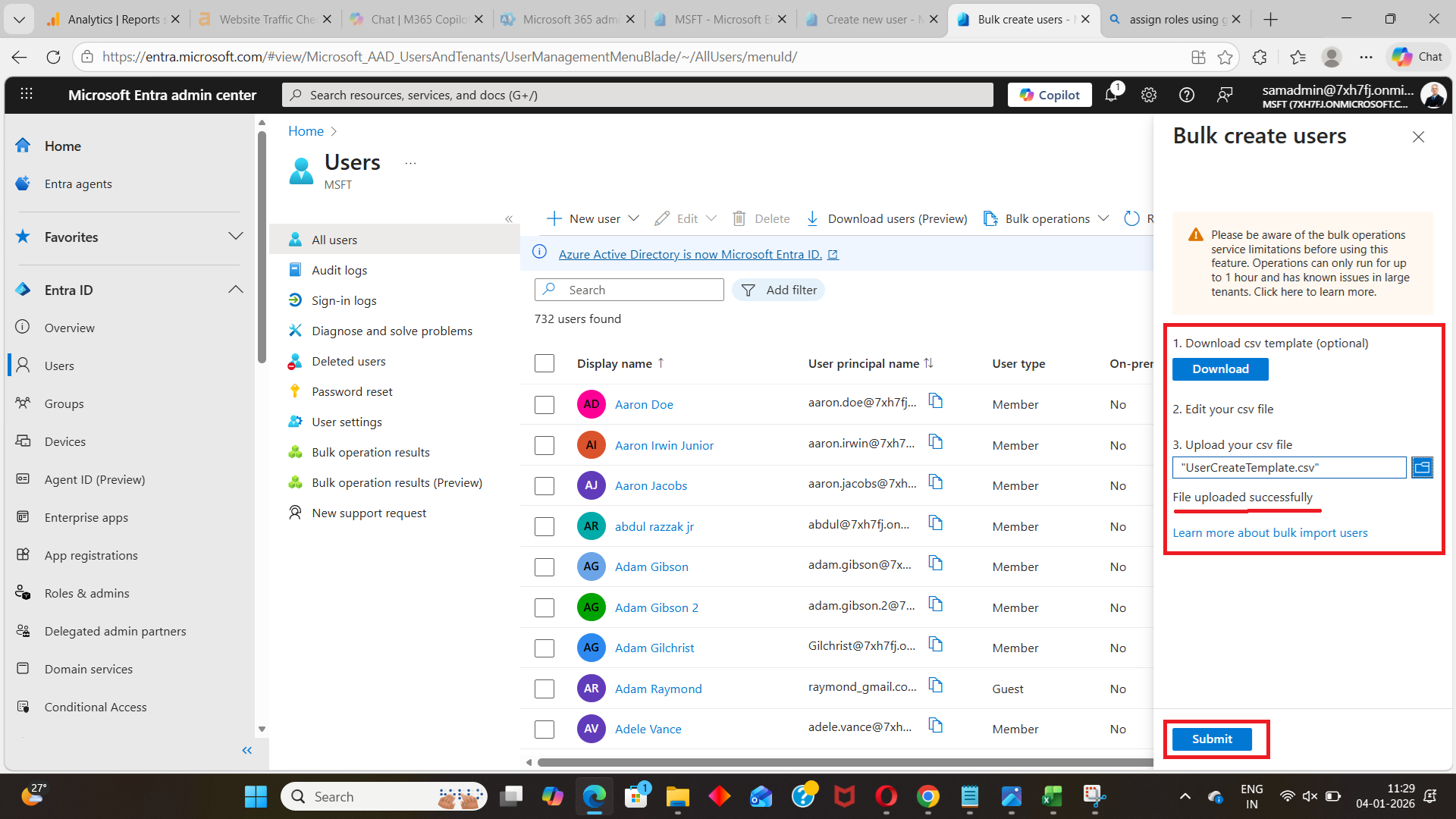
To begin bulk user creation, Entra ID requires you to use a predefined CSV template.
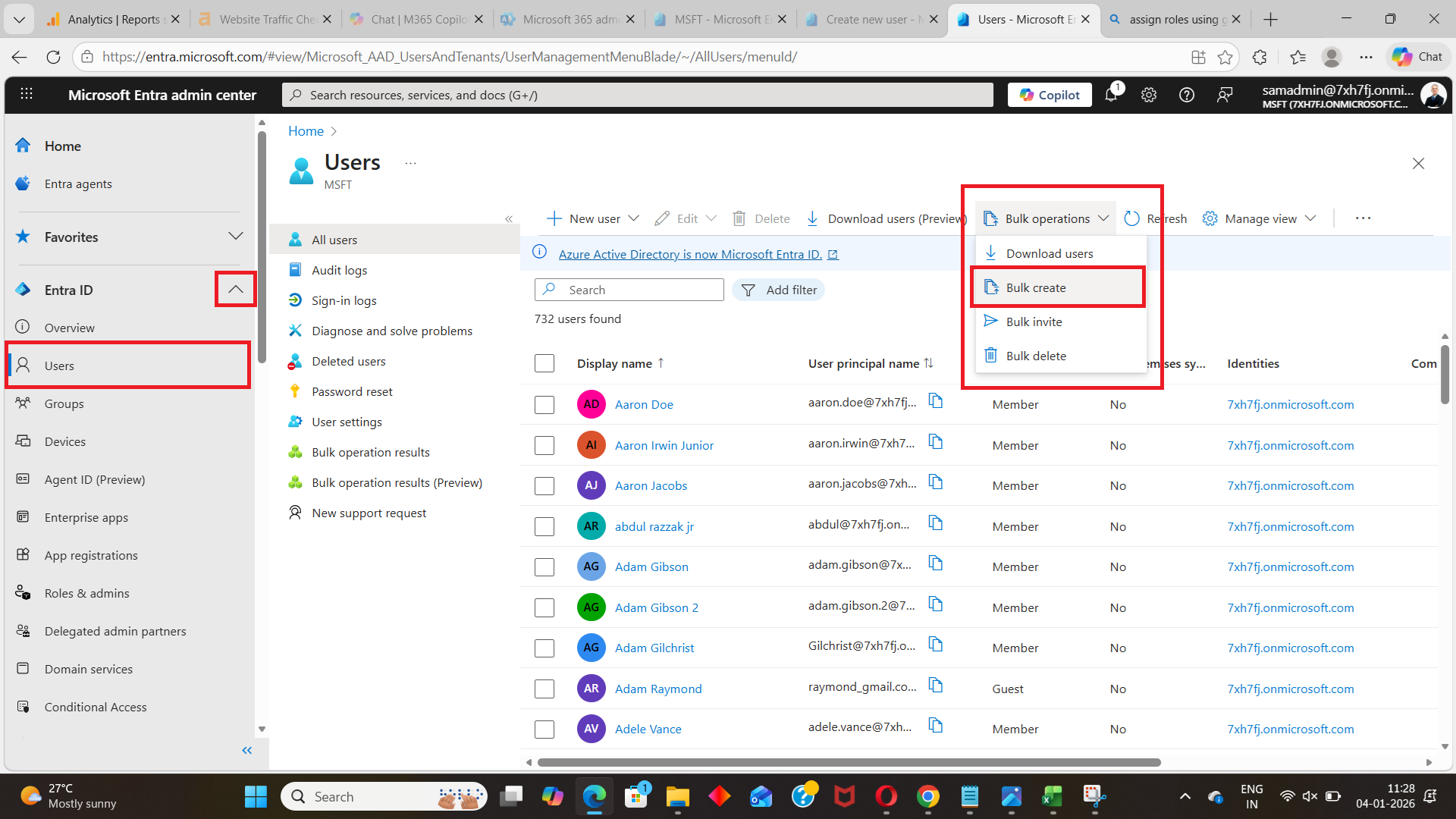
From the Microsoft Entra admin center:
- Navigate to Users
- Select Bulk create
- Download the sample CSV file
This sample file is critical because:
- It contains required headers
- It defines the expected data format
- It includes a version number that Entra ID validates during upload
⚠️ Important
Always use the latest sample CSV file provided by Entra ID. Do not reuse older templates, as header or version mismatches may cause upload failures.
Uploading the Users File (with Mandatory fields)
Once the sample CSV file is downloaded, you can start populating it with user details. While the template includes many columns, some fields are mandatory and must always be provided for successful user creation.
Mandatory fields you must provide
Although the exact column names are defined in the template, the following types of information are always required:
- User principal name (UPN) – Used for sign-in
- Display name – Visible across Microsoft 365 services
- Initial password – Required for account creation
- Account enabled status – Determines whether the user can sign in
- Usage location – Required for licensing scenarios
❗ Without these mandatory fields, Entra ID will not create the user.
Missing or empty mandatory values will cause the upload to fail or partially succeed with errors.

Do not modify CSV headers
The column headers in the sample CSV file must not be renamed, removed, or reordered.
Entra ID matches user data strictly based on:
- Header names
- Header sequence
- Expected data types
Even a small change—such as renaming a column or adjusting capitalization—can result in validation errors during upload.
💡 Best practice
Only modify the row values, never the header row.
Version number is required
The sample CSV file includes a version column, typically set to:
version:v1.0
This version value:
- Is mandatory
- Must be present for every upload
- Should be updated for subsequent uploads to reflect changes or new batches
⚠️ If the version value is missing or incorrect, Entra ID may reject the file.
Checking the File Upload Results
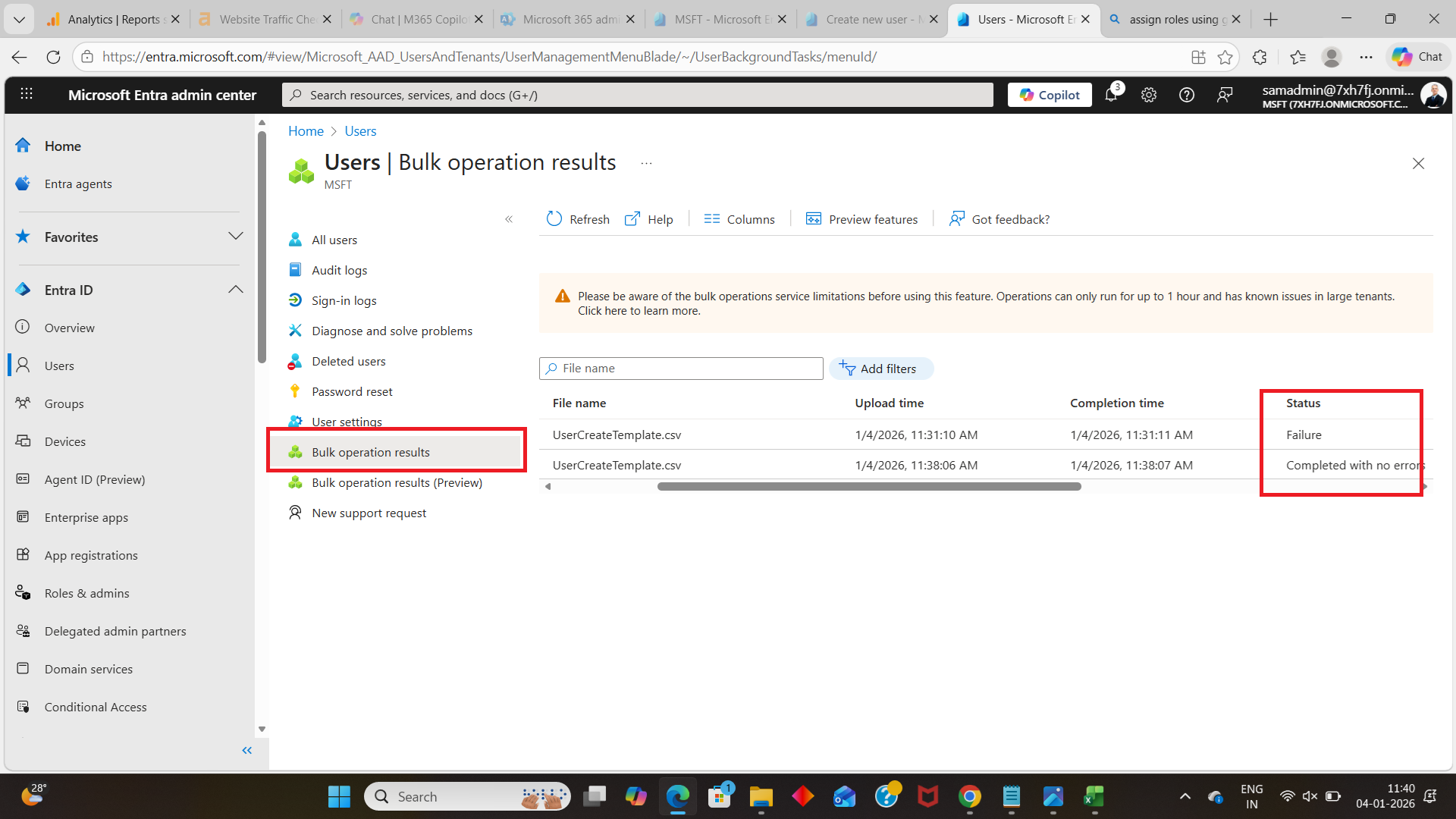
After uploading the CSV file, Entra ID validates the data and provides a detailed upload summary.
The results typically include:
- Number of users successfully created
- Number of users that failed
- Specific error messages per row, if applicable
This step is crucial because:
- Partial uploads are common
- Errors help identify missing mandatory fields or invalid values
- You can download the results file for auditing and correction
💡 Admin tip
Always review the upload results before moving on to license assignment or group membership changes.
Graph PowerShell Bulk User Creation Automation Alternative
While the Entra ID CSV upload method works well for occasional bulk operations, administrators managing frequent onboarding or large environments often prefer automation.
Microsoft Graph PowerShell offers a powerful alternative that:
- Eliminates manual CSV uploads
- Allows validation before creation
- Integrates seamlessly with scripts, HR systems, and workflows
M365Corner provides a step-by-step guide that explains how to bulk create Microsoft 365 users using Microsoft Graph PowerShell, including CSV-based automation and error handling.
👉 Learn how to bulk create Microsoft 365 users using Graph PowerShell on M365Corner
https://m365corner.com/m365-powershell/create-bulk-users-using-microsoft-graph.html
This approach is ideal if you’re transitioning from traditional Azure AD scripts or looking to standardize user provisioning in Entra ID.
Final thoughts
Bulk creating Microsoft 365 users in Entra ID (formerly Azure AD) is straightforward when you follow the required structure:
- Always use the official sample CSV file
- Provide all mandatory fields
- Never modify CSV headers
- Ensure the version number is present and updated
- Review upload results carefully
For administrators who want more control, flexibility, and scalability, Microsoft Graph PowerShell automation—as demonstrated on M365Corner—is the natural next step.
Did You Know? Managing Microsoft 365 applications is even easier with automation. Try our Graph PowerShell scripts to automate tasks like generating reports, cleaning up inactive Teams, or assigning licenses efficiently.
Ready to get the most out of Microsoft 365 tools? Explore our free Microsoft 365 administration tools to simplify your administrative tasks and boost productivity.